
Resources
How to remove or edit background graphics in PowerPoint
Not fond of a slide background you adopted? Learn how to remove or edit background graphics in PowerPoint


Maybe you’re using a presentation template, and the background image just doesn’t work for your slideshow. Or, maybe you’ve added your own picture as a background but don’t want it on all of the slides.
We’ll explain how to remove or edit background graphics in PowerPoint.
Background graphics for an entire presentation
When you have a background image on each slide in the presentation, it likely exists in the Slide Master. Luckily, you can change that image easily.
- With your presentation open, go to the View tab and select Slide Master.
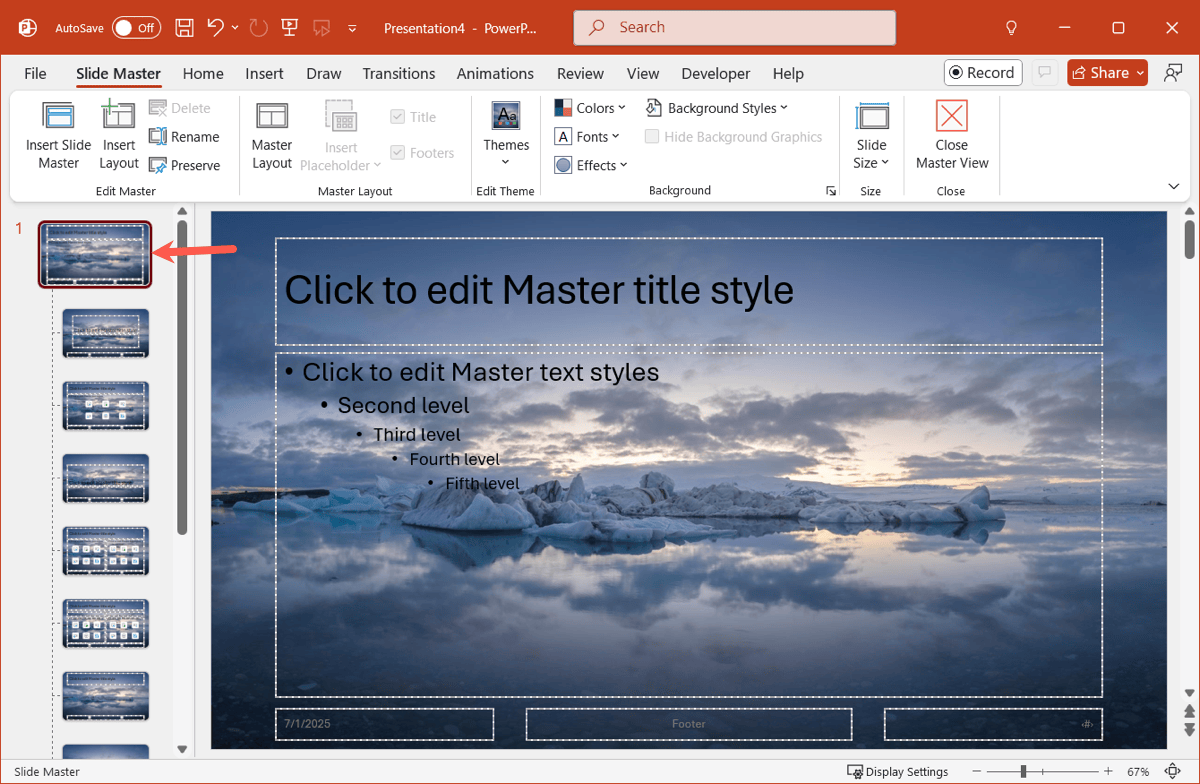
- Choose the Master Slide in the thumbnails on the left. This is the first slide that appears at the top.
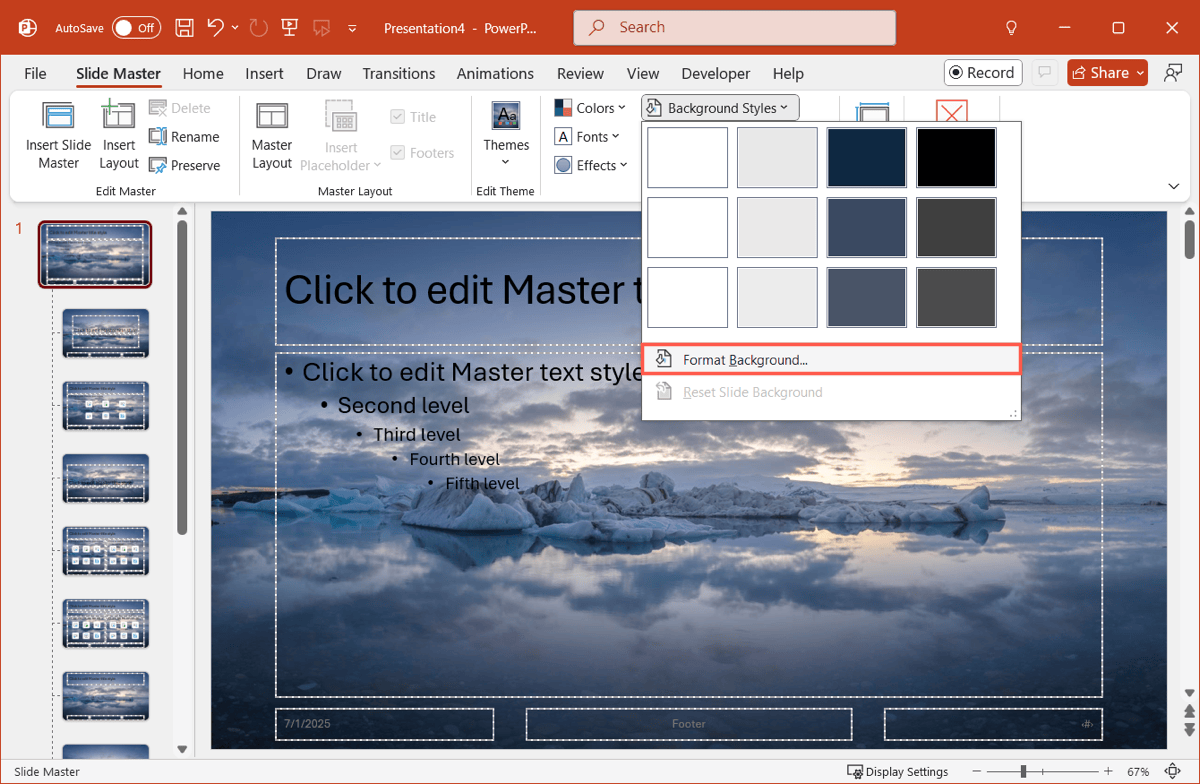
- Open Background Styles in the ribbon and pick Format Background.
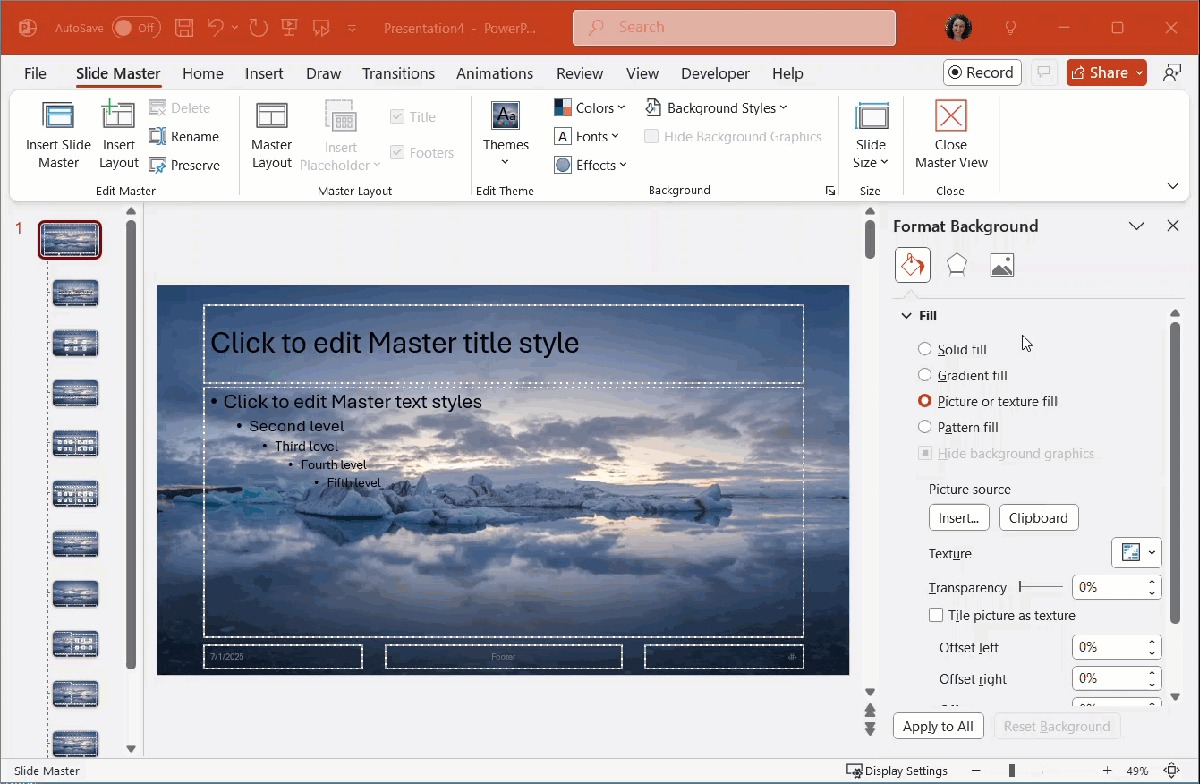
- In the sidebar that appears, select Solid fill. This should change the background to white, but you can choose a different color in the Color drop-down menu.
As you can see below, this changes the background for all slides.
- Select Close Master View in the ribbon when you finish.
Note: You can also pick another type of background other than a solid color if you like. Simply mark the option below Fill in the sidebar and configure it beneath.
Background graphics for a single layout
If you prefer to remove the background image for a particular layout rather than the entire slideshow, this is another option.
- Go to the View tab and select Slide Master.
- Choose the layout with the background you want to remove.
- Follow Steps 3 through 5 above.
As you can see below, this changes the background for only that slide layout.
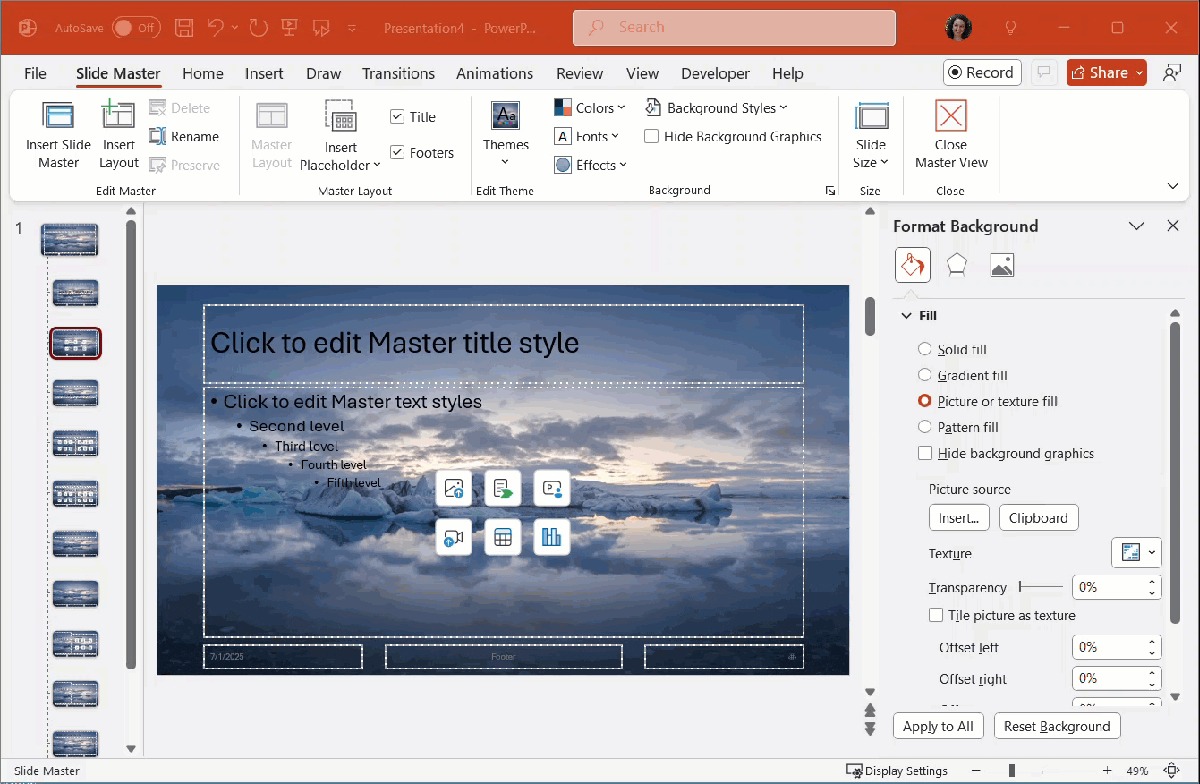
Note: Like the above, you can use a gradient, pattern, texture, or different picture for the background of that layout.
Background graphics for a single slide
If the background graphics are simply images, but you cannot select them and they are not formatted as the “background” like above, you can hide them on an individual slide.
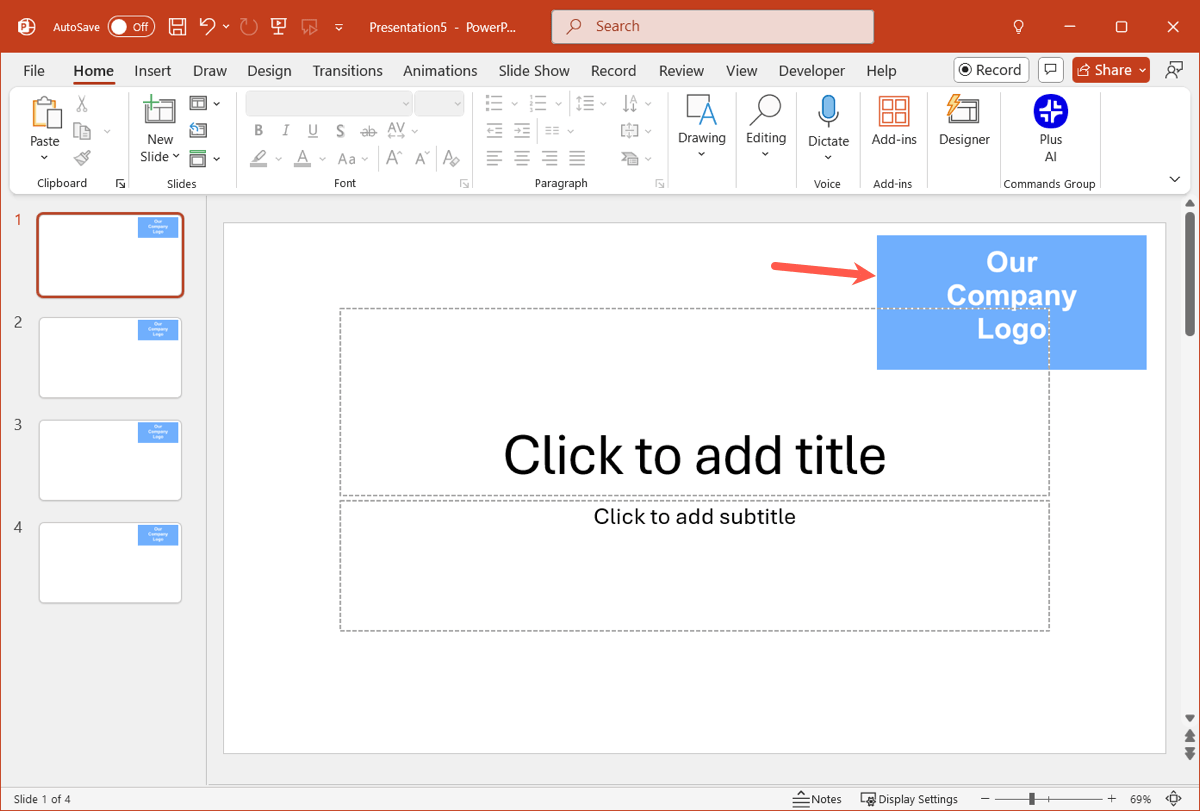
For example, here is an image that appears to be part of the background when in Normal View because it’s non-selectable.
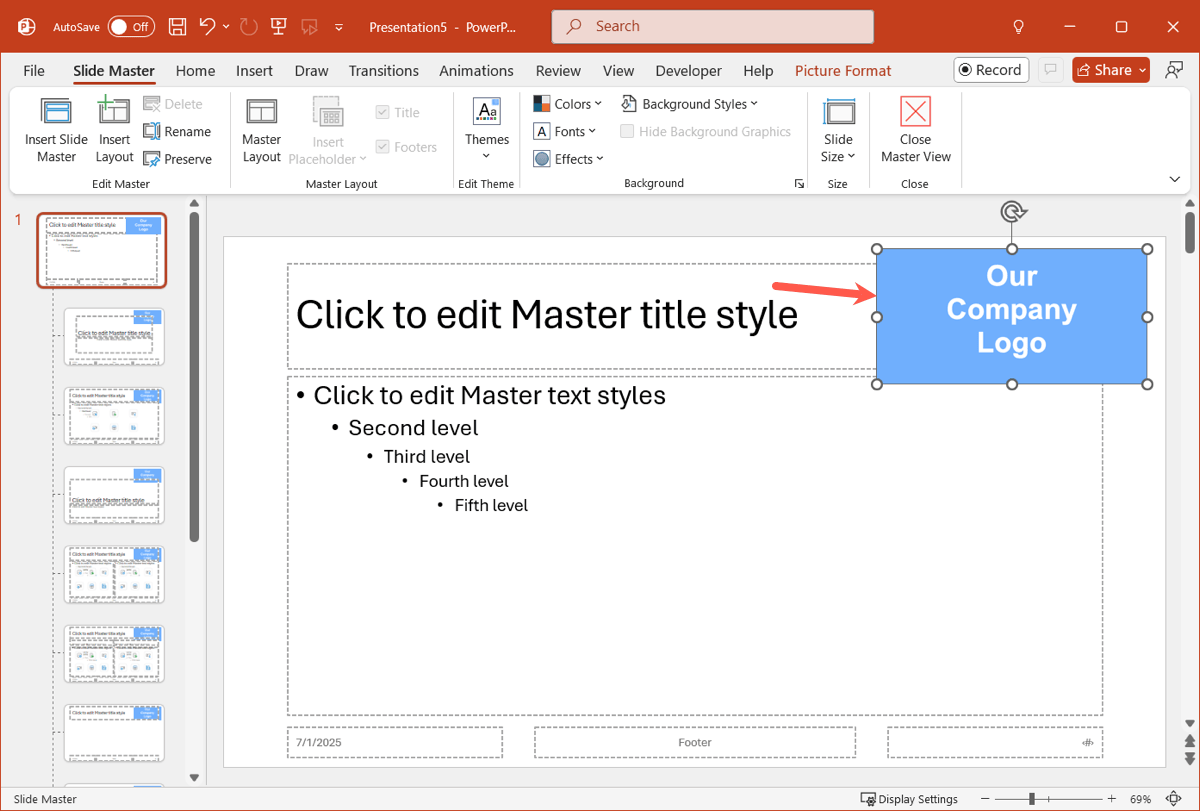
But you can see in the Slide Master that it’s merely a picture, not technically a background.
Tip: Learn how to create a picture in PowerPoint for something unique.
You can simply hide those “background” images without messing with the Slide Master. This is ideal if you want to keep those graphics on the other slides.
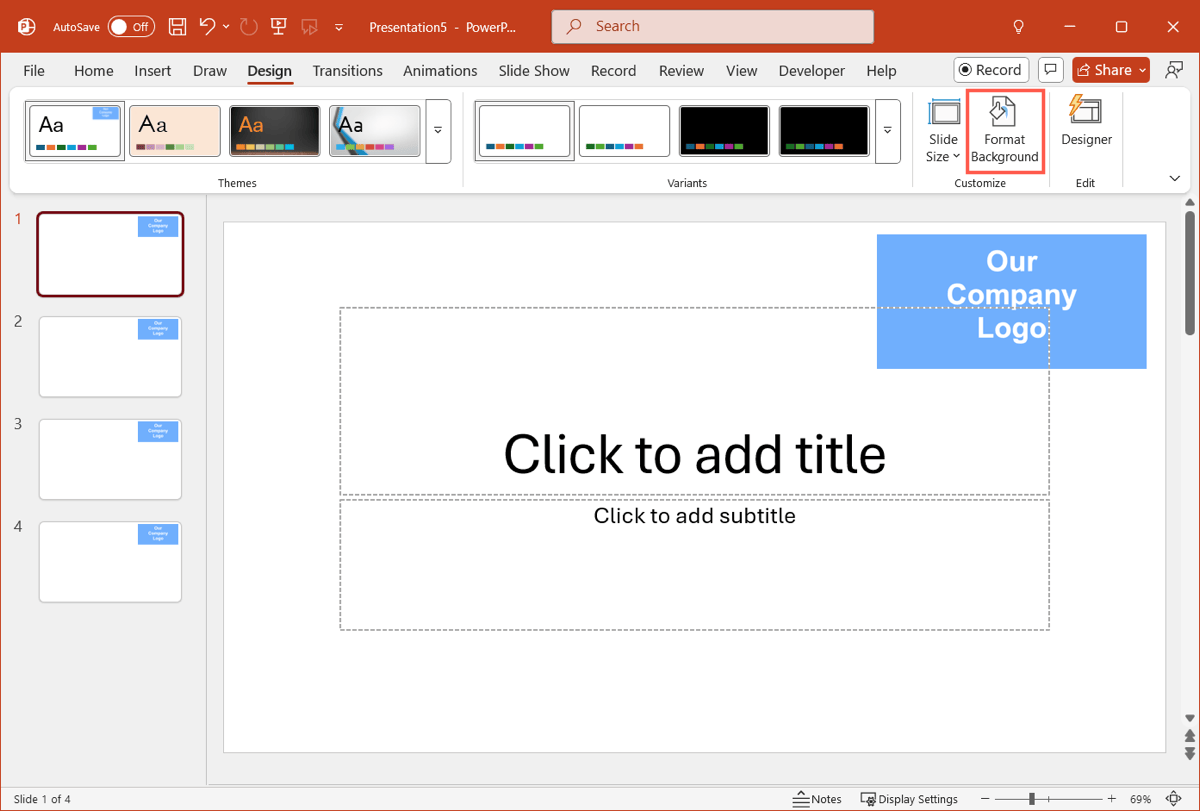
- Choose the slide with the background graphics and go to the Design tab.
- Select Format Background in the ribbon.
- In the sidebar, select Hide background graphics.
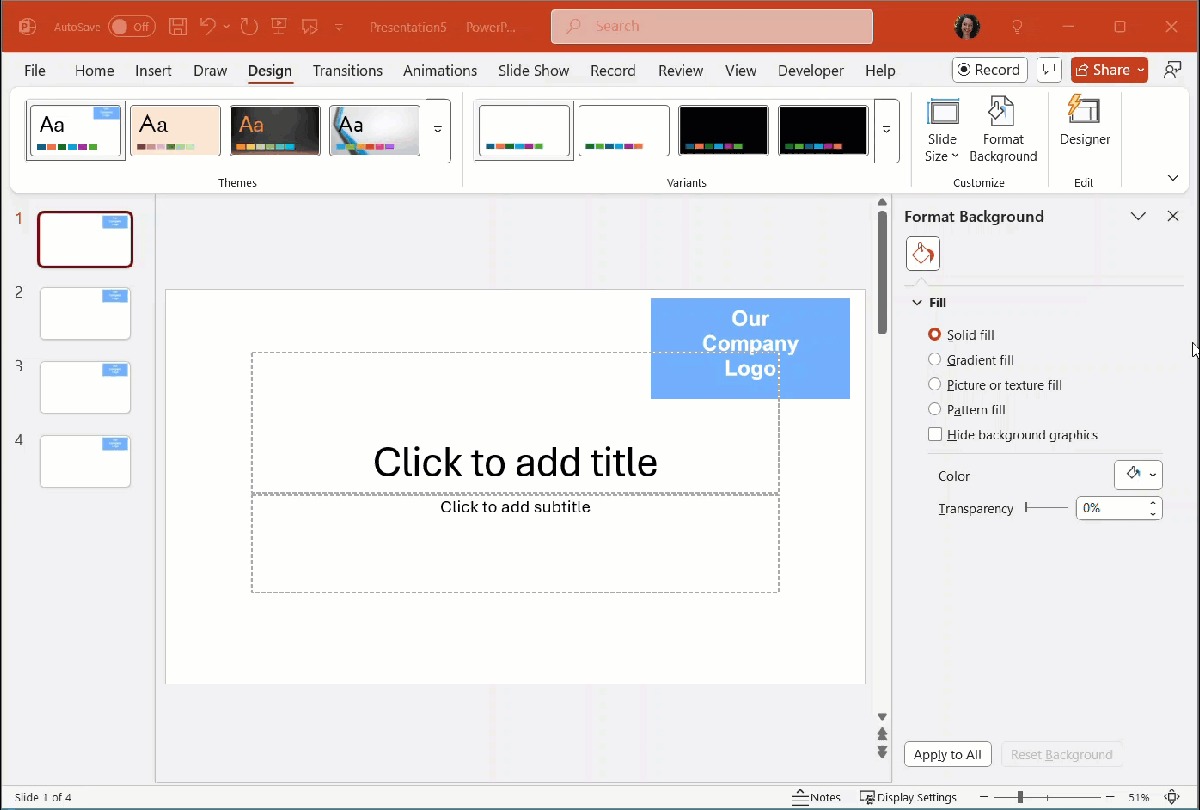
Note: If checking the box to hide the background graphics does not work, that means they are formatted as the slide background. Choose the Solid Fill option to remove them as described earlier.
Generate eye-catching graphics with Plus AI
Finding the right images for your presentation is one of the keys to successfully delivering your message. Along with helping you create effective slideshows, Plus AI can assist with AI image generation.
Just enter a description, hit Generate Image, and then insert the picture on your slide.
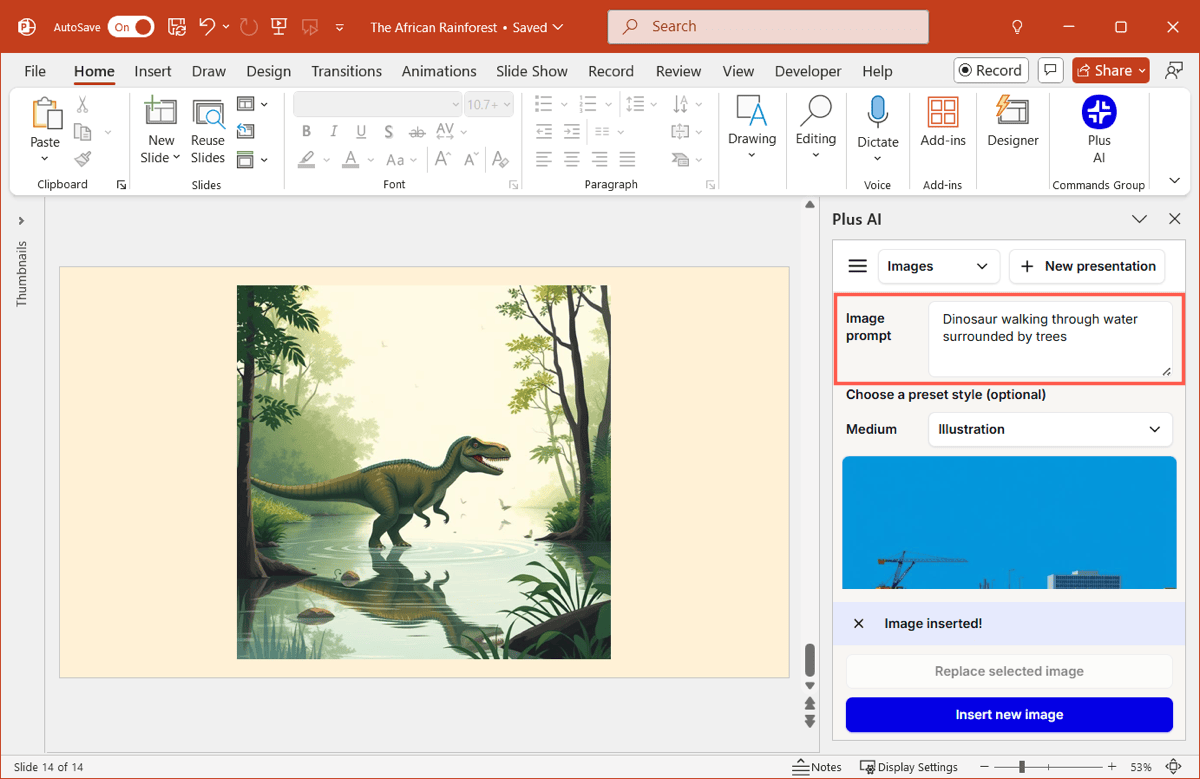
You’ll also notice options to pick from Photography or an Illustration and use a preset like Dusk or Modernist. And, if you’re not happy with the generated image, you can generate a new one.
For complete details, visit the Plus AI website or head right to the Plus AI for PowerPoint page.
Conclusion
Background images can add beautiful visuals to your PowerPoint presentation, but they don’t always fit each slide. For instance, you might have a slide with charts, and the background makes it look too busy.
You can easily remove or even edit the background graphics in PowerPoint for just the right appearance.
For more, look at how to change the background in Google Slides too!
FAQs
How do I change the background image in PowerPoint?
Go to the Design tab, select Format Background, and mark the Picture or texture fill option in the sidebar. Then, use the Insert button to locate and select the image you want to use for the background.
How do you extract the background image in PowerPoint?
Select a slide with an image background and right-click that image. Choose Save Background, pick a location to save it, and click Save.
How to overwrite an image in PPT?
Select the image and go to the Picture Format tab. Open the Change Picture menu in the ribbon, choose the location for the image, and follow the prompts to replace the existing image.