
Resources
How to Convert a Document to a Presentation With AI
See how to convert a document to a presentation with AI using Plus AI, with step-by-step instructions, examples, and tips for better slides.

From internal memos to external reports, converting documents to presentations can easily take more work than expected. Design is just one part of the process. Before design, you have to find the highlights, map out the slides, and distill the content into takeaways.
But with the right AI presentation maker, you can convert PDFs and Word documents into slide decks in minutes. I’ll show you how to generate professional presentations, refine them to your standards, and share them with your audience using Plus AI.
How to convert a document to a presentation with Plus AI
Here’s how to convert documents and PDFs to PPT files in four steps. For this walkthrough, I’ll use a Word document featuring a sample report that covers a post-webinar audience survey.
1. Choose your preferred interface
Start by selecting the Plus AI interface that best fits your goals and workflow. Plus works in your browser, via the Google Slides extension, or via the PowerPoint add-in.
Here’s what you should know about the three interfaces:
-
Plus AI in your web browser: Great for generating highly visual decks in image mode (more on that below) or quick presentation drafts that you can export to PPTX.
-
Google Slides extension: Ideal for creating presentations with full manual and AI preset editing capabilities that you can fine-tune and share directly in Google Workspace.
-
PowerPoint add-in: Helpful for working with the Plus AI Agent, which can handle all of your prompt-based creative and editing tasks.
2. Upload your document to Plus AI
Once you’ve decided where to work, upload your document of choice. Plus AI supports PDFs, text files, and Microsoft Word documents.
Next, tell the tool what to do with the material or what you want to accomplish. Plus supports both simple prompts with basic notes on structure or highlights as well as detailed prompts with slide-by-slide breakdowns.
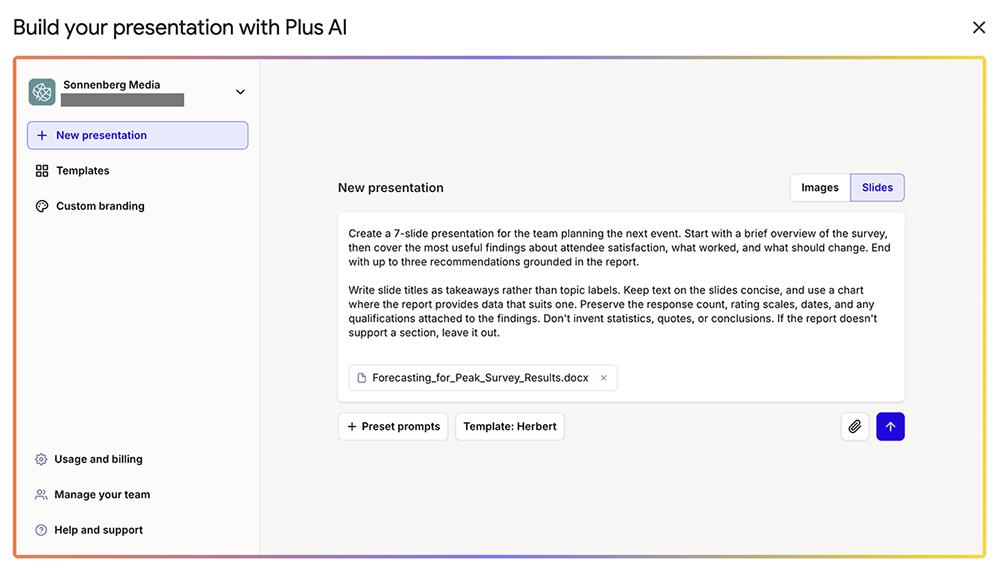
If you aren’t sure how you want the presentation to look, you can always start with a basic prompt. Then, let Plus AI outline the slides for you so you can make preliminary edits before it generates the full deck.
3a. Generate a fully editable deck with slide mode
With Plus AI’s slide mode (available in the browser and in Google Slides), you generate fully editable slides that you can export as native PPTX files. I recommend using slide mode when you need to create a professional looking presentation using your pick of templates.
Start by browsing Plus’s template library and choosing the one that best fits your brand and audience. Alternatively, set up your own branded template to apply your company’s colors, fonts, and logo.
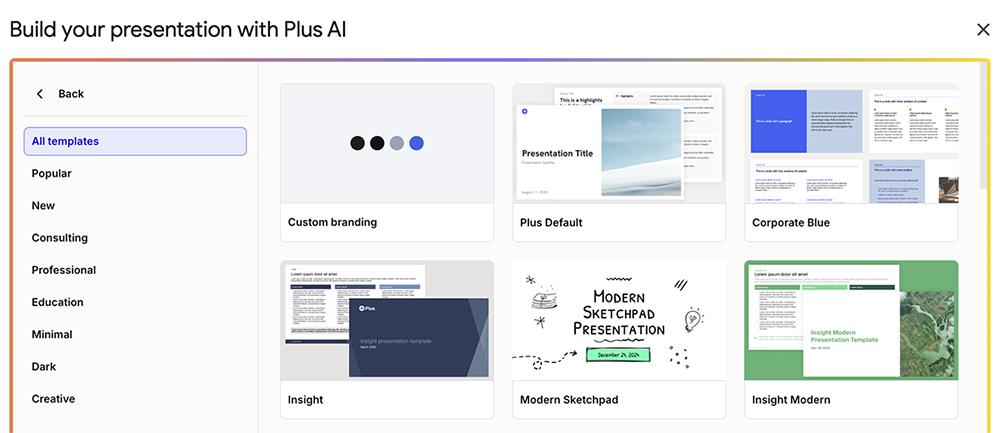
After you submit your prompt along with the Word document or PDF file you want to convert, Plus will turn the material into an outline. I recommend clicking through to review each slide. Check to make sure the title and description are on track.
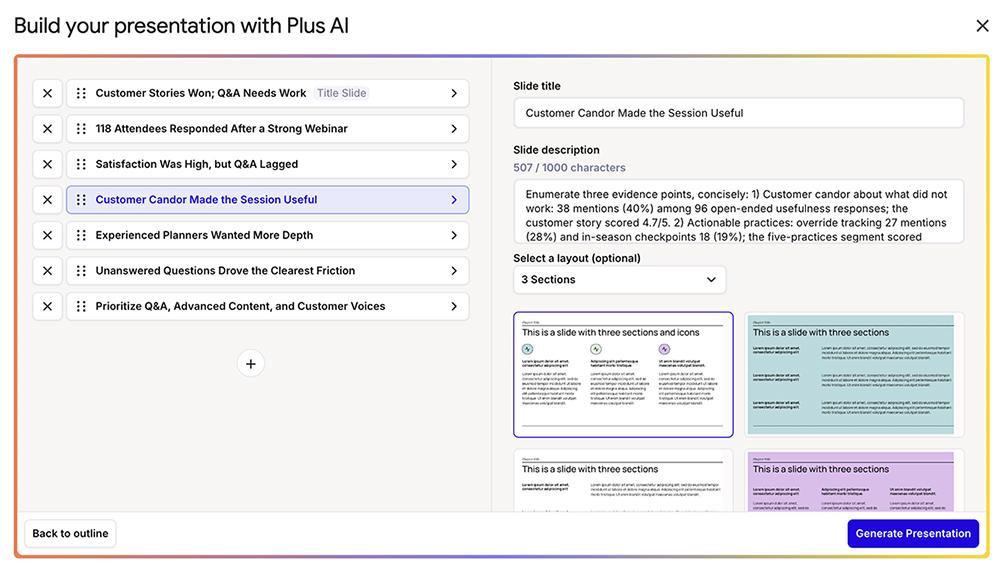
And if you’re particular about the slide layout, manually select the one you want for each slide. (If you don’t, Plus will automatically pick the one that best fits the slide content.)
Then, generate the deck. Within a minute or two, the full presentation will be ready to review.
Read through each slide. If you need to make any changes, start with Plus AI’s editing presets. They make it easy to remix a slide with a different layout or rewrite the text in a text box or across a slide.
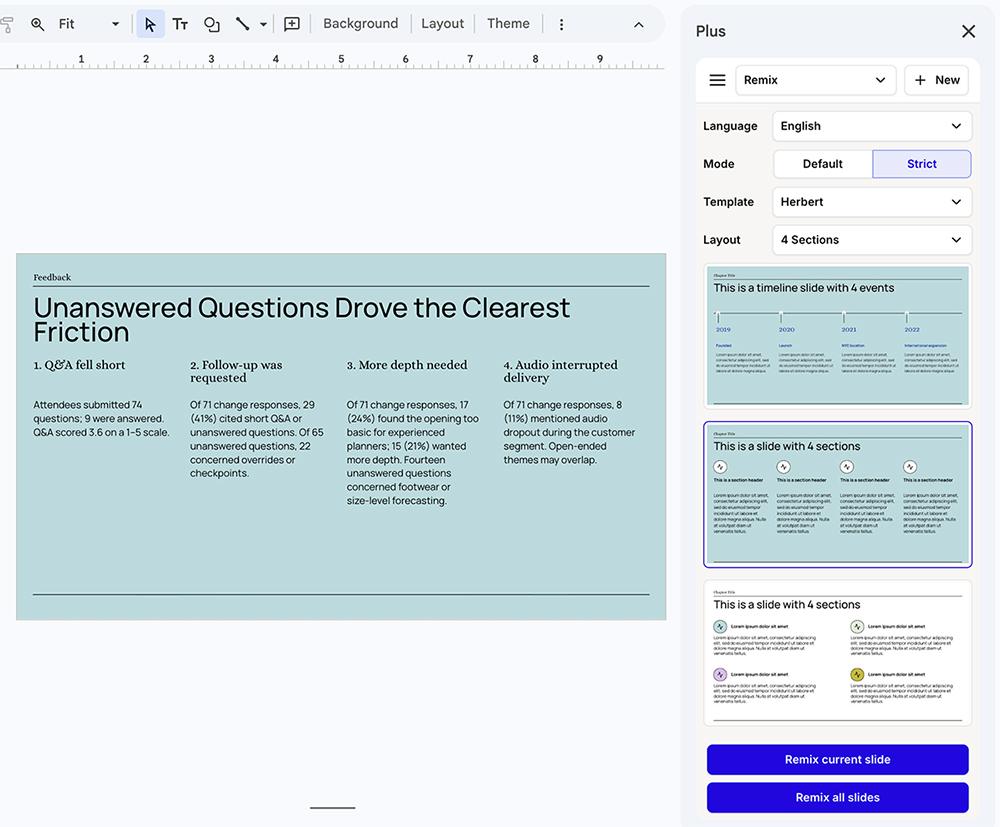
You can also insert or replace images using your preferred AI model and style. Choose from models like Nano Banana Pro or Flux Schnell and styles ranging from cinematic photos to vector illustrations.
And if you need to add another slide, just input your prompt, add a title, and choose a layout.
3b. Generate a visual deck with image mode
When you use Plus AI’s image mode (available in the browser and in Google Slides), you generate creative slides that don’t follow a set template. I like using image mode when I want a deck that looks unique and has a lot of visual appeal.
Rather than using templates, image mode works from styles. You can pick from one of the style options or let the tool select for you based on the content.
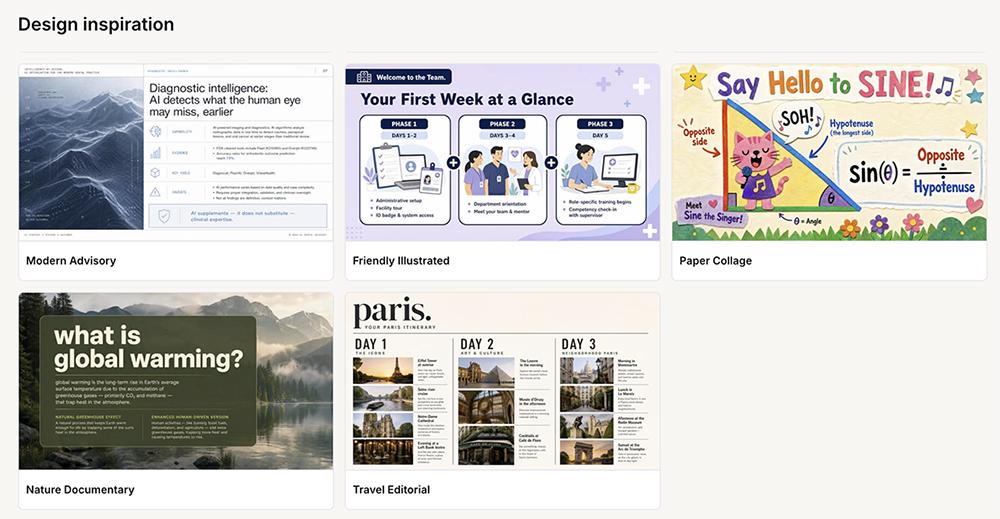
When you submit your prompt and document, image mode instantly starts generating your deck. You won’t get an outline to review, but you will see a summary of the slide titles and contents once the deck is ready for review.
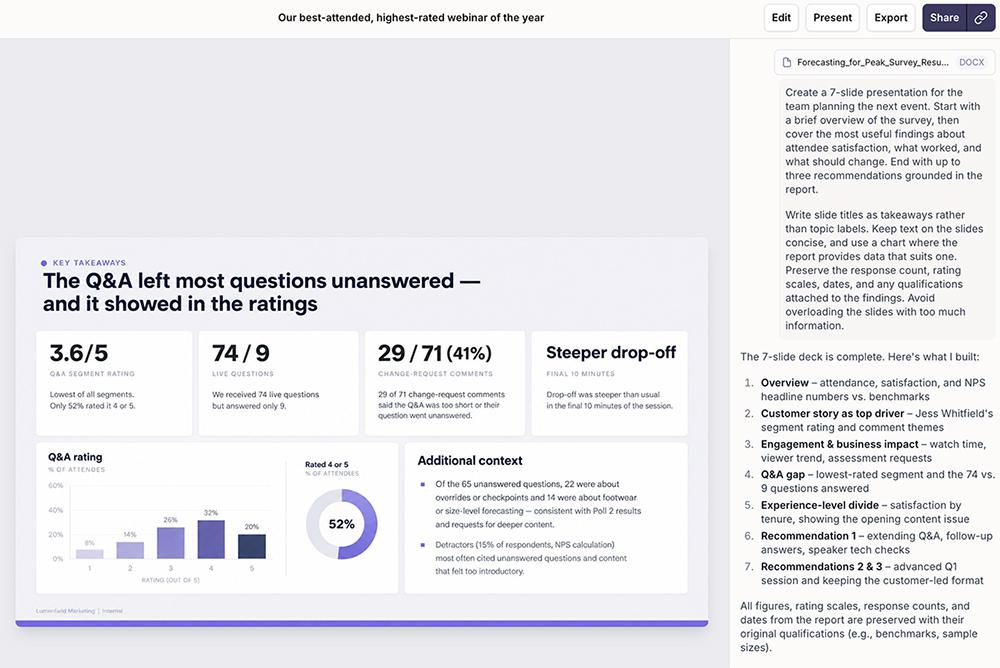
And while image mode doesn’t have editing presets, it does allow prompt-based editing. This feature supports slide-by-slide edits.
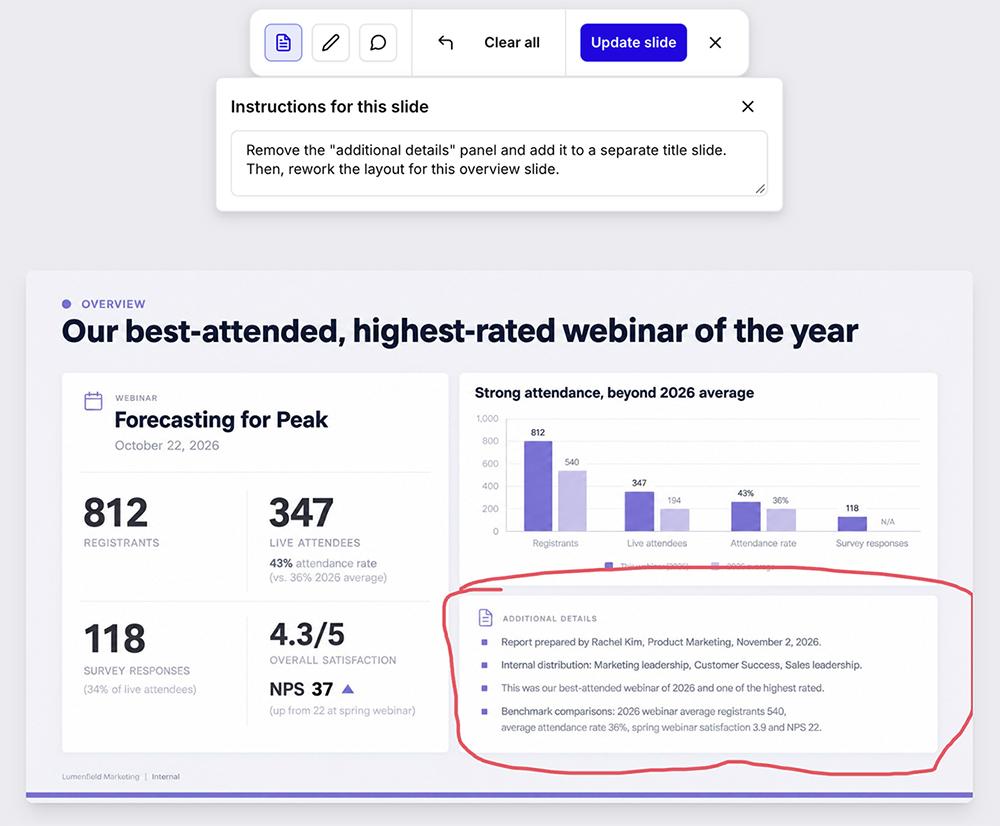
For example, you can enter editing instructions, draw on the slide to clarify where to make changes, and comment on certain elements. You can also add individual slides to the deck.
3c. Generate and refine a presentation with agent mode
When you work in PowerPoint or with the Plus AI API, you also have the option to use agent mode. I prefer agent mode when I have a more open-ended document conversion request and I know we’ll need some back-and-forth before getting the deck just right.
The agent handles every step of the process, from developing an outline to generating a slide deck to applying edits. All you have to do is prompt it.
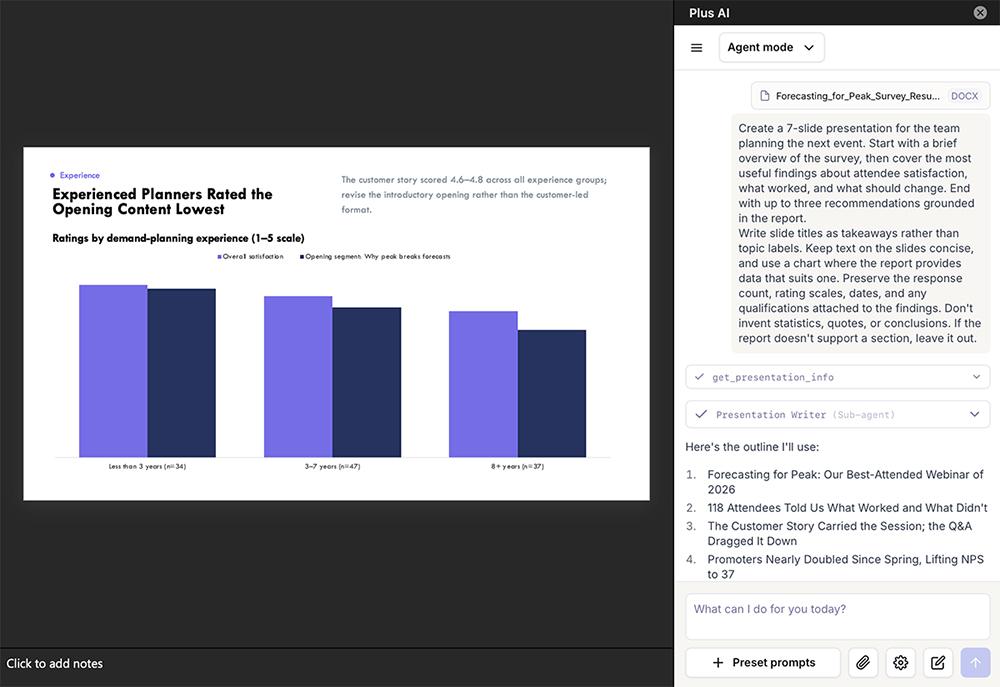
With agent mode, you can select from Plus AI’s template library. Or you can add design direction in the prompt itself.
Whether you want to rewrite a text box, redesign a slide, or rework the entire deck, you can do so via a prompt. Clarify what to change and what to keep to get the results you want.
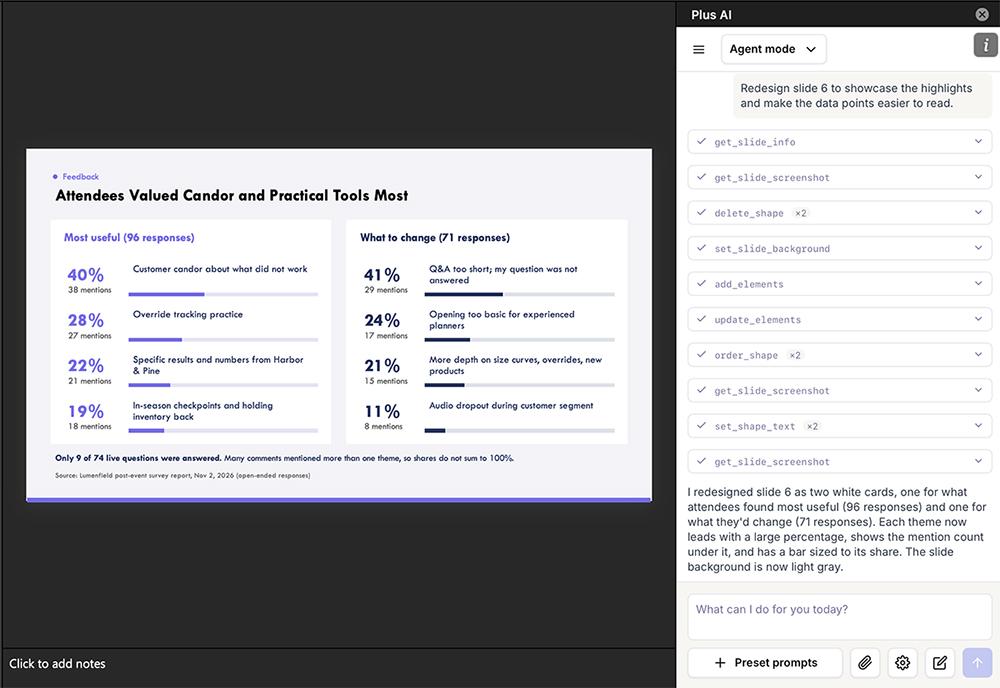
And when you just need a quick edit, you can select one of Plus AI’s editing presets instead.
4. Present, share, or export your deck
Once you’ve finished reviewing your deck, you’re ready to present it live or share it with the target audience. With Plus AI, you have several options.
Present the slide deck directly from the Plus AI app in your web browser or from Google Slides or PowerPoint. If you opt for PowerPoint or Google Slides, enable presenter notes to keep your talking points handy as you present.
Share a link to the presentation with viewers. When you use the Plus AI app in your web browser, you have the option to make the link private or add a passcode. When you share via PowerPoint or Google Slides, you can use the platform’s built-in tools.
Export the slide deck as a PDF or as a PPTX file. Then, distribute the file or upload it to Google Slides or PowerPoint for further editing and sharing.
5 documents worth converting into presentations
While you can convert many different types of files to slide decks, each one calls for a different approach. Here’s what to keep in mind as you generate a presentation and what to include in your prompt.
Marketing and sales reports
Reports can supply the content for QBRs, campaign reviews, sales performance presentations, and much more. Rely on AI to organize the results around performance against targets, what drove the changes, and the actions proposed for the next measurement period.
For marketing reports, highlight campaign results, spend, and contribution to pipeline or revenue. For sales reports, include pipeline movement, closed deals, and progress against quota. Use charts to make trends visible and include the report’s analysis to explain the results.
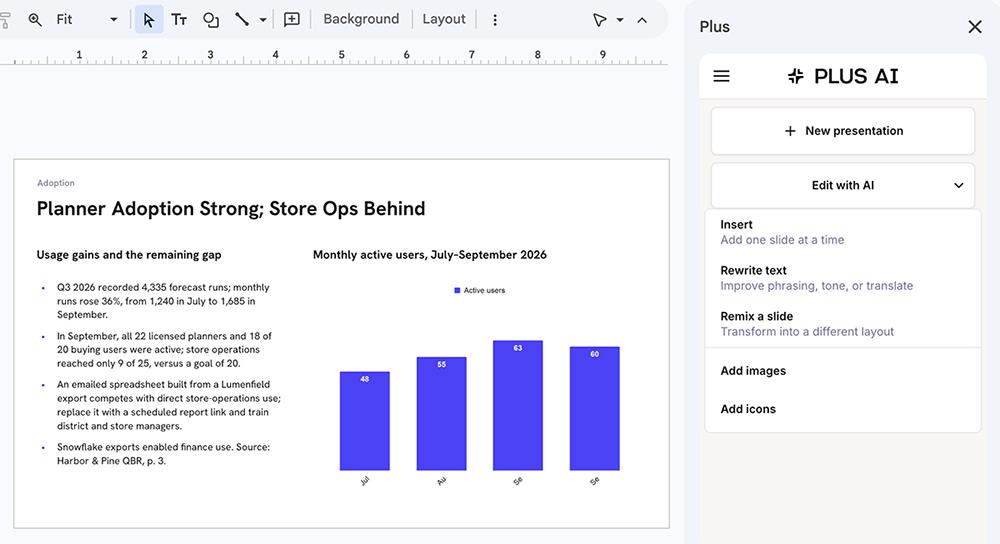
Prompt to try: Create a client quarterly review presentation from this report. Connect performance to the client’s objectives, explain the results that need discussion, and finish with next-quarter priorities.
Meeting notes and transcripts
Kickoff calls rarely follow the tidy structure you’d want in a project brief. Scope, timing, and responsibilities may come up several times as people work through questions. Converting the transcript to a slide deck can consolidate that discussion into a recap both the client and delivery team can use.
Prompt the presentation tool to identify both final decisions and remaining questions. Incorporate timelines, costs, team members, and next steps into the slides.
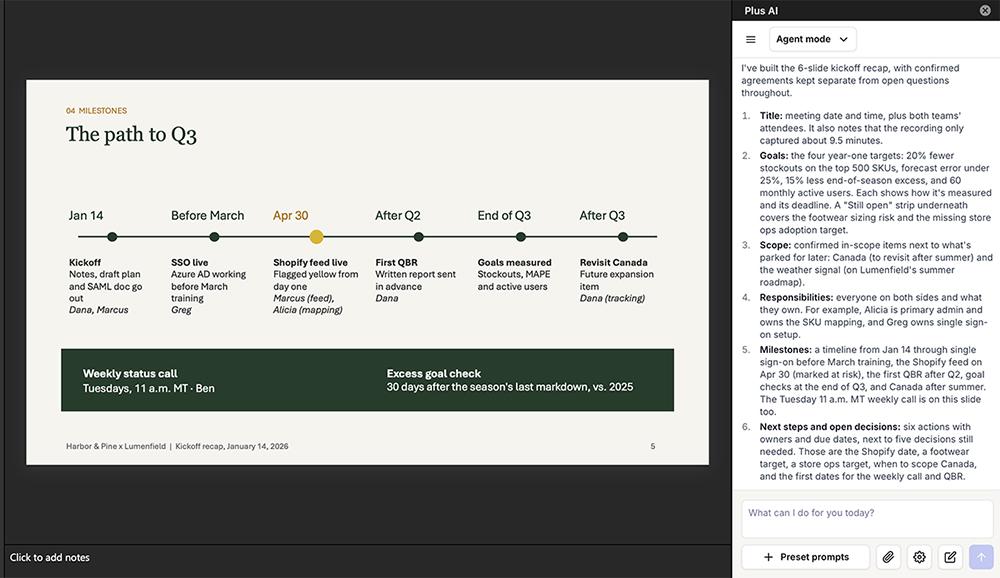
Prompt to try: Create a shared kickoff recap from this transcript. Consolidate repeated discussions into project goals, scope, responsibilities, milestones, and next steps. Distinguish final agreements from earlier suggestions and list outstanding decisions separately.
Research reports
Original research can anchor a content campaign well beyond the report’s publication. A presentation gives you material for the research launch, conference sessions, and customer briefings. You can generate each deck from the same report, with a brief tailored to its purpose.
For the launch, showcase the headline findings and their implications for the market. For a customer briefing, focus on results relevant to that customer’s sector or business priorities.
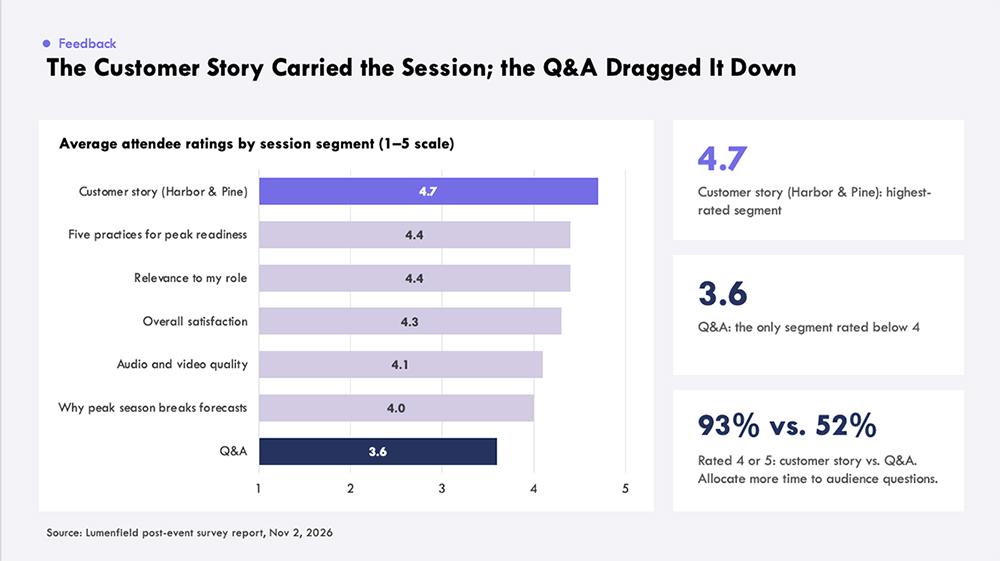
Prompt to try: Create a presentation to launch this research report to [target audience]. Lead with the headline findings, visualize the key data comparisons, and explain their significance for buyers. Close with the implications for the industry and a link to the full report.
Onboarding documents
One comprehensive guide can support several training decks. You might generate a first-week orientation, a session on a particular workflow, or training for a specific role.
Using the guide as the source makes the training slides easier to update. When a process changes, you can use the updated guide to revise relevant training slides, keeping the written instructions and the presentation consistent. This is particularly useful when several managers deliver the same training.
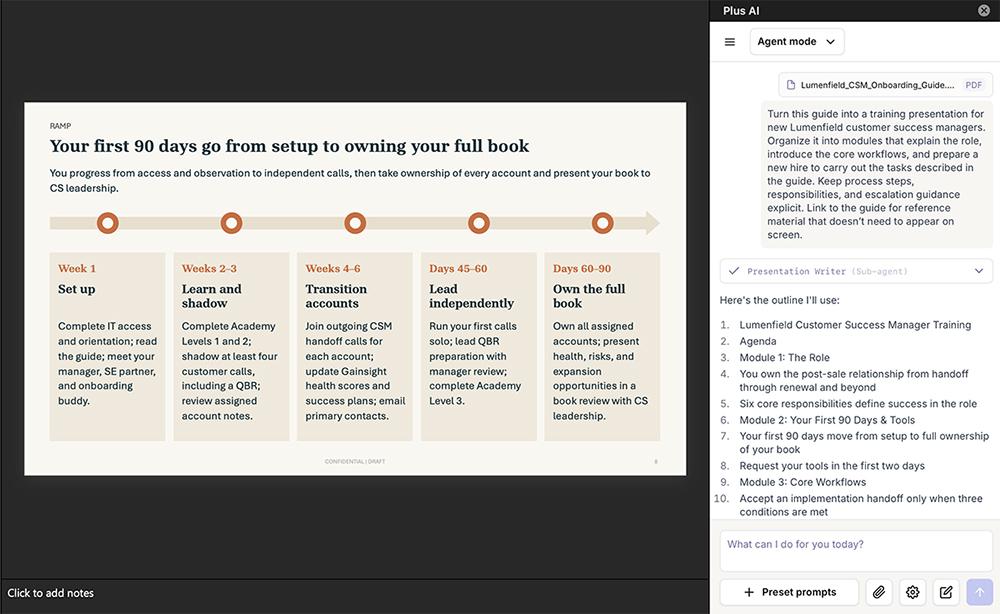
Prompt to try: Create a first-week training presentation for new customer success managers using this guide. Focus on the responsibilities and workflows they’ll need to begin their role. Link to detailed procedures and later-stage training material.
Webinar scripts
By the time you’ve finished a webinar script, you’ve basically already worked out the entire flow and narrative. Use AI to generate accompanying slides with concise text and visuals. Then, present using your original script. Ask for slides to introduce demonstrations or audience questions included in the script.
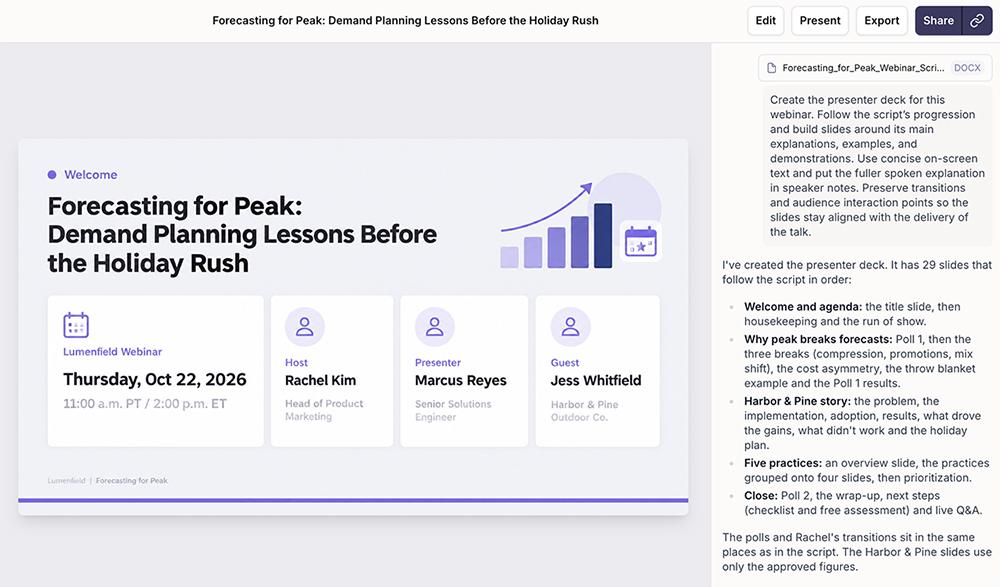
Prompt to try: Create a presenter deck that follows this webinar script. Use concise slide text and visuals to support the spoken content. Include slides to cue demonstrations and audience questions where they appear in the script.
Tips for turning a document into good slides
Make your presentations even stronger with a little preparation before converting the file and a few edits afterward.
Write a helpful prompt
Your document gives the presentation tool raw material to work from. But a strong slide deck also needs an informative prompt. Depending on your document type and presentation goals, your prompt might mention:
-
What you want the slide deck to do or achieve
-
Who’s creating or presenting the slide deck
-
Who the presentation should speak to
-
What parts of the document you think are most important to highlight
-
Which parts of the document to skip
-
How many slides you want the slide deck to include
Adding these notes in your prompt takes only a minute. But it can have a big impact on the output, saving you time during the editing process.
Limit each slide to one idea
Condensing a lengthy document or a report with dense data into a short presentation can result in overloaded slides. To make your presentation more useful for your audience, limit each slide to one main idea.
One way to do this is to include a list of proposed slides (one idea each) in your initial prompt. Alternatively, let the AI tool determine the concepts and review the slide titles in the outline before you generate the presentation. For instance, with Plus AI, you can easily add or reorder slides during the outline process.
Match the mode to your goals
Before you start creating, think about how you’ll use the slide deck. If you plan to refresh it regularly (like a QBR) you’ll want a presentation file that’s easy to edit. If you want it to earn style points (like a keynote presentation) then editability may be less important.
Slide mode and agent mode are a good fit for presentations that need updating over time. Both produce native PPTX slides that you can adjust in Google Slides or PowerPoint. That’s helpful if you need to collaborate with colleagues or clients.
Image mode is often a better fit when the deck is more visual or if a unique style is essential. Just know that editing options are more limited both during the creative process and if you export to PowerPoint or Google Slides.
Fine-tune your slides with AI editing tools
Think of the first draft as a starting point, not the finished product. Use the AI editing tools to rewrite dense text, reorganize information, or rework layouts.
Work slide by slide rather than regenerating the whole deck. Targeted edits keep the parts that already work intact while fine-tuning the rest.
Have a slide deck that needs major or minor edits? Upload your PPTX file to Plus AI, and use the editing presets in Google Slides or the Plus AI Agent in PowerPoint.
Move supporting details to an appendix
Data is helpful for powering charts, tables, and other visualizations. But too much data can overwhelm slides, making them harder to read quickly and less valuable for viewers.
Move full tables, methodologies, and definitions after the closing slide. This way you’ll be able to reference them if necessary without making them a key part of the presentation. Alternatively, share a link to the full data or methodology so viewers can explore after the event.
Convert your next document with Plus AI
Upload a PDF, Word file, or text document and generate a draft deck in a few minutes. Choose slide mode for fully editable PPTX slides, image mode for a more stylized result, or agent mode for a prompt-based workflow.
Plus AI works inside Google Slides and PowerPoint, so there’s no new tool to learn. Try Plus AI free for seven days and get a head start on your next presentation.
Frequently asked questions about converting documents to presentations
What file formats can I convert into a presentation?
Most slide deck tools convert Word documents, PDF files, and plain text. Just upload the document, enter a prompt, and let the converter summarize the file and turn it into a presentation.
How do I convert PDFs to PowerPoint presentations?
First, find a PDF to PPT converter. Many slide deck tools can transform PDF files to PowerPoint.
Upload the PDF, enter your instructions or presentation outline, and select a slide deck template. Generate and edit the deck. Then, export it to Microsoft PowerPoint.
Not all AI presentation makers generate native PPTX files. This can lead to layout issues. Open the resulting file in PowerPoint to check the layout, figures, and text before sharing it.
If you need to edit individual slide elements, check whether the exported slides are editable. Some tools produce image-based slides, which won’t give you the same control over text and layout.
Can I export my presentation to Google Slides and PowerPoint?
Export options depend on the presentation tool you use. Look for one that generates native PPTX files that you can use in PowerPoint. Even better, use a tool that works directly in Google Slides or PowerPoint so you can skip the export step.