
Comparisons
How to Use Claude for PowerPoint: 4 Ways & an Alternative
Can Claude make good PowerPoint slides? We tested chat, Cowork, Claude Design, and the add-in, plus cover when to use an alternative like Plus AI.

Ask Claude for a PowerPoint deck, and the AI tool will reliably generate one within a few minutes. But that doesn’t mean the result will be suitable to present to colleagues, leadership, or clients.
The output depends on the method you use, the level of detail in your prompt, and the design guidelines you provide. I’ll walk you through how to use Claude, Cowork, Design, and the PowerPoint add-in, sharing the best use cases and biggest drawbacks for each based on my own tests. I’ll also show you when it’s worth considering a dedicated AI presentation tool like Plus AI instead.
4 ways to use Claude to create PowerPoint presentations
Anthropic gives you three main ways to create slide decks with AI in the Claude app, plus a PowerPoint add-in. While you can also generate presentations using Claude Code, an API, and an MCP connector, we’ll cover the four most common options here.
1. Claude chat
The standard Claude interface (available in a browser, desktop app, and mobile app) can build a PowerPoint presentation via chat. It generates a fully editable PPTX file from a prompt, file upload, or combination of the two.
This workflow is the quickest option and works well if you just need to spin up a deck without much design input or control.
2. Claude Cowork
Claude Cowork is similar to the standard Claude interface but has a couple extra bells and whistles:
-
Since it has agentic capabilities, you can give it access to certain files or folders and prompt it to find relevant information.
-
It allows slightly more design control by prompting you to choose a presentation template or upload a deck to emulate.
-
It has scheduling capabilities, so you can instruct it to generate an updated report deck on a daily, weekly, or monthly basis.
This method is the best option when you want automation and scheduling.
3. Claude Design
Claude Design is built to generate visual content, so it’s theoretically the best option for creating slide decks. It offers the highest level of design control and lets you present in the Claude app, export to PPTX or PDF, or upload directly to Google Slides.
This approach is the best option when you need control over your presentation design.
4. Claude for PowerPoint add-in
The Claude add-in works directly in PowerPoint, essentially inserting the AI assistant directly into your presentation tool. Everything it generates is fully compatible with and editable in PowerPoint.
This option is the best choice when you prefer working in PowerPoint and you want to use an AI assistant but you don’t want to use Copilot.
How to create a PowerPoint presentation with Claude
While the four methods have similar workflows, each has its own quirks. I’ll walk you through each one using Opus 5 (medium or high effort).
How to generate a PowerPoint in Claude chat
To generate a slide deck in Claude, give it a prompt and (optionally) upload files to guide the output. For example, you can upload logos to incorporate into the deck or PDF reports and Word documents with content to repurpose.
Across all the prompts I tested, Claude reliably created decent decks. It followed my prompts carefully, organized information neatly, and produced professional looking presentations.
For instance, it visually highlighted takeaways, making them easy to read and understand.

Claude also did a great job at generating charts. They were fully editable after exporting to PPTX and importing to PowerPoint.
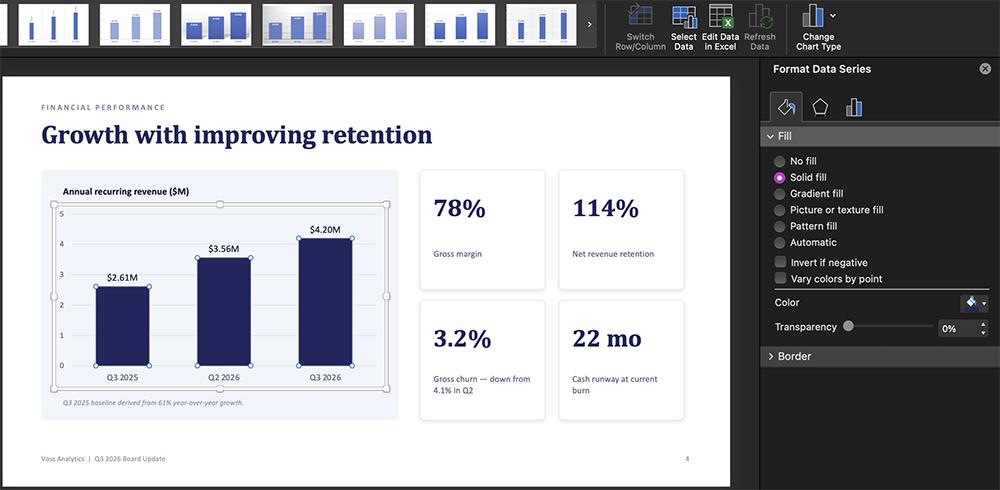
Claude doesn’t provide a template library or let you set up custom branding. But you can upload a presentation template you want it to use. It did an excellent job of applying the style to my presentation.
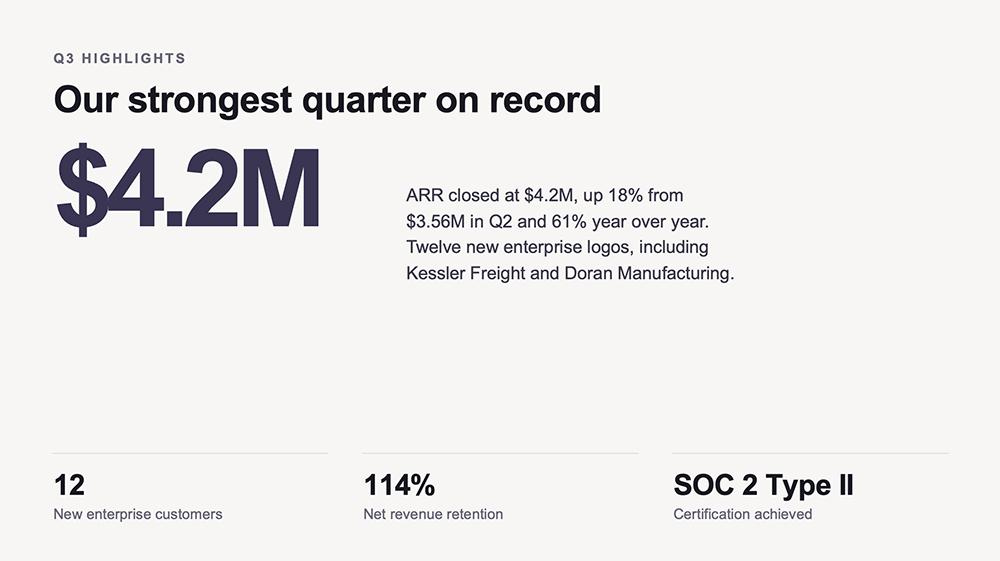
But if you don’t give Claude much visual instruction to go on, it’ll create generic presentations. For example, it generated multiple decks with title slides that were some variation of this:

How to create a PowerPoint with Claude Cowork
The Claude Cowork workflow is similar to the chat interface, but with one important difference. While it doesn’t have a template library, it sometimes asks you to pick a visual treatment (clean corporate, data-forward, minimal monochrome, etc.) for the presentation. This increases the chance that you’ll get a design that works for you.

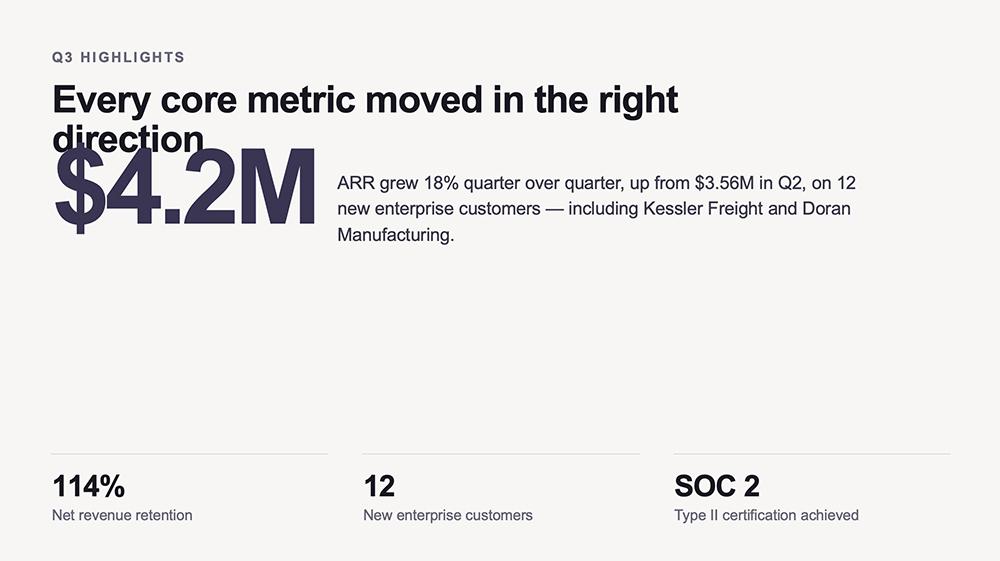
Across all the prompts I tested, Claude and Cowork generated nearly identical decks. In fact, Cowork had its own version of the title slide design above.

Compared to Claude, I found that Cowork had a slightly better visual sense. It was more likely to insert icons to add visual flair.

It also made a smart decision about how to use a logo I provided (with no specific instructions), inserting the logo in the upper right corner of all slides.
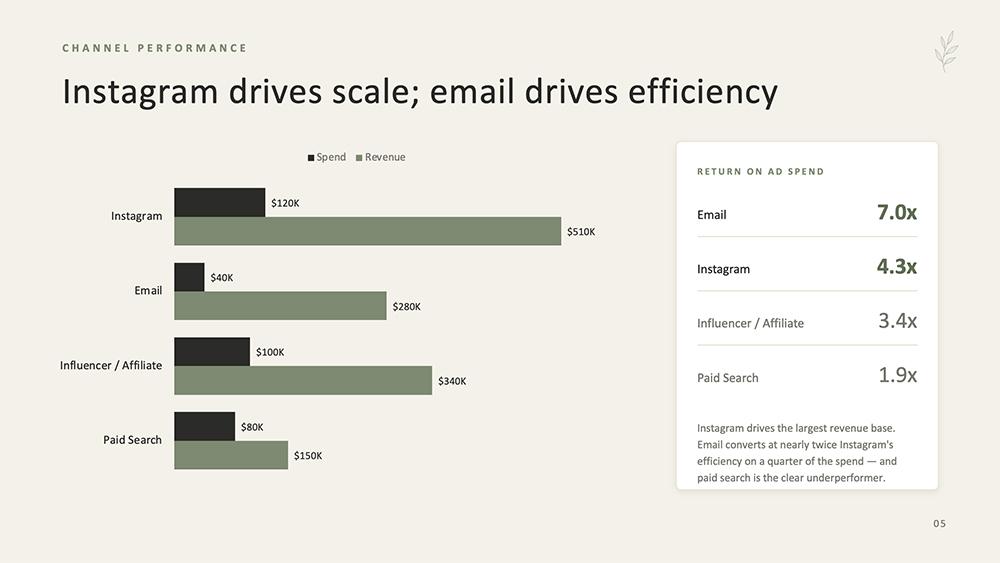
It was also better at sticking to a color palette. While Claude occasionally inserted elements with seemingly random off-brand colors, Cowork created more visually cohesive presentations.
Cowork applied my PowerPoint template just as well as Claude did. In fact, the two presentations look almost identical.
How to make a PowerPoint with Claude Design
Unlike the other two in-app workflows, Claude Design has a (small) template library. But since the library has just a half dozen options, I’d only recommend using these templates if you don’t have brand guidelines.
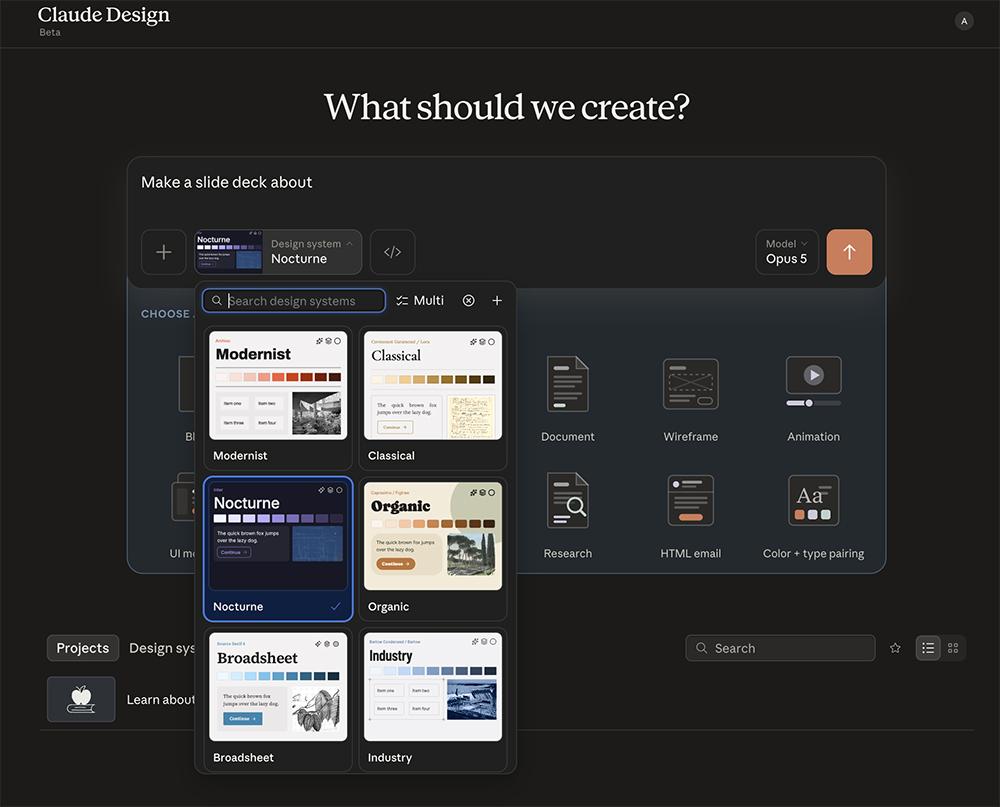
Fortunately, it’s easy to set up your design system in Claude Design. You can either upload logos, Figma files, and PPTX files or you can build the system in Claude Code.
But while its slide layouts were unique compared to Claude and Cowork, Claude Design’s visual sense didn’t really wow me. When applying a preset layout, for example, the slide designs were pretty lackluster. In the absence of visual cues, the takeaways don’t stand out.
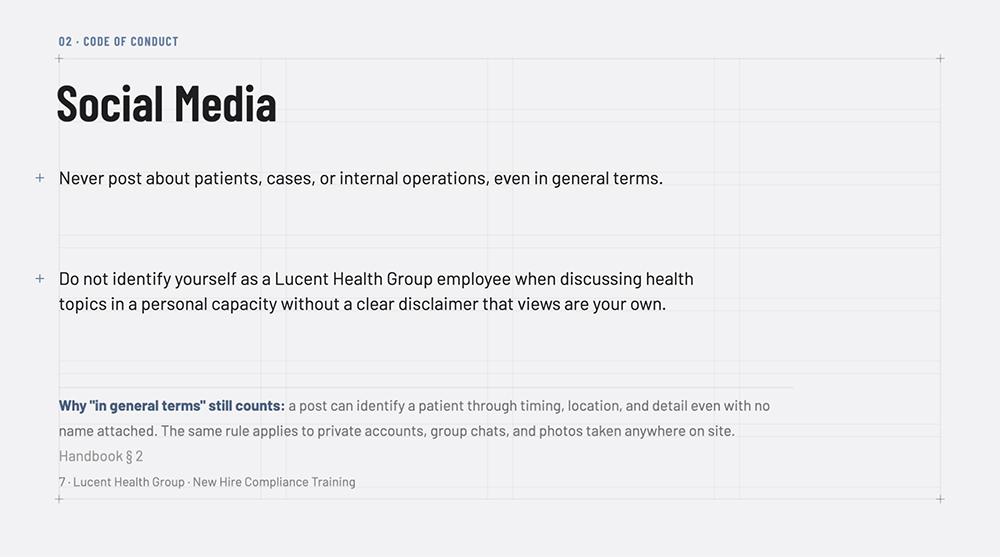
When applying my design system, the slides looked fine but lacked information. Claude Design seems to default to minimal copy unless you prompt it otherwise.
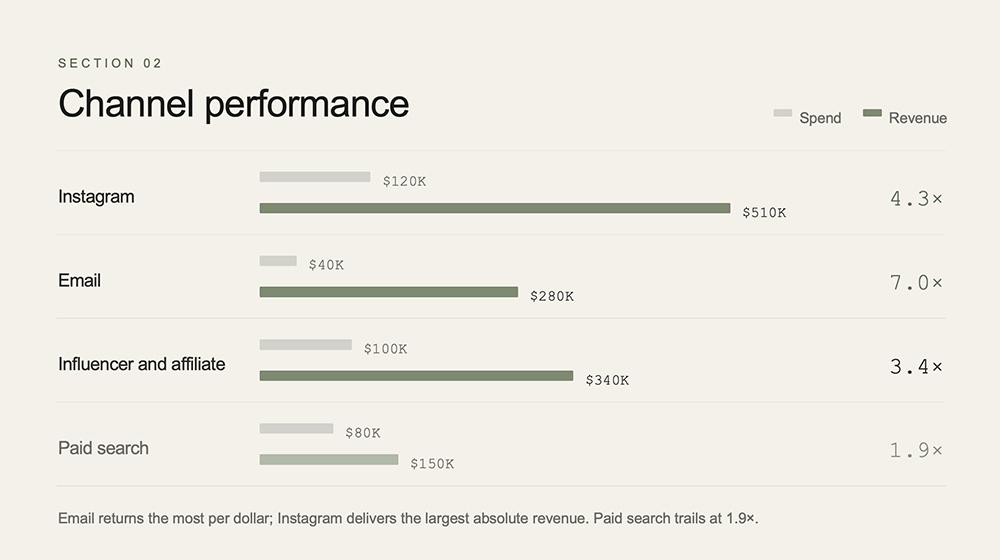
Claude Design also effortlessly applied my PPTX template, generating slides that look almost exactly like those generated by the other versions of the tool.
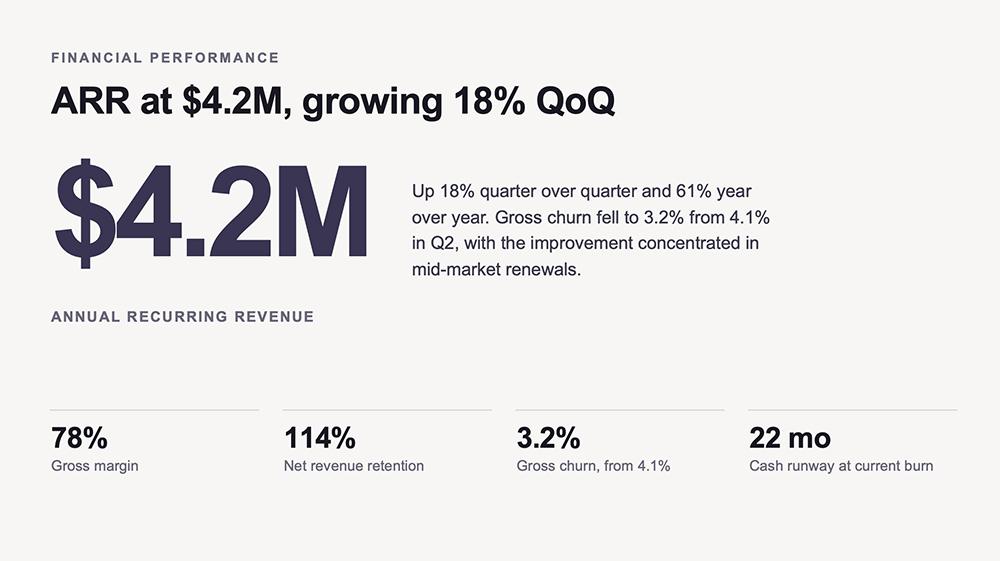
When compared side by side with Claude and Claude Cowork decks, I didn’t always agree that Claude Design chose a better layout for the information. In fact, many of my Claude Design slides ended up looking more jumbled, leaning more heavily on bullet lists instead of visual callouts.
How to produce slides using the Claude for PowerPoint add-in
The add-in essentially inserts Claude chat into PowerPoint. You can input a prompt and share files, and you can also point to connectors and Claude skills.
Similar to Claude chat, the add-in doesn’t have a template library or a design system option. Yet of all four methods, I found the add-in to be the worst at design by far.
When left to its own devices, it seemed to follow no real design principles in terms of layout and color.
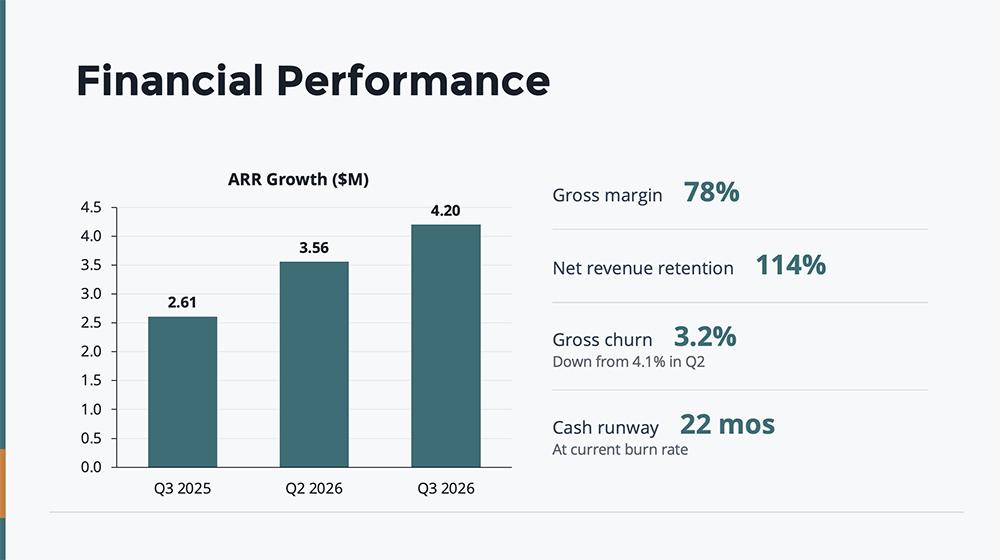
When I provided some design direction for another deck, the add-in did a better job at organizing information.
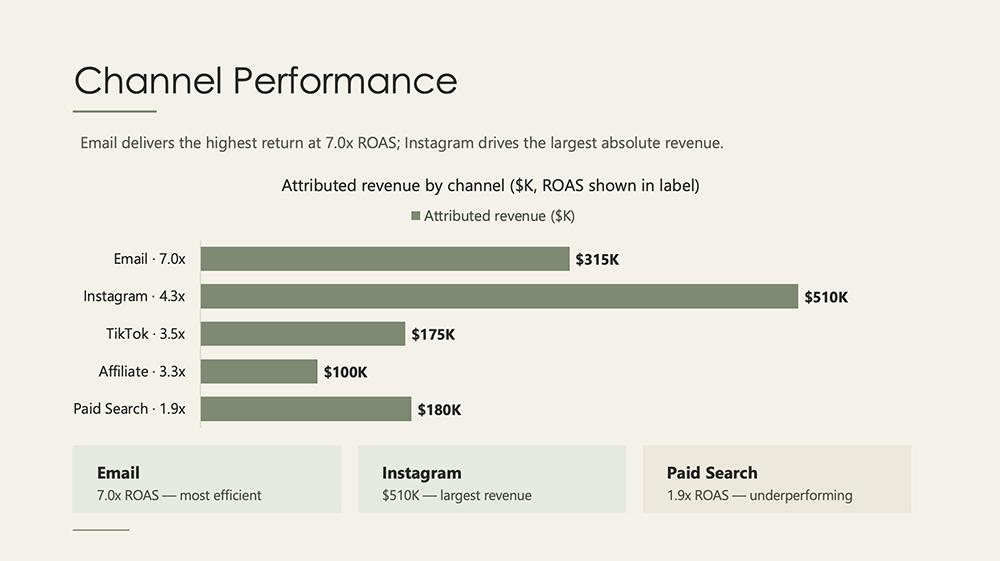
And when I provided a template for it to use, the add-in generated slides that look similar to the other tools’ output.
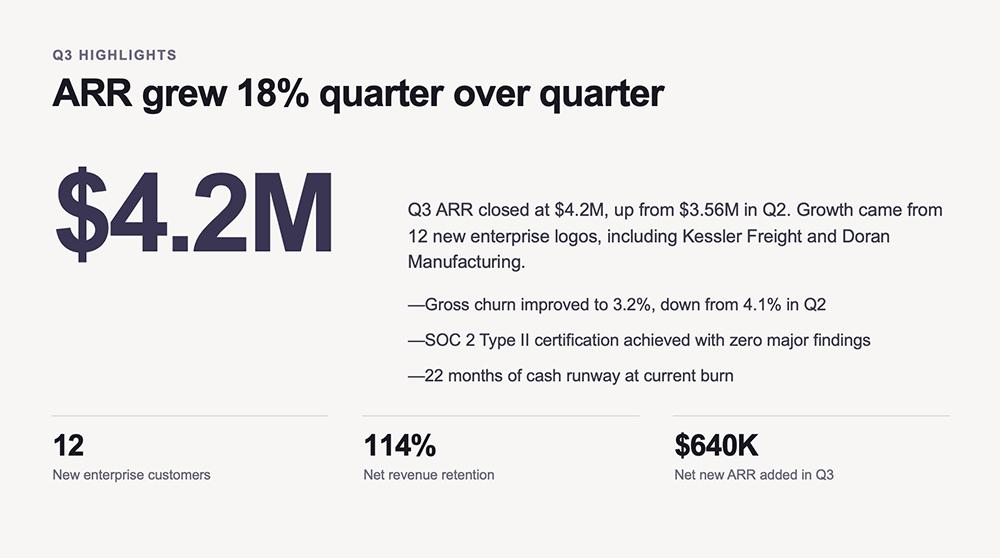
While the add-in is convenient for PowerPoint users, I wouldn’t recommend using it without either a presentation template or strict design guidelines.
How to edit an existing PowerPoint with Claude
Before you begin editing presentations in Claude, you need to know which tools you’ll be able to access. All methods have prompt-based editing, which works for both design and copy changes.
But each version applies editing prompts a bit differently. For instance, I prompted each one to expand on this slide’s guidelines. Original slides are on the left, and edited slides are on the right.
Claude added more detail to the callouts it had already generated:

Claude Design added a couple extra lines of explanation under the existing bullets:

And the add-in reworked and expanded the existing bullets:

Claude Cowork was the only tool to recognize the added copy wouldn’t fit well on the existing slide. So it took the initiative to organize the added information in a new layout:

Then I tested a design- and layout-related edit, which ended up looking similar across the board. When I prompted each tool to make the takeaways easier to read at a glance, it each turned a list (original slide, on the left) to a series of takeaway boxes (edited slide, on the right).
Claude added some questionable blue highlights:
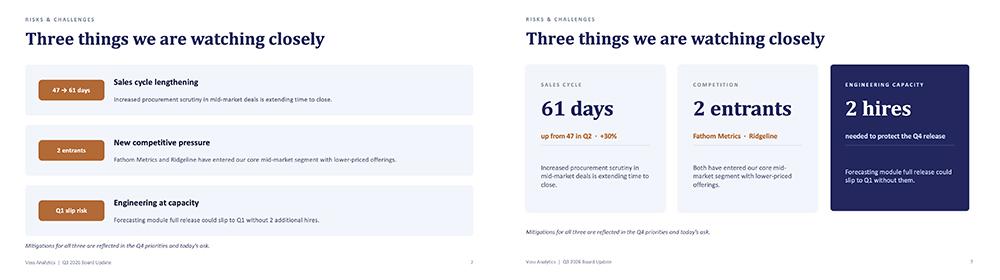
The add-in inserted icons and deeper color coding:
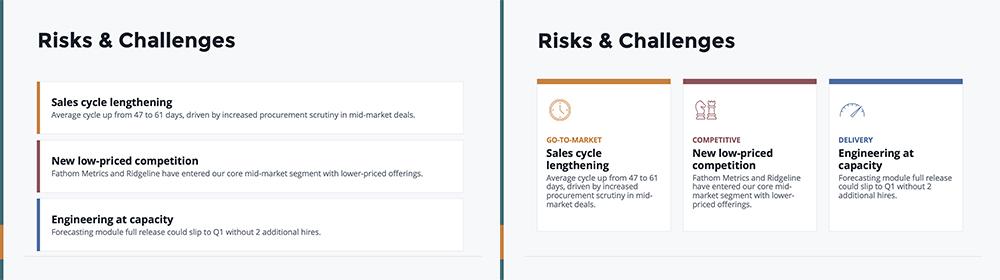
And Claude Design made some significant improvements to a minimally designed slide:

Cowork also made some more substantial design changes when I prompted it to add more contrast:

This confirmed that Claude can often make decks look the way you want, but it needs detailed guidance. In my experience, it rarely gets the design and copy right on the first try, so the creative process requires multiple iterations.
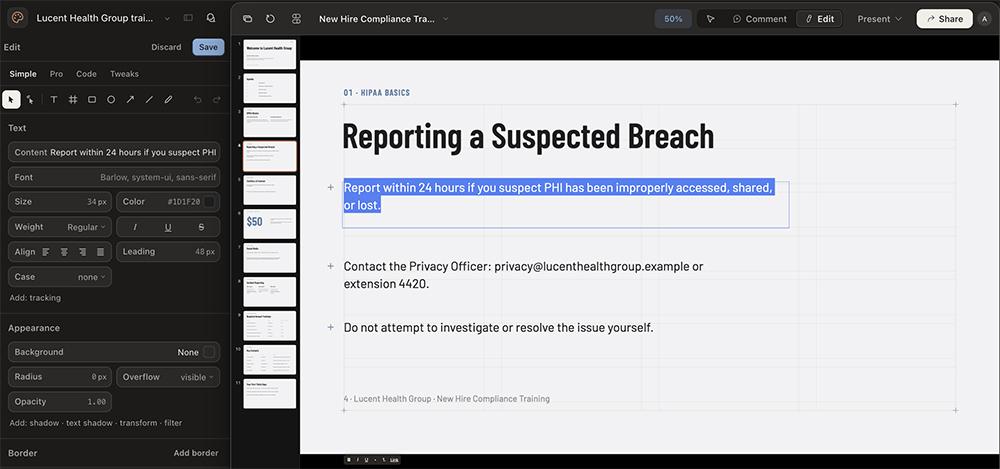
It’s also worth noting that Claude Design and the PowerPoint add-in support manual edits, too. This gives you the best of both worlds, so you can prompt Claude to do major edits and handle small tweaks yourself.
Here’s how the editing tools look in Claude Design:
Tips for prompting Claude to make better PowerPoint slides
As a default, Claude generates relatively generic layouts and presentations. To make better slide decks, keep these tips in mind:
-
Give Claude as much detail as you can in your initial prompt. Specify your audience, goal, and tone. Tell Claude how much depth to add to the copy and how to strike a balance with visuals. Otherwise, it will gravitate toward its default setting, which is minimal copy and a generic corporate tone.
-
Although you can describe references in a pinch, it’s always better to upload it instead. Claude supports uploading logos, PPT templates, PDF reports, and other source material.
-
Don’t rely on Claude to come up with a compelling design. Give it design guidelines like colors, fonts, and logos. When using Claude Design, take the time to set up a design system. And when using Claude chat or Cowork, upload a brand template.
-
Claude won’t automatically generate an outline for your slide deck before jumping into design. To avoid wasting usage via misunderstandings, ask for an outline first. Once you confirm the outline, proceed to generate the slides.
-
Claude usage can add up quickly, especially when you use the most advanced models on max effort. To avoid hitting usage limits, edit or iterate on one slide at a time rather than regenerating a full deck.
Claude vs. Cowork vs. Claude Design vs. the PowerPoint add-in: Which makes the best slides?
Overall, I found that Claude Cowork had a slight edge in terms of slide deck output, while Claude Design had the best design and editing tools. The PowerPoint add-in produced the content that needed the most editing.
| Output quality | Editability | Biggest upside | Biggest downside | |
|---|---|---|---|---|
| Claude | Good | Prompt-based only | Easiest to use and generates good quality output | Doesn’t have built-in editing tools, so all edits are prompt-based |
| Claude Cowork | Better | Prompt-based only | Offers automation and has slightly better output quality | Doesn’t have a design system so it requires careful consistency checks |
| Claude Design | Below average copy | Prompts and manual edits | Has a design system that reliably applies guidelines and editing tools | Has the most PPTX export fidelity issues, limiting its use outside Claude |
| Claude PowerPoint add-in | Below average design | Prompts and manual edits | Works directly in PowerPoint, so you can create, edit, and present in one tool | Has the worst design sense and requires strict design guidelines |
Here’s when I would use each of the four Claude tools:
-
Generate a quick draft: Claude is a good choice when you just need to create a presentation and you’re not (yet) concerned about design details.
-
Follow brand guidelines: Claude Design is your best bet when you need to apply design rules and brand guidelines consistently.
-
Get feedback on your deck: Claude and Cowork both automatically provide feedback on the information in the deck, contextual gaps, and areas that need improvement.
-
Edit existing PPTX files: Claude has you covered when you need to make quick edits to presentation copy or layouts.
-
Automate slide deck creation: Use Cowork when you want to schedule presentations to generate daily, weekly, or monthly.
-
Create and present a deck: Use Claude Design or the add-in when you want an interface that lets you present the deck you designed.
Limitations of Claude for PowerPoint
When reviewing Claude for PowerPoint, one of the biggest issues that came up is the usage. All four methods draw from your Claude account, which means they’re subject to your daily and weekly caps. So if you’re already maxing out your Claude usage on other projects, you may not have the capacity to create many PowerPoint decks.
And if you want to create genuinely original decks, Claude won’t be much help. Across Claude tools, presentation output looks generally the same, with repetitive layouts. The only way to create a unique design would be to develop a deck outside of Claude and upload it as a template.
Claude can’t help with AI-generated images either. While it can create icons and apply the visuals you provide, it can’t generate images. If you prefer photos over graphics, you’ll need either a different AI presentation maker or an image generation tool to use alongside Claude.
You can export Claude’s PPTX files to Google Slides or Google Drive. But Claude doesn’t work directly in Google Workspace. So, if you prefer generating and editing presentations in Google Slides over PowerPoint, you’re better off with another tool.
I also ran into PPTX export fidelity issues, especially with Claude Design files. After uploading the files to PowerPoint, the fonts would inevitably change, the layout would shift, and the logo files would be missing.
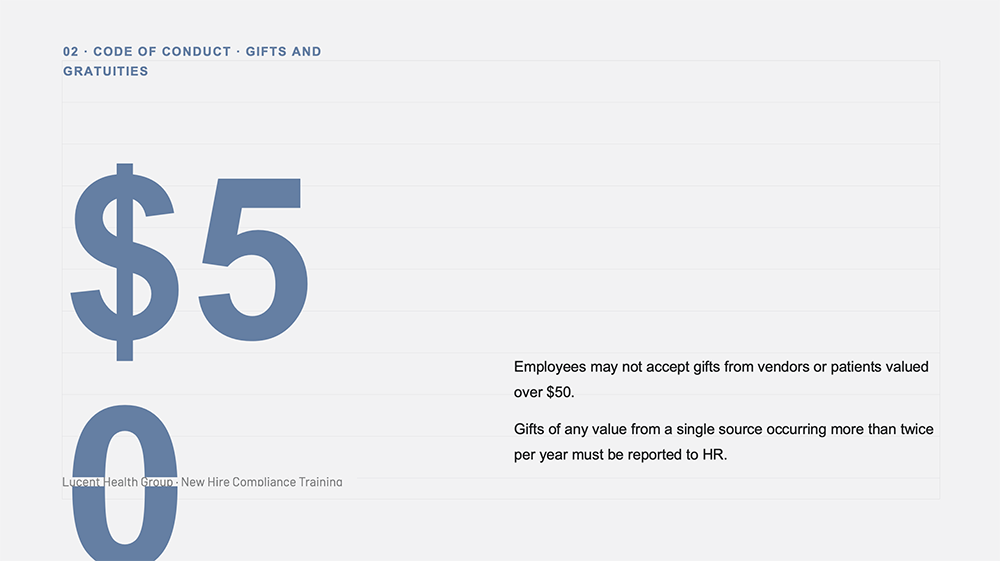
If you expect your slide decks to look the same after export, you’ll have fewer headaches using a different tool.
When to use Plus AI instead of Claude for presentations
As a purpose-built AI presentation maker, Plus AI specializes in generating decks, editing slides, and sharing presentations. Between its dozens of slide templates and its creative image mode, Plus creates presentations that look professional, fit your brand, and come together in minutes.
For brands that need to create decks regularly and generate predictable output, Plus’s custom templates ensure that your brand guidelines always apply throughout the presentation.
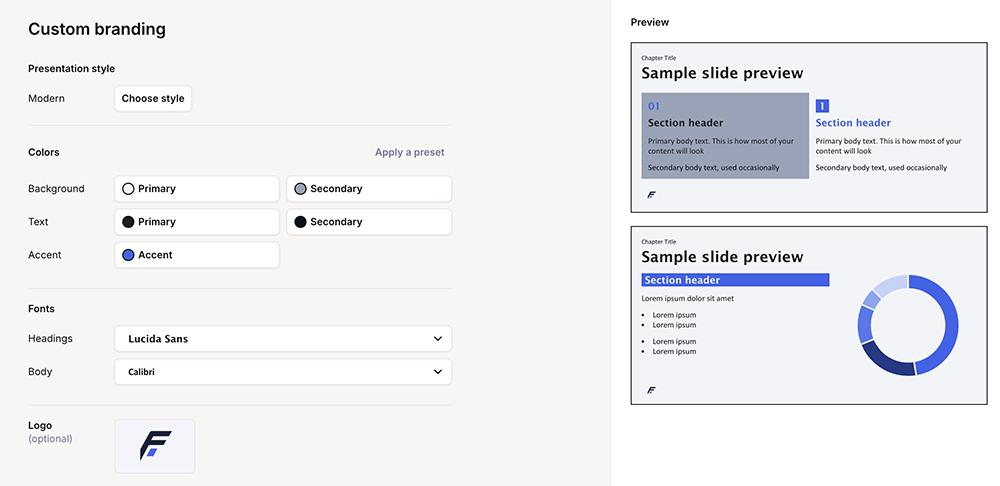
And for teams that want a unique, visual-first format that doesn’t fit a predesigned template, Plus’s image mode is a strong option.
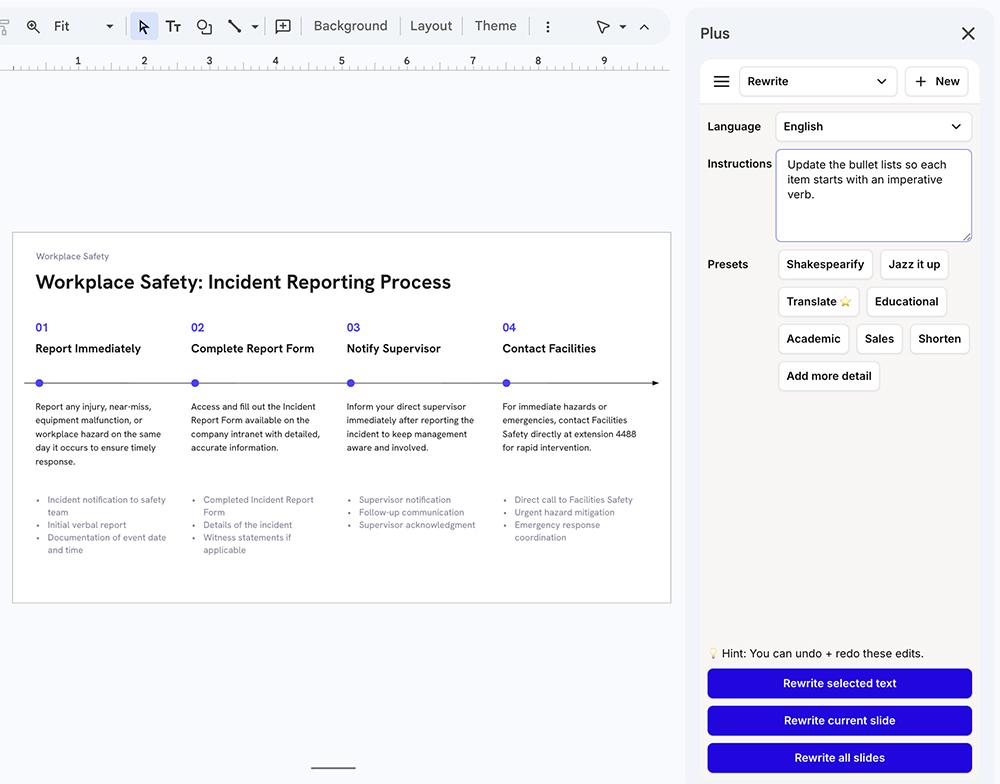
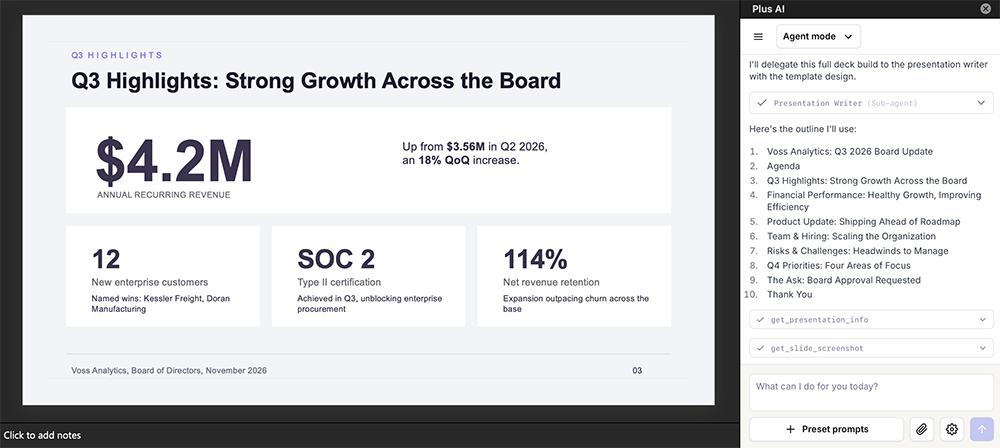
In slide mode, Plus automatically generates outlines to confirm you’re on the same page before jumping into generation. And when you do need to iterate on a deck, you can edit via prompts (via the PowerPoint add-in), quick actions like remix and rewrite, or manual actions.
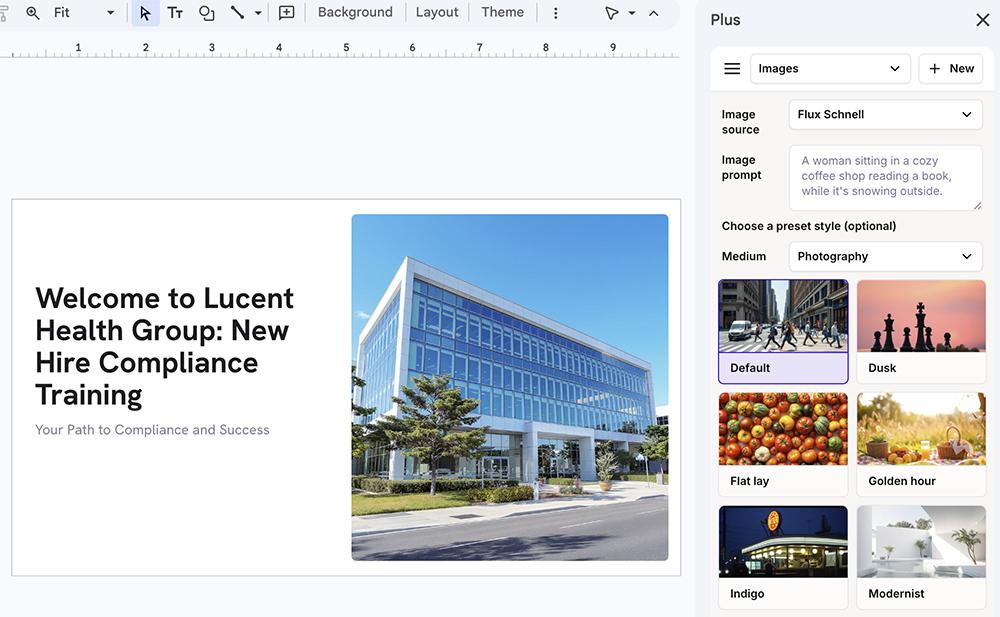
With Plus, your presentations don’t have to rely solely on copy and graphics. Plus generates images using AI models like Flux Schnell, GPT Image, and Nano Banana Pro. Just choose the model you want to use and select a preset style to get the images you need for your deck.
Like Claude, Plus has a web-based tool for generating decks. But Plus also works in Google Slides and PowerPoint.
This means with Plus, you can continue to create and iterate in the ecosystem you already use. And while Plus generates fully editable native PowerPoint files, working in your ecosystem means you may not need to export your slides for extra editing.
You aren’t limited to Google Workspace or Microsoft 365, though. The Plus AI PowerPoint API connects to your existing tools to generate on-brand presentations.
Should you use Claude for PowerPoint?
Claude can build a usable PowerPoint deck in minutes. If you already pay for it, then it’s a reasonable tool for generating occasional slide decks. Just know that you’ll need to have a strong sense of design and good copywriting chops to get the output to the level you need.
If you generate slide decks regularly, though, Claude may not be the best choice. Between usage caps, repetitive designs, export issues, and a lack of image generation capabilities, it’s missing a lot of essentials.
As a dedicated AI presentation tool, Plus AI has the capabilities Claude is missing, making it easy to create, edit, and present slide decks without leaving PowerPoint or Google Slides. Try Plus AI for free and test it on your next presentation.
Frequently asked questions about using Claude in PowerPoint
Can Claude make PowerPoint slides for free?
Yes, you can use the free version of Claude to build PowerPoint decks. But since the free plan has limited usage, it can’t reliably support longer presentations, extensive edits, or frequent deck generation.
Can Claude edit an existing PowerPoint file?
Yes, Claude can edit existing presentations. Just upload the PPTX file to the AI assistant and ask Claude to make specific edits. Note that you’re limited to prompt-based editing when you upload an existing file.
What’s the difference between Claude Design and the PowerPoint add-in?
The add-in provides Claude chat directly inside Microsoft PowerPoint. It lets you work in the Microsoft 365 ecosystem, but it doesn’t have unique or specialized design skills. In contrast, Claude Design lets you set up a design system and create and edit PPTX files without leaving the Claude interface.