
Comparisons
Canva vs Plus AI: A Hands-On AI Presentation Tool Comparison
Trying to choose between Canva vs Plus AI? Compare both AI presentation makers and see why Plus AI wins on copy, branding, and editing.

Canva and Plus AI are both popular AI presentation makers, but the two tools have completely different scopes. Canva is an all-in-one design platform, while Plus AI is a dedicated slide deck generator. The right choice for you depends on what you need in your tech stack.
To see how they compare, I tested both tools on a few real presentations, from first draft to final edits. I’ll walk you through what each one does well and where it doesn’t meet expectations so you can decide on the best AI presentation maker for your use case.
Canva vs Plus AI: What’s the difference?
Canva is a design platform that can create everything from presentations and graphics to videos and social media posts. Whether you use the platform in the browser or via the app, slide decks are one of many design assets Canva can create.
Plus AI is a dedicated presentation tool that specializes in slide decks. It has a standalone web app as well as add-ins for Google Slides and Microsoft PowerPoint. That means you can use Plus in the ecosystems where your team already works.
| Canva | Plus AI | |
|---|---|---|
| Format | All-in-one design platform for presentations, graphics, video, and social posts | Dedicated presentation tool focused on slide decks |
| Interface | Browser or Canva app | Standalone web app plus add-ins for Google Slides and PowerPoint |
| Templates | Millions of presentation templates | Over two dozen templates, plus original AI-generated designs in image mode |
| Editing | Natural language and manual edits | Natural language edits, one-click presets (remix, rewrite, replace images), and manual edits |
| Data | Links to Canva Sheets; connects to Google Sheets but not Excel | Links to Google Sheets and Excel |
| Pricing | Free plan, with paid plans from $144/year | Seven-day free trial, with paid plans from $120/year |
How does Canva’s AI presentation maker work?
Canva’s presentation tool is an AI assistant that’s integrated into the design platform. You prompt it using natural language, file uploads, or a combination of the two. In your prompt, you can add existing Canva files or import external documents for the AI assistant to reference.
Canva lets you generate decks from predesigned templates, which you can search by keyword. This option doesn’t always appear in the creative workflow, though. But you can always include style and formatting instructions in your prompt so Canva can generate an original layout for you. Or, you can apply your brand kit to any presentation to use your brand colors and layouts.
Once you input a prompt, Canva creates an outline for you to review and approve. The outline includes details for each slide, which I found helpful for making sure the AI assistant is on the right track before it starts generating.
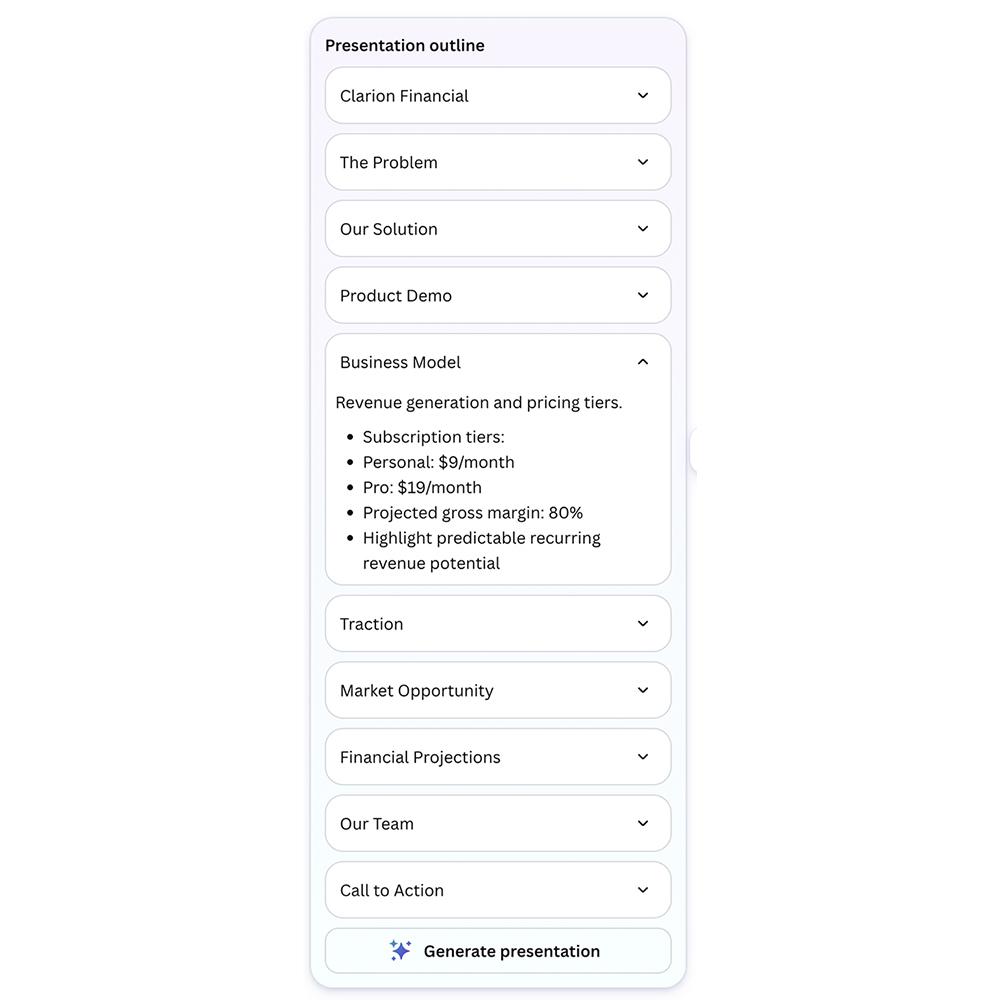
My main complaint with the outlining process is that you can’t manually edit the slide titles, details, or order. If you want to make any changes to the outline, you have to type it into the chat so the AI assistant can update it for you.
Once you finish reviewing the outline, you prompt Canva to generate the deck. In my experience, this process is pretty quick, with Canva creating a full deck in a minute or two. From there, you can edit, share, or present it.
How does Plus AI’s presentation tool work?
Plus AI works three different ways. But whether you use it in the web app, via the Google Slides extension, or via the PowerPoint add-in, the workflow is similar.
You choose a template (for a fully editable deck), a style (for an image-based deck), or you let the AI select one for you. You also have the option to use your custom branding. Then, you input your prompt or upload a file (PDF or Word document).
Plus then generates a detailed outline so you can see how the presentation will be structured. You can manually edit slide titles, details, and order or add more slides to the outline. You can also review and change the template for individual slides before they’re generated.
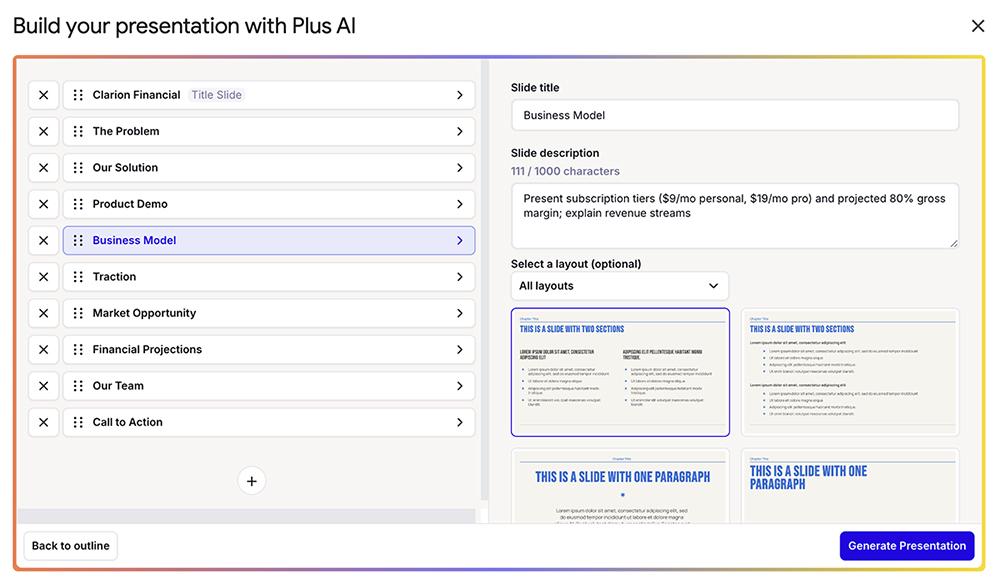
Once you approve the outline, Plus AI generates a complete deck. In my experience, the deck is ready for review within a couple minutes. From there, you can edit, share, or present it.
Head-to-head comparison of Canva and Plus AI
Does Canva or Plus AI generate better slides from a prompt?
Both Canva and Plus AI are powerful AI presentation makers. But the two tools have different strengths.
Design and image quality
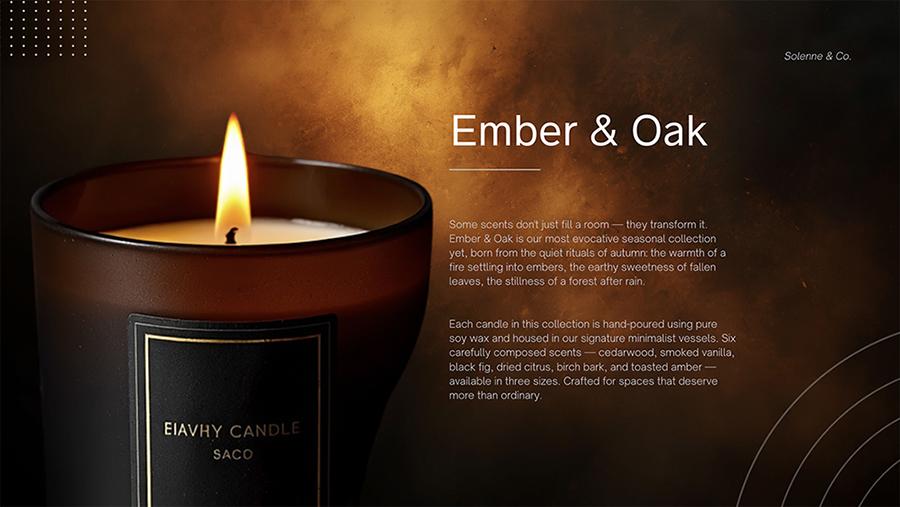
As a design platform, Canva unsurprisingly has strong presentation design capabilities. It does a good job at assessing prompts and applying visual and creative elements that make the slides look cohesive and professional. For example, Canva’s title slide for a B2C product pitch deck nicely fits the warm, elegant aesthetic from the prompt.
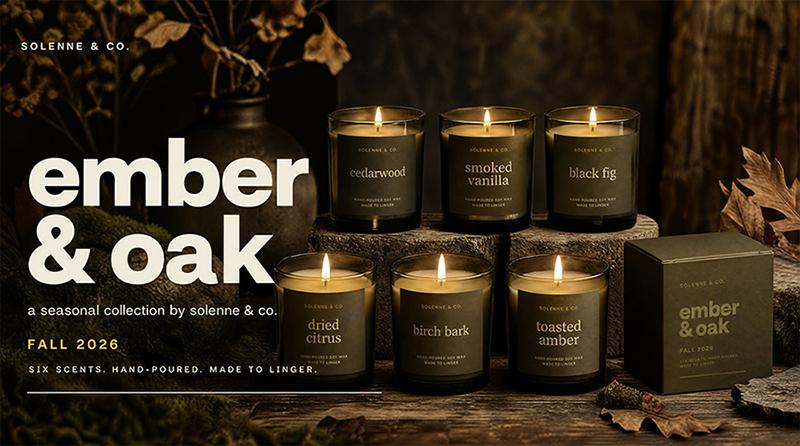
But as a dedicated AI presentation tool, Plus AI also has strong design capabilities. This B2C title slide, which I generated with Plus’s image mode, includes a visual that’s more faithful to the brand and the prompt.
Generative AI copy quality
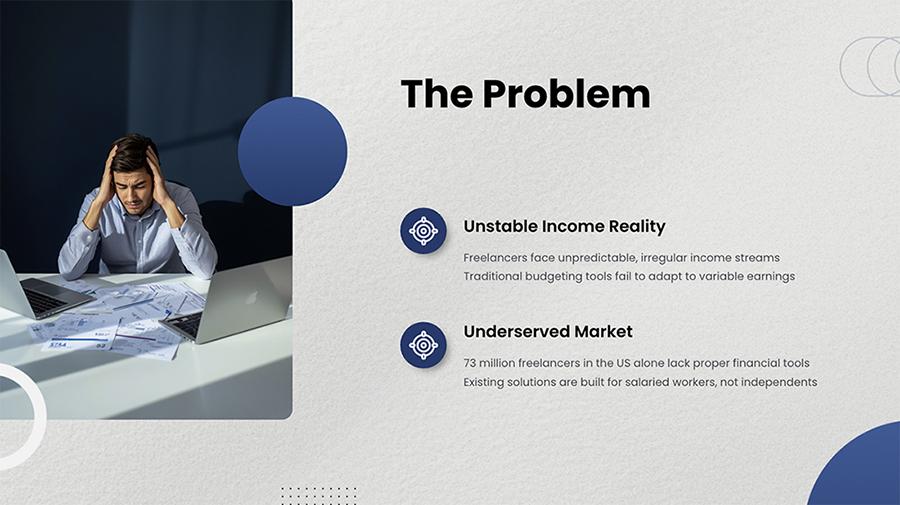
Canva’s generative AI copy also tends to be minimal. Instead of expanding on the information in the prompts and adding context and talking points to the slides, Canva often relies mainly on design. For example, the prompt for this slide required the AI tool to extrapolate the target audience’s problems, but it only came up with two.
In contrast, Plus AI tends to do a better job of generating relevant copy and organizing it on the slide. Here, it came up with five problems the target audience is experiencing.
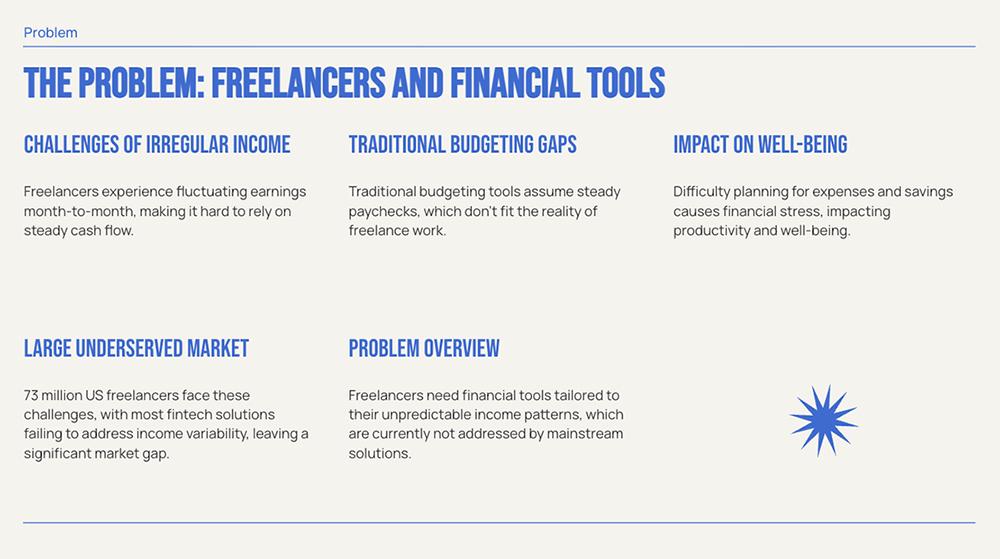
With Plus, you can specify the depth of information when you use a custom template. For example, you can create slides with less text but more visuals and callouts or vice versa.
Prompt adherence
In my experience, Canva AI doesn’t reliably incorporate information from the prompt. For example, the prompt I used for this slide detailed a collection with six products. But the slide only mentions four.
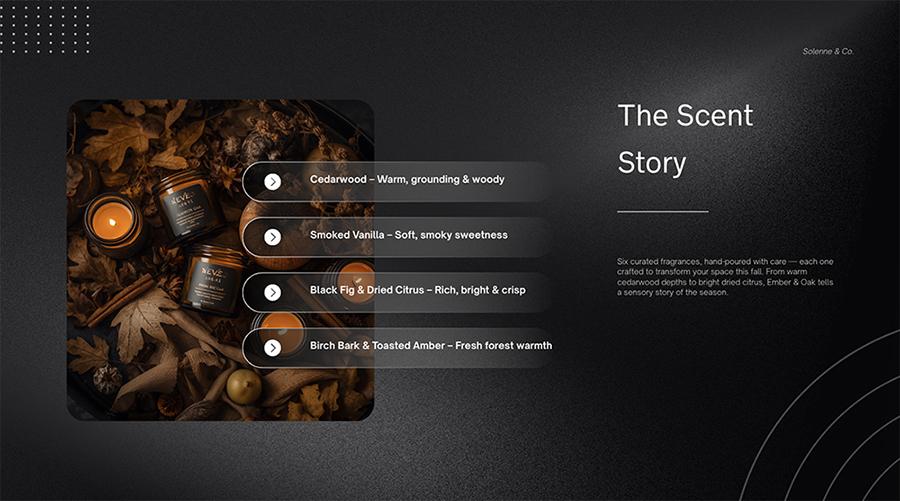
Although Canva routinely ignored elements of even my most basic prompts, it’s worth noting that Canva AI has a strict character limit. It doesn’t support detailed prompts, which limits the information you can give it.
You can work around it by adding details to external documents, which you can then upload to the AI assistant. But this requires an extra step that would be unnecessary with most other tools.
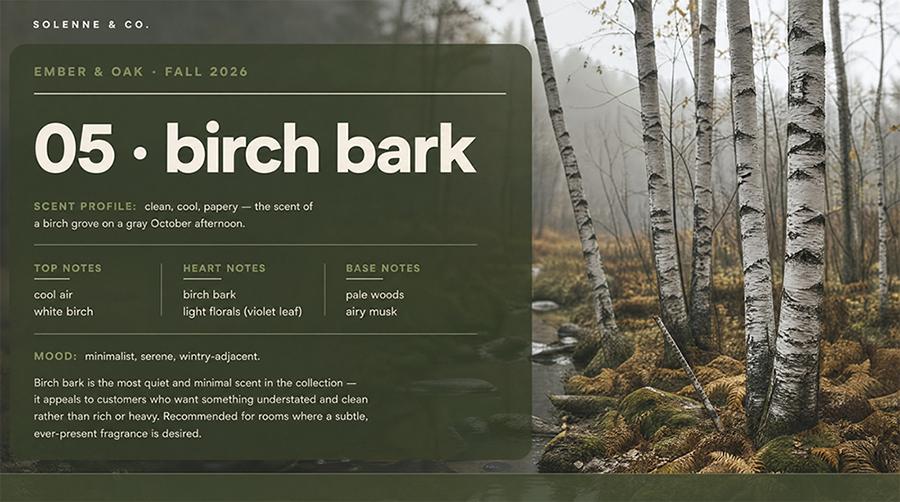
While Canva sometimes stops short of what the prompt says, Plus AI often goes beyond to extrapolate additional information. Plus not only produced a slide with all six products, but it also generated individual slides for each item, complete with full product details.
B2C vs B2B
Although Canva does a decent job with B2C presentation design, it’s not as good at B2B slide decks. In my experience, the AI doesn’t seem to know how to organize complex information or data. For example, this key performance metrics slide highlights a single stat and buries several others in one paragraph.
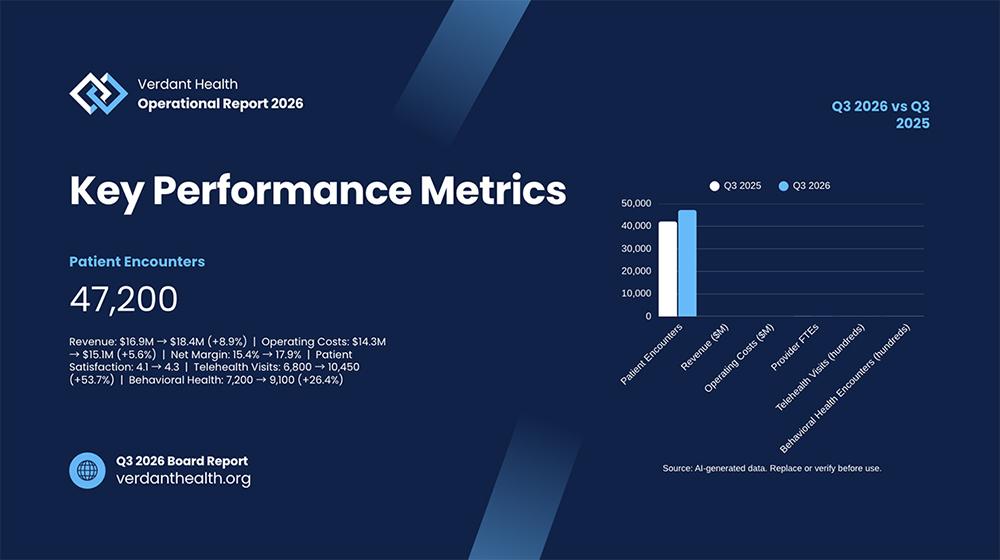
Canva’s B2B image bank and generative AI capabilities also seem limited. For example, this title slide includes a low-quality image, illegible copy, and randomly placed graphics.

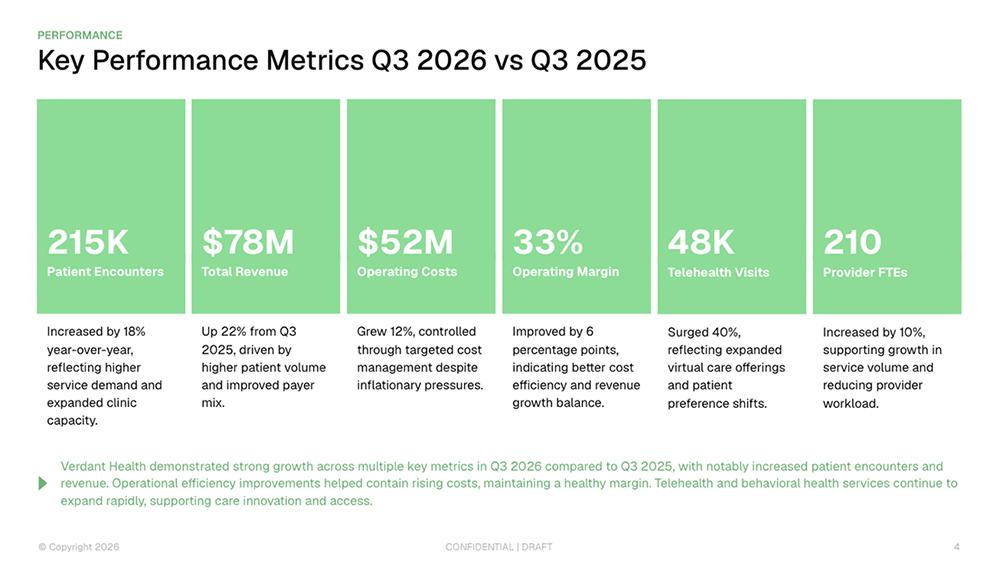
In contrast, Plus AI executes well across both B2C and B2B slide decks. This key performance metrics slide highlights several major stats, making them easy for the audience to see at a glance.
In slide mode (versus image mode), Plus AI often errs on the side of clean information rather than bold images. For example, this title slide clearly introduces the company and the presentation, but it lacks compelling visuals.

With Plus, you can easily rework the balance of visuals and copy in the prompt or during the editing process.
Is Canva or Plus AI easier to use?
Canva and Plus AI are both user friendly, but Canva has a steeper learning curve. As an all-in-one design platform, Canva is essentially a black hole of tools, elements, and apps.
I’ve used Canva for various design tasks over many years, so figuring out how to use it for presentations wasn’t difficult. Canva AI is easy to prompt, so if all you need to do is chat with the AI assistant, you’ll likely find it easy to use too.
But if you need to do manual edits with Canva, the process might take a while. And if you’re new to Canva, you’ll need some time to get used to the interface.
In comparison, Plus AI is more straightforward. Since it works in the Google and Microsoft ecosystems that most teams already use, the learning curve is minor. Just open Google Slides or PowerPoint, navigate to the Plus add-in, and proceed with your workflow.
If you use the Plus AI web app, you’ll find that it’s easy to use and quick to learn. Because it’s a dedicated AI presentation tool, it has far fewer options than Canva offers.
How does editing in Canva compare to Plus AI?
Both presentation makers support prompt-based and manual editing. But Plus AI also has editing presets that speed up the process.
Plus AI’s editing presets let you remix slide layouts, rewrite slides or decks, or replace images with one click. Since these presets cover most of the edits you’d typically need to make, they’re quick and easy to apply.
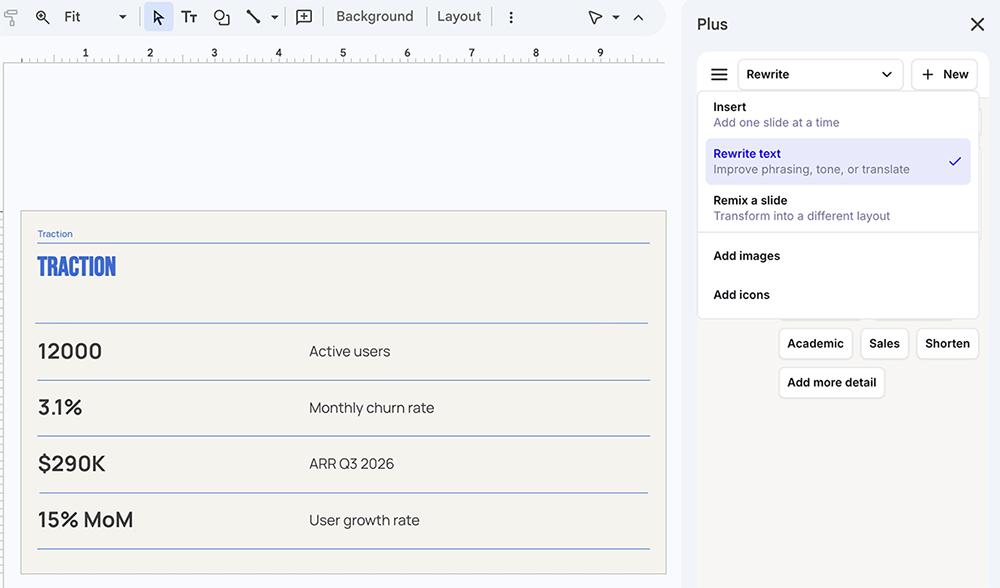
If you need to make minor tweaks to individual slides (like updating copy or adjusting a layout) you can do so manually in Google Slides or PowerPoint. And if you want the Plus AI Agent to handle large-scale edits, you can access it in PowerPoint or when using image mode in the Plus AI web app.
Canva doesn’t provide editing presets. Instead, your best bet is to input any edits in natural language and let Canva AI execute on your behalf.
In theory, it might seem easy to perform manual edits in Canva. But because the platform has seemingly unlimited design options, you could end up spending hours adjusting colors, searching for stock images, adding animations, or changing icons. Ask me how I know.
Does Canva or Plus AI have better templates and design options?
In terms of scale, Canva easily outranks Plus AI. Canva has millions of presentation templates. If you value having a lot of options, you’ll like that you can search Canva’s template library by keyword to find just the right one.
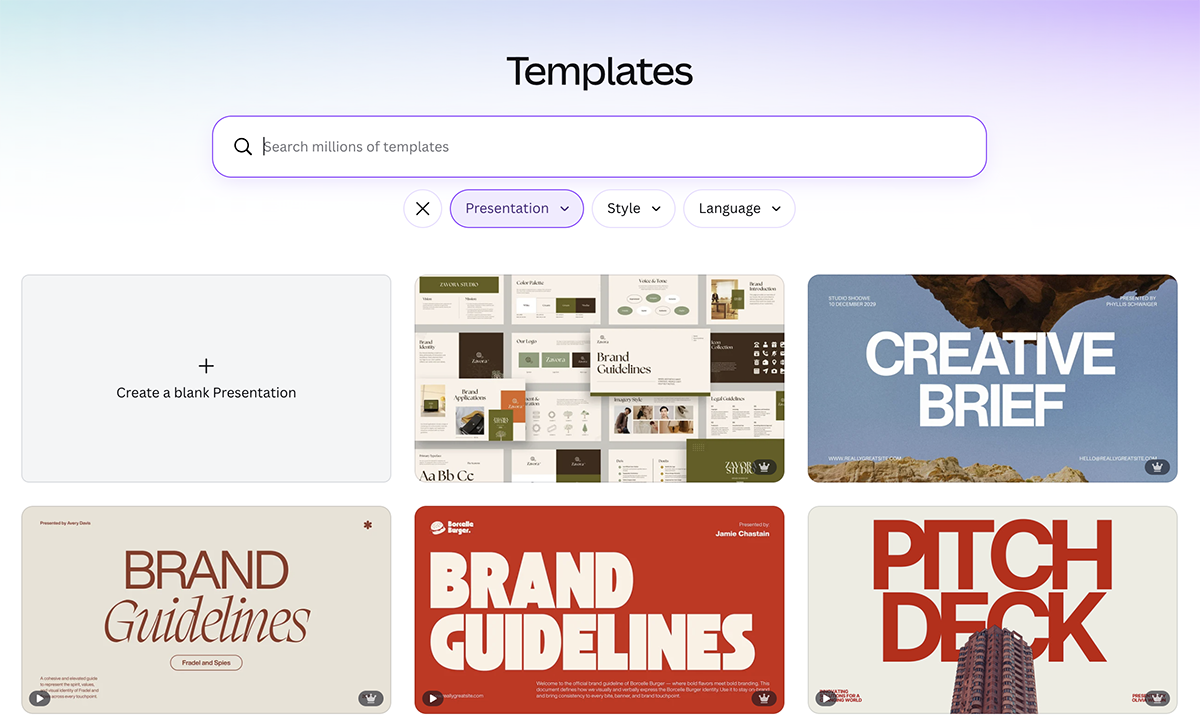
In contrast, Plus AI has over two dozen templates. All templates are professionally designed to help you create slide decks for work and education.
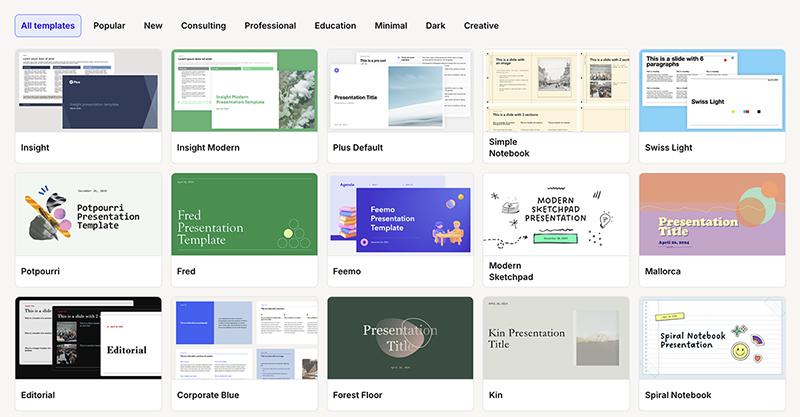
While this theme library is much smaller in comparison, you aren’t limited to it. When you use Plus AI’s image mode, it generates original slide designs based on your prompt, giving you much more creative potential.
Is Canva or Plus AI better for charts and data visualization?
Canva and Plus AI both generate charts and graphs that link to real data. But the data sources differ.
In Canva, visualizations reflect data stored in Canva Sheets. The platform automatically generates these sheets based on the data you provide in prompts.
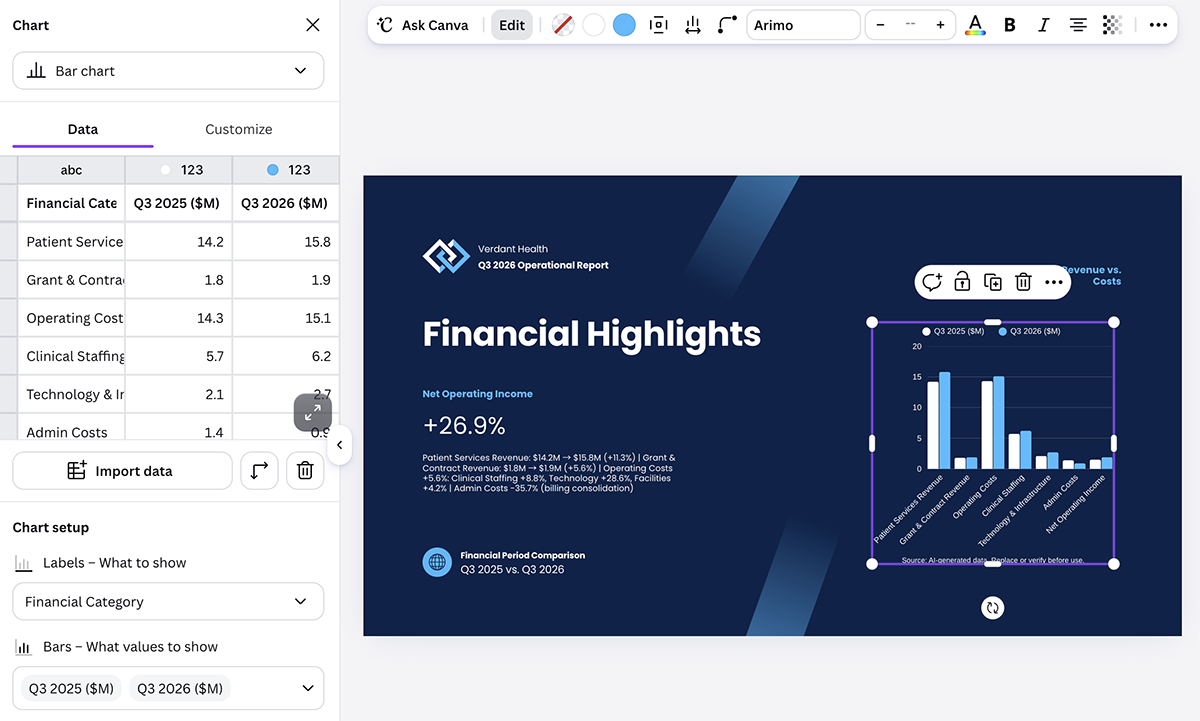
Unless you use Canva Sheets as your primary source of data, however, this workflow means you end up with multiple versions of the same dataset. If you update the original source in Excel or Google Sheets, the change won’t appear in your Canva presentation.
Canva does let you connect to apps like Google Sheets, so you can sync with the original source. But it doesn’t work with Excel. If you’re in the Microsoft ecosystem and you need slide decks with charts and graphs, this is a major drawback.
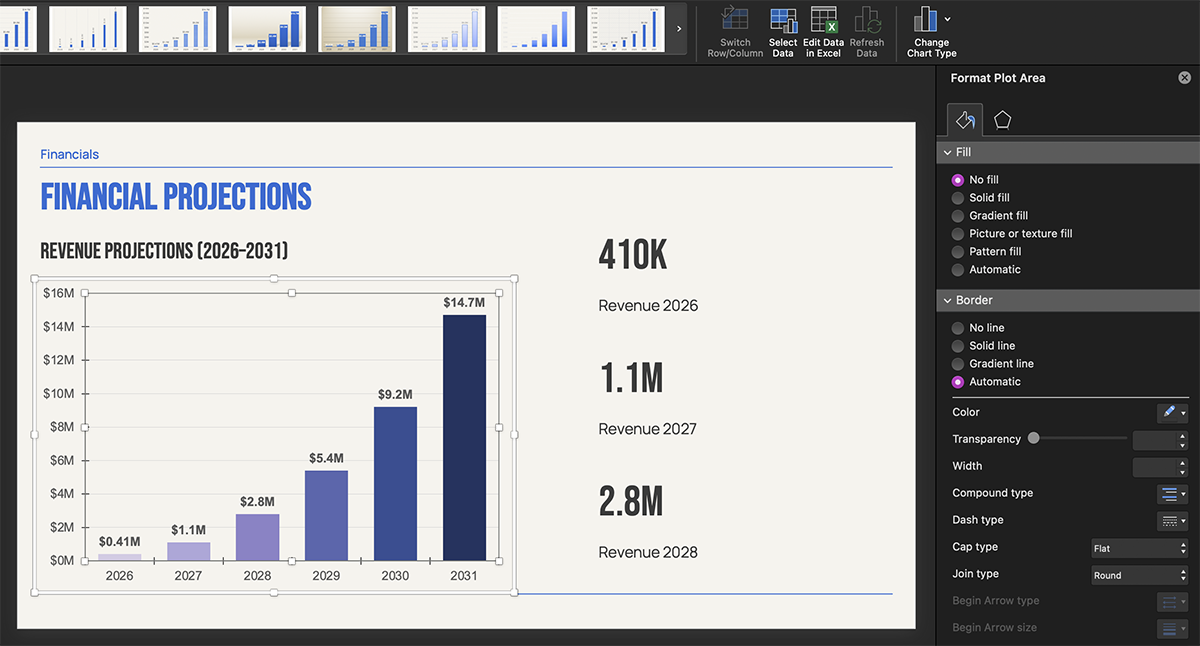
Since Plus AI works in Google Slides and PowerPoint, it’s much easier to connect to your original data sources. Visualizations in Slides automatically link to Google Sheets, and you can edit those in PowerPoint directly in Excel.
How well do Canva and Plus AI handle brand consistency?
Teams using Plus can set up custom templates for everyone to reuse across specific use cases. Teams can input presets and custom AI instructions to save time on future decks, too.
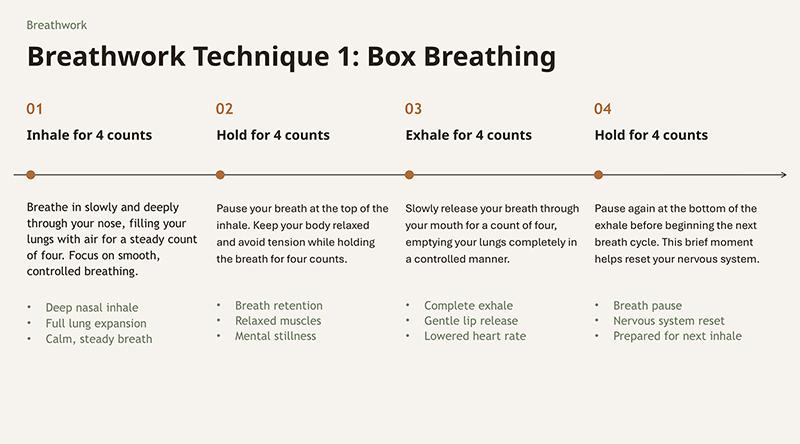
With Plus AI, you can also set up custom branding with your organization’s colors, fonts, and logo. You can choose between a set number of styles that determine how dense the information is throughout the deck.
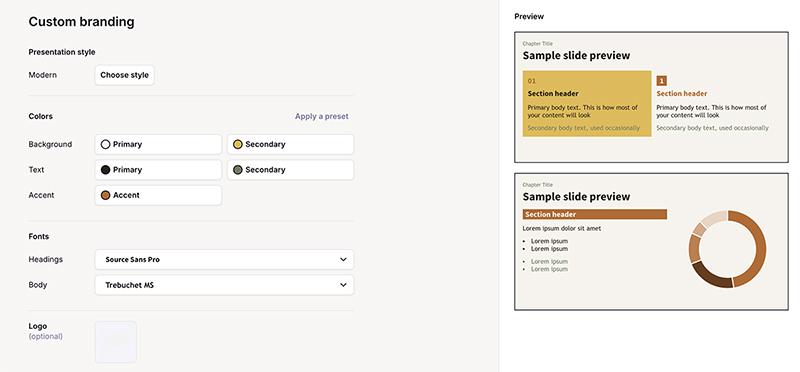
When you opt to use your custom template, Plus AI reliably applies it to your deck.
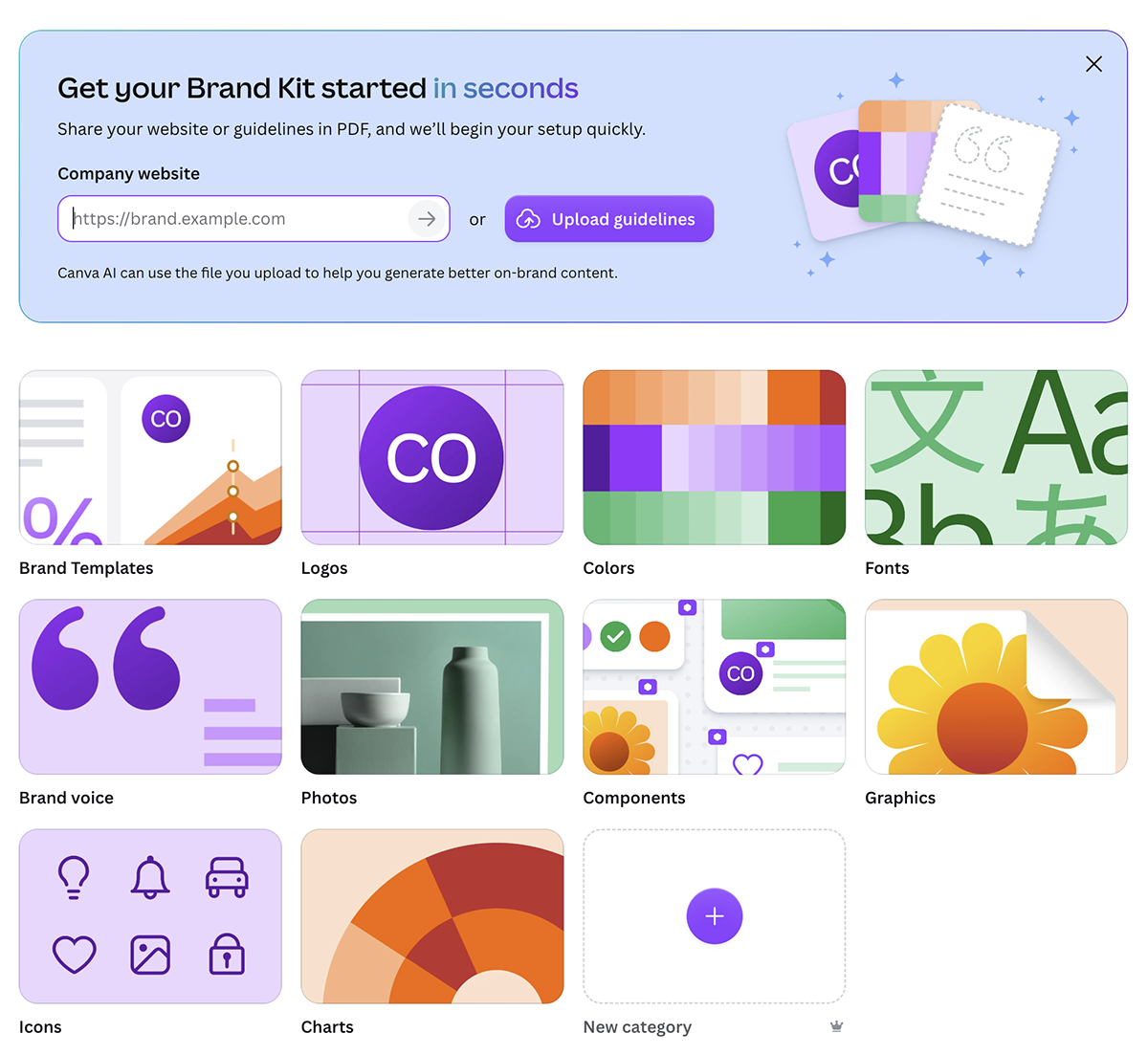
Compared to Plus, Canva has much more extensive branding options. Colors, fonts, and logos are just the beginning. The platform also has brand templates, charts, icons, and other components.
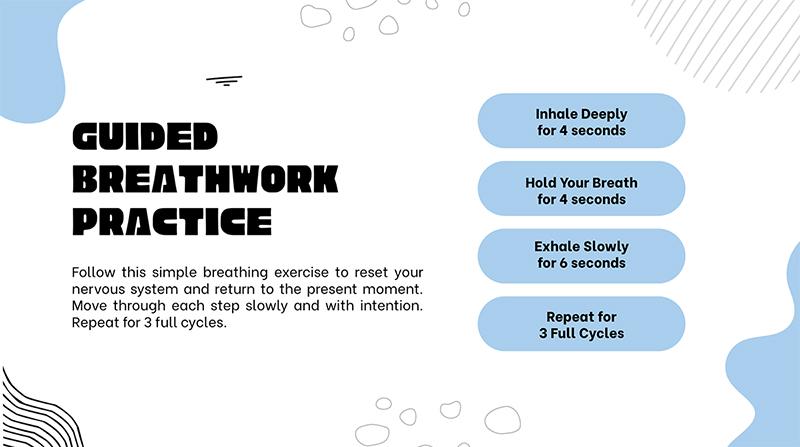
But Canva AI doesn’t reliably apply brand elements to presentations. I added the same brand colors, fonts, and logos to both platforms, but Canva generated this off-brand slide instead:
Does Plus AI or Canva fit better into Google Slides and PowerPoint workflows?
Plus AI has a seamless connection to Microsoft and Google since it works directly in both Slides and PowerPoint. You use Plus to create and edit slide decks in either tool. When you’re ready to share or present, you don’t have to worry about exporting and importing files.
Canva connects to PowerPoint and Google Drive, so you can export your slide decks to either tool. But Canva doesn’t work directly in these tools, so you end up having to move presentation files around.
How do export quality and file compatibility compare in Canva vs Plus AI?
Canva lets you export any presentation as a PPTX or PDF file. While PPTX files are editable, they often require a lot of extra work. For example, when I exported this slide deck and then imported to Google Slides, the graphic and copy elements shifted.

Plus AI generates fully editable native PPTX files. Whether you import them to Slides or PowerPoint, the elements stay in place, helping you avoid unnecessary editing work.

How much do Plus AI and Canva cost?
Canva has a free plan and three paid options. Here’s how Canva pricing breaks down:
-
Free: $0/year for 200 standard AI uses, 1.6 million templates, and one brand kit
-
Pro: $144/year for 10x more AI uses, 3.6 million templates, and five brand kits
-
Business: $250/year per user for 20x more AI uses, 3.6 million templates, and 100 brand kits
-
Enterprise: Custom pricing and features for large organizations
Plus AI has a seven-day free trial and five paid options. Here’s how Plus AI pricing breaks down:
-
Basic: $10/month (billed annually) for essential AI presentation design features and 1,500 AI credits
-
Pro: $20/month (billed annually) for 3,000 AI credits, 100,000+ character prompts, and AI images
-
Team: $30/month (billed annually) for 6,000 AI credits, custom branding, and shared presets
-
Max: $200/month (billed annually) for all Team features plus unlimited AI credits
-
Enterprise: Custom pricing and features for large organizations
Should you choose Canva or Plus AI?
The decision between Canva and Plus AI comes down to your workflow and goals.
| If you… | Choose |
|---|---|
| Need design assets across formats (social, print, decks) | Canva |
| Work primarily in Google Slides or PowerPoint | Plus AI |
| Are building one-off marketing or social decks | Canva |
| Produce client-facing business decks regularly | Plus AI |
| Need brand-consistent decks at scale | Plus AI |
| Regularly include and update data in your slides | Plus AI |
| Want the widest template library | Canva |
Choose Canva when design range is your priority. It’s the better tool if you create across formats, build one-off marketing or social decks, or want the widest template library to pull from. But keep in mind that Canva’s AI copy tends to run thin, it doesn’t reliably apply your brand, and its charts can’t sync with Excel.
Choose Plus AI when slide decks are your main priority. It fits teams who work in Google Slides or PowerPoint, produce professional decks regularly, or need brand-consistent slides at scale. Keep in mind that Plus has a smaller template library, though image mode generates original designs to fill that gap.
In short, Canva is the stronger generalist. while Plus AI is the stronger presentation specialist. If most of your work ends up in Slides or PowerPoint, Plus AI keeps you in those tools and skips the cleanup Canva often requires.
Ready to build decks that stay on brand and editable from the start? Try Plus AI free for seven days.
Frequently asked questions about Canva and Plus AI
Is Plus AI better than Canva for business presentations?
For teams who need on-brand business decks without leaving their presentation software, Plus AI tends to be the better fit. Plus AI builds slides directly inside PowerPoint and Google Slides, so you generate and edit decks in the apps you already use. The output is a native, editable file that follows your own templates and brand.
Canva is a standalone design platform with a large template library. But the presentations you create there can lose formatting when exported to PowerPoint or Slides.
Can Plus AI replace Canva?
If your main design use case is slide decks, Plus AI can often replace Canva. Plus AI has all the presentation tools that Canva does, and it keeps everything editable in PowerPoint or Google Slides.
Canva does more than presentations, though, including social graphics, video, and print materials that Plus AI doesn’t offer. So, if you need a full design suite, Canva is the better option.
Which is cheaper, Canva or Plus AI?
Canva wins on having a free plan. If the free tier meets your needs, Canva is a good bet. But in terms of paid plans, Plus AI has a lower starting point at $120 per year (versus $144 per year for Canva).
Can you use Canva and Plus AI together?
If you already pay for Canva but you find that its AI presentations need work, you can export them to Plus. Using Plus’s editing presets and data visualizations can help you produce a professional slide deck faster.