
Comparisons
Which Makes Better PowerPoint Slides, ChatGPT or Claude?
Which makes better PowerPoint slides, ChatGPT or Claude? A hands-on comparison of content, design, editing, templates & pricing, with a clear winner.

Both ChatGPT and Claude can create editable PowerPoint presentations from a simple prompt. But when I put the two platforms to the test, the results were far from equal. Spoiler: Claude won most rounds, with stronger content and better adherence to brand templates. ChatGPT’s clearest advantage was its image generation capabilities.
That said, neither produced a slide deck I’d present without cleanup. Below, I’ll break down how each platform performed on content, design, editing, and templates, plus which plans you need and when a dedicated slide tool like Plus AI is a better fit.
How ChatGPT and Claude generate PowerPoint slides
Anthropic (Claude) and OpenAI (ChatGPT) both have multiple interfaces for creating and editing slide decks, all of which generate editable PPTX files. Let’s walk through the most common options.
Ways to make slides with ChatGPT
The easiest way to make slides with ChatGPT is to enter a prompt directly in the chat. Describe the deck you want to generate and upload any reference materials, like source files, logos, or photos. You can also use existing skills and apps to apply guidelines or add information.
If you prefer to work directly in PowerPoint, use the ChatGPT add-in. It essentially inserts the AI assistant directly into the presentation maker, so you can chat and upload files and use skills and apps like you normally would with ChatGPT.
Ways to make slides with Claude
Claude also offers chat-based slide deck generation. Just explain the presentation you want to create, and either upload information or tell Claude which connector to check. You can also use existing skills in this interface.
For more control over layouts and visuals, use Claude Design. It has a small slide template library and lets you create your own custom templates. This is a better option if you need branded decks.
To work in PowerPoint, use the Claude add-in. Treat it like a standard Claude chat by prompting the add-in to create the deck you want, using your skills and connectors. Then, edit and present without leaving PowerPoint.
Does ChatGPT or Claude write better slide content?
Throughout my tests, Claude consistently displayed better writing skills. Opus 5 (medium effort) had a strong sense of what information deserved to appear on each slide and how to organize it into callouts and talking points.
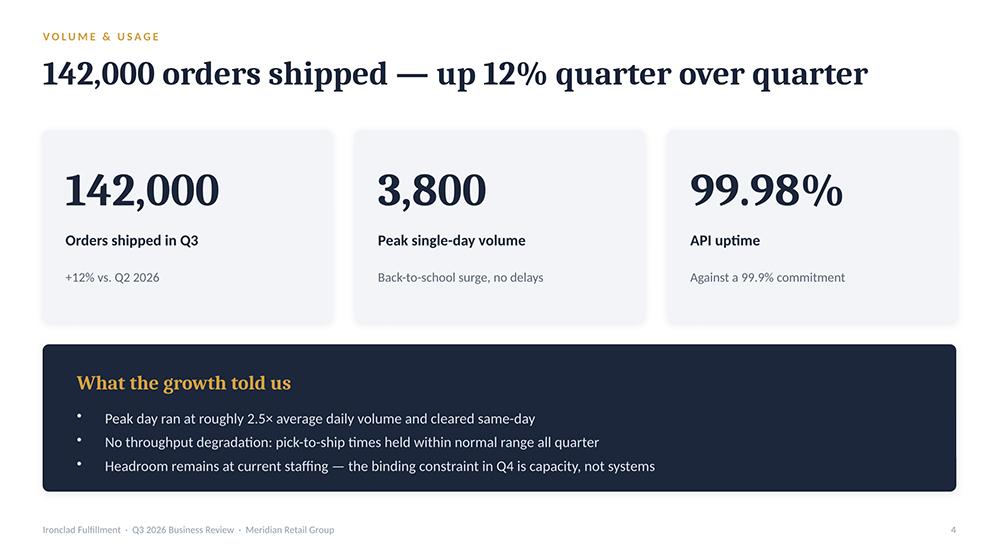
For example, this QBR slide (generated in Claude chat) makes it easy to see the headline finding, the key data points, and the takeaways the reader should get from this information. It’s easy to read and understand at a glance.
In my experience, Claude Design didn’t have as strong of a sense of how to organize information. For example, the same QBR slide generated by Claude Design includes less information overall and zero takeaways.
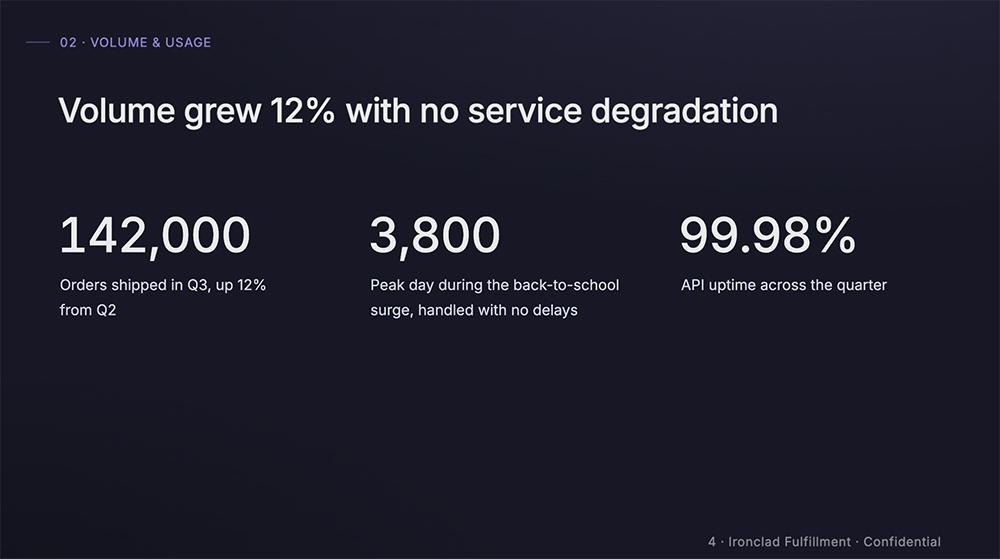
Compared to the chat interface, Claude Design needed more detailed prompting to deliver the right level of depth.
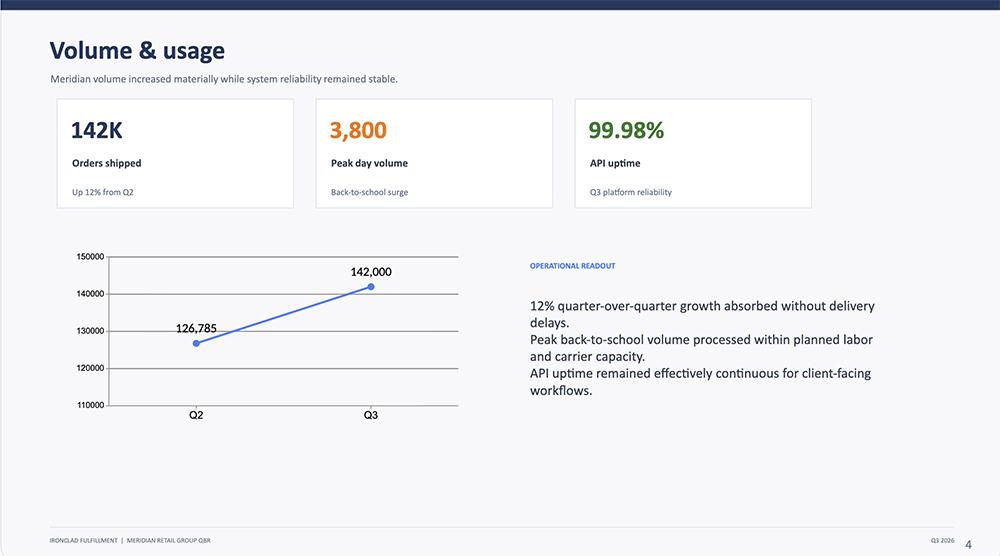
And compared to the two Claude interfaces, ChatGPT did an arguably worse job (using GPT-5.6 Sol with medium effort). The same slide (generated in the ChatGPT chat interface) includes minimal explanation, along with some poorly formatted bullets that lack context.
It’s clear that both platforms default to writing minimal slide content. They use the information you provide in your prompt or files and distill it into takeaways, but they don’t automatically expand on it.
For example, Claude’s initial pass at this annual impact report prompt (in the PowerPoint add-in) resulted in slides that were fine in theory but lacked substance. For an annual impact presentation, slides like this don’t say much.
When I prompted each tool to build out the original copy and add more context and takeaways, Claude did a better job at expanding the content.
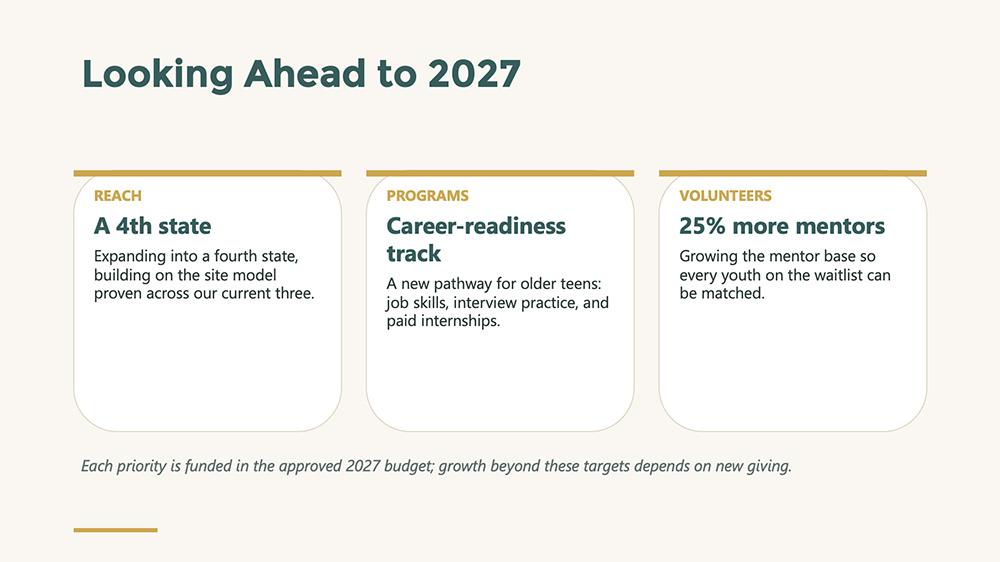
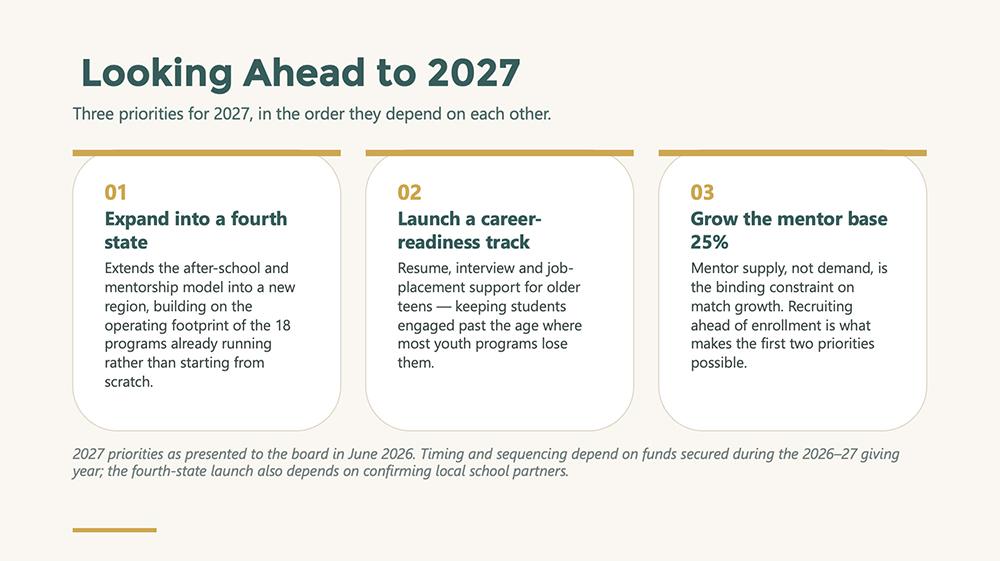
For instance, this Claude slide (generated with the PowerPoint add-in) includes clear priorities for the year ahead, with explanations for the choices. The extra content adds real value.
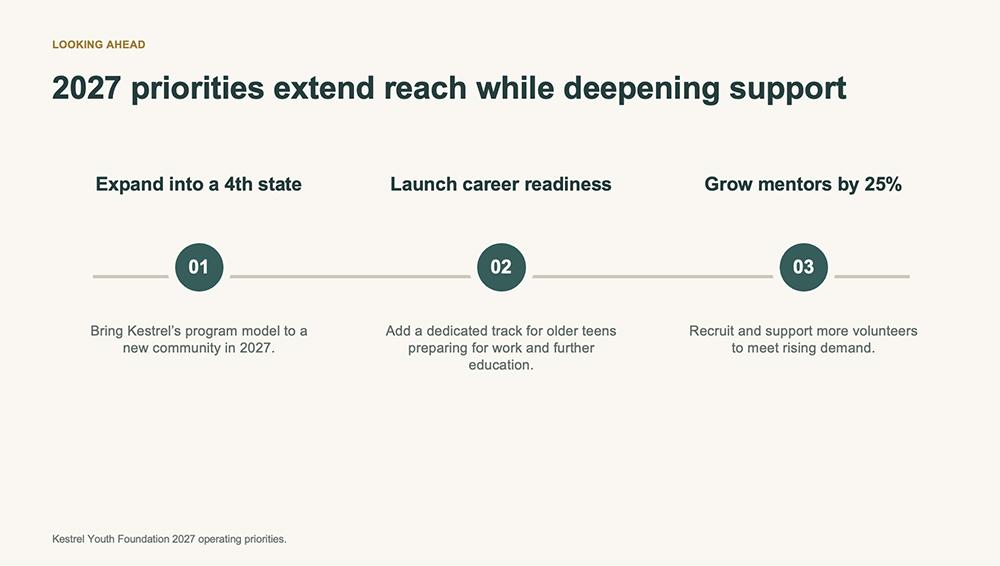
ChatGPT’s initial attempt (in the PowerPoint add-in) was pretty basic. The slides checked the essential boxes but didn’t have much depth.
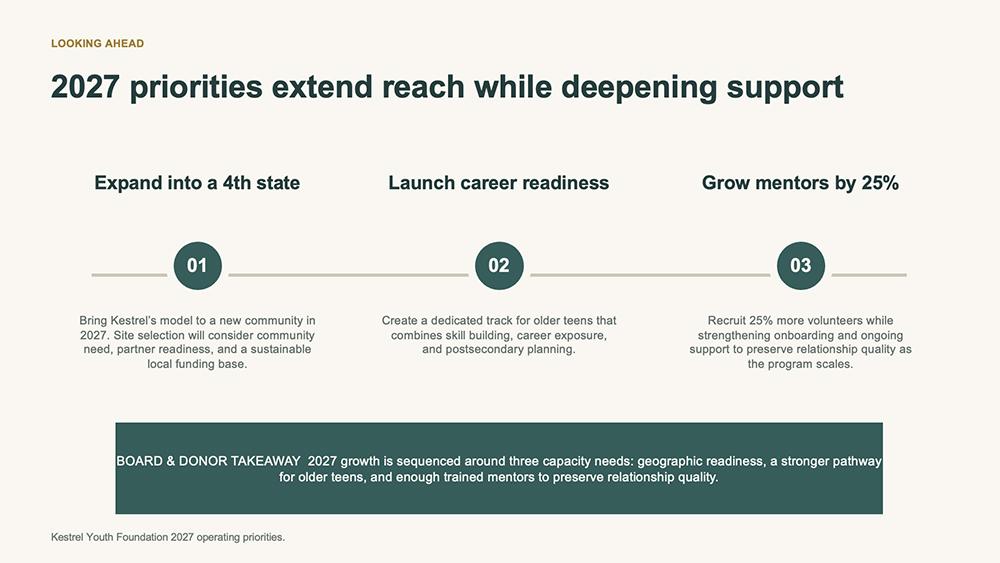
After prompting it to expand the copy, ChatGPT (in the PowerPoint add-in) added more context. But the edit also introduced formatting and layout issues with the callout box at the bottom of the slide.
ChatGPT vs. Claude slide design compared
The two platforms have relatively basic design skills. Both can organize information into a passable slide deck, but neither one is going to win awards for innovative design.
ChatGPT generally applied the lightest design touch, with less contrast and fewer visual elements compared to the others. Of all the tools, it generated the most basic presentation designs.
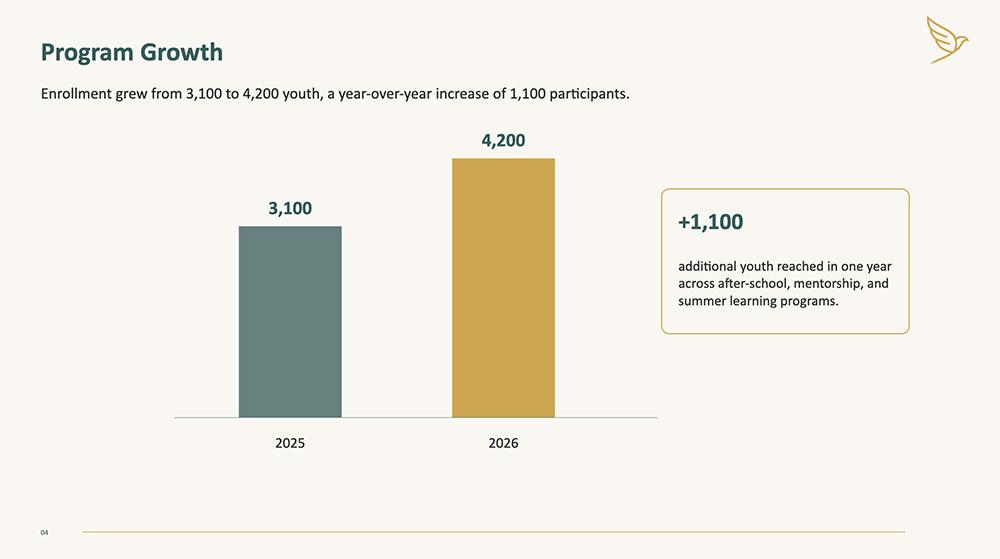
In my test decks, Claude tended to prioritize data visualizations and callout boxes. While these elements are helpful for data-heavy presentations, they repeat across virtually every deck Claude generates.
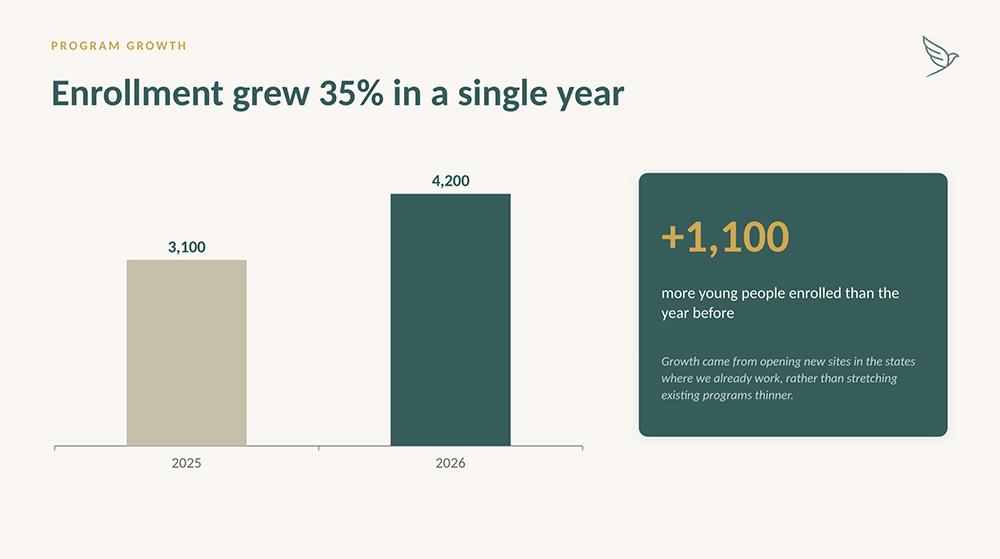
Oddly, Claude Design often struggled with design quality, even when using built-in slide templates. Elements often appeared misplaced or incomplete, like in this callout.
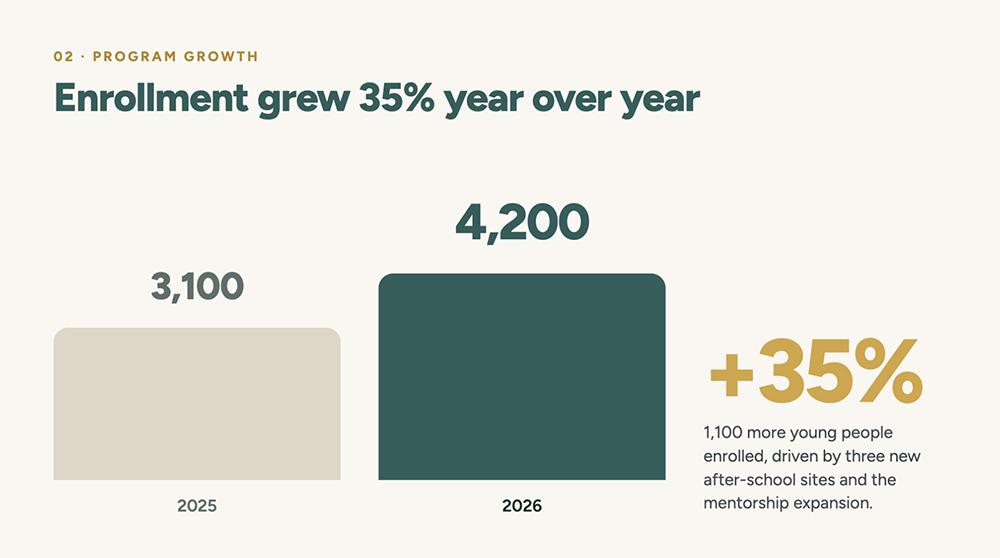
Although it would be easy to assume that Claude Design had the most advanced design and layout skills, I didn’t find this to be the case. In my experience, it stuck to a limited set of rigid designs and didn’t venture outside of that.
Plus, Claude chat and Claude Design lack image generation capabilities. This limits their capacity for design and can create more work for you.
Here, Claude created an image placeholder but left it to me to source the image.
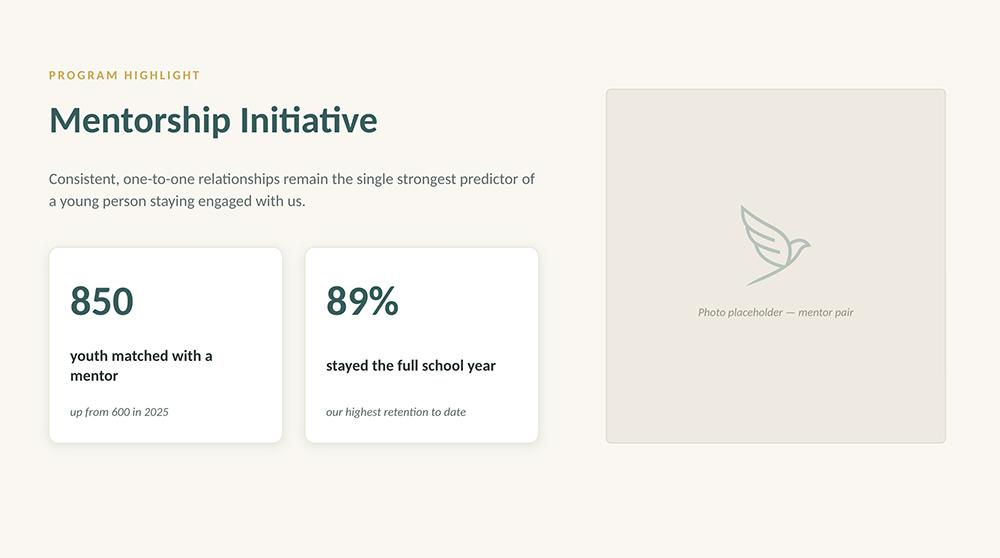
ChatGPT automatically inserted an image that nicely fit the brand and the presentation theme, saving me extra work.

In terms of design, it’s also worth noting that each tool created at least minor issues when exporting files to PPTX. Fonts often didn’t translate correctly, requiring cleaning after importing to PowerPoint. And Claude Design exports often had missing elements that needed even more editing. You can avoid these issues by using the add-ins to design directly in PowerPoint.
Can ChatGPT and Claude edit PowerPoint presentations?
Yes, you can edit slide decks in either Claude or ChatGPT. When you use the add-in in PowerPoint, you get full access to manual and prompt-based edits. But in the chat interfaces, the available editing features vary a bit between platforms.
ChatGPT supports prompt-based editing only, so you have to be specific about the design- or copy-related changes you want it to make. Here, I asked it to edit the original slide (left) and add more visual callouts to make the information easier to skim (right).
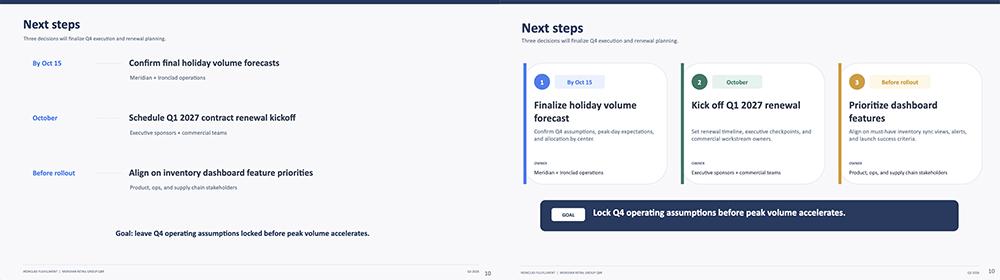
Claude chat also allows prompt-based editing, with no manual options or presets. I used the same prompt, telling it to add more visual callouts to the original slide design (left).
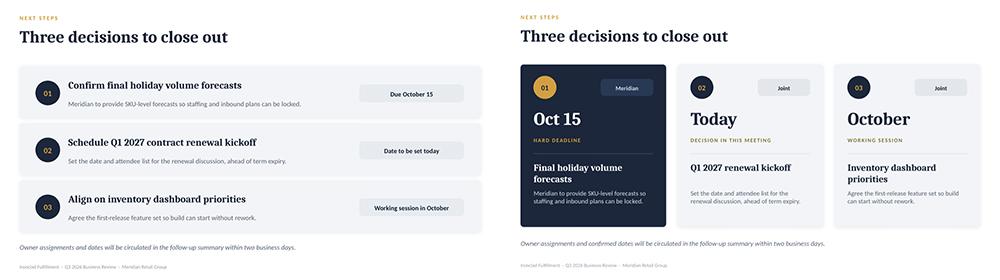
Claude Design supports both prompt-based and manual edits. You can instruct it to make large-scale edits like redesigns, like I did below (original on left, and edit on right). You can also click to edit almost any element manually.

While all of these edits are improvements over the original, both Claude and ChatGPT quickly run into limitations with any design-related changes. They seem to draw from a very limited pool of slide designs. So, there are only so many ways either platform can change the look of your presentation.
If you’re serious about unique designs (or at least avoiding the distinctive Claude and ChatGPT appearances), it’s worth considering a dedicated AI presentation tool.
How well do ChatGPT and Claude follow a brand template?
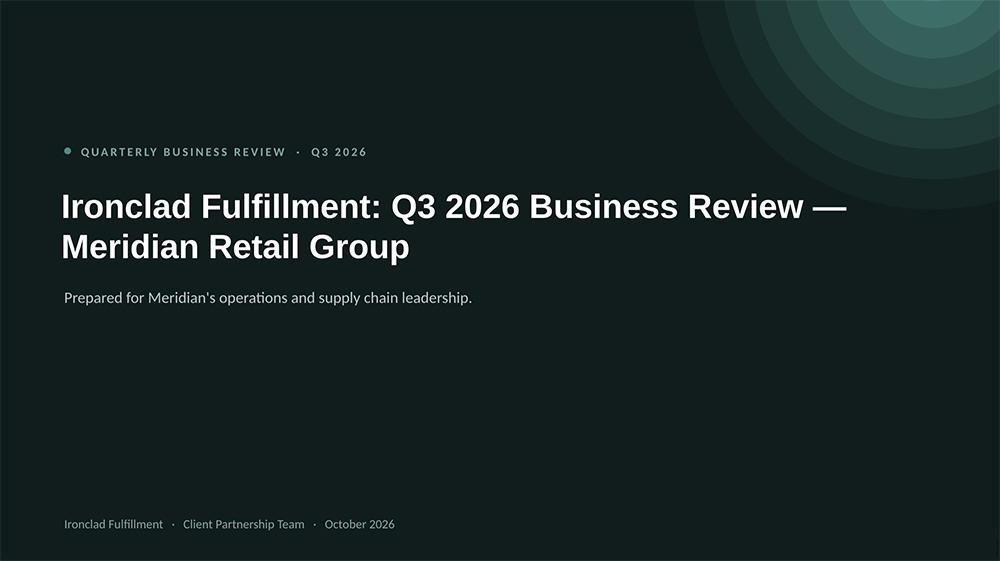
Compared to ChatGPT, Claude does a better job at following brand templates. When I uploaded a brand template in PPTX format along with my slide deck prompt, Claude easily applied the slide layouts and design elements. Its performance was consistent across chat, Claude Design, and the PowerPoint add-in.
For example, Claude used the exact title slide design from my template.
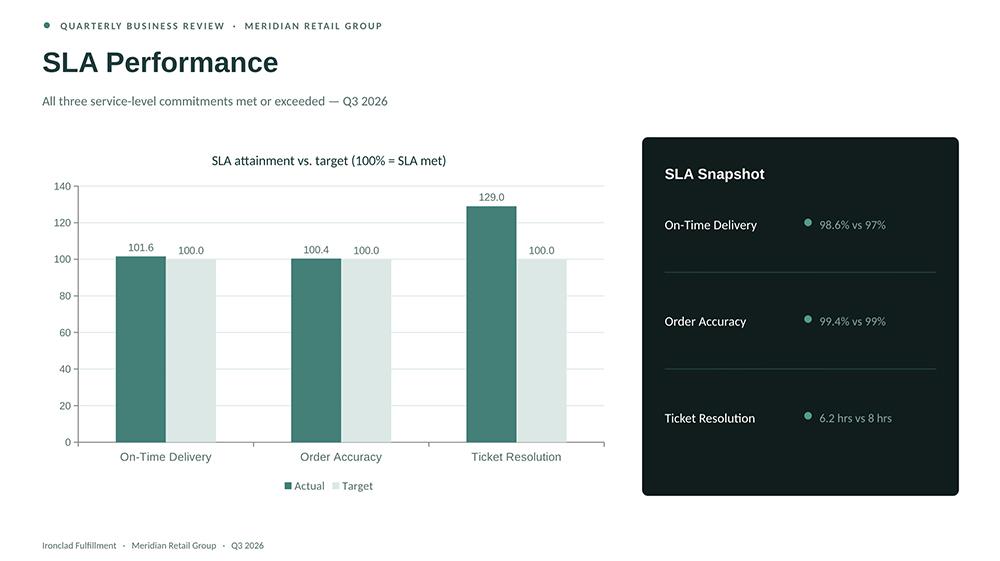
It also incorporated the template’s white background and on-brand green color palette for charts and callouts.
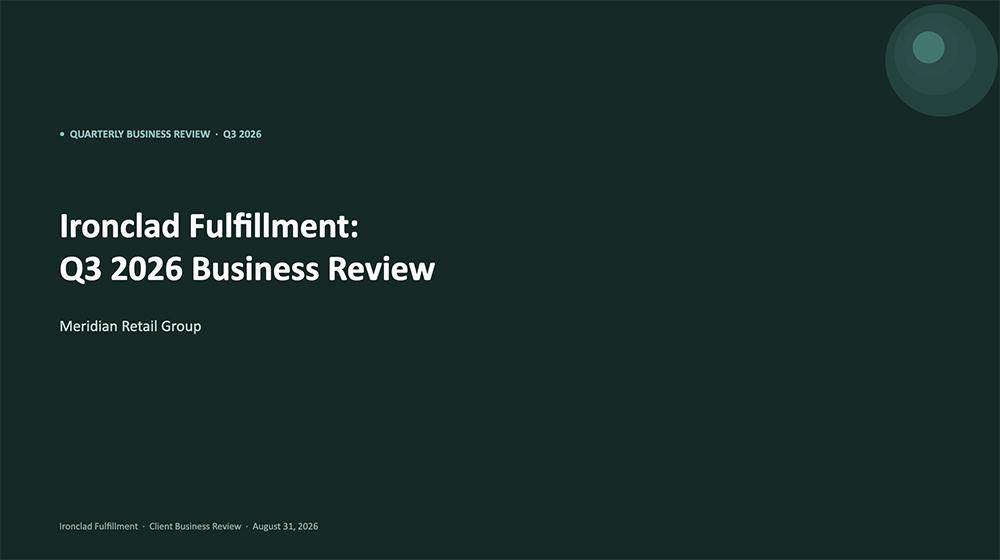
In comparison, ChatGPT reinterpreted the title slide template, translating it into a somewhat similar design.
It also opted to use a green background for all slides and applied its own design principles for data visualizations and callouts. None of these elements appeared in the template.
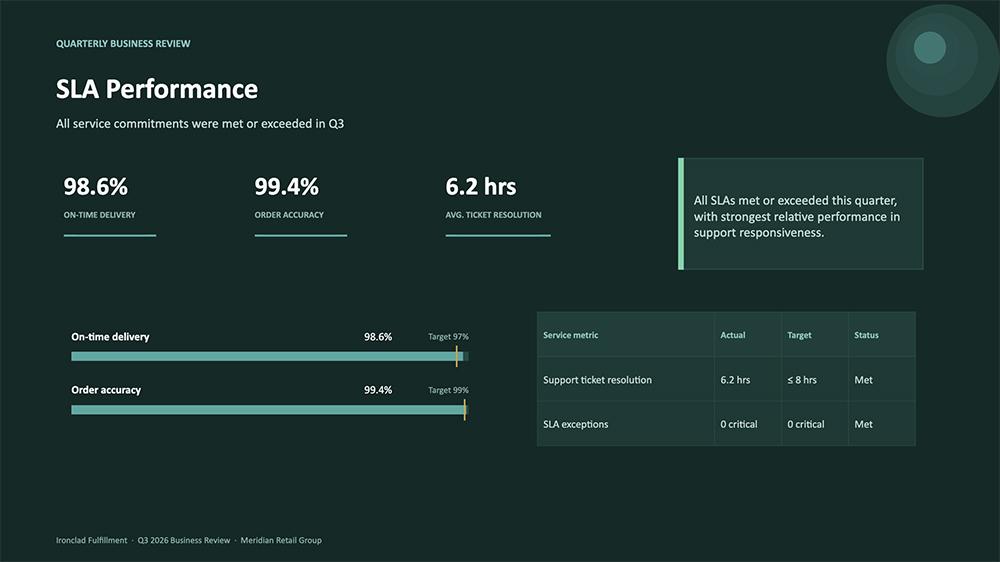
On other slides, ChatGPT seemed to ignore the template’s color palette and introduced its own instead.
Compared to the chat interface, the ChatGPT add-in did a better job of sticking to the template. But the finished deck completely lacked data visualizations, so I don’t know if I would call it a successful deck.
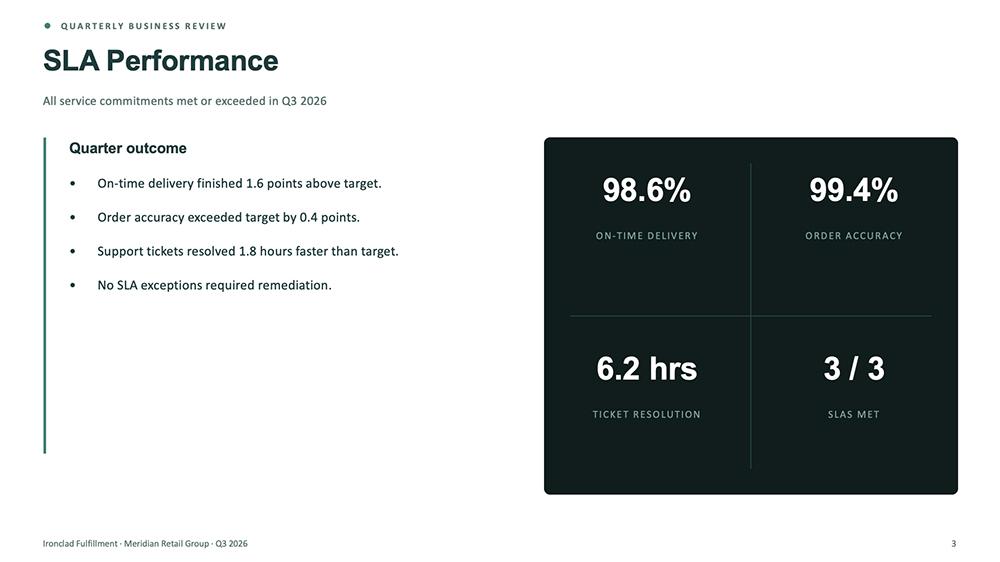
As a result, I’d say Claude easily wins over ChatGPT for on-brand decks.
Which ChatGPT and Claude plans include PowerPoint features?
Technically, you can generate PowerPoint decks using the free plans from ChatGPT or Claude. But since both platforms’ free plans have lower usage and limited or no add-in support, a paid plan is a much better bet.
For ChatGPT, the Plus plan ($20/month) is the lowest tier that offers full access to PowerPoint tools. If you plan to create a lot of presentations or if you regularly use generative AI for other tasks, a Pro plan ($100/month) may be a better choice.
For Claude, the Pro plan ($20/month) gives you access to Claude Design and Claude for Microsoft 365. If you find that you’re hitting usage caps, the Max plan ($100/month) offers 5x more usage.
Should you use ChatGPT or Claude for presentations?
If you can only pick one of the two, Claude is a better choice overall. It was the clear winner in most of my copy and design tests. Claude wrote stronger slide copy, which it then expanded more effectively when prompted. It also followed brand templates more closely, and it offers more editing options (thanks to Claude Design).
ChatGPT isn’t always the worse option of the two, though. It’s the clear choice when you need image generation.
Here’s how Claude vs ChatGPT compare head-to-head across everything I tested:
| Category | ChatGPT | Claude | Winner |
|---|---|---|---|
| Slide copy | Minimal copy with some formatting issues | Well-organized takeaways and stronger expansions | Claude |
| Slide design | Basic designs with a light touch | Richer layouts, though repetitive across decks | Claude |
| Image generation | Generates and places on-brand images | No image generation, placeholders only | ChatGPT |
| Editing | Prompt-based edits, plus manual edits in the add-in | Prompt-based edits, plus manual edits in the add-in and Claude Design | Claude |
| Brand templates | Doesn’t reliably apply templates | Applies layouts and palettes accurately | Claude |
| Entry paid plan | Plus at $20/month | Pro at $20/month | Tie |
The right choice also depends on the type of deck you’re creating:
-
Data-heavy business presentations: Claude is the stronger pick for QBRs, reports, and anything built around numbers. Its instinct for data visualizations and callouts fits the format, and it organizes findings into takeaways the audience can absorb at a glance.
-
On-brand and client-facing decks: Claude wins here by a wider margin. It applied my PowerPoint template accurately, from the layouts to the color palettes. In contrast, ChatGPT reinterpreted the design and introduced its own colors.
-
Image-heavy presentations: ChatGPT is the better choice when you need visuals beyond icons and charts. It generated and placed on-brand images automatically, while Claude left me with empty placeholders to fill myself.
-
Quick internal drafts: Either tool works for a rough deck that doesn’t need to look perfect. ChatGPT’s simpler designs are fine for this purpose, and both platforms can produce a usable file from a single prompt.
-
Decks you want to fine-tune yourself: Claude Design offers click-to-edit controls outside of PowerPoint, so it’s the closest to a traditional editing workflow. Just expect to fix some misplaced elements if you export and import to PowerPoint.
-
Decks you want to present: Claude Design has a built-in presentation mode, so you can present straight from the tool and skip the PPTX export entirely. This sidesteps the export issues I ran into when moving files into PowerPoint.
Whichever tool you choose, budget for cleanup time. Both introduced formatting and exporting issues in my tests.
When Plus AI beats ChatGPT and Claude for slides
ChatGPT and Claude are general purpose AI assistants, and slides are one of many features they offer. It’s no surprise that their output can be a little lackluster.
But as a purpose-built tool, Plus AI only creates presentations. It has a template library of professionally designed layouts, along with editing presets that help you get to a final version faster. Here’s when I would use Plus AI over either AI assistant.
You want a more in-depth creative process
When you input a prompt, Plus doesn’t jump right into slide generation. Instead, it creates a detailed outline so you can see what goes on each slide and the layouts it intends to use. This is your opportunity to get the plan right to save yourself time later.
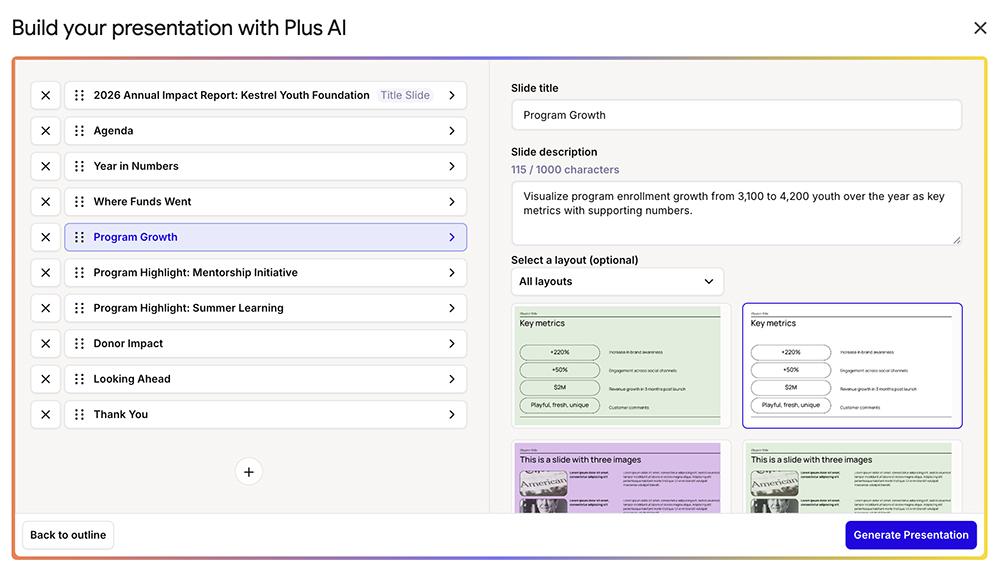
You want a tool that knows how to format content for slide decks
If you’re tired of having to fix slide layouts or prompt for more context or better takeaways, Plus can help. As a dedicated presentation tool, it automatically organizes content for maximum impact and has a strong sense of how much detail to include.
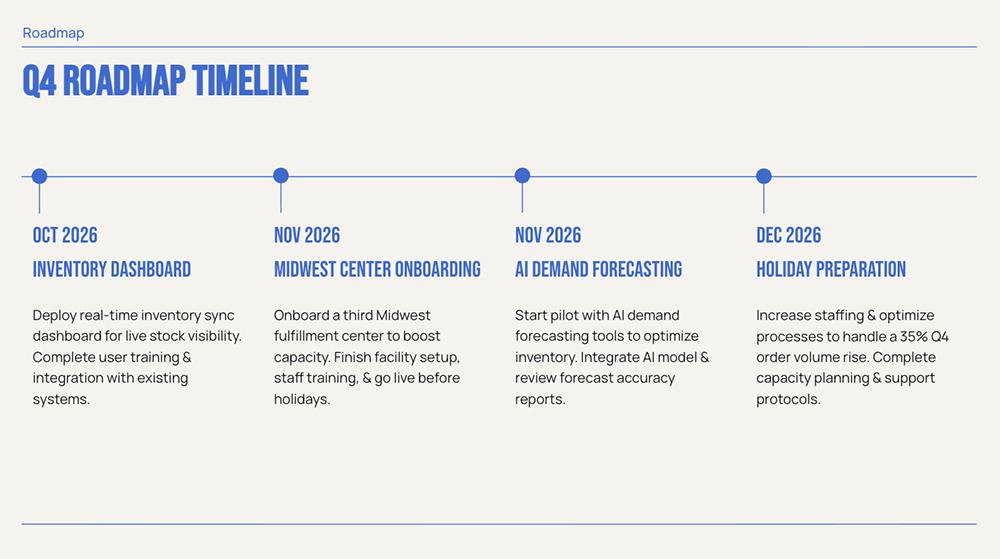
You want more creative presentation designs
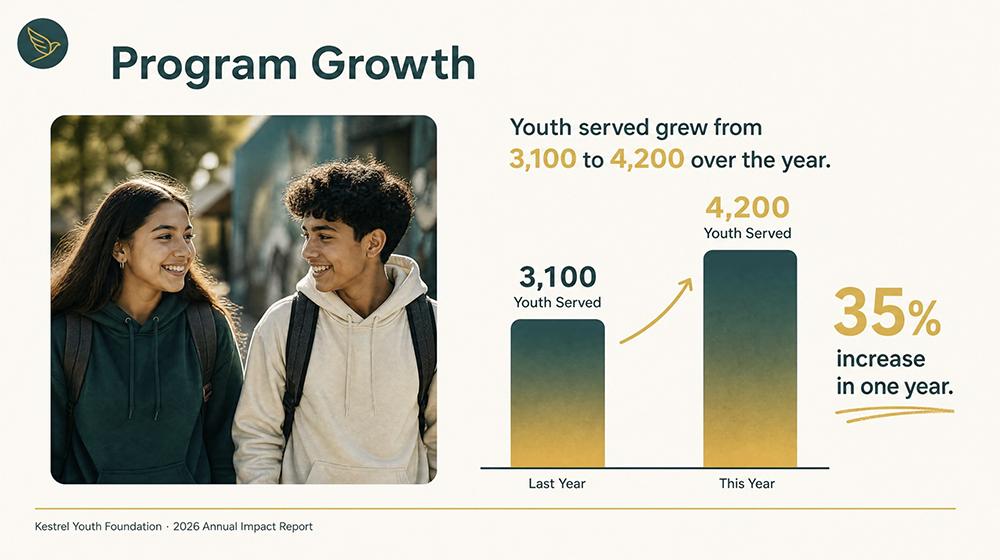
When you’re tired of the easily recognizable Claude and ChatGPT designs, Plus AI’s template library gives you dozens of styles to choose from. And when you want a more unique look, Plus’s image mode generates slide decks that stand out.
You want to easily apply brand guidelines to presentations
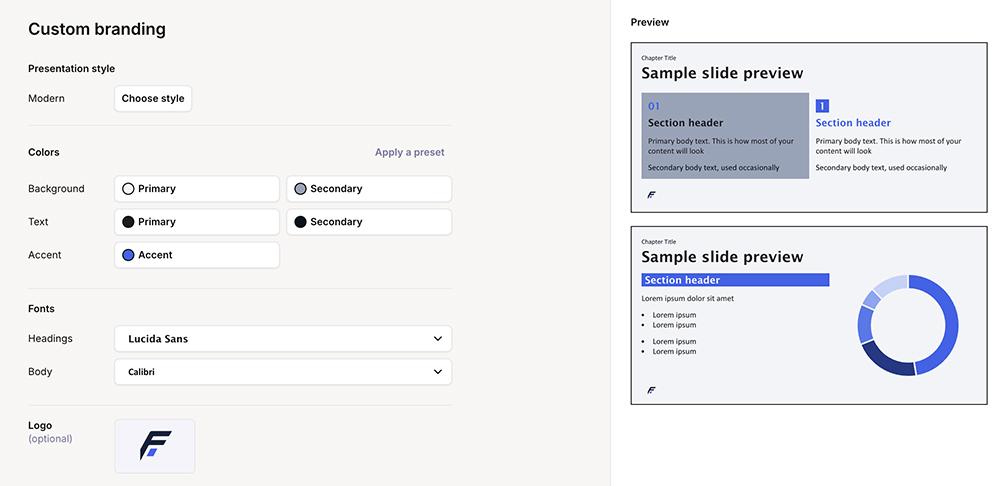
With Plus, you can quickly set up custom branding so your presentations always look on brand. And you can upload templates so you only have to design recurring slide decks once.
You want better image generation options
Plus AI generates both photos and illustrations using your choice of models and styles. Pick a style preset and choose from Nano Banana Pro, Flux Schnell, and other models to generate AI images that fit your brand.

You want to edit presentations faster
With AI assistants, you have to guess what needs to change or make manual edits. But with Plus, you can make many of the most common edits faster.
Plus’s AI editing presets let you rewrite single text blocks, individual slides, or entire decks with a quick prompt. And you can also easily add a new slide or use remix to swap slide layouts with one click.
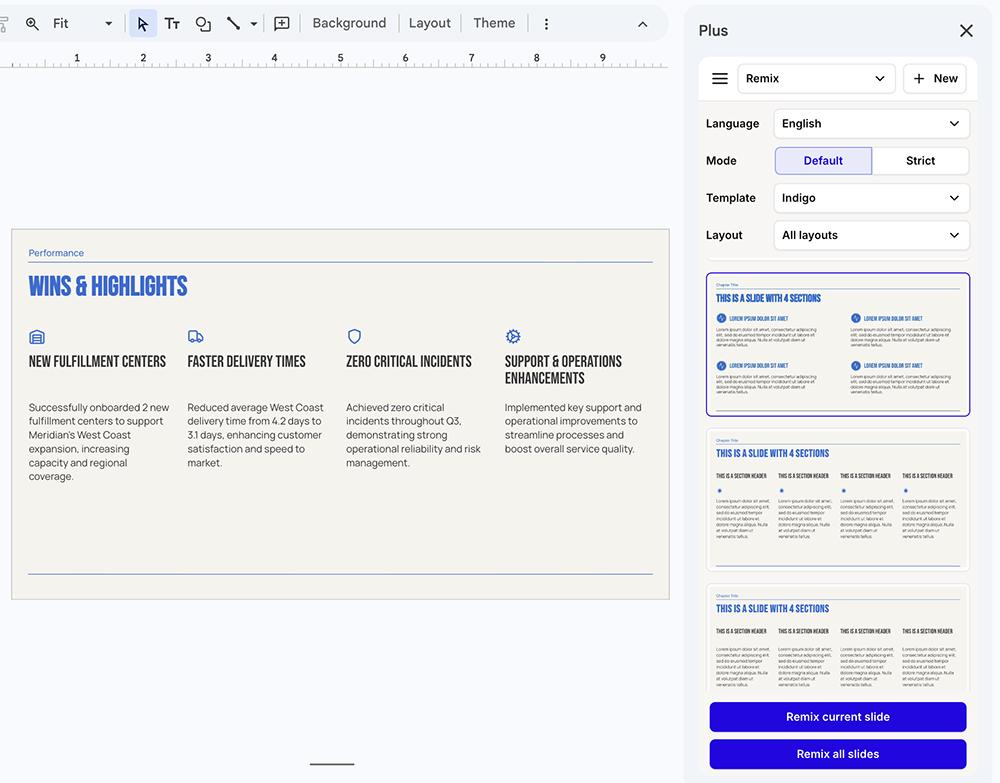
For bigger changes, you can always use the Plus AI agent, which supports prompt-based slide generation and editing directly in PowerPoint.
You want to work in Google Slides
Neither ChatGPT nor Claude works directly in Google Slides, so you’re stuck with the chat interface or the PowerPoint add-in. Plus AI also has a browser-based interface, along with a Google Slides extension and a PowerPoint add-in.
That means you can work and present in any ecosystem your team prefers. And while you can certainly export fully editable PPTX files from any Plus interface, you probably won’t need to.
You don’t want to burn your AI usage on slides
With Plus AI, you don’t have to worry about balancing your AI usage so you have enough tokens for other AI assistant tasks. Plans start at $15/month for 1,500 AI credits.
None of this means you should drop ChatGPT or Claude. These AI assistants still win on in-depth research. If your deck depends on sourcing and compiling information, start there.
But if you need professional layouts, an on-brand deck, or a presentation you can edit and present without exporting, Plus AI gets you to the finished version faster.
Plus AI works inside PowerPoint and Google Slides, so you can build, edit, and present in the tool your team already uses. Start a free trial of Plus AI and put it to the test with your next deck.
Frequently asked questions about Claude and ChatGPT for PowerPoint
Can Claude make a PowerPoint deck?
Yes, Claude can make a PowerPoint deck using a few different methods. It generates a downloadable PowerPoint file directly in chat or in Claude Design, and the Claude for PowerPoint add-in can create and edit slides inside an open deck.
Does Claude work inside PowerPoint?
Yes, Claude works directly inside PowerPoint via the Claude for PowerPoint add-in. Once you install it, you can create new slides and edit existing ones without leaving the PowerPoint app. You can also access Claude skills and connectors as you design presentations.
What is the best AI tool for making PowerPoint slides?
The best AI tool for making PowerPoint slides depends on the deck you need to build. ChatGPT and Claude work well for quick drafts and research-heavy content. A purpose-built tool like Plus AI is the stronger choice when you need professional layouts and brand templates.
Can I use ChatGPT or Claude for free to make slides?
Yes, you can use both ChatGPT and Claude for free to make slides. Free plans include basic PPTX generation with usage and feature limits. Expanded usage and full access to add-ins require a paid plan.