
Comparisons
Is the Pitch App Good Enough to Be Your Go-To Slide Deck Tool?
Is the Pitch app right for your team? Our hands-on Pitch review covers AI deck generation, collaboration tools, pricing, and how it compares to Plus AI.

Pitch is an AI presentation tool built with teams in mind. While plenty of slide deck apps focus on solo creation, Pitch leans into real-time collaboration, with features like comments, shared workspaces, and pitch rooms that keep everyone on the same page.
Its AI capabilities are a different question, though. Pitch only rolled out its AI agent in Q2 2026, and plans come with a limited number of AI credits. So it’s reasonable to wonder whether Pitch can really handle a typical team’s AI presentation needs. To find out, I put it to the test.
In this Pitch app review, I’ll walk through how Pitch works, where it delivers, and where it comes up short. I’ll also compare the workflows and results to Plus AI to see how Pitch stacks up against a tool designed for AI-generated presentations.
What is the Pitch app?
Pitch is an AI presentation tool that focuses on slide decks for sales, marketing, and investors. It’s geared toward sales and marketing teams that need to create, present, and track a lot of decks.
It’s designed for internal and external collaboration. Teams can create rooms with presentations and other resources, so everyone can access what they need to move deals forward. Each room has engagement analytics so you can track who’s viewing which files.
Pitch has a browser-based interface along with downloadable apps for desktop (macOS and Windows) and mobile (iOS and Android). It also has native integrations with sales and communication tools like HubSpot, Slack, and Notion.
How good is the Pitch app’s AI deck generation?
Throughout my tests, Pitch’s AI tools provided an inconsistent experience. The browser interface was particularly buggy and threw frequent errors, even though the tool had no reported outages. In my experience, the desktop app was much more reliable.
But even when the tool worked smoothly, the generative AI output fell short of my expectations. Let me give you a few examples.
Mismatches between design and purpose
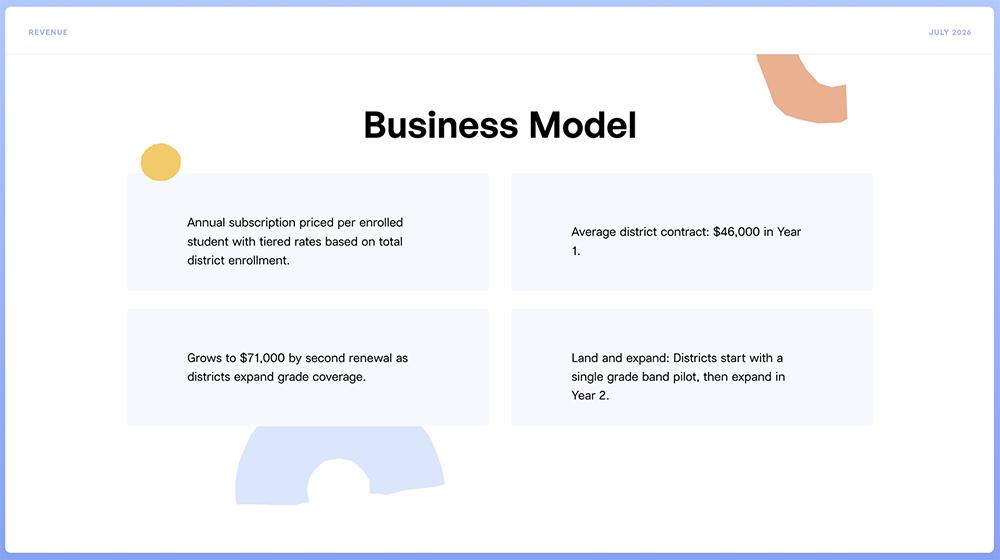
Here, I created a Series A pitch deck for an edtech platform. I noticed that Pitch had some education-inspired templates, so I picked one to use with my prompt. The result is a $12M fundraising pitch with a design that would work much better for an elementary school.
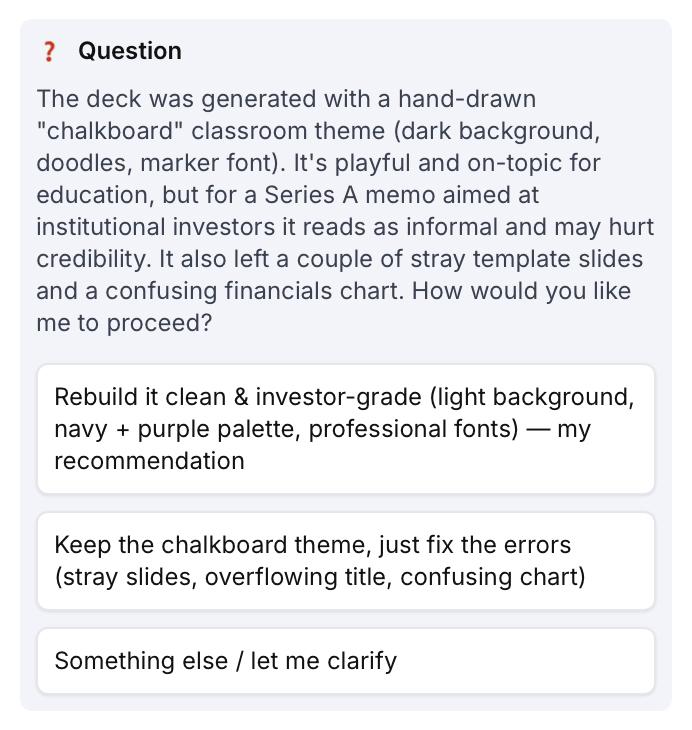
I tried the same test with Plus AI, this time choosing a chalkboard-inspired template. Plus proceeded to generate the deck as I requested, but then its AI Presentation Agent alerted me that the design was a bad fit for the Series A pitch.
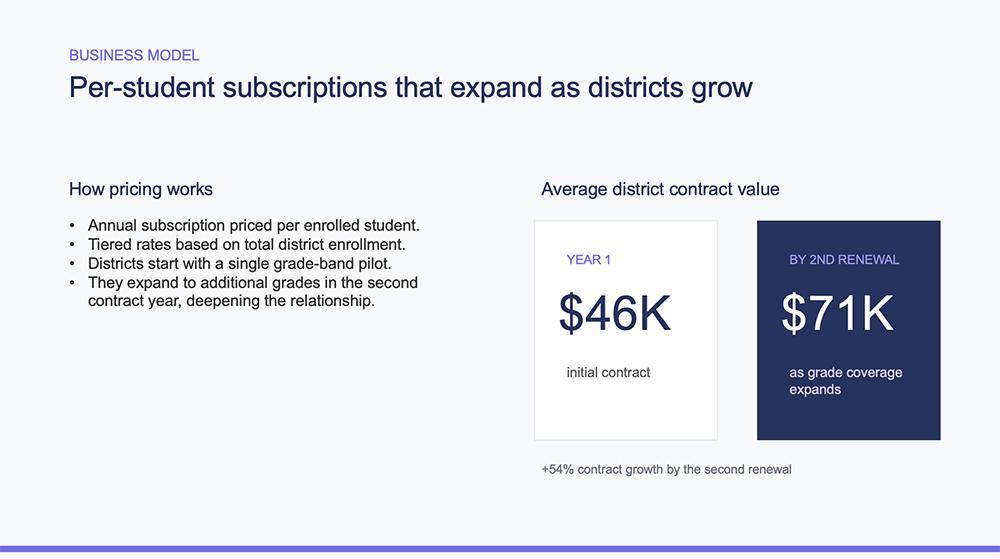
I took the agent’s advice to regenerate the deck. The final output was a much better fit for the pitch.
Quality issues with generative AI content
But even when there was no mismatch between the design and purpose, I found that Pitch’s generative AI tools left a lot to be desired. Take this B2C retail partnership pitch deck for example.
I created two versions. The first used a simple prompt that required the AI model to do a fair amount of reasoning. In this version, Pitch generated slides in a random order, placing the title slide at the end.
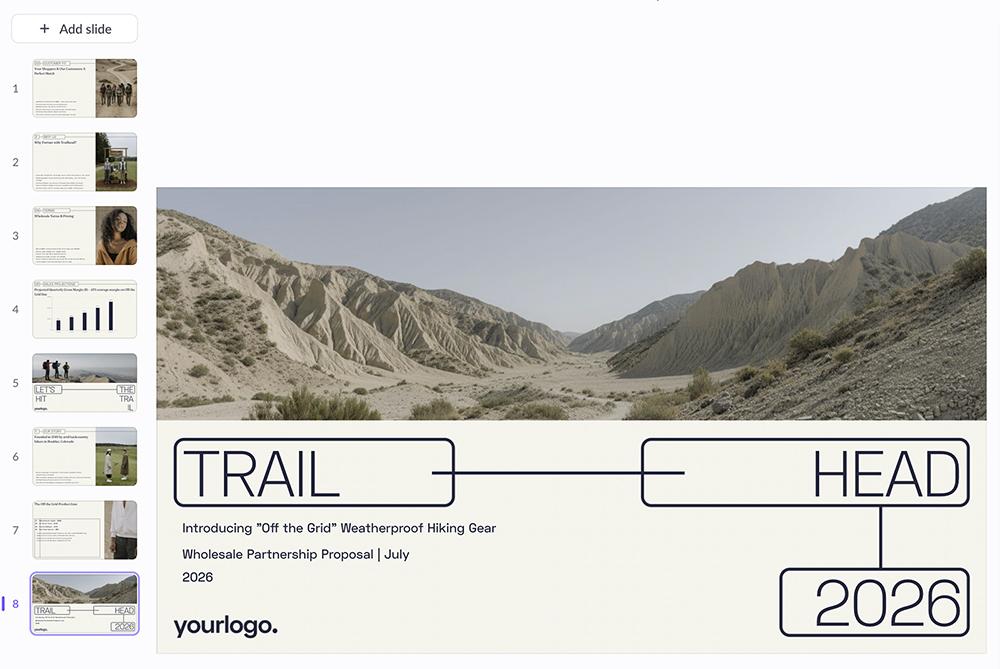
Pitch did a decent job at deciding which slides would be useful in this deck and what information to include on each slide. But it performed less well at design tasks. The rest of the presentation looks like this slide, with a list of bullet points that reads like a text wall.

Even when I gave Pitch a detailed version of the prompt with instructions for each slide, it struggled with design and layout. This slide is representative of the entire deck, with oddly positioned text, illegible copy, and images that don’t really fit the concept.

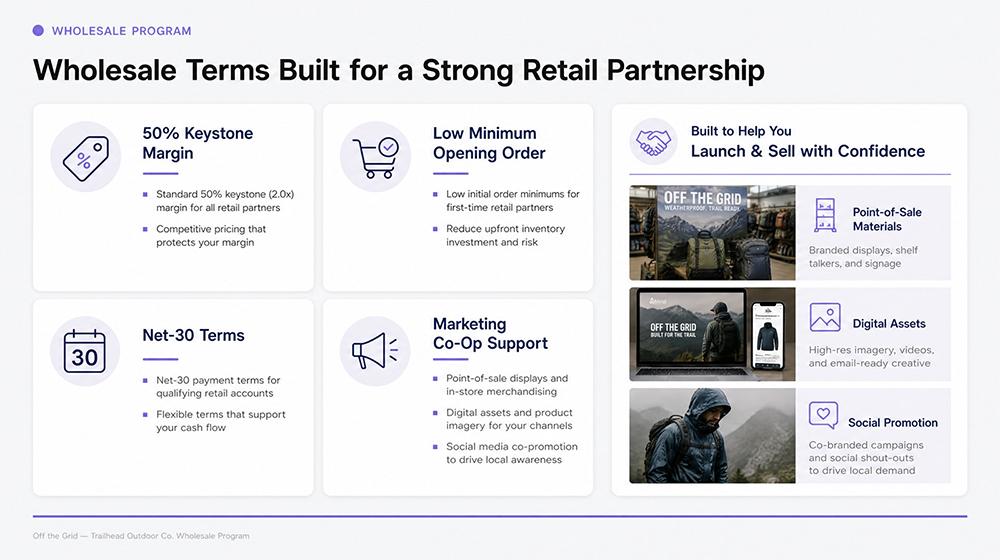
In contrast, Plus AI organized information in a way that would be easier for retailers to process quickly. I used Plus’s image mode and the basic version of the prompt to generate this deck — which resulted in creatively designed and visually appealing slides.
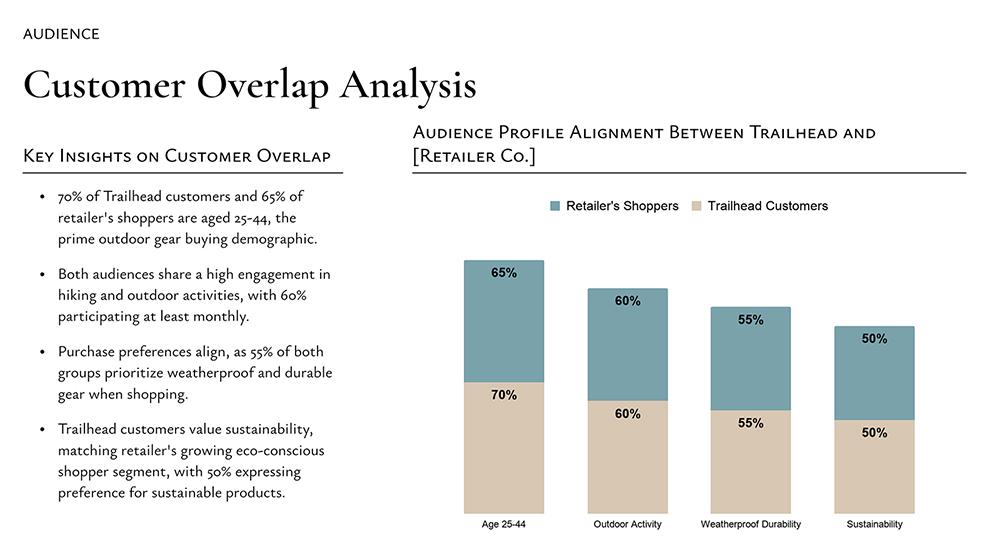
When I gave Plus the detailed version of the prompt and had it generate a deck in Google Slides, the result had fewer creative flourishes. But it did organize the information well and combine bullets with charts and graphics to make the material easy to understand.
Incomplete creative process
When you go through Pitch’s deck generation workflow, it’s easy to understand why the result doesn’t always align with your intent. Pitch goes directly from prompt to finished product in a single step.
There are no opportunities to review the outline beforehand. In fact, Pitch only shows you the outline after it’s used your AI credits and generated a deck.
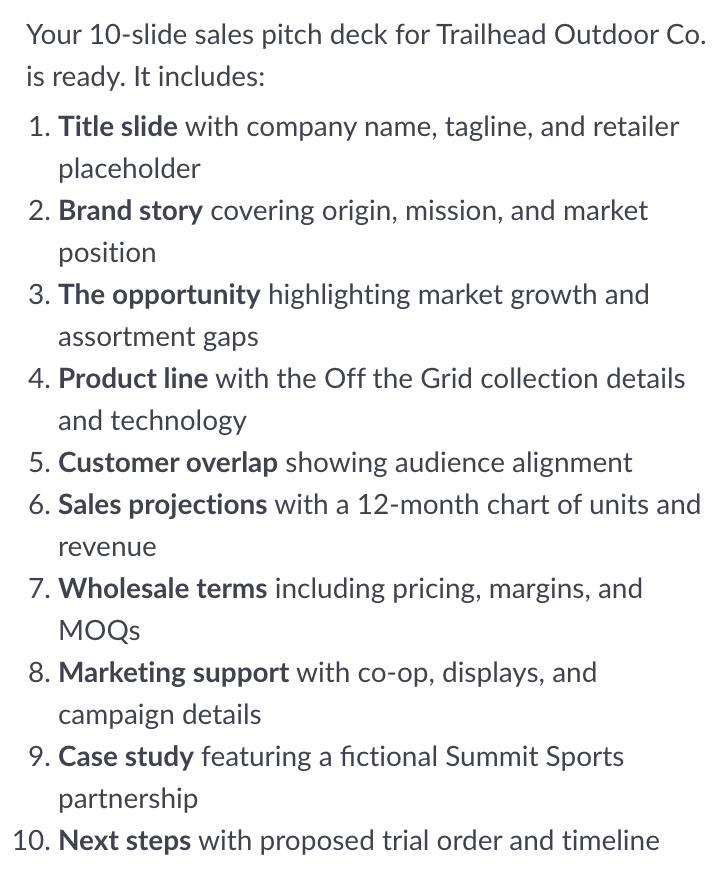
Plus AI has a more collaborative workflow. Whether you create a presentation in PowerPoint, Google Slides, or the Plus web interface, you get a chance to review the outline first.
This is your opportunity to weigh in on the narrative flow, what’s included on each slide, and even the layout. You can add, remove, or reorder slides and adjust the content or design.
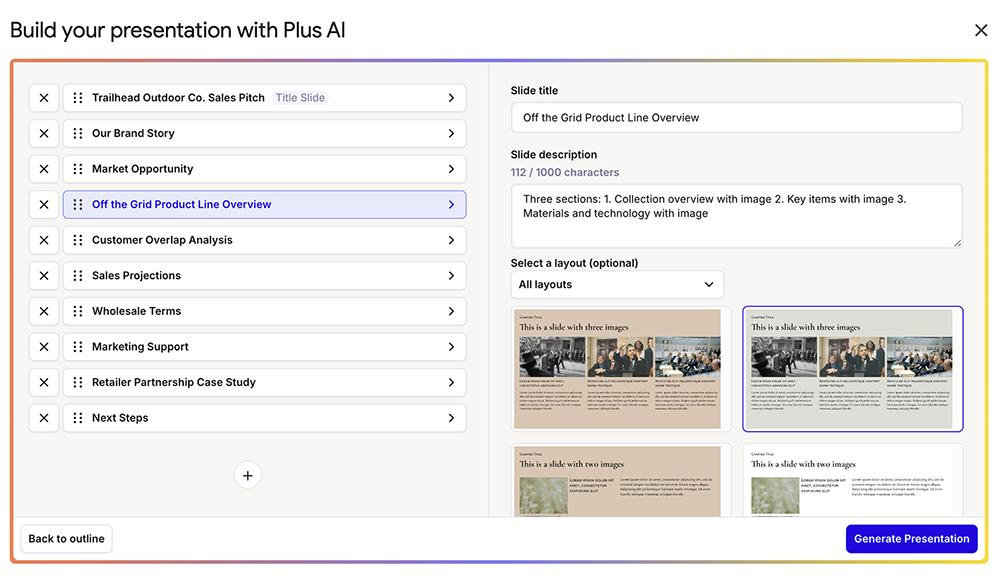
Once you approve, Plus generates your slide deck.
Insufficient AI credits
Before you test out a new software platform, it isn’t always easy to know how the AI usage will work in practice. Will a plan have enough AI credits to meet your needs, or will you need to upgrade to the next tier?
When testing Pitch’s Team plan, the AI credits disappeared so quickly I was completely caught off guard. I managed to generate only five presentation drafts, each with about 10 slides. This equals about 100 AI credits per slide deck, with no AI editing whatsoever. (I had to purchase additional credits for that.)
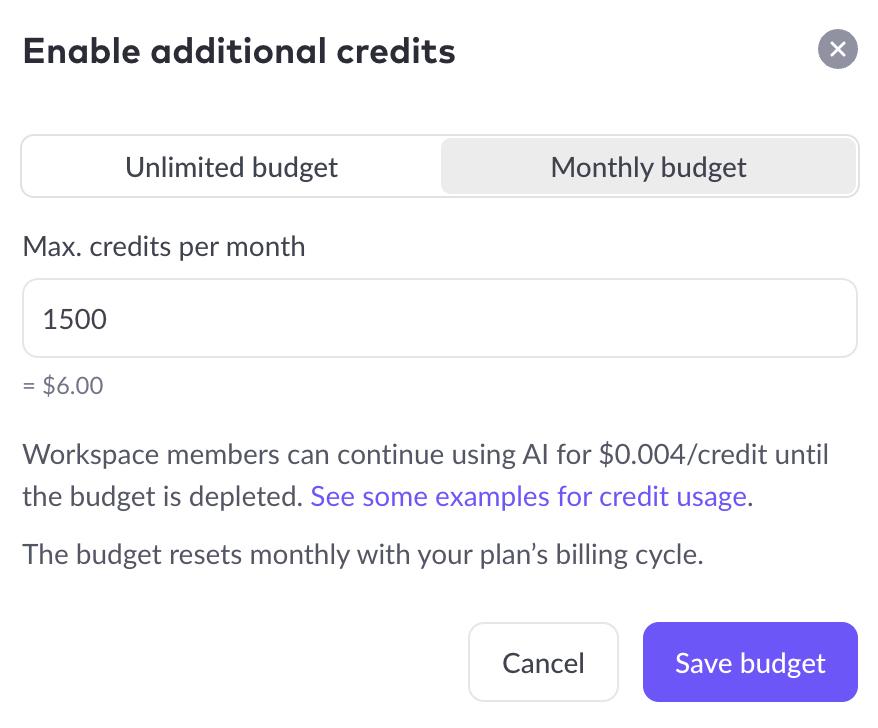
While Pitch and Plus don’t necessarily use the same AI credit calculations, I’ve never run out of credits with Plus — especially after creating just a handful of presentation drafts. From my perspective, each Plus plan includes a more realistic number of credits, making it easier to stick to a consistent monthly budget.
How strong are the Pitch app’s templates and design?
Pitch has a large template library with 100+ options to choose from. They’re divided into categories so you can easily find options for pitch decks, creative presentations, marketing reports, and much more.
But because there are so many options, I found Pitch’s template library a little overwhelming. Fortunately, it has a search feature that lets you narrow down the options.
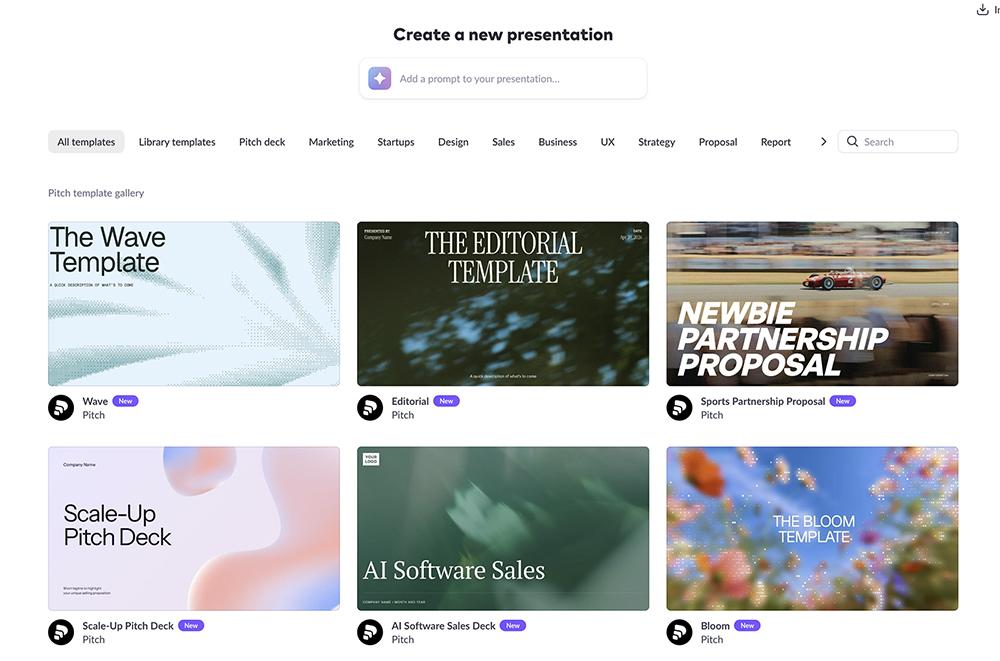
While the Pitch team developed some of the templates, many are from third-party designers and agencies. As a result, the quality varies a bit between templates.
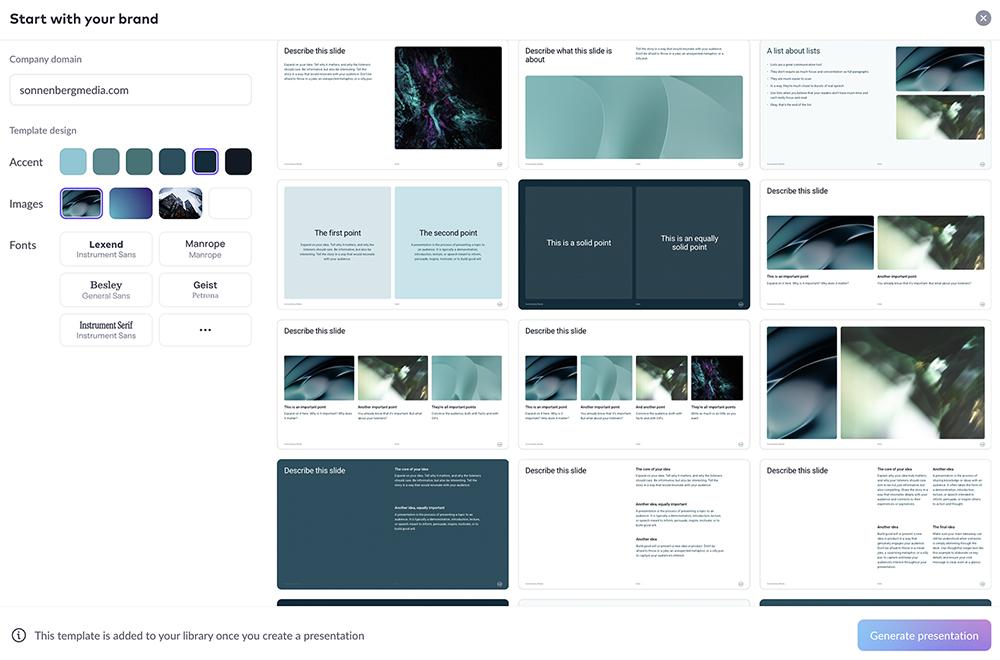
Pitch also makes it easy to apply your branding to any presentation you generate. Just input your company’s URL and the tool will automatically detect colors and fonts.
In comparison, Plus AI’s template library is about a quarter of the size. It has just over two dozen layouts to choose from, with options for everything from pitch decks to marketing reports to educational presentations.
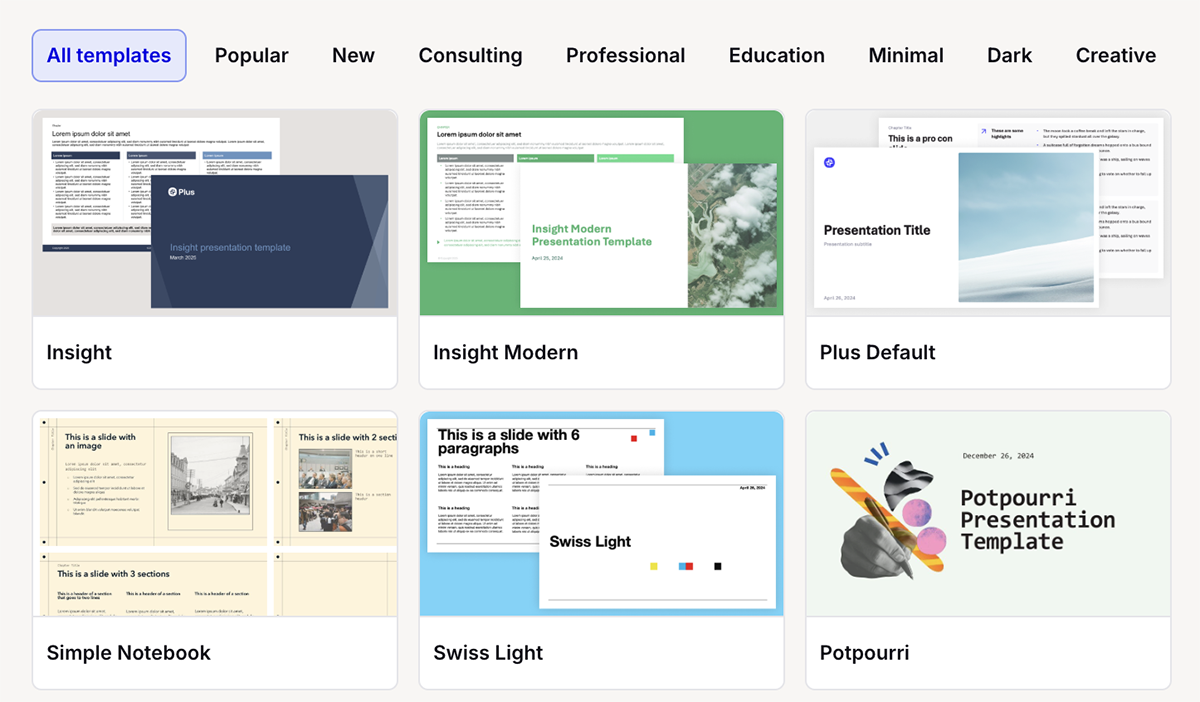
When you want more visually distinctive slides, Plus’s image mode gives you more freedom. In image mode, presentations emphasize design and content equally, which allows for more eye-catching slide decks.
What kind of charts and data visualizations does Pitch have?
When you create presentations with Pitch, you can add about a half dozen different types of data visualizations to your slides. Pitch automatically chooses and generates a chart type, but you can switch from a bar graph to a line chart and so on.
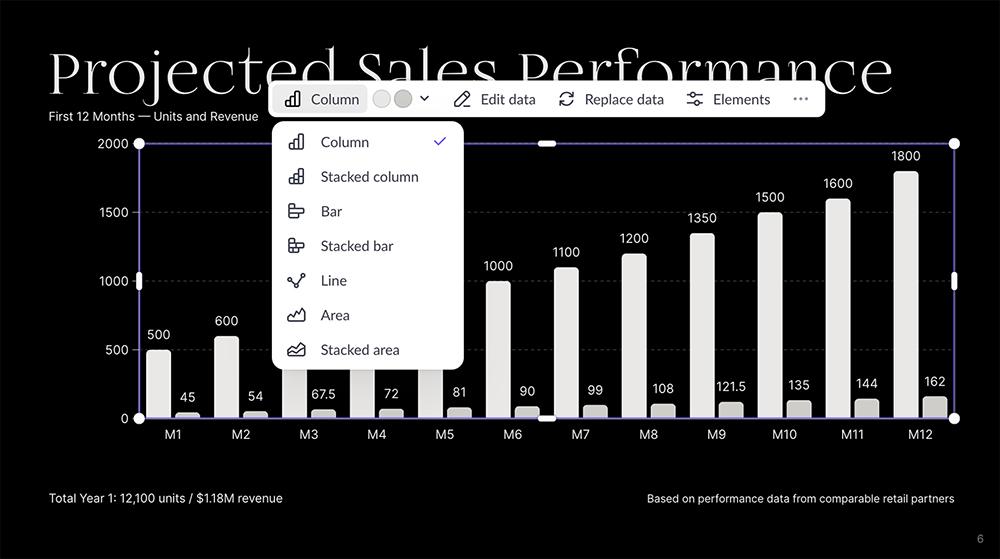
All of these data visualizations are fully editable, meaning you can change the style, update the color scheme, and adjust the labels. And although you can also update the data relatively easily, you have to do so within Pitch.
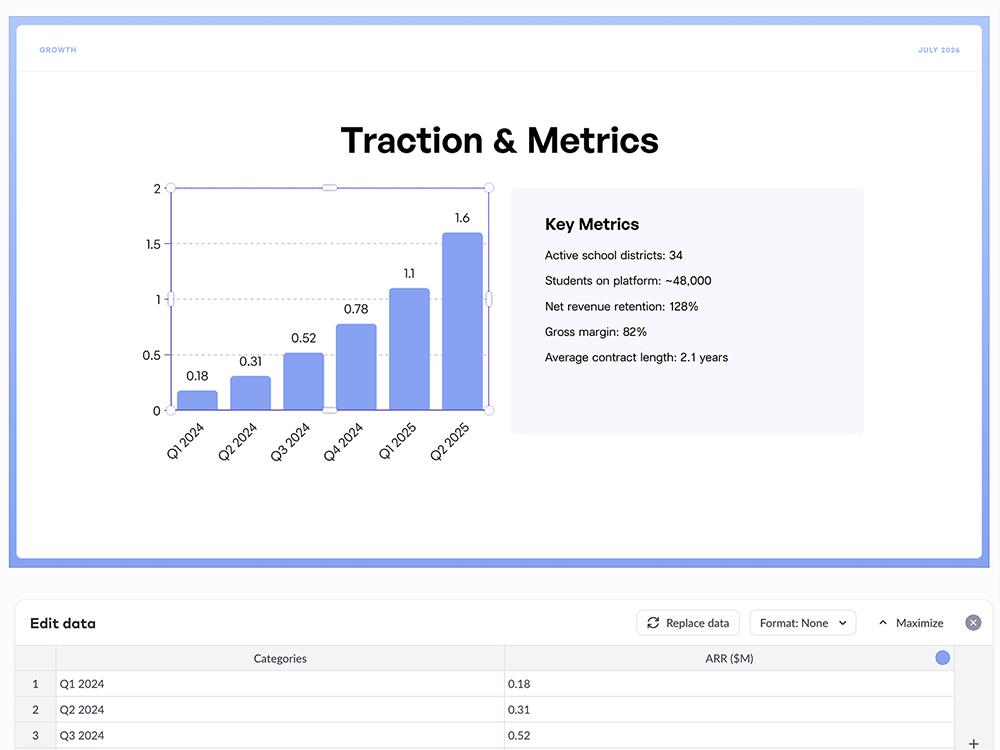
Pitch doesn’t connect to Excel or Google Sheets, so your charts won’t automatically update as you receive new data. While this is relatively straightforward, it’s an additional step that you don’t have to take with a tool that has direct integrations.
In contrast, Plus AI works directly in Google Slides and PowerPoint. Any data visualizations you create have linked spreadsheets in the Google Workspace and Microsoft 365 ecosystems.
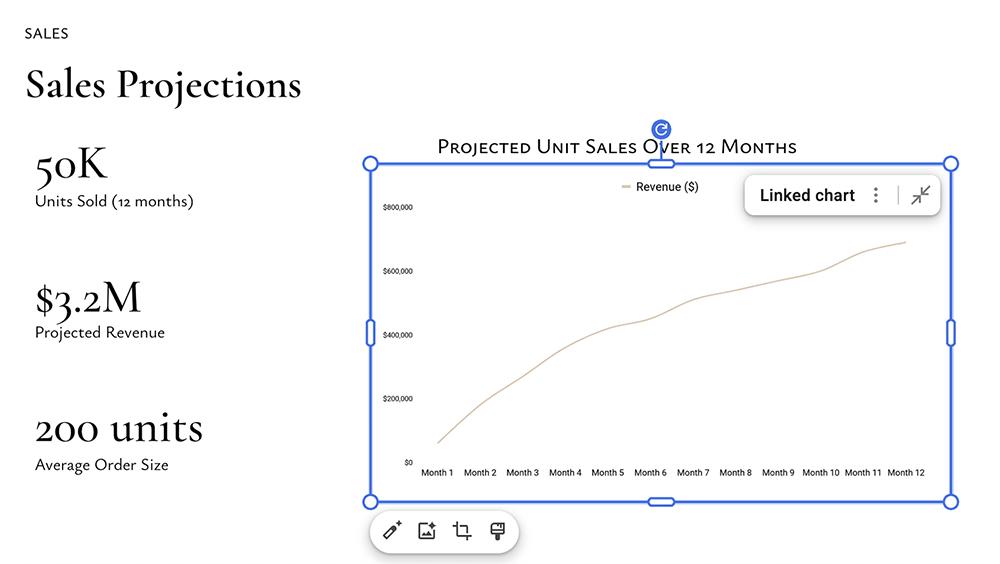
To refresh charts and graphs, all you have to do is update the linked sheet — which is faster and more intuitive for teams of any size.
Is editing slides in the Pitch app easy?
Whether you import an existing presentation or you generate a slide deck directly in Pitch, you have a range of different editing features. For tiny edits like changing a word, updating a color, or moving a text box, manual edits are fastest.
For minor updates, use the preset quick actions. Pitch has over a dozen AI-powered options to simplify language, add charts, generate images, adjust the tone, and much more.
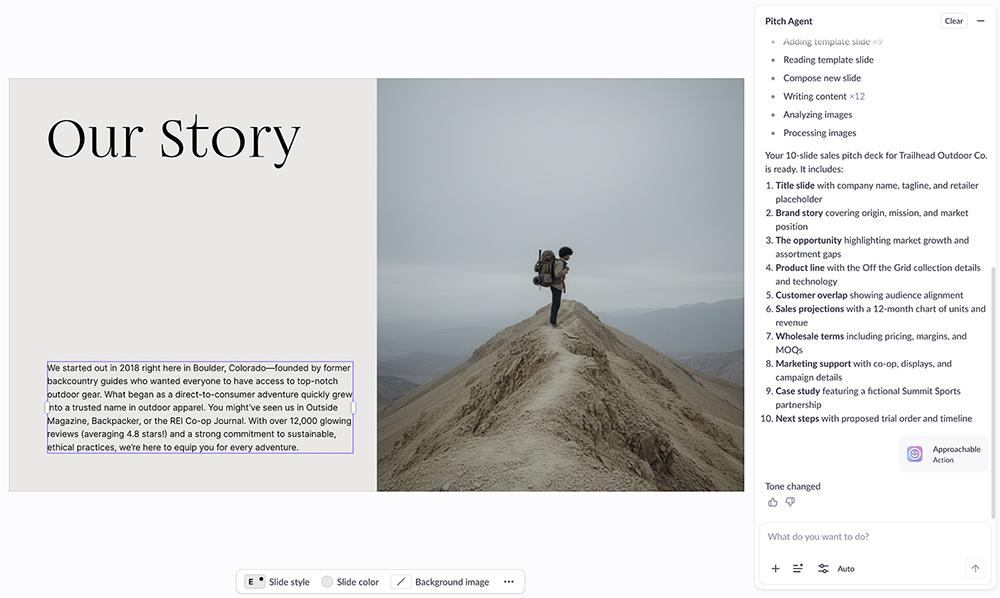
For large-scale edits, Pitch’s AI agent is your best bet. Explain what you need in plain language — like changing a slide layout, updating a color scheme, or reworking the audience. Then, let the agent get to work.
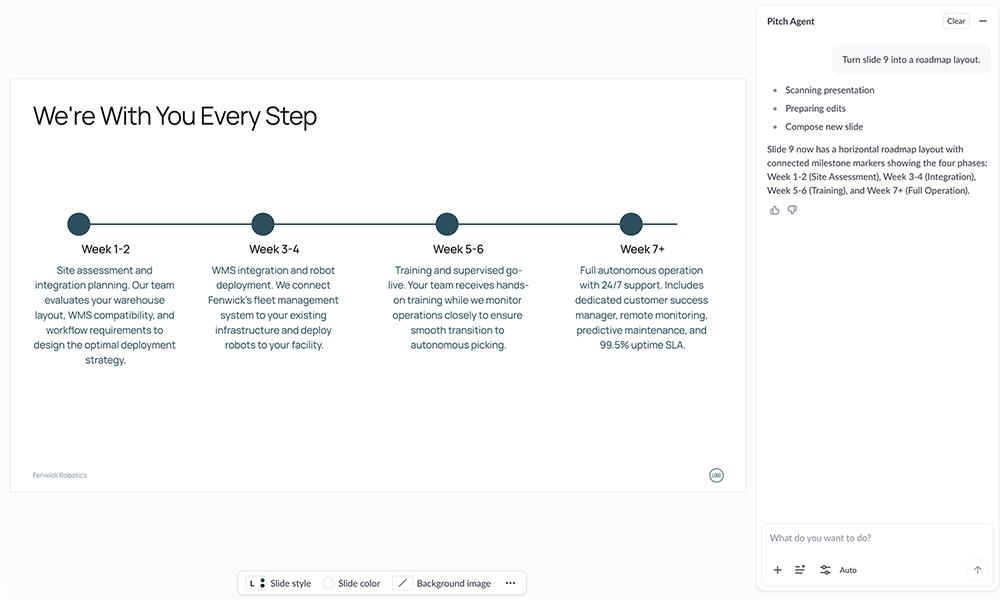
But take care not to overdo the AI edits. Everything you do counts against your AI credits, which are in short supply.
Plus AI also has a handful of editing presets that are helpful for quick updates when you work in Google Slides or PowerPoint. For example, Remix changes the layout of the slide to a design of your choice and automatically updates the copy and visuals as necessary.
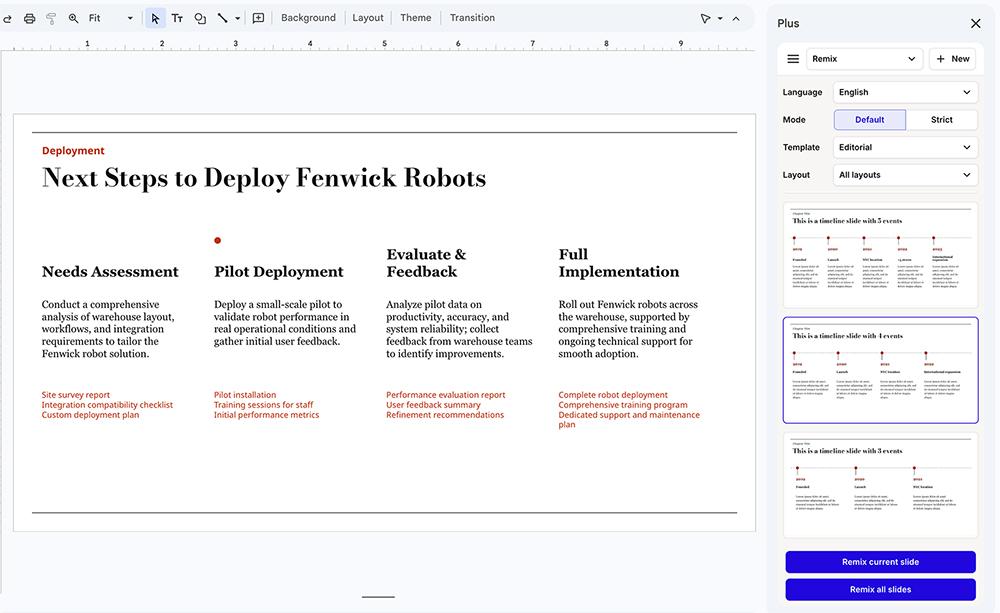
Rewrite updates slide copy based on presets or your natural language suggestions. And the image generator produces new visuals based on the AI model and style you prefer.
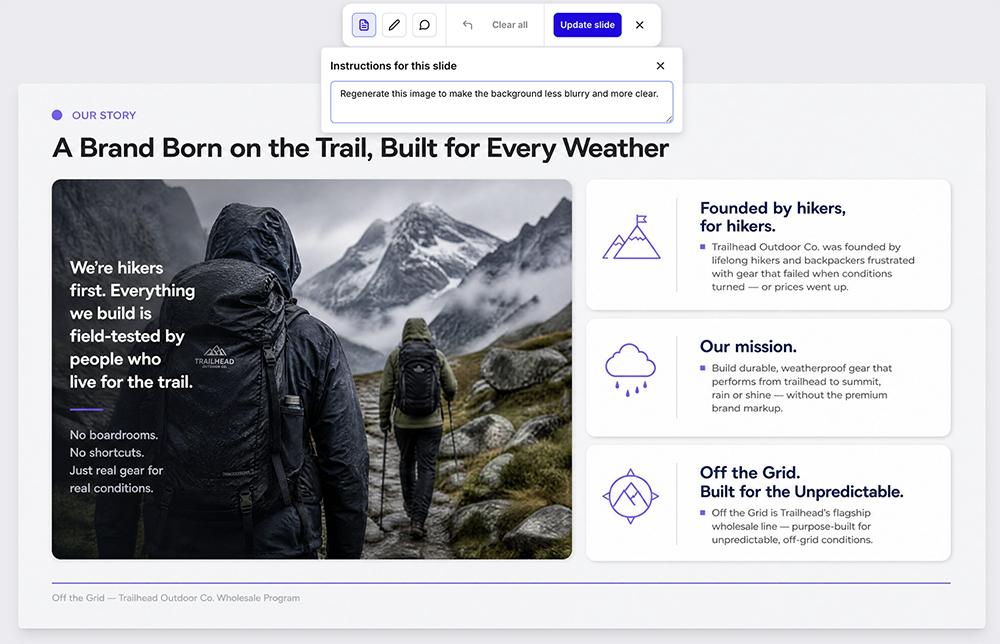
When you use Plus AI’s image mode, you can edit slide by slide using natural language prompts. For example, you can prompt Plus to rewrite copy, rework layouts, or regenerate images.
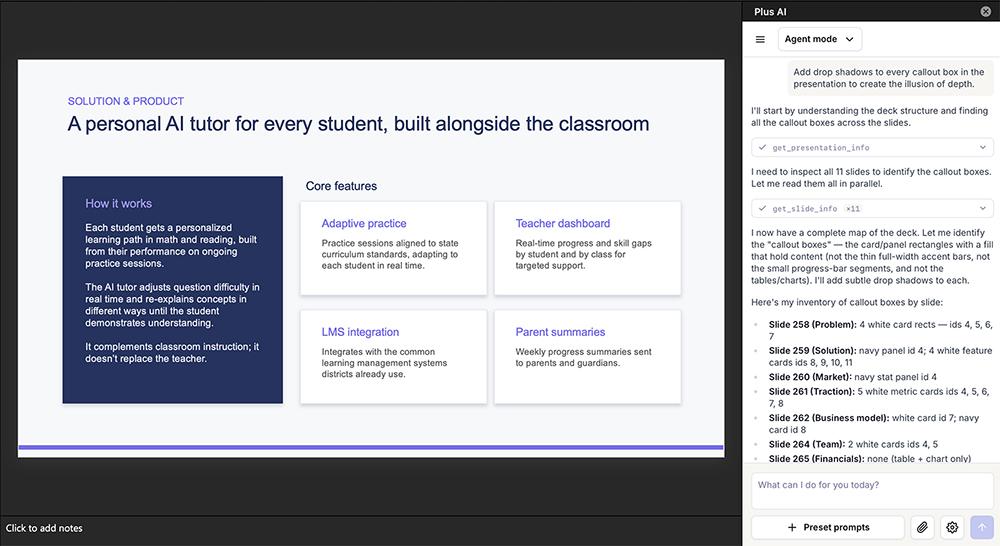
When you use Plus in PowerPoint, you can use the AI Agent to make any edits you need. Just tell it what you want to update on a certain slide or across the deck.
Is the Pitch app good for team collaboration?
Pitch is designed for collaboration, and the tool’s teamwork capabilities are some of its strongest points. Everyone on your team can edit presentations together in real time, which can be helpful for generating the final version faster.
And when you want to leave feedback or request edits, you can leave comments on specific slides. You can mention a team member to assign a task and make sure your comment doesn’t go unnoticed.
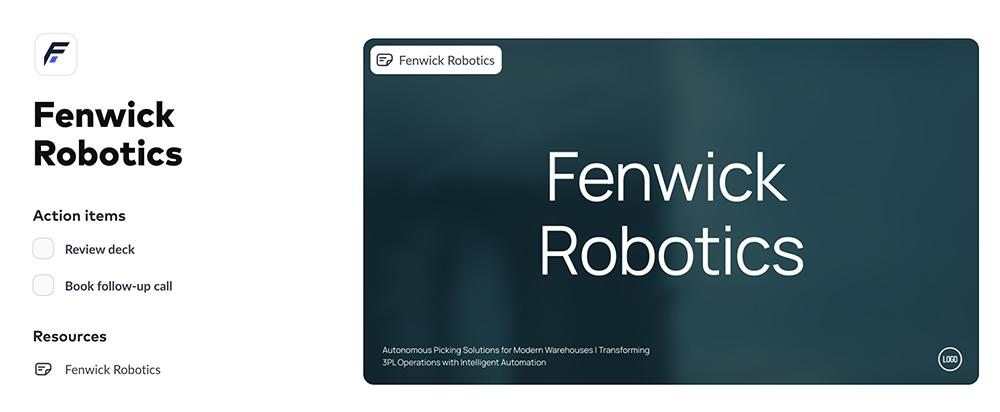
With Pitch, you can also create rooms where teams can share presentations, action items, and other resources with clients and prospects. It’s easy to see how helpful this feature would be for sales teams, board meetings, and fundraising.
Plus AI also has built-in collaboration tools. Teams can share files in the team workspace and work together to finalize slide decks. Plus also supports shared preset libraries, which allow teams to share company context, along with shared custom templates, which ensures everyone works from the same layouts.
How useful is the Pitch app’s deck tracking?
When you share links to the decks you create in Pitch, you have the option to collect analytics. This feature gives you all kinds of helpful data, including:
-
How many views your decks get
-
How long people spend viewing your decks
-
Which slides they view
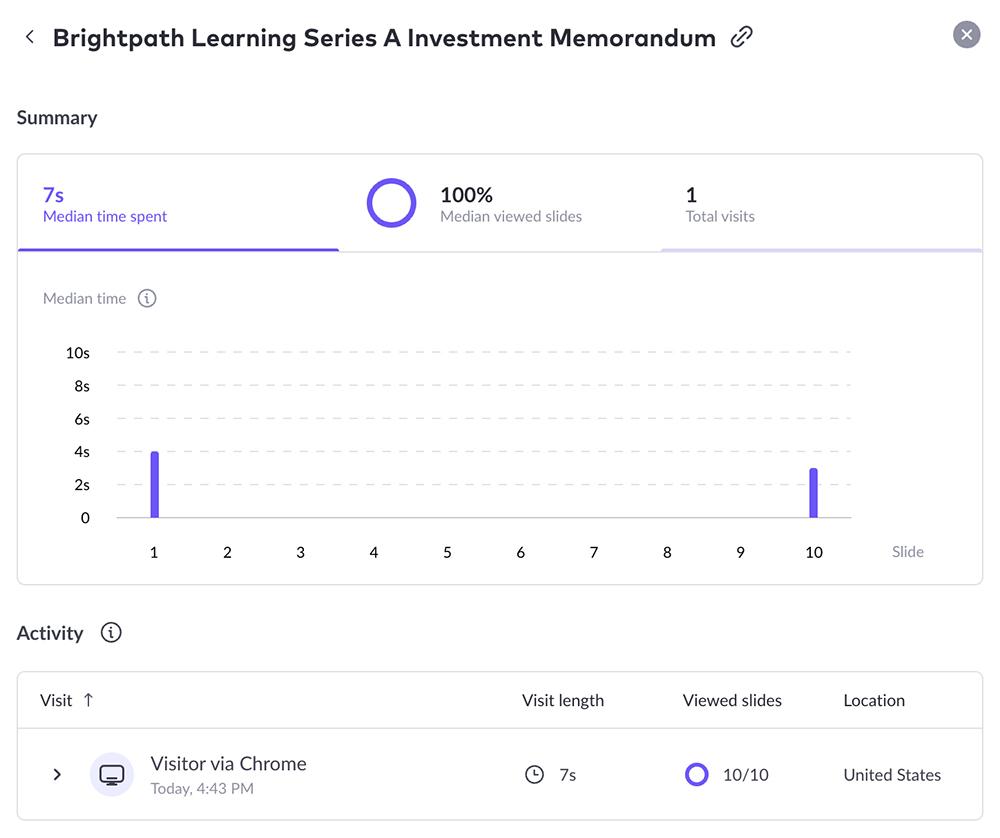
While you can’t see who views your presentations, there’s a workaround. With Pitch, you can create multiple unique links for any presentation and send each one to a specific viewer. This way, you can track individual views.
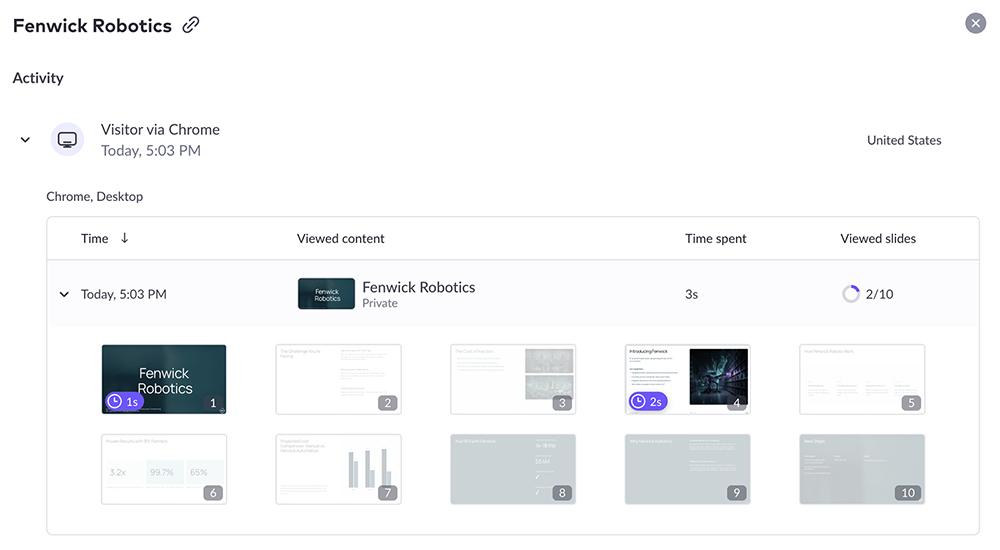
Pitch also offers analytics for rooms. You can see how many times people visited a room and which resources they viewed as well as deck-specific analytics.
With Pitch, you can also present slide decks directly in the tool. Or if you want to allow async viewing, you can add video recordings to specific slides, talking through the information and next steps.
Plus AI also makes it easy to present decks without leaving the tool. And if you typically work in Google Slides or PowerPoint, you can easily present your Plus-generated decks in the environment your audience already uses.
What formats can you export from the Pitch app?
Creating an external link is your best bet for sharing presentations you create in Pitch. In fact, if you try to export a presentation, you’ll see a pop-up advising you to share via a link instead.
That said, you can export Pitch decks to PDF and PPTX files. If you opt for a PowerPoint export, however, content blocks, videos, and interactive elements may not work correctly.
With Plus AI, you can export fully editable PPTX files, which you can then share or upload to another tool. But if you use Plus to create slide decks in Google Slides or PowerPoint, there’s a good chance you won’t need to export files at all. This saves you the hassle of moving files between apps, allowing you to work and present where it’s most convenient for your team.
What does the Pitch app do well?
Pitch is at its best when your whole team is involved in the presentation process. Its standout strengths include:
-
Real-time collaboration: Everyone can work in the same deck at once, and comments make it clear who owns what. This keeps feedback and edits in one place instead of scattered across email threads.
-
Pitch rooms: Rooms give sales teams a shared space for decks, action items, and other resources. They’re a convenient way to keep deals organized and follow up with prospects.
-
Analytics and engagement tracking: You can see how many views a deck gets, how long people spend on it, and which slides hold their attention. This data can help you time your follow-ups and refine your content.
-
Flexible presenting options: With animations and video recordings, you can present live or let viewers watch async.
What are the Pitch app’s limitations?
At the same time, Pitch has a few drawbacks that could be dealbreakers depending on how you work:
-
AI credits run out fast: In my tests, the included credits disappeared after just a handful of drafts. If you plan to use the AI features regularly, expect to buy additional credits on a recurring basis.
-
No control over AI models or image styles: You can’t choose which AI model powers your generations or adjust the style of AI-generated images. What you get is what you get.
-
No Google Slides or PowerPoint integrations: Pitch doesn’t sync with the tools many teams already use. Moving decks in or out requires PPTX exports, which don’t always transfer cleanly.
-
A restrictive free plan: The free tier includes watermarked exports and just 100 AI credits, which is enough to try one deck. It works more like a trial than a plan you could rely on.
How much does the Pitch app cost?
Pitch has four standard plans, plus a customizable plan for enterprise companies:
-
Free: $0 for 100 AI credits and watermarked presentations
-
Plus: $13/month (billed yearly) for 500 AI credits and no watermarks
-
Team: $19/month (billed yearly) for 500 AI credits, teamspaces, and pitch rooms
-
Business: $25/month (billed yearly) for 750 AI credits plus unlimited collaboration tools
In my experience, the included AI credits aren’t nearly enough for regular use. So you’ll likely need to purchase additional AI credits, which are available for $0.004 each.
Plus AI pricing focuses on the same number of plans (four standard and an enterprise option). But there’s no free plan:
-
Basic: $10/month (billed yearly) for 1,500 AI credits and basic AI editing tools
-
Pro: $20/month (billed yearly) for 3,000 AI credits, document uploads, and AI image generation
-
Team: $30/month (billed yearly) for 6,000 AI credits, custom branding, and collaboration features
-
Max: $200/month (billed yearly) for unlimited AI credits
Although Plus doesn’t have a free forever plan, it does offer a seven-day free trial with 1,000 AI credits. This is more than enough to test out the tool and see how it fits into your workflow.
Is the Pitch app worth it?
Pitch is a solid choice if collaboration is your top priority and AI generation is a nice-to-have. Sales teams that rely on pitch rooms, track engagement closely, and consider AI optional will get the most value from the platform. If you only need the AI tools for an occasional draft, the credit limits may not bother you much.
But if you want AI to handle the heavy lifting, Pitch isn’t there yet. Between the inconsistent output, the single-step generation workflow, and the fast-depleting credits, the AI experience feels like an add-on rather than a core feature.
That’s where Plus AI is the stronger option. It gives you more control over the creative process, more generous AI credits, and native integrations with Google Slides and PowerPoint. If your team wants to generate polished, well-organized decks in the tools you already use, try Plus AI and see the difference for yourself.
Frequently asked questions about the Pitch app
Is the Pitch app free?
Yes. Pitch has a free plan you can use for as long as you want, with no time limit. It supports up to five team members, unlimited presentations, custom templates, and 100 AI credits.
But the free plan has some restrictions. PDF exports and sharing links have Pitch branding, and there’s no option to export PPTX files. When you run out of AI credits, your only option is to upgrade to a paid plan.
Does Pitch work with Google Slides?
No, there’s no direct sync between the two apps. Instead, you move files between them as PPTX.
To bring a Google Slides deck into Pitch, export it as a PPTX file from Google Slides, then upload that file to Pitch. To go the other way, export your Pitch deck as PPTX (available on paid plans) and import it into Google Slides.
Can you export Pitch decks to PowerPoint?
Yes, you can export Pitch presentations to PowerPoint (PPTX file) as long as you have a paid plan. The free plan limits you to PDF exports with a Pitch watermark.