
Comparisons
Copilot for PowerPoint Review: Best AI Presentation Tool?
We tested Copilot for PowerPoint on real decks. See how its visuals, editing, and pricing hold up, and how it compares to a purpose-built tool like Plus AI.

Microsoft 365 users already have an AI presentation tool built into their tech stack. But convenience alone isn’t enough to make it the best. The question is whether Copilot for PowerPoint has the right capabilities and pricing to be your go-to slide deck generator.
I put Microsoft Copilot to the test, taking a deep dive into its creative and editing features for PowerPoint. In this in-depth review, I compare Copilot to Plus AI to help you choose the best AI presentation tool for your team.
How do you create PowerPoint presentations with Copilot?
Microsoft 365 has two main options for creating presentations with Copilot. You can access Copilot directly in PowerPoint or use the Copilot chat interface. Spoiler: I had much more success with the chat interface.
Use Copilot in PowerPoint
In the PowerPoint app, you can either use the preset prompts that appear in the Copilot menu (pictured at left) or input your own prompt in the right sidebar chat, which appears when you click the Copilot icon in the home ribbon.
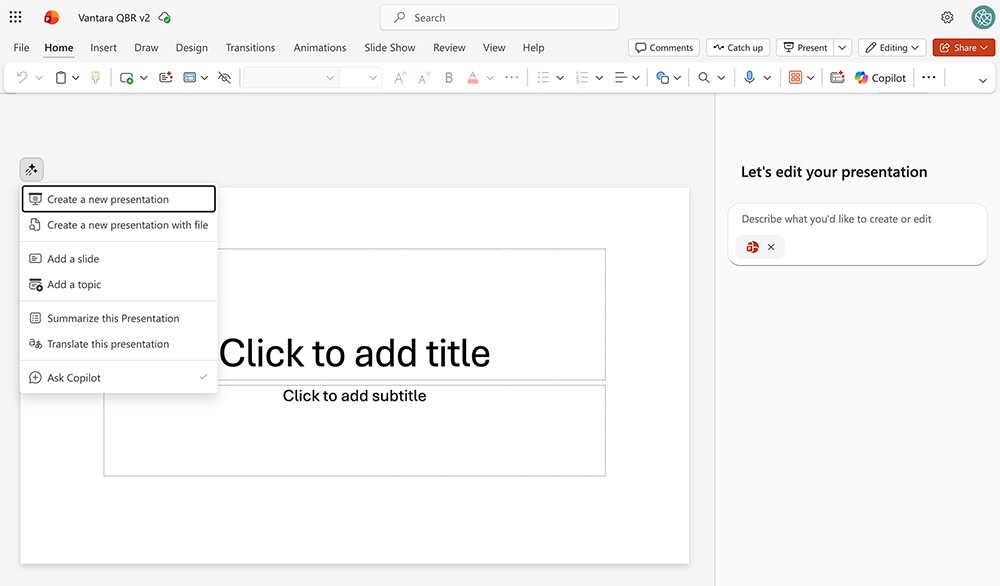
In my experience, the preset prompt menu was quite glitchy. It repeatedly threw errors, even with simple prompts. Plus, it has a 2,000-character limit, so it’s not capable of supporting detailed prompts.
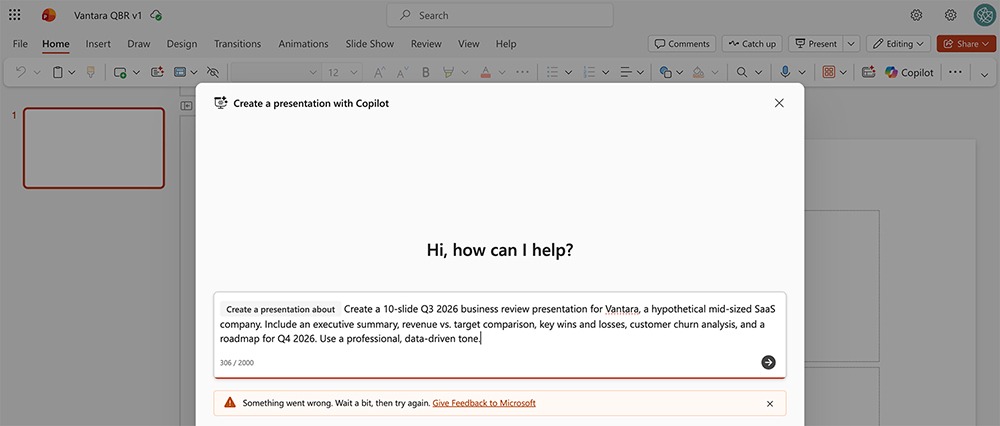
When it did work for me, the creative process was straightforward. Copilot generates an outline (which you can’t refine) and prompts you to choose a presentation style and visual preferences. There’s a decent selection of professional looking templates.
An 11-slide deck took about five minutes for Copilot to generate, which is an average time frame based on all the AI presentation tools I’ve tested. However, the presentation quality was pretty far below average.
The slides didn’t display information in a useful way, and images and icons looked basic. Plus, the deck included multiple filler slides. But the worst issue was that Copilot failed to apply the same template to all the slides in the deck. This meant the presentation needed pretty extensive edits.
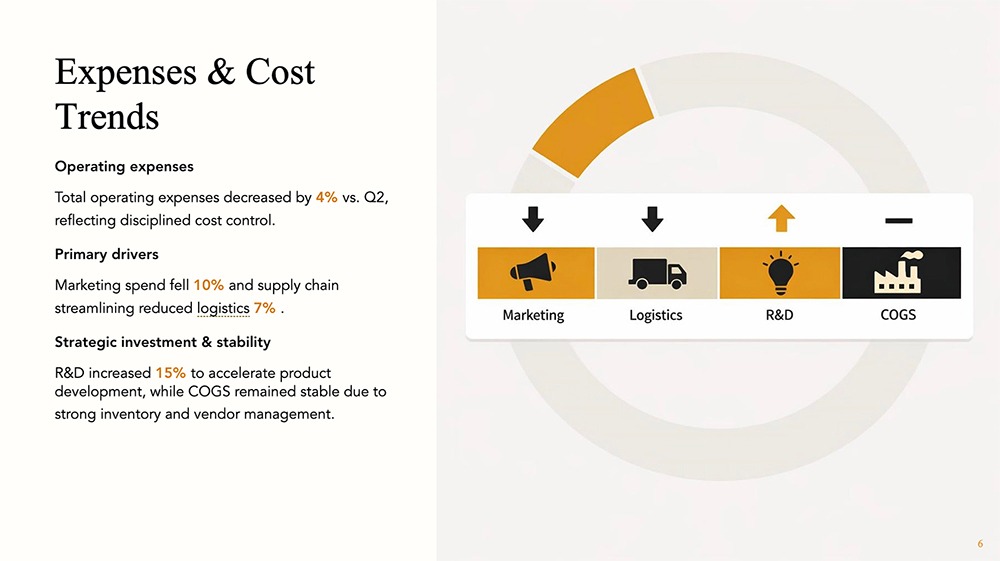
I didn’t fare much better with the Copilot chat in PowerPoint. Since there was no stated character limit, I took the opportunity to input a detailed version of the same prompt. But the output still wasn’t great.
The template did reflect the design instructions in the prompt. Yet the layout looked amateur, and the images and icons didn’t look professional. This would be totally unusable in a professional context.
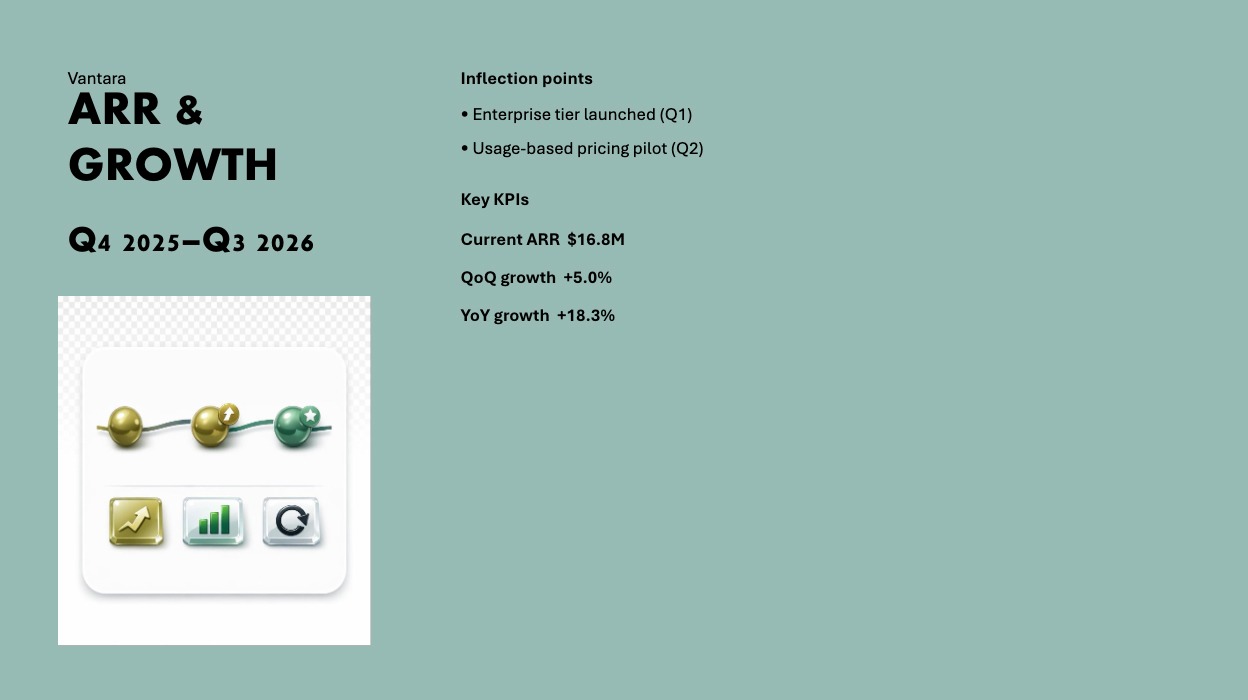
Generate slide decks with Copilot chat
You also have the option to open the standalone Copilot chat app and select the PowerPoint agent. From there, you can input your prompt and ask Copilot to generate the presentation. Choose the length, style, and theme from the available options.
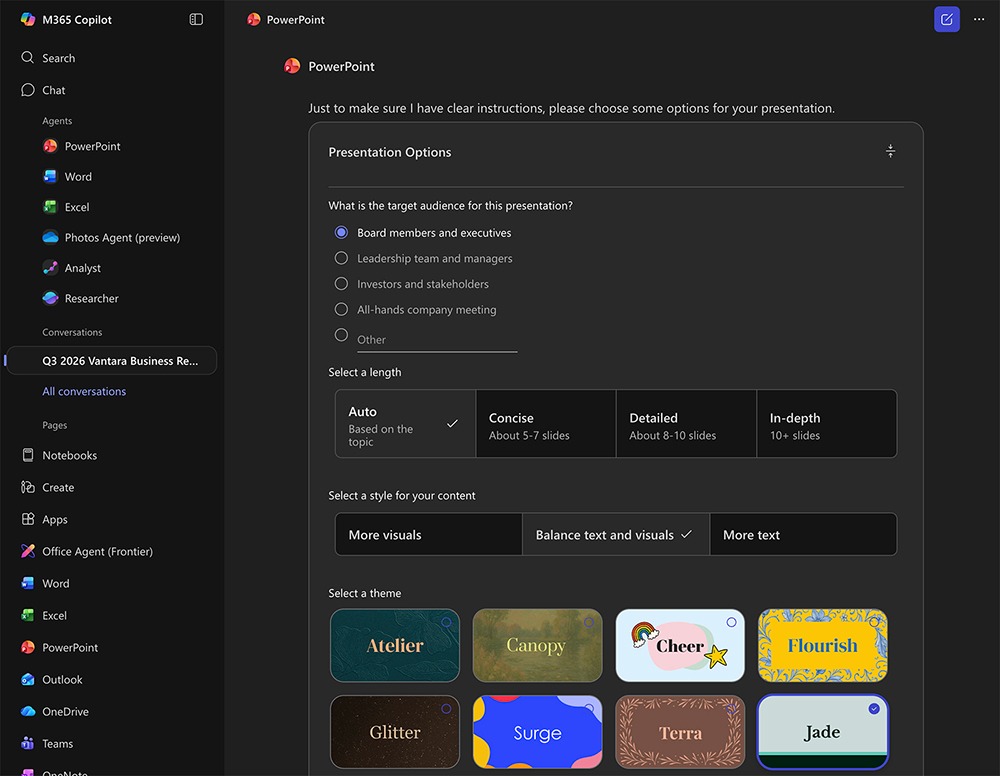
I had much better luck using Copilot chat. Although the generation time was slightly longer, the quality of the designs was better, with fewer layout issues.
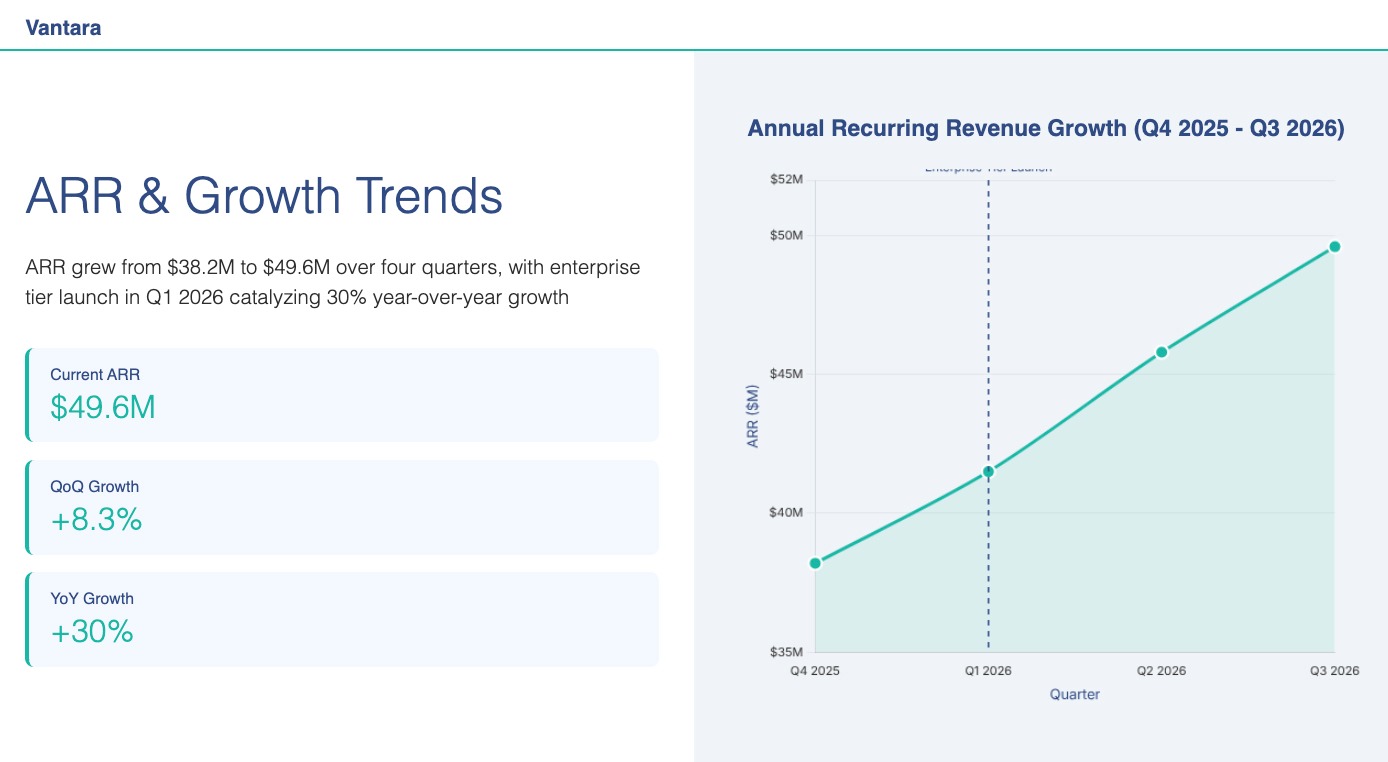
Plus, Copilot chat gave me an additional input option. Using the PowerPoint agent in Copilot chat, I was able to create a presentation from a file upload.
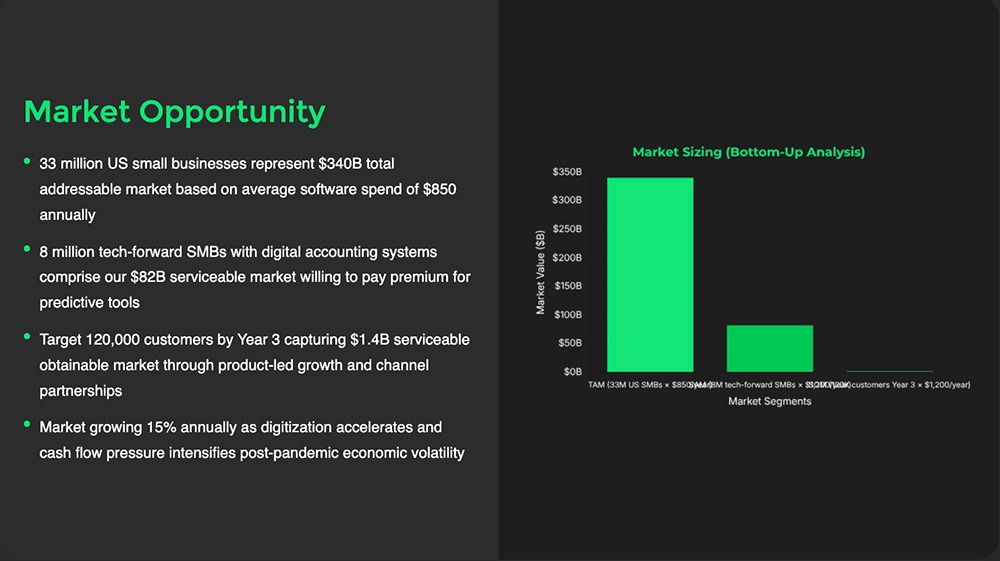
Technically, Copilot chat and Copilot in PowerPoint both support using existing decks, Word documents, Excel files, and file uploads to create presentations. But I was only able to access these additional inputs while using Copilot chat.
The main downside of using Copilot chat is that you aren’t working directly in PowerPoint. Once you’ve generated and refined your slide deck, you then have to open it in PowerPoint to add final touches or present the slides.
Compare to Plus AI’s creative capabilities
Plus AI supports several different creative inputs. You can create a slide deck from a prompt or from an uploaded file (PDF or Word documents). And you can use the web app or the Plus AI PowerPoint add-in.
No matter which option you use, Plus keeps you in the loop throughout the workflow. That means you can adjust the outline before the deck generation begins — which can save you time during the editing process.
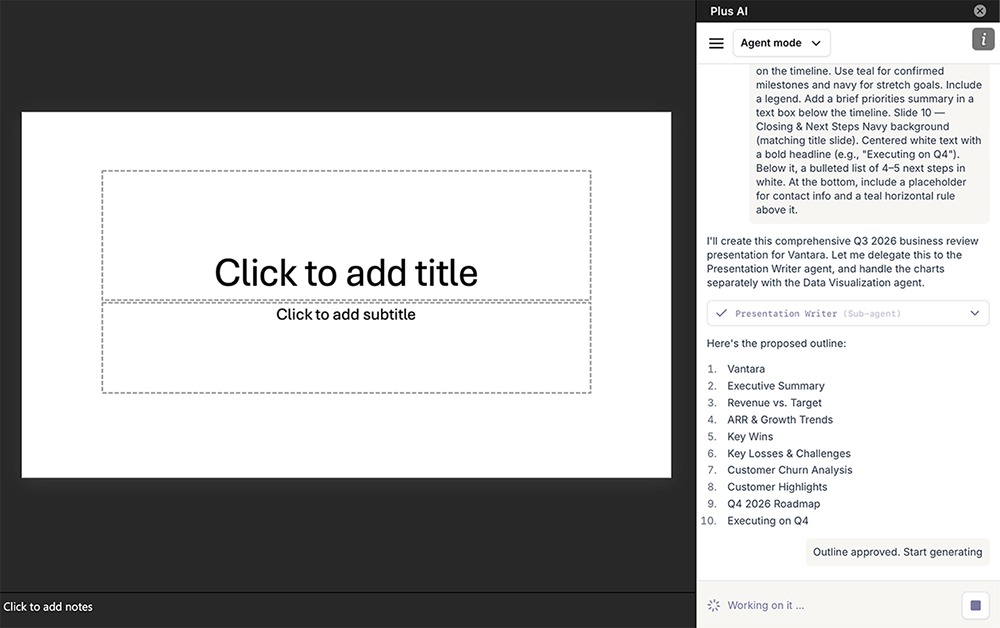
You can also choose your image source. Combined with Plus AI’s slide deck templates, this leads to more professional looking presentations.
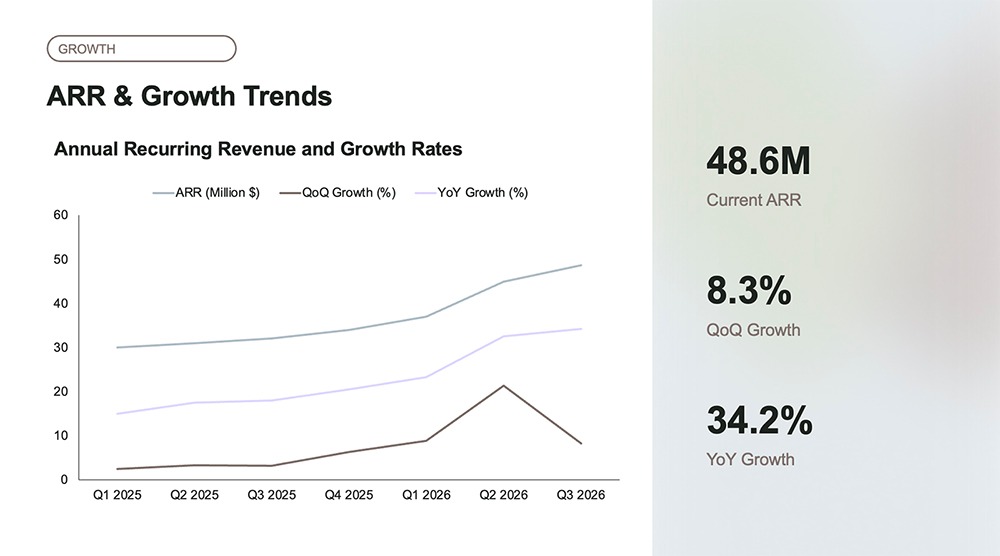
In my experience, Plus AI Agent works much faster. The web agent generates presentations in about a minute, while the PowerPoint agent takes about three minutes.
Can you edit slides with Copilot for PowerPoint?
Copilot has both preset and prompt-based editing. You can choose from the list of presets in the PowerPoint sidebar to make changes like adding graphics and identifying key points on certain slides.
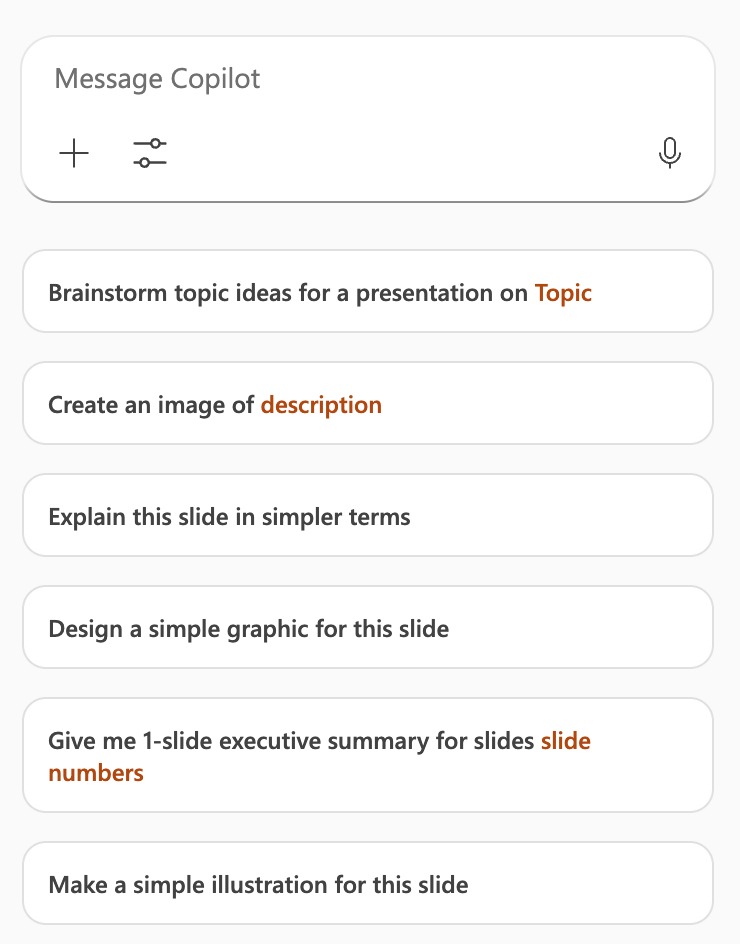
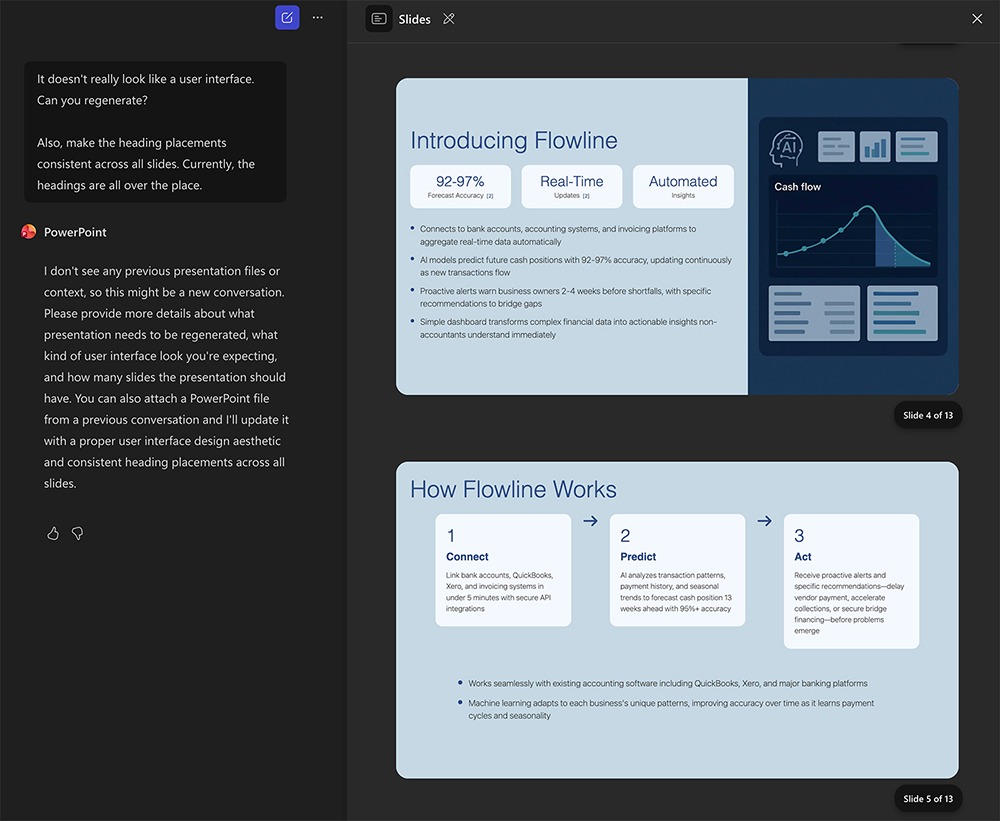
For more targeted editing, prompting is your best bet. (In Copilot chat, this is the only option.) In my experience, however, this process was pretty hit or miss. I was able to regenerate images and update color schemes.
But when using Copilot chat, the AI agent seemed to lose context quickly. In one case it told me it didn’t know which PowerPoint deck I was referring to — even though it had generated the file in the same chat window a few minutes earlier. My only option was to download and reupload the PPTX file in the chat window.
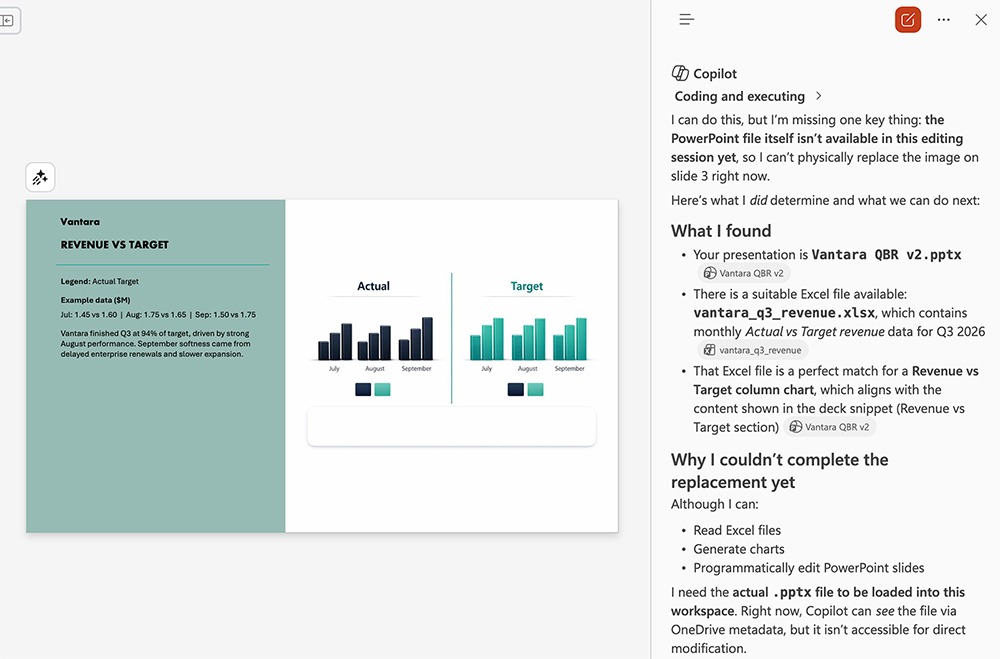
And when I prompted Copilot in PowerPoint to replace an image with data from an Excel sheet, it successfully found the file and located the data. But it wasn’t able to complete the task because it insisted that the PPTX file wasn’t editable.
So, while it’s technically possible to edit presentations with Copilot, I wouldn’t recommend it. In many cases, it would be faster to edit manually or use a different AI presentation tool instead.
How Plus AI’s editing tools compare
In my experience, Plus AI presentations generally need fewer edits. But when they do need adjustments, editing with Plus AI is much faster.
When you use the web interface, you can download PPTX files and then make any adjustments in PowerPoint. And when you use the Plus AI add-in to generate presentations in PowerPoint, you can start fine-tuning without switching apps.
Plus AI’s Rewrite preset quickly regenerates slide copy, while the Remix preset reformats slides or individual elements. You can also insert a slide to add content you missed in the initial prompt.
Plus AI Agent makes it easy to edit via prompts. Just tell it what you want to change and let it get to work. This is helpful for anything from a minor layout update to a complete design change.
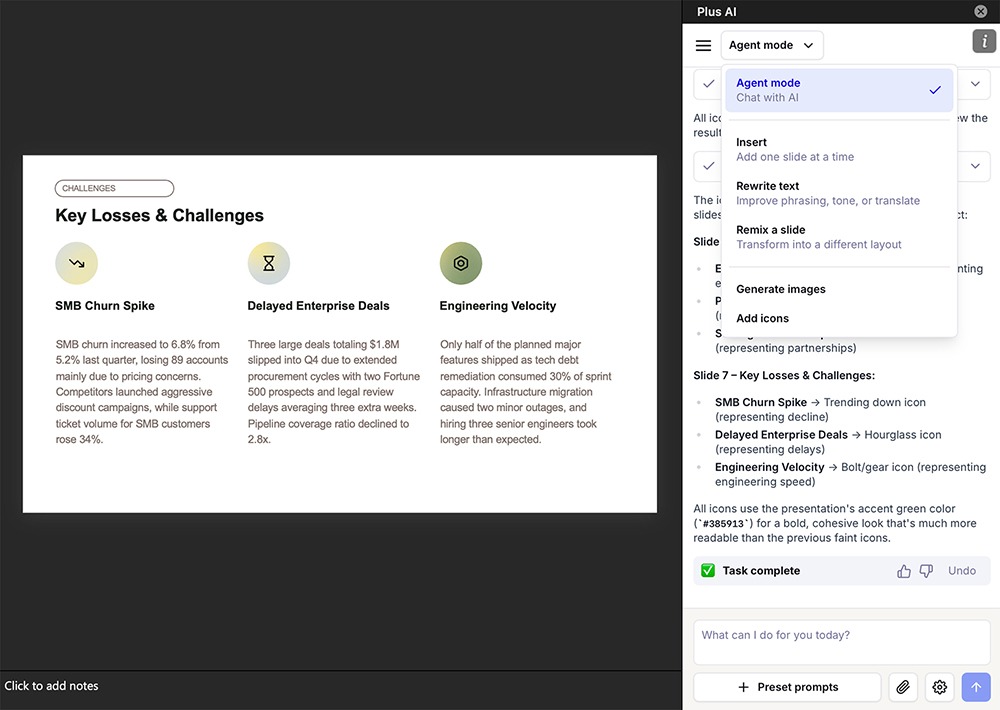
And when you need to adjust slide copy or make a small adjustment to a graphic, you can always edit manually.
Does Copilot generate visuals in PowerPoint?
Copilot can create AI-generated visuals and source stock images for PowerPoint presentations. The available options vary depending on which interface you use.
Unfortunately, neither Copilot chat interface lets you choose image styles. So, if the default style doesn’t meet your expectations, you have to prompt the AI assistant to update it.
In my experience, the AI-generated images never met my expectations. They consistently had a low-quality, unprofessional look.
When you use the Copilot preset in the PowerPoint app, you can choose between AI-generated image styles or opt to source images from the Microsoft 365 content library.
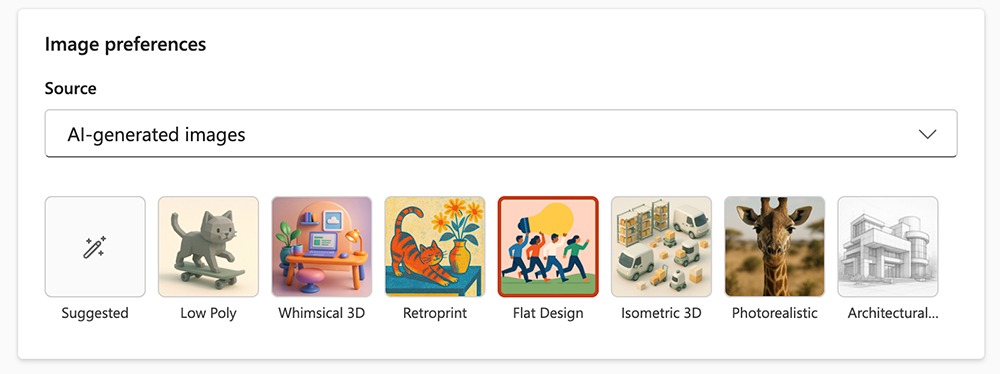
Copilot can also create data visualizations from Excel files. But this isn’t the default option. If you don’t add context or upload a file during the initial generation, Copilot generates image-based data visualizations instead of charts.
In practice, adding context and uploading files during the editing process was pretty clunky. My attempts to do so resulted in a series of errors: not being able to access OneDrive files or Copilot forgetting context from a few minutes earlier.
How Plus AI’s visuals compare
Plus AI offers three image sources: AI-generated visuals using Nano Banana Pro, stock images from Lummi, and location-specific images via web search. All visuals have a professional aesthetic that matches the look of the presentation.
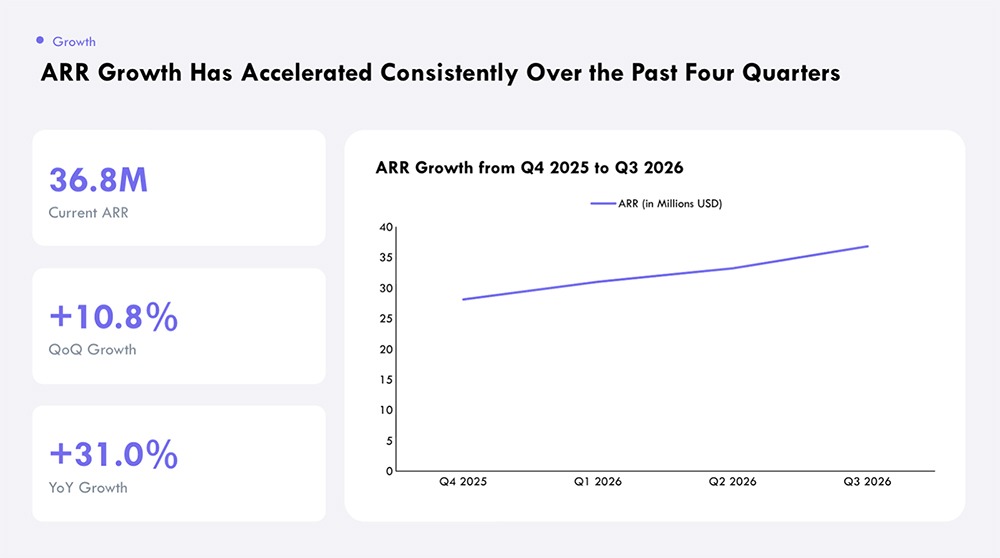
Plus generates native, editable charts and graphs. This means you can include current data in any AI presentation — and you can ensure that your slide deck reflects real numbers.
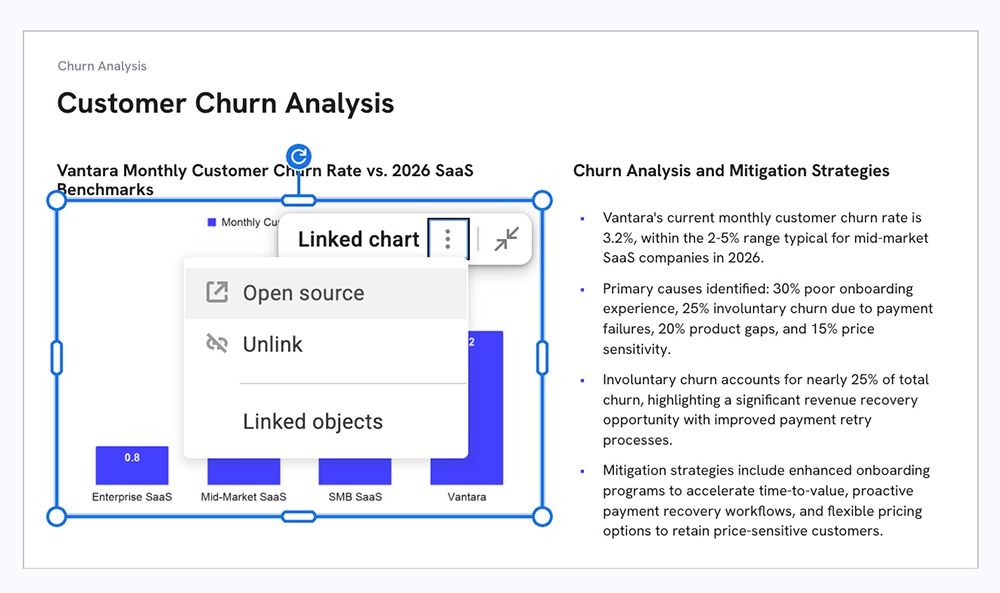
You can also embed Snapshots into slides. These self-updating images give you another option to incorporate real-time charts and data into your presentations.
How much does Copilot for PowerPoint cost?
To use Copilot in PowerPoint, you need one of the Microsoft 365 plans with Copilot:
- Microsoft 365 Business Basic and Microsoft 365 Copilot Business: $27/user per month (billed annually) for web and mobile apps
- Microsoft 365 Business Standard and Microsoft 365 Copilot Business: $33.50/user per month (billed annually) for web, mobile, and desktop apps
- Microsoft 365 Business Premium and Microsoft 365 Copilot Business: $43/user per month (billed annually) for additional apps and security
- Microsoft 365 Enterprise and Microsoft 365 Copilot Business: Starts at $8/user per month plus $30/user per month for the Copilot add-on (billed annually)
All of these plans give you access to the full Microsoft 365 ecosystem, including Word, Excel, and other apps.
How Plus AI’s pricing compares
Plus AI pricing starts at $10/user per month (billed annually) for the Basic plan. The Pro plan, which includes generative AI images and document uploads, is priced at $20/user per month (billed annually).
Teams can work together for $30/user per month. And Plus AI also offers enterprise pricing for teams that need custom templates and workflows.
All Plus AI plans include unlimited AI generation, so you don’t have to worry about hitting usage limits.
What does Copilot for PowerPoint do well?
Using Copilot in PowerPoint has a few important advantages:
- Native Microsoft 365 integration: Copilot is part of the Microsoft 365 ecosystem. There are no add-ins to integrate or apps to install. If you’re already a Microsoft 365 user, you can access Copilot from anywhere you work. Copilot can easily access Excel, Word, and other OneDrive files so you can easily pull in context from your team’s files.
- Source transparency: Copilot maintains a list of sources for each slide deck it generates. This may include web sources, OneDrive files, or a mix of both. It’s helpful for maintaining control over the data in your presentations.
- Speaker notes: When you use Copilot in PowerPoint, the AI assistant automatically generates speaker notes. You can prompt it to adjust them to fit your preferred tone or emphasize the highlights you want to point out.
- Branding kit: You can upload your organization’s brand kit to apply your colors, fonts, and layout preferences across presentations. However, this capability requires an enterprise brand manager policy, which isn’t available on all plans.
Where does Copilot for PowerPoint fall short?
Watch out for these potential downsides of using Copilot to create presentations.
Visualization quality
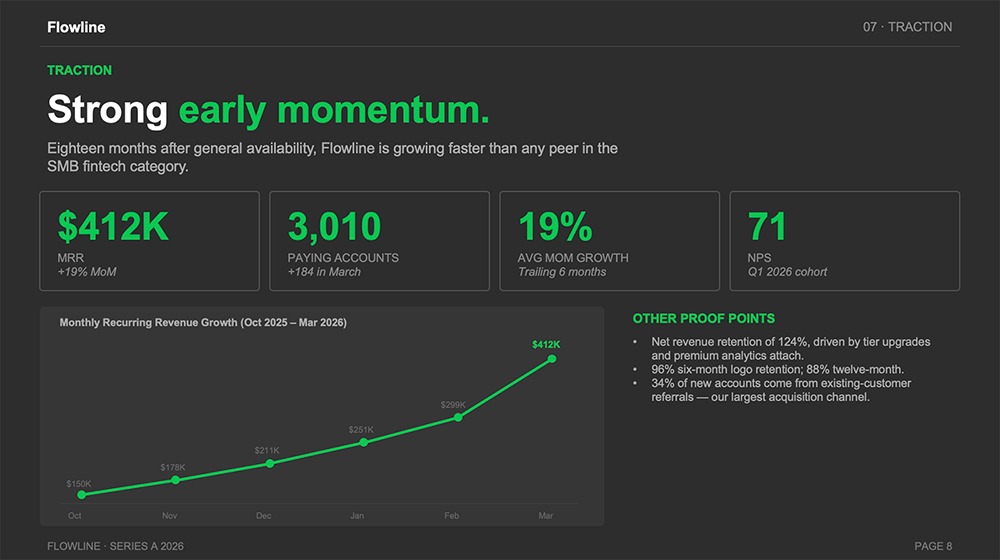
The visuals were pretty poor across all the presentations I created with Copilot. The icons and images were either low quality, irrelevant to the content, or both. And getting Copilot to generate editable charts and graphs wasn’t easy, even with the native Microsoft 365 integration.
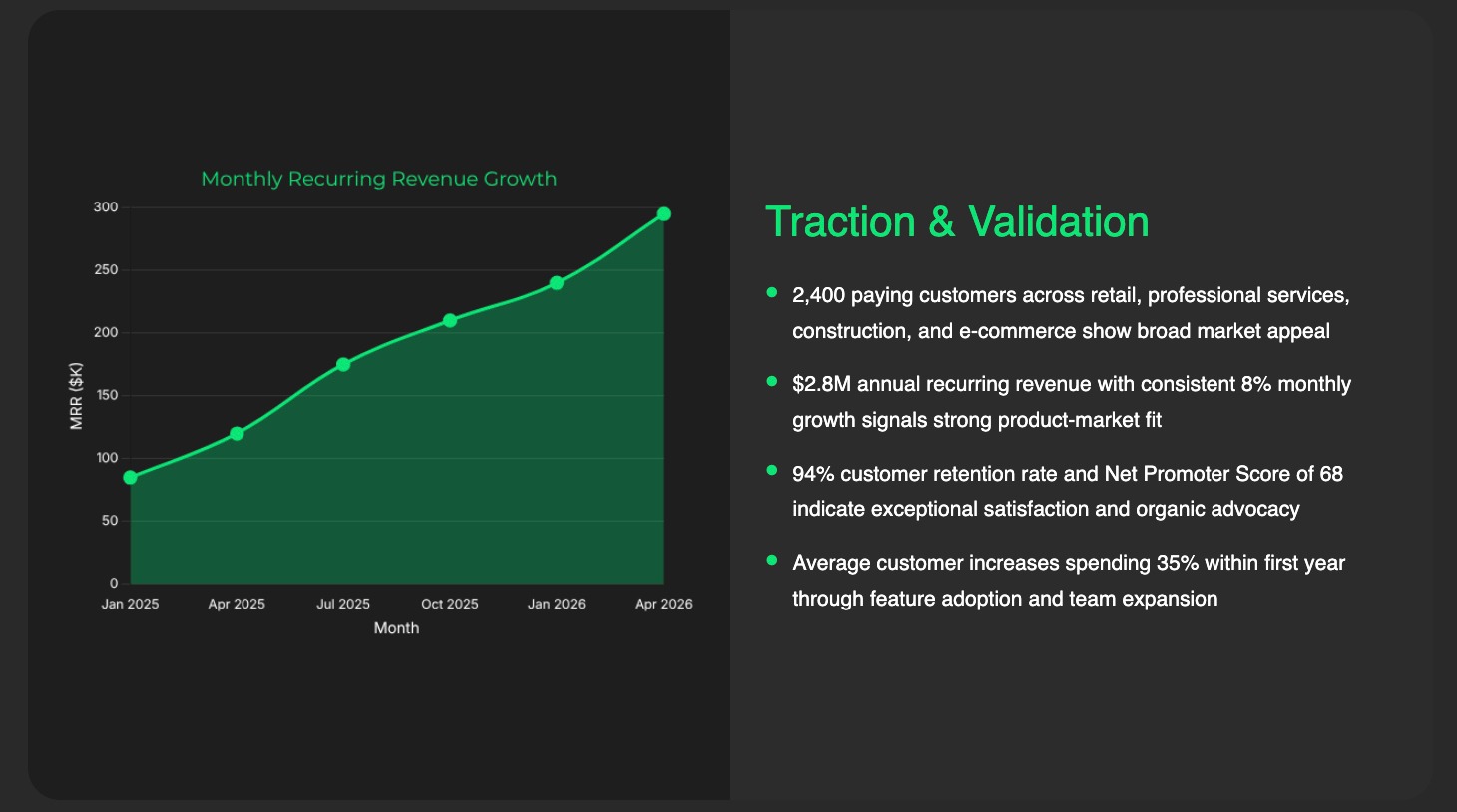
In contrast, Plus AI’s images and icons are designed for professional presentations. You can use an AI model (Nano Banana Pro) and easily create editable charts and real-time data Snapshots.
Editing limitations
In my experience, PowerPoint Copilot presentations required extensive edits. Most went beyond simply moving an image or updating a color scheme.
Completely reworking layouts, regenerating images, and restarting from scratch can cause you to hit Copilot usage limits. Since your Copilot usage is shared across all Microsoft 365 apps, this may create issues with other tasks.
In comparison, Plus AI has unlimited AI generation. You can create as many decks and generate as many images as you need to fine-tune your presentations.
Cost
Copilot can get expensive. A standard Microsoft subscription won’t cut it. To use the AI agent in PowerPoint, you need a Copilot for Microsoft 365 subscription.
All Microsoft 365 subscriptions give you access to the full ecosystem, including Word, Excel, and other apps. If you don’t need these apps, however, you’ll end up spending a lot just to create presentations.
Plus AI plans start at a lower price point. For $10/user per month, you can create and edit PowerPoint presentations with Plus AI.
PowerPoint only
Copilot only works with PowerPoint and other Microsoft apps. It doesn’t work with Google Slides. If your team works in both, this will limit its use cases.
Plus AI works natively in both PowerPoint and Google Slides. You can use it in both apps (and in the Plus AI web interface) with a single subscription.
Should you use Copilot or Plus AI for presentations?
Use this comparison table to see how Plus AI and Copilot for PowerPoint measure up in terms of features, capabilities, and pricing:
| Copilot for PowerPoint | Plus AI | |
|---|---|---|
| Platform support | PowerPoint and other Microsoft 365 apps only | PowerPoint, Google Slides, and the Plus AI web app |
| Microsoft 365 integration | Native across Word, Excel, and OneDrive | Works inside PowerPoint as an add-in |
| Visual quality | Often low quality or off-topic | Designed for business presentations |
| Editable charts and graphs | Difficult to generate | Built-in, with real-time data Snapshots |
| Speaker notes | Auto-generated and adjustable by prompt | Not available |
| Brand kit | Requires an enterprise brand manager policy | Available in Team and Enterprise plans |
| AI usage limits | Shared across all Microsoft 365 apps | Unlimited AI generation |
| Editing effort after generation | Often requires significant rework | Lighter touch-ups in most cases |
| Starting price | $27/user per month | $10/user per month |
Consider Copilot when your organization already pays for Microsoft 365 Copilot and you only need to create presentations in PowerPoint. But consider upgrading to an enterprise plan so you can enable the brand kit and gain more control over your templates.
Consider Plus AI when you need a reliable tool to create high-quality presentations with real-time data for clients, internal teams, or investors. Plus AI is ideal for teams that frequently create slide decks and need unlimited AI generation and for organizations that work in both Google Slides and PowerPoint.
How to get started with Plus AI for PowerPoint
Copilot is a reasonable option for teams already invested in Microsoft 365. But its design quality, editing limitations, and ecosystem restrictions make it a questionable fit for teams that regularly produce slide decks (and that need to do so efficiently).
Plus AI is designed for teams that need more from their presentation workflow. Between its high-quality visuals and layouts, the native editing tools, the real-time data, and the support for both PowerPoint and Google Slides, Plus AI is built for professional presentations.
Try Plus AI for free and test this AI presentation tool for yourself.