
Comparisons
Gemini vs Copilot: AI Presentation Tools Tested for 2026
Gemini vs Copilot tested for 2026. See how Google and Microsoft's AI presentation tools compare, plus how Plus AI performed in our hands-on review.

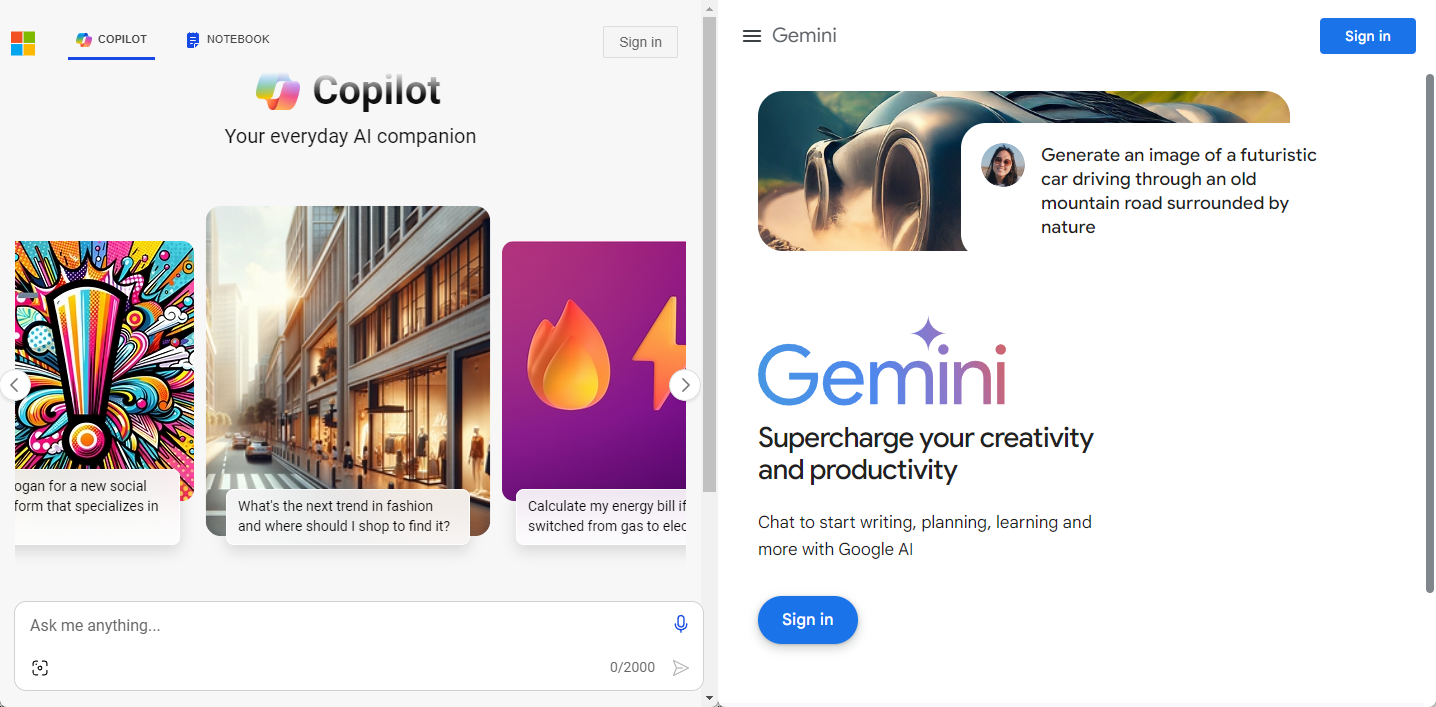
Building a presentation used to start with a blank slide and require hours of manual content creation. Now, Google Gemini and Microsoft Copilot both offer AI tools that draft entire slide decks from prompts in the apps you already use.
But just because these tools are convenient doesn’t necessarily mean they’re the best at generating professional slide decks. I wanted to know if one is definitively better than the other and if either can outperform a dedicated AI presentation maker. So, I tested the tools side by side, prompting Gemini in Google Slides and Copilot in PowerPoint.
I’ll walk you through how these tools work, from creating the first draft to editing the deck to sharing the presentation. By the end, you’ll know how each platform’s capabilities measure up (and how they compare to Plus AI) so you can choose the AI presentation tool that works best for your workflows and goals.
How do Gemini and Copilot compare at a glance?
Both Gemini and Copilot are AI assistants that build slides in the ecosystems where most teams do internal and external work. Gemini works in Google Slides as part of Google Workspace, while Copilot works in PowerPoint as part of Microsoft 365.
Plus AI takes a different approach. It’s a purpose-built presentation maker that has a standalone web app and add-ins for PowerPoint and Google Slides. Since it focuses solely on slide decks, it tends to produce higher quality slides that are fully editable and that can easily transfer across tools.
Here’s a side-by-side comparison before we get into the details.
| Gemini | Copilot | Plus AI | |
|---|---|---|---|
| Platform | Google Slides only | PowerPoint only | Web app, Google Slides, and PowerPoint |
| Slide deck source | A prompt or Google Drive content | A prompt or OneDrive content | A prompt or file upload |
| Editing tools | Natural language prompts and manual edits | Natural language prompts and manual edits | Natural language prompts, editing presets, and manual edits |
| Reformats existing slides | No | No | Yes |
| Templates and branding | Doesn’t allow template selection or custom templates | Doesn’t allow template selection or custom templates | Has a template library and supports custom themes and templates |
| Pricing | Bundled with Google Workspace | Bundled with or add-on to Microsoft 365 | Subscription per seat |
How Gemini and Copilot generate presentations
Before reviewing output quality, it helps to see how each tool creates decks. All three start from a prompt, but they differ in what they ask for and how much they involve you in the creative process. The walkthrough below covers each one.
How Gemini builds presentations in Google Slides
To use Gemini in Google Slides, you click the icon in the upper right corner. From there, you input your presentation prompt in the AI assistant chat window.
Gemini gives you a couple options to customize your prompt or add more information. For example, you can select an existing presentation from Google Drive to use as a style template.
Or you can search for sources in Drive, Gmail, and across the web for more detail. If you don’t attach sources, Gemini will automatically identify and recommend relevant sources to use in the presentation.
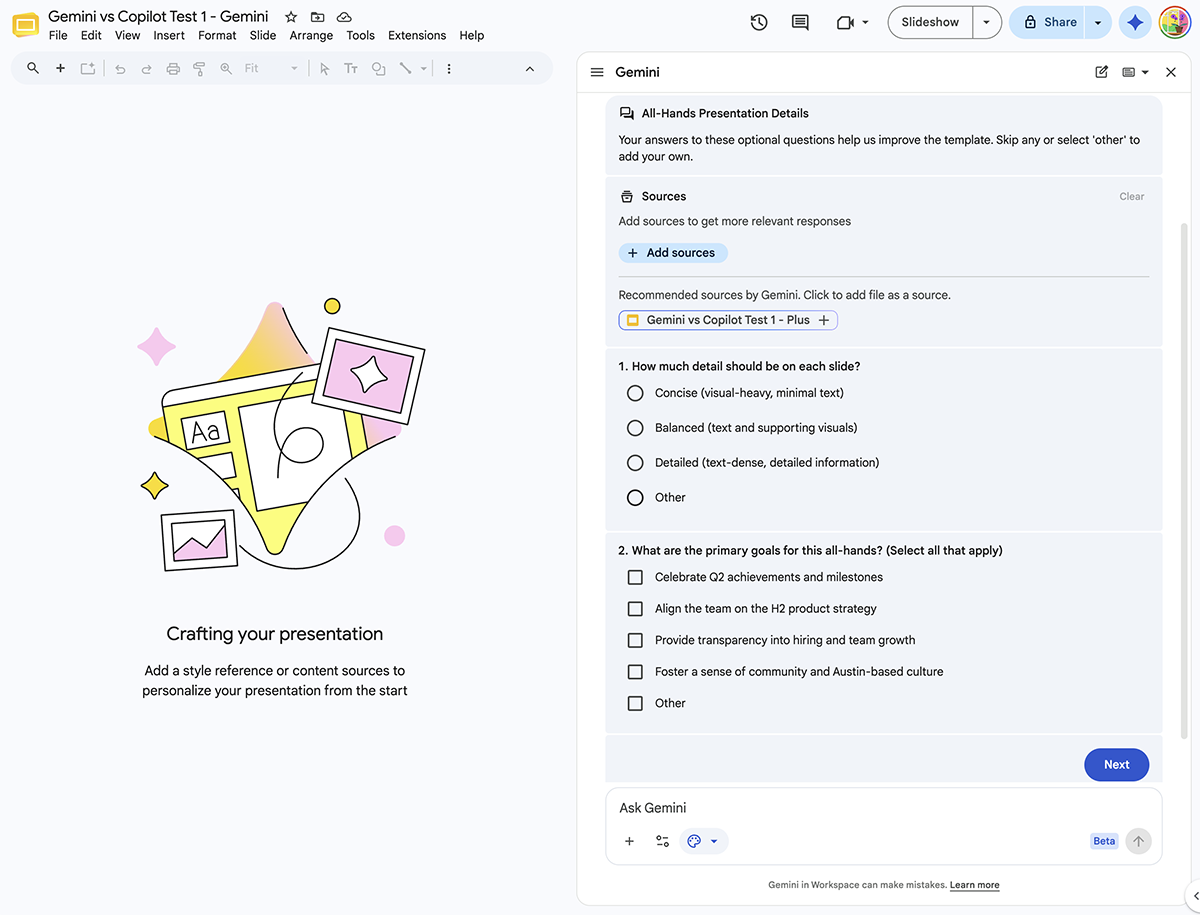
After the initial prompt, Gemini typically asks clarifying questions. For example, when I prompted it to create a deck for an all-hands presentation, the AI assistant asked about the primary audience, the level of detail, and the primary goal.
Then, Gemini generates a basic outline showing the title of each proposed slide. You have the option to change, add, or remove slides. Although I found the outline helpful, I would have preferred seeing more detailed information about what the AI assistant planned to include in each slide.
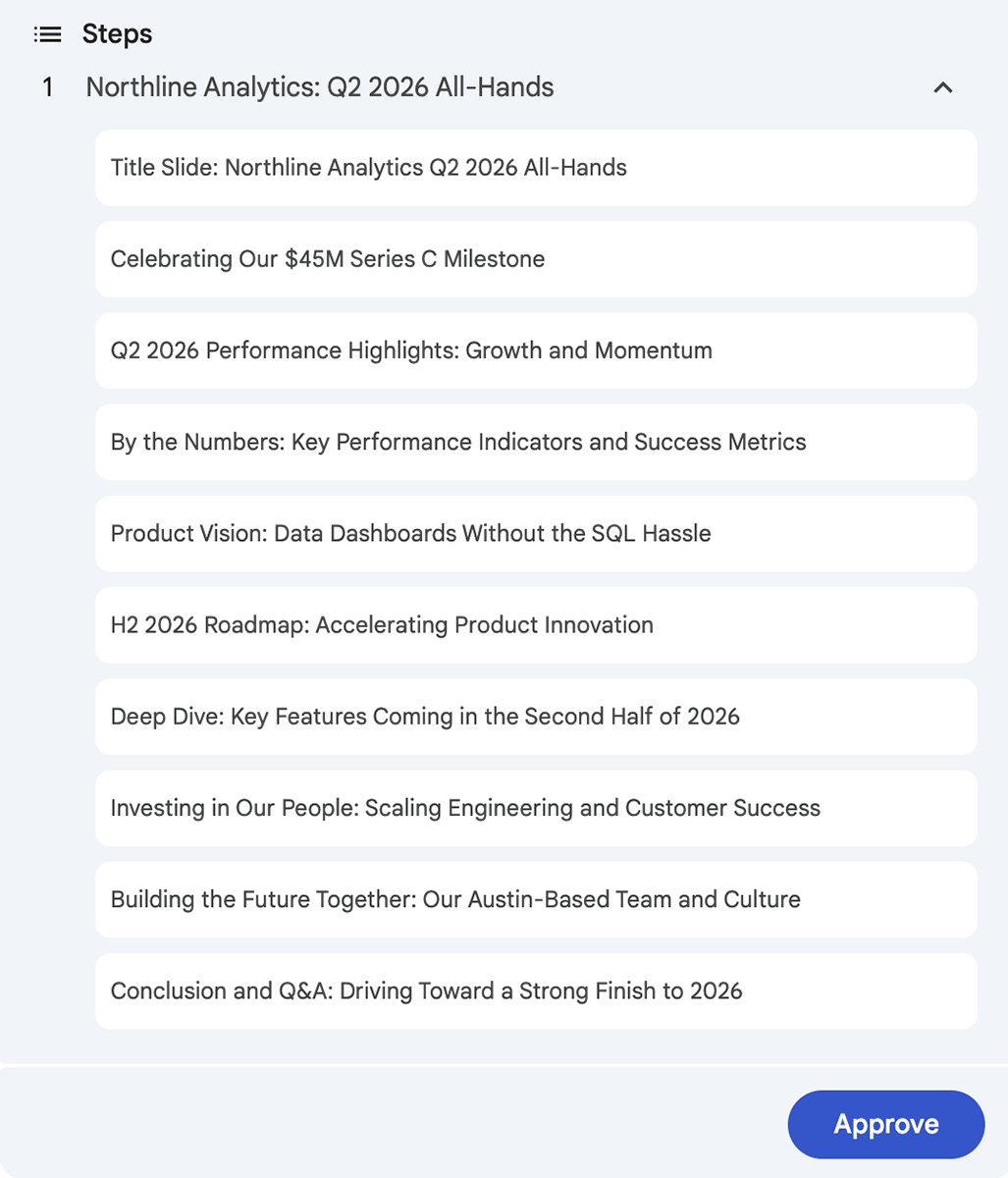
Once you approve, Gemini proceeds to generate the presentation in Google Slides. In my experience, Gemini is among the slowest presentation makers. On average, a 10-slide deck took about five minutes.
How Copilot builds presentations in PowerPoint
With Copilot, you start by opening the AI chat in PowerPoint and inputting your prompt. Before submitting, you can choose the model (including the latest from Anthropic and OpenAI) and image model (including GPT-Image and Flux.2) you want to use.
In theory, you can upload files to use in the presentation. But in my experience, this process is extremely buggy. The search function never worked correctly for me across multiple tests over several days, so I couldn’t attach files.
Like Gemini, Copilot typically asks clarifying questions about the audience, tone, and content.
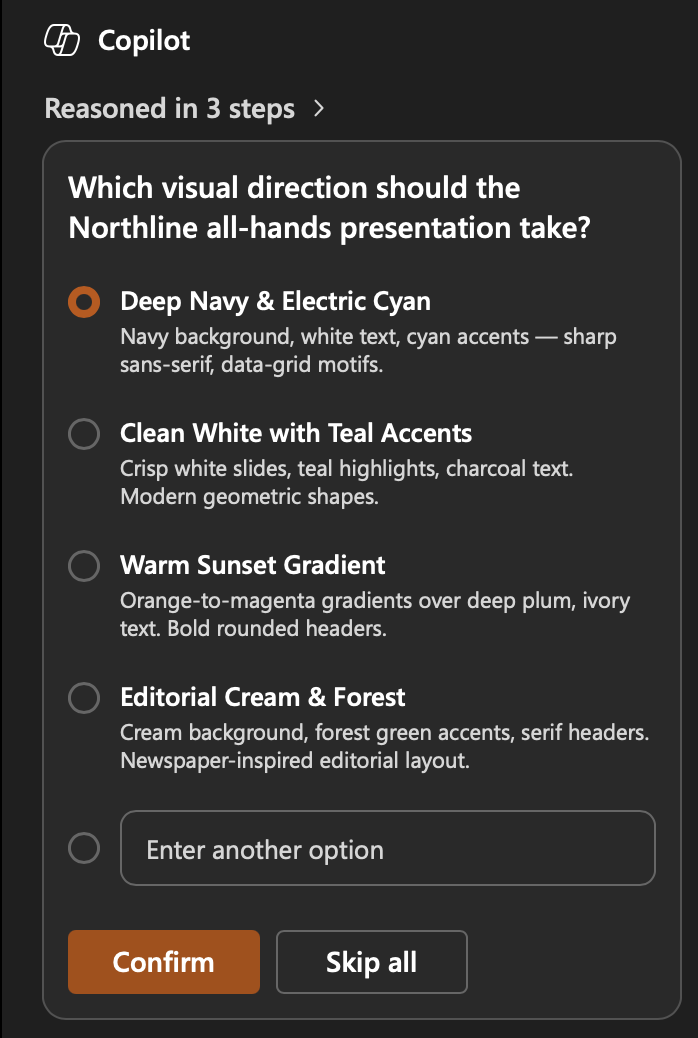
Unlike Gemini, Copilot doesn’t let you select a template. But if you’re lucky, it’ll ask you to choose a visual direction.
Copilot doesn’t provide outlines either. Once it processes your prompt and gets your answers, it proceeds to generate the deck. Since it skips this key step, you often end up having to do a ton of time-consuming editing.
How Plus AI builds presentations in both Google Slides and PowerPoint
Whether you use the Plus web app, Google Slides extension, or PowerPoint add-in, the workflow is similar. You select a template if you’re generating an editable deck or a style if you’re creating an image-based deck. You also have the option to use custom branding or a custom template.
Then, you input a prompt or upload a Word document or PDF. Within about a minute, Plus generates an outline based on your prompt. In addition to the slide title, the outline includes a slide description that you can modify.
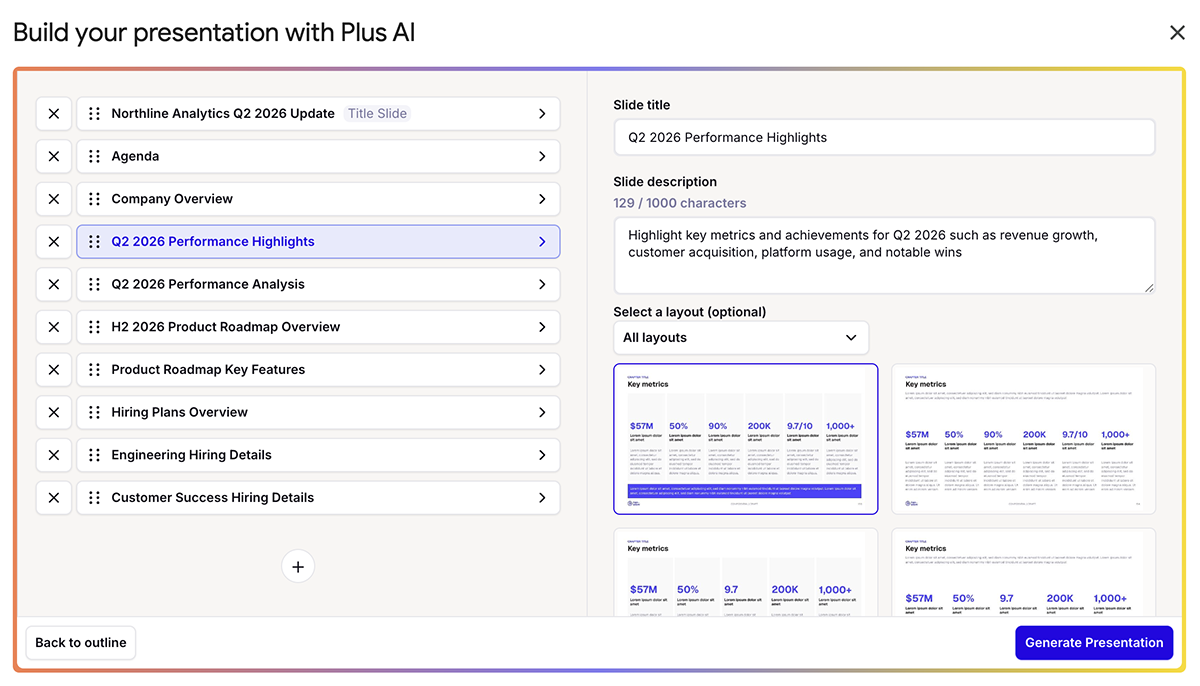
I found this approach much more helpful for getting a sense of what the slides would include, which decreased the need for edits later. Once you review and approve the outline, Plus generates the deck in the tool where you’re working.
Gemini vs Copilot: how their AI presentation features compare
I ran the same prompts through each AI presentation maker and compared the results slide by slide. Here’s how they compare feature by feature.
Does Copilot or Gemini structure slides and follow prompts better?
Both Gemini and Copilot follow detailed presentation prompts well. When I provided prompts that specified the number of slides to include and what to feature on each one, both tools performed equally well.
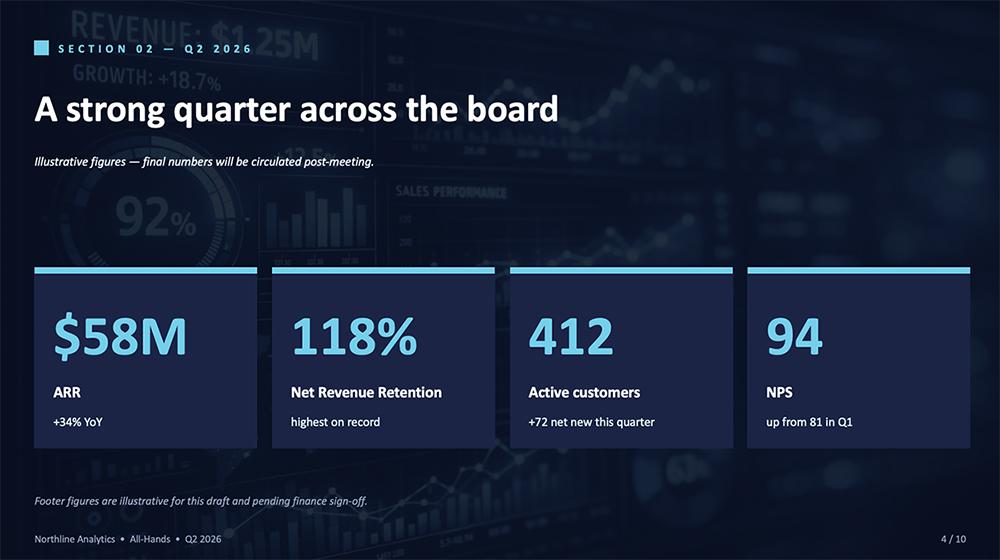
But when I shared shorter prompts that required the AI assistants to extrapolate what I wanted, Copilot easily outperformed Gemini. For example, I prompted both tools to create an all-hands presentation featuring Q2 performance highlights — but I didn’t provide specific numbers.
Copilot understood the type of performance data this kind of presentation would typically include. It inserted placeholder numbers and highlighted them visually, ensuring that they’d grab the audience’s attention.
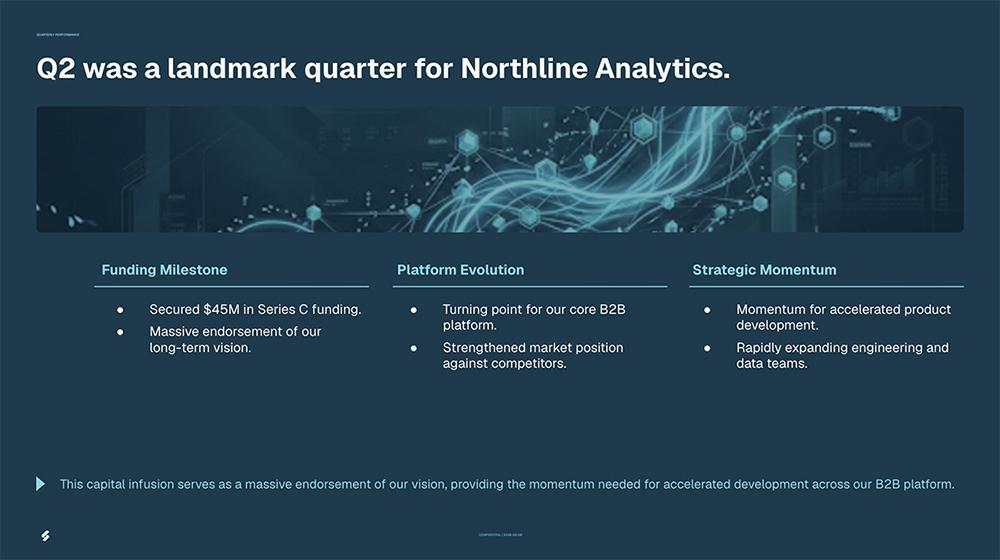
In contrast, Gemini didn’t seem to get what type of information would be helpful to include on this kind of slide. Instead, it created longer bullet lists that don’t include data or incorporate visual callouts.
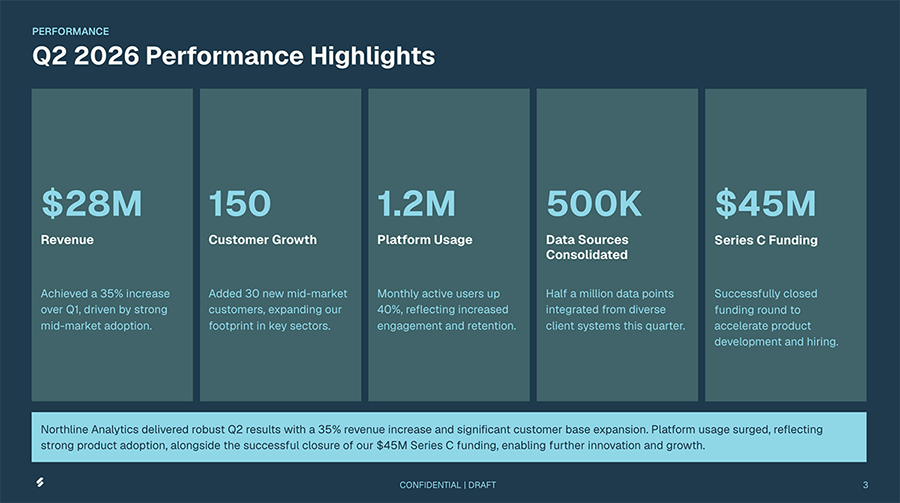
When I tried the same prompt with Plus AI, it successfully identified the kind of information to include on the slide and displayed it in an easy-to-read format.
Which has better presentation design skills, Gemini or Copilot?
Between the two tools, I found Copilot to be a better slide designer. The decks I generated using Copilot in PowerPoint reflected superior design skills, better organized information, and more compelling layouts.
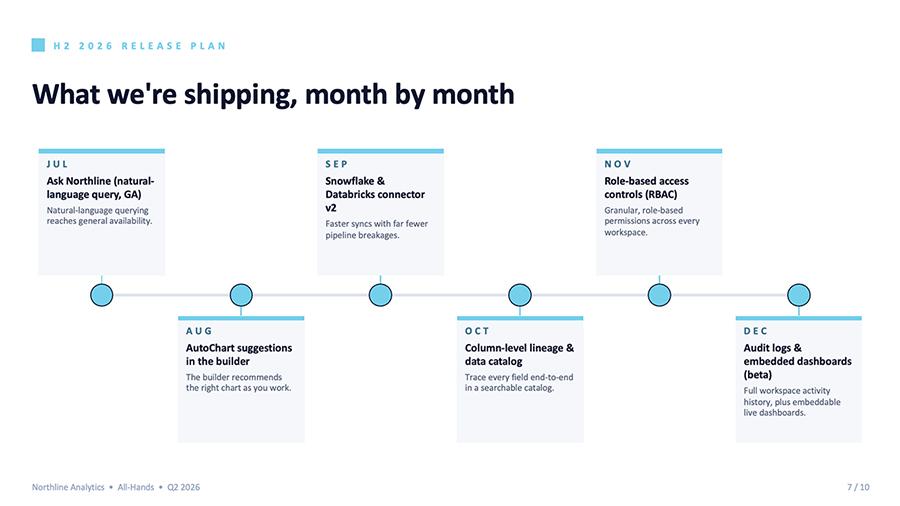
Take this H2 roadmap slide for example. Copilot organized the product roadmap into a timeline, making it easy for the audience to see which features would ship each month.
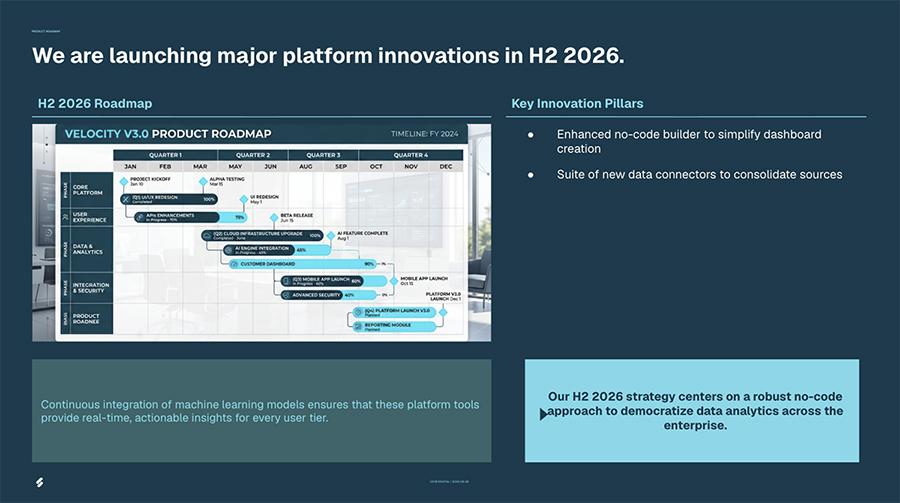
Rather than building a roadmap, Gemini created an image of a Gantt chart. While an actual Gantt chart would have been a great addition, the image is too small to read so doesn’t provide any useful information.
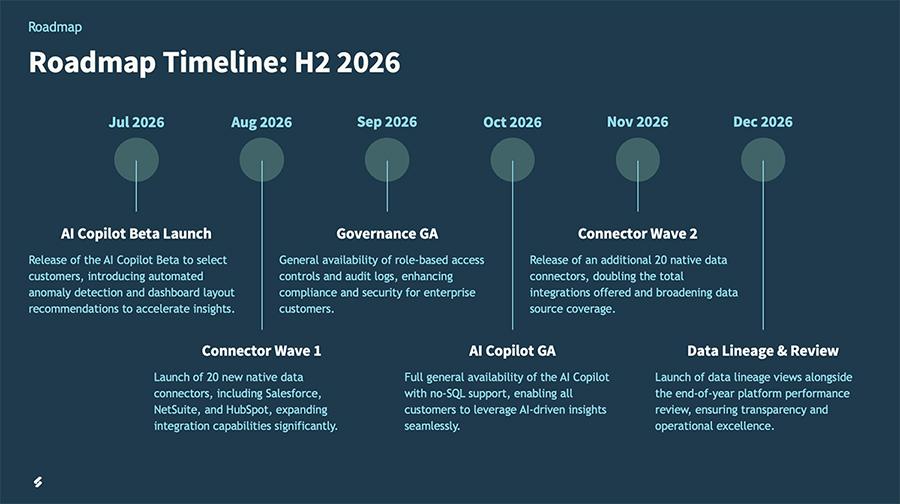
Similar to Copilot, Plus AI generated a visual roadmap. It’s easy to read, providing a clear reference for audience members seeking to understand feature releases planned for the rest of the year.
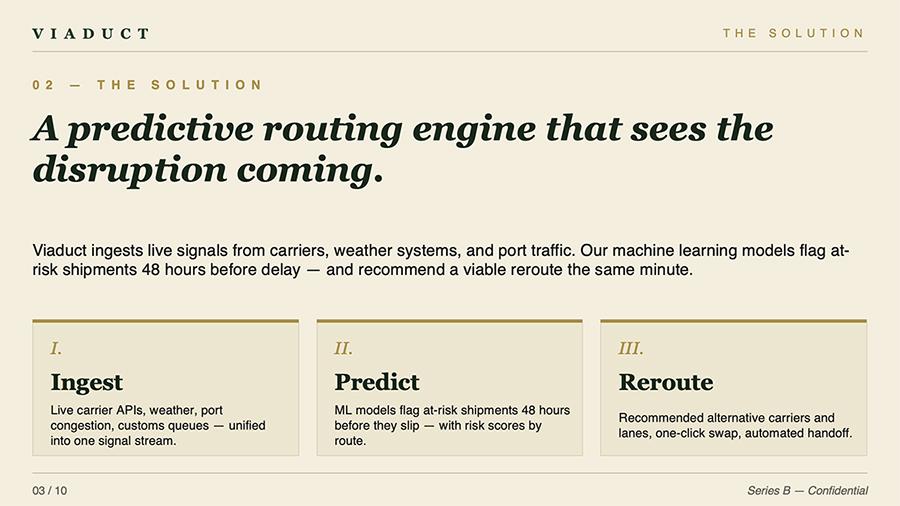
When sleek professional design is your top priority, Plus AI’s image mode is an even better option. This mode optimizes for unique layouts and eye-catching designs, generating each slide as a single image.

Does Copilot or Gemini generate better AI copy?
When I provided basic prompts to the two AI assistants, Copilot did a much better job at turning my bullet points into coherent copy. But when I shared detailed prompts, I found Copilot and Gemini’s generative AI copy capabilities to be pretty similar.
Copilot tended to write in a more natural, conversational tone. This copy would require much less editing.
Gemini defaulted to a more robotic tone. But this would be easy to adjust in the prompt or during the editing process. And since Gemini lets you choose the amount of copy you want on each slide, it gives you much more control over the density.

Plus AI did well at assessing the right tone for the audience. It generally produced denser slides with more information.
Which AI presentation tool generates better images, Gemini or Copilot?
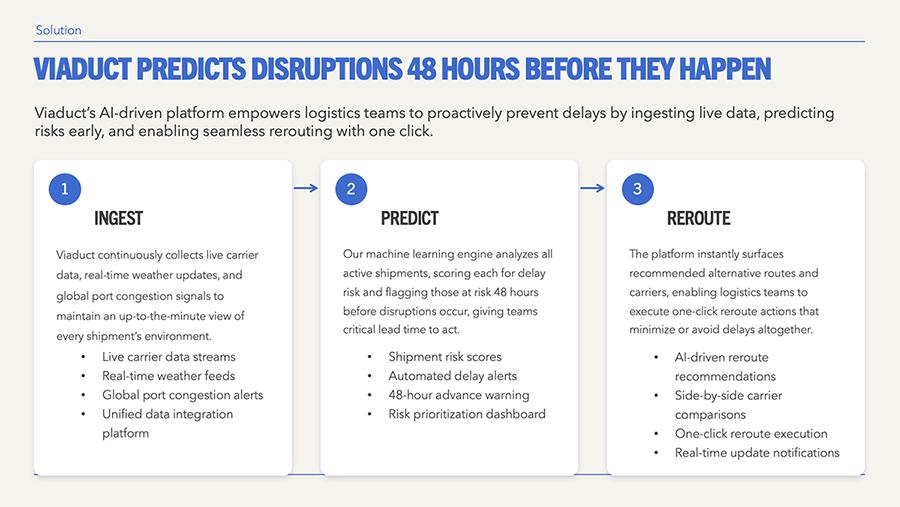
Compared to Gemini, Copilot generated much higher quality images. In most cases, the visuals it generated during the first draft needed no edits or replacements. But when I prompted Copilot to update specific images, it executed flawlessly.

Copilot lets you choose the AI image model you want to use throughout your deck. This can ensure you get on-brand images that fit your vision.
While Gemini’s AI photos were generally high quality, the AI assistant often defaulted to inserting illustrations in slide decks. These illustrations were routinely below average. For example, when I prompted Gemini to update the image on the title slide, it generated a low-quality graphic — and then refused to add it to the slide.

I found Plus’s AI images to be on par with Copilot, with relevant, high quality photos and illustrations. But one advantage Plus has over the two AI assistants is that it lets you choose both an AI image model and an image style. This is essential for getting the images you need in your slide decks.

How do Gemini and Copilot compare on templates and branding?
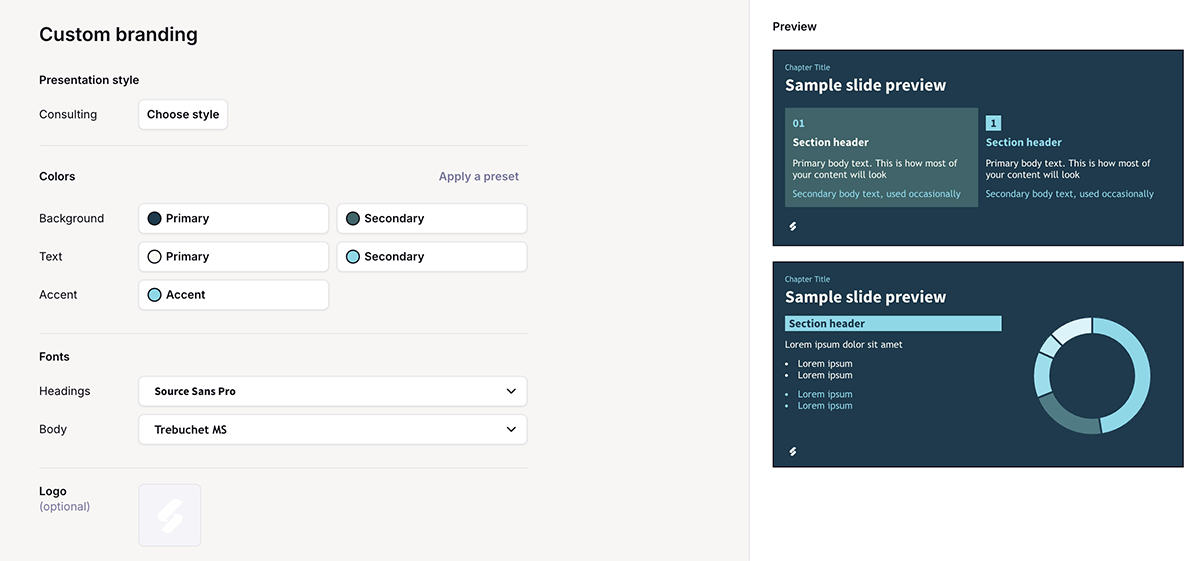
Technically, you can create presentation themes that reflect your brand in both Google Slides and PowerPoint. But neither Gemini nor Copilot makes it easy to apply any branding you’ve set up.
When you create a Google Slides presentation with Gemini, you have the option to upload a presentation so the AI assistant can match its style. But you can’t just select a branded theme and trust that Gemini will use it.
Along the same lines, Copilot lets you add source material to presentations from OneDrive. But I found this workflow impossible to use. The only way I could apply brand settings in Copilot was to include instructions in the prompt.
In contrast, Plus AI lets you set up a branded theme that you can apply to any presentation. You can also upload a custom theme to reuse in future slide decks and cut down on editing time.
How do Gemini and Copilot compete on data visualization?
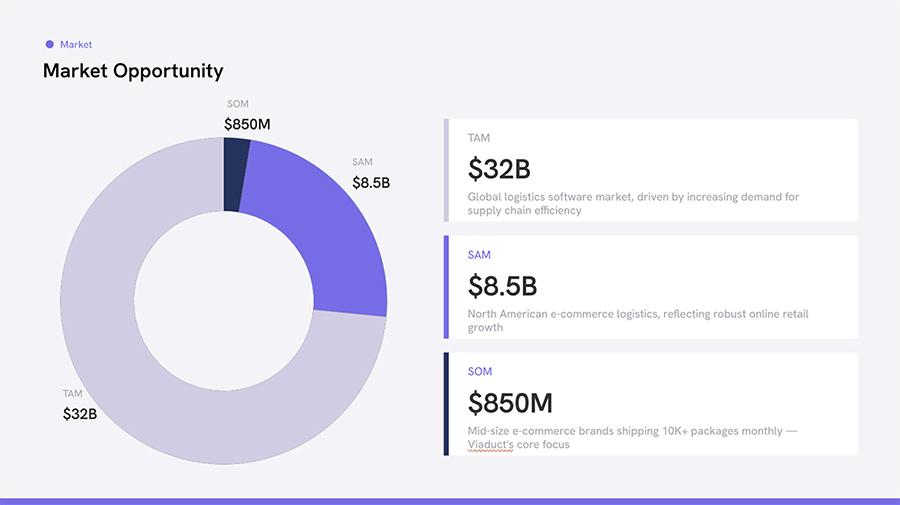
If you frequently create presentations that include data and stats, Copilot is a better option. Copilot adds real charts and graphs to PowerPoint slides. You can edit the style and format directly in PowerPoint, and you can update the data in a linked Excel spreadsheet.

Gemini generates visualizations that look nice. But they’re image files, not real charts or graphs. So, while you can change the format, you can’t easily edit the data.

Plus AI generates editable charts and graphs. When you use Plus in PowerPoint, you can edit the visualizations in Excel. And when you use Plus in Slides, you can edit them in Sheets.
Are AI presentations easier to edit with Copilot or Gemini?
Both Gemini and Copilot allow manual and natural language editing. It’s easiest to make minor edits manually. But when you want either tool to redesign the deck, add a new slide, or replace an image, I found them equally straightforward to edit via the AI assistant.
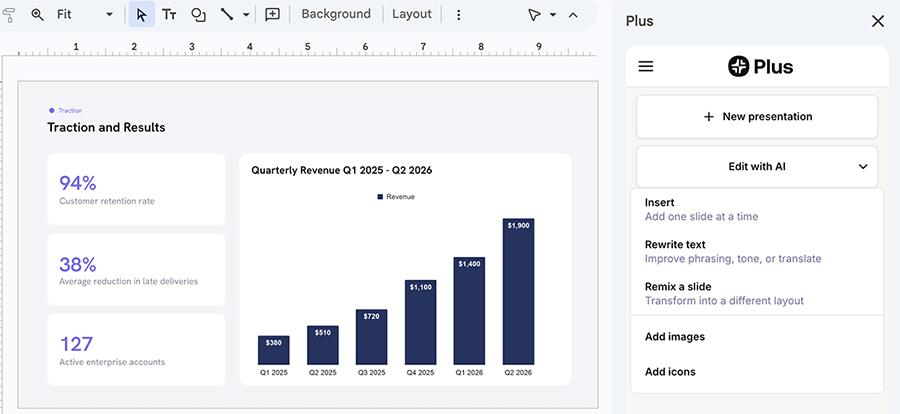
But Gemini has an edge thanks to its editing presets. You can use these presets to enhance a slide, create an image, or make other updates with one click.
Like Copilot and Gemini, Plus has both manual and natural language AI editing tools. It also has a wide range of editing presets. For example, you can remix a slide layout, rewrite slide copy, or generate an image with one click.
How much do Gemini and Copilot cost?
Both tools have subscription tiers, with options that include different apps, capabilities, and AI model access. Overall, Copilot costs more than Gemini.
To create PowerPoint presentations with Copilot, you need one of the Microsoft 365 plans with Copilot. You can try any of the standard (non-enterprise) plans free for 30 days.
- Microsoft 365 Business Basic and Microsoft 365 Copilot Business: $27/user per month (billed annually) for web and mobile apps
- Microsoft 365 Business Standard with Copilot: $33.50/user per month (billed annually) for web, mobile, and desktop apps
- Microsoft 365 Business Premium with Copilot: $43/user per month (billed annually) for additional apps and security
- Microsoft 365 E3 with Copilot: Starts at $36/user per month plus $30/user per month for the Copilot add-on (billed annually)
To create Google Slides presentations with Gemini, you need one of the Google AI plans or a Google Workspace plan. You can try Google Workspace free for 14 days or sign up for a 30-day trial of Google AI Pro.
- Google AI Plus: $4.99/month for 2x higher usage limits in Gemini and 400 GB of storage
- Google AI Pro: $19.99/month for 4x higher usage limits in Gemini and 5 TB of storage
- Google AI Ultra: $99.99/month for 20x higher usage limits in Gemini and 20 TB of storage
- Google Workspace Business Standard: $14/user per month (billed annually) for Workspace tools with access to Gemini chat and in Google apps
- Google Workspace Enterprise: Custom pricing for all features, integrations, and AI agent management
Plus AI pricing starts at $10/month for the Basic plan and $30/month per user for the Team plan (both billed annually). There’s also an Enterprise plan with custom pricing for teams that need to create presentations at scale. Plus offers a free seven-day trial to test out any standard (non-enterprise) plan.
Gemini vs Copilot: which is best for each presentation use case?
No single AI presentation tool wins every scenario. The best pick depends on the ecosystem you use, the kind of deck you’re building, and how much editing you’re willing to do after the initial generation. Based on my tests, here’s when I recommend using each tool.
| Use case | Best tool | Why to use it |
|---|---|---|
| Fast drafts inside Google Workspace | Gemini | Generates a full deck in Slides, though it’s the slowest of the three |
| Fast drafts inside Microsoft 365 | Copilot | Builds a PowerPoint deck quickly and fills gaps from short prompts |
| Data-heavy decks with visualizations | Copilot or Plus AI | Both create fully editable charts linked to Excel or Sheets |
| On-brand decks with reusable templates | Plus AI | Lets you save and reapply a branded theme to any deck |
| Working across Slides and PowerPoint | Plus AI | Runs in both Google Workspace and Microsoft 365 |
| Polished, design-led decks | Copilot or Plus AI | Both have strong layouts and images, and Plus AI has an image design mode |
When to choose Gemini for presentations
Consider Gemini if you work in Google Slides and want a native tool with fine control over your content. It pulls source material from Drive, Gmail, and the web, lets you set how much copy appears on each slide, and includes one-click presets that speed up editing.
The main disadvantage is polish. Gemini struggles to extrapolate from short prompts, so it’s on you to provide detailed prompts and know what you want to see in the presentation. With Gemini, data visualizations are static images rather than editable charts, and branding is a suggestion rather than a setting.
When to choose Copilot for presentations
Go with Copilot if you build in PowerPoint and want strong design with minimal cleanup. It produced some of the best-organized layouts in my tests. It also understands prompts well, generates real charts you can edit in Excel, and creates high-quality images with your choice of model.
The downsides are cost and process. Copilot is the most expensive of the three. It also skips the outline step, so you commit to a full deck before seeing the structure. This often means you spend more time editing. It also lacks brand presets, and has a finicky workflow for uploading files.
When to choose Plus AI for presentations
Choose Plus AI if you want consistent results across both Google Slides and PowerPoint. It generates editable charts in either ecosystem and lets you save and reapply branded templates. It has a full range of editing tools, and its image mode is a strong option when design is the priority.
The main drawback is cost, since Plus AI is a separate subscription beyond the suite you already pay for. But it’s one of the most affordable tools on this list, so the extra capabilities may outweigh the added cost.
Gemini vs Copilot: which is best for presentations?
Between the two native AI assistants, Copilot is the better choice for strong, well-designed presentations that need minimal editing. Gemini has robust editing tools, but getting to a polished result takes more work.
But I’d consider Plus AI over both. It matches Copilot on design and images, handles data better than Gemini, and works in Google Slides and PowerPoint. If presentations are a regular part of your job, Plus is worth the separate subscription.
Start your free Plus AI trial to try it for yourself.
Frequently asked questions about Gemini and Copilot
What is the best AI presentation tool overall?
There isn’t a single best AI presentation tool overall, since the right pick depends on where you work and your goals. Gemini and Copilot are convenient because they’re built into Google Workspace and Microsoft 365, but their output often needs cleanup before it’s ready to present. Plus AI is a strong overall option for people who want presentation-ready decks and the flexibility to work in either Google Slides or PowerPoint.
Can you use Gemini and Copilot together?
Technically, you can use both Gemini and Copilot to boost productivity. For example, you might use one for brainstorming and research and the other for creative capabilities. But most people won’t need to, as each is tied to a different suite.
If you want to work in both ecosystems, Plus AI offers a simpler option. It lets you work in both PowerPoint and Google Slides and adds generative AI capabilities to your slide decks.
What is the best alternative to Gemini and Copilot for presentations?
The best alternative to Gemini and Copilot for presentations is a dedicated tool built for slides instead of a general assistant. Plus AI is a strong choice here, since it works inside both ecosystems and focuses on producing polished, fully editable decks.