
Resources
Keyboard shortcuts for PowerPoint
Give your productivity a boost with these PowerPoint keyboard shortcuts. Edit slides quickly and easily using simple key presses.

One of the best ways to increase your productivity and speed up your workflow is by using keyboard shortcuts. Key combinations can be especially helpful when creating and editing lengthy presentations in PowerPoint.
Here are some of the most useful PowerPoint shortcuts for actions like saving presentations, moving from one slide to the next, formatting text, zooming in or out, and more.
Working with presentation files
To get started in PowerPoint, you can use the following keyboard shortcuts to create or open a presentation. Then, use the others to save and close a slideshow.
| Action | Shortcut |
|---|---|
| Create a new presentation | Ctrl + N |
| Open a presentation | Ctrl + O |
| Save a presentation | Ctrl + S |
| Save a presentation with a new name, location, or format | Ctrl + Shift + S |
| Close a presentation | Ctrl + D |
| Close PowerPoint | Ctrl + Q |
Moving to and rearranging slides
For maneuvering around your slides or rearranging their order, keep these handy shortcuts in mind.
| Action | Shortcut |
|---|---|
| Insert a new slide | Ctrl + M |
| Go to the next slide | Page down |
| Go to the previous slide | Page up |
| Copy the selected slide | Ctrl + Shift + D |
| Move the slide up | Ctrl + Up arrow |
| Move the slide down | Ctrl + Down arrow |
| Move the slide to the beginning | Ctrl + Shift + Up arrow |
| Move the slide to the end | Ctrl + Shift + Down arrow |
Tip: Want to switch to a different size? Check out how to change the slide size in PowerPoint.
Selecting text
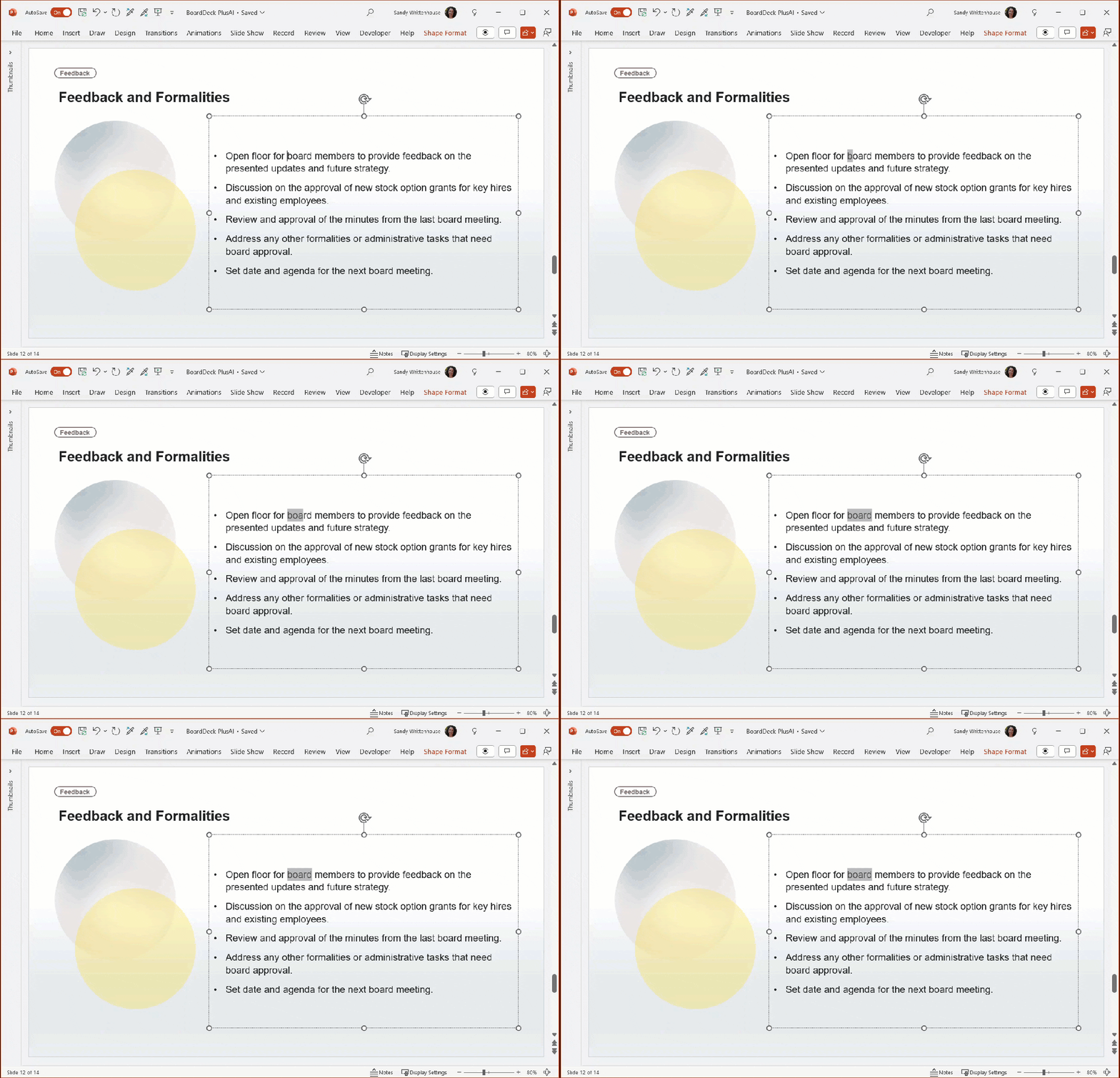
If you want to quickly select text in PowerPoint, you can use this next list of keyboard shortcuts. To select additional text, hold the primary key and continue to press the secondary key.
For example, when you use Shift + Right arrow to select one character to the right, you can hold Shift and continue pressing the Right arrow to select additional characters.
| Action | Shortcut |
|---|---|
| Select one character to the right | Shift + Right arrow |
| Select one character to the left | Shift + Left arrow |
| Select to the end of a word | Ctrl + Shift + Right arrow |
| Select to the start of a word | Ctrl + Shift + Left arrow |
| Select from the cursor one line up | Shift + Up arrow |
| Select from the cursor one line down | Shift + Down arrow |
| Select from the cursor to the end of a paragraph | Ctrl + Shift + Down arrow |
| Select from the cursor to the start of a paragraph | Ctrl + Shift + Up arrow |
Working with text and objects
For the basics of copying, pasting, and deleting text or objects, check out these convenient shortcuts.
| Action | Shortcut |
|---|---|
| Copy | Ctrl + C |
| Duplicate | Ctrl + D |
| Cut | Ctrl + X |
| Paste | Ctrl + V |
| Paste Special | Ctrl + Alt + V |
| Copy the formatting | Ctrl + Shift + C |
| Paste the copied formatting | Ctrl + Shift + V |
| Delete one character to the left | Backspace |
| Delete one character to the right | Delete |
| Delete one word to the left | Ctrl + Backspace |
| Delete one word to the right | Ctrl + Delete |
Tip: Need to create an object to show progress or status? Look at how to add Harvey Balls in PowerPoint.
Moving around text
You don’t have to lift your fingers from the keyboard to move around text on a slide. Just use these keyboard shortcuts.
| Action | Shortcut |
|---|---|
| Move one character to the left | Left arrow |
| Move one character to the right | Right arrow |
| Move one word to the left | Ctrl + Left arrow |
| Move one word to the right | Ctrl + Right arrow |
| Move one line up | Up arrow |
| Move one line down | Down arrow |
| Move one paragraph up | Ctrl + Up arrow |
| Move one paragraph down | Ctrl + Down arrow |
| Move to the end of a line | End |
| Move to the start of a line | Home |
Formatting text
To apply formatting like bold or italics, insert a hyperlink, or align a paragraph, these shortcuts make it easy.
| Action | Shortcut |
|---|---|
| Open the Font dialog box | Ctrl + T or Ctrl + Shift + F |
| Apply bold | Ctrl + B |
| Apply italic | Ctrl + I |
| Apply underline | Ctrl + U |
| Apply superscript | Ctrl + Shift + Plus sign |
| Apply subscript | Ctrl + Equal sign |
| Increase the font size | Ctrl + Shift + Right angle bracket |
| Decrease the font size | Ctrl + Shift + Left angle bracket |
| Insert a hyperlink | Ctrl + K |
| Insert an equation | Alt + Equal sign |
| Left align a paragraph | Ctrl + L |
| Right align a paragraph | Ctrl + R |
| Center a paragraph | Ctrl + E |
| Justify a paragraph | Ctrl + J |
Tip: Learn how to curve text in PowerPoint for a unique appearance.
Miscellaneous keyboard shortcuts
For additional keyboard shortcuts, these are some you’ll want to remember. Undo an action, find a word, or zoom in to fit the window.
| Action | Shortcut |
|---|---|
| Undo the last action | Ctrl + Z |
| Redo the last action | Ctrl + Y |
| Cancel the current action | Esc |
| Open the Find dialog box | Ctrl + F |
| Open the Replace dialog box | Ctrl + H |
| Zoom in | Ctrl + Plus sign |
| Zoom out | Ctrl + Minus sign |
| Zoom to fit | Ctrl + Alt + O |
Ribbon shortcuts
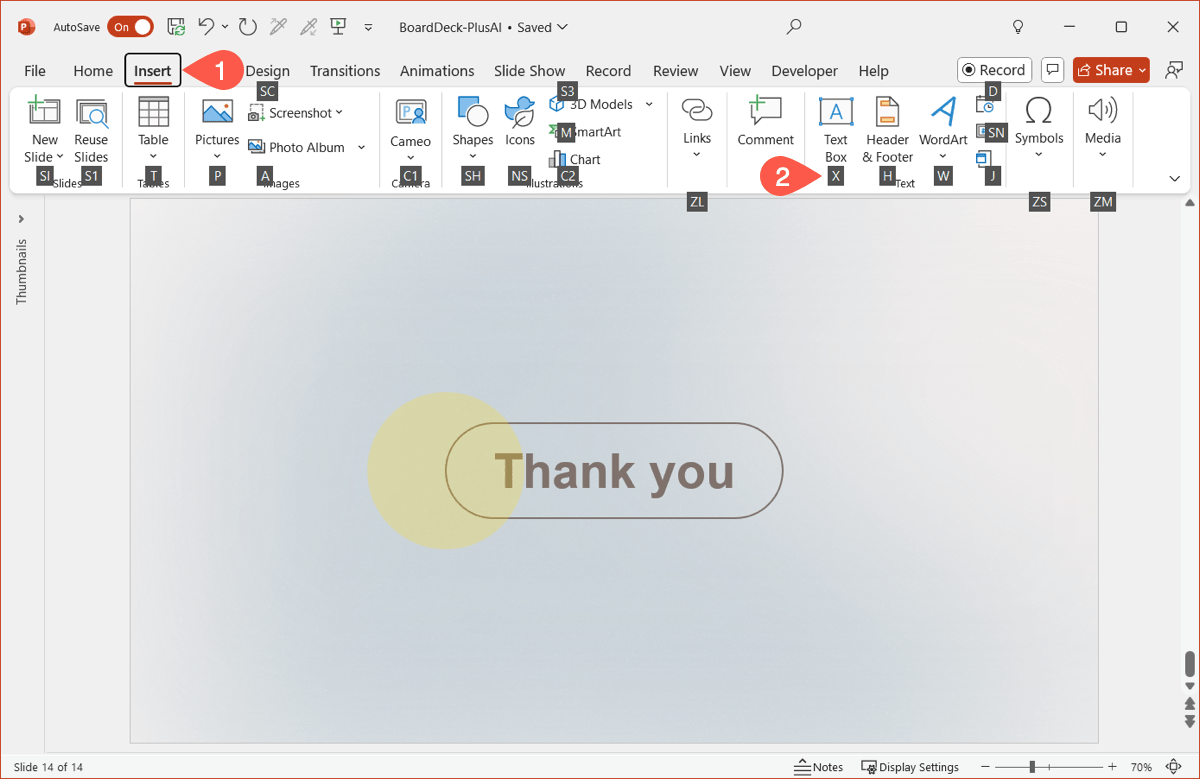
Along with the above keyboard shortcuts, you can use ribbon shortcuts to select the actions to perform. Once you use the first key combination to open the tab, you’ll see letters on the ribbon for the available actions.
For example, if you use Alt + N to open the Insert tab, you can then press X to insert a Text Box.
| Tab | Shortcut |
|---|---|
| File | Alt + F |
| Home | Alt + H |
| Insert | Alt + N |
| Draw | Alt + J |
| Design | Alt + G |
| Transitions | Alt + K |
| Animations | Alt + A |
| Slide Show | Alt + S |
| Review | Alt + R |
| View | Alt + W |
| Help | Alt + Y |
Pro-tip: If you want to be a true PowerPoint power user, try using a macro toolbar which exposes additional functionality as macros. You can also save macros (or other functions to your quick access toolbar and access them using Alt + number key)
Save time with Plus AI for PowerPoint
Keyboard shortcuts aren’t the only tools for saving time when you work in PowerPoint. Using Plus AI, you can create and edit slideshows with artificial intelligence.
You can ask Plus AI to do the research for you, craft the text, and arrange it in an attractive and effective slide layout.
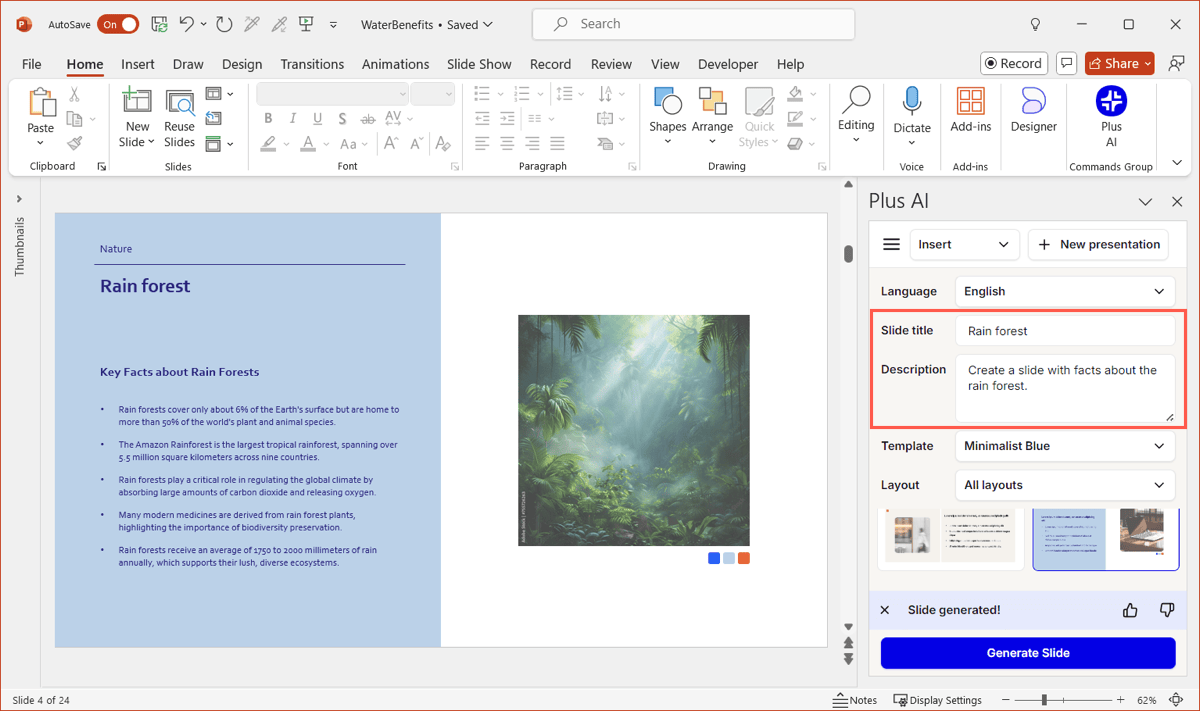
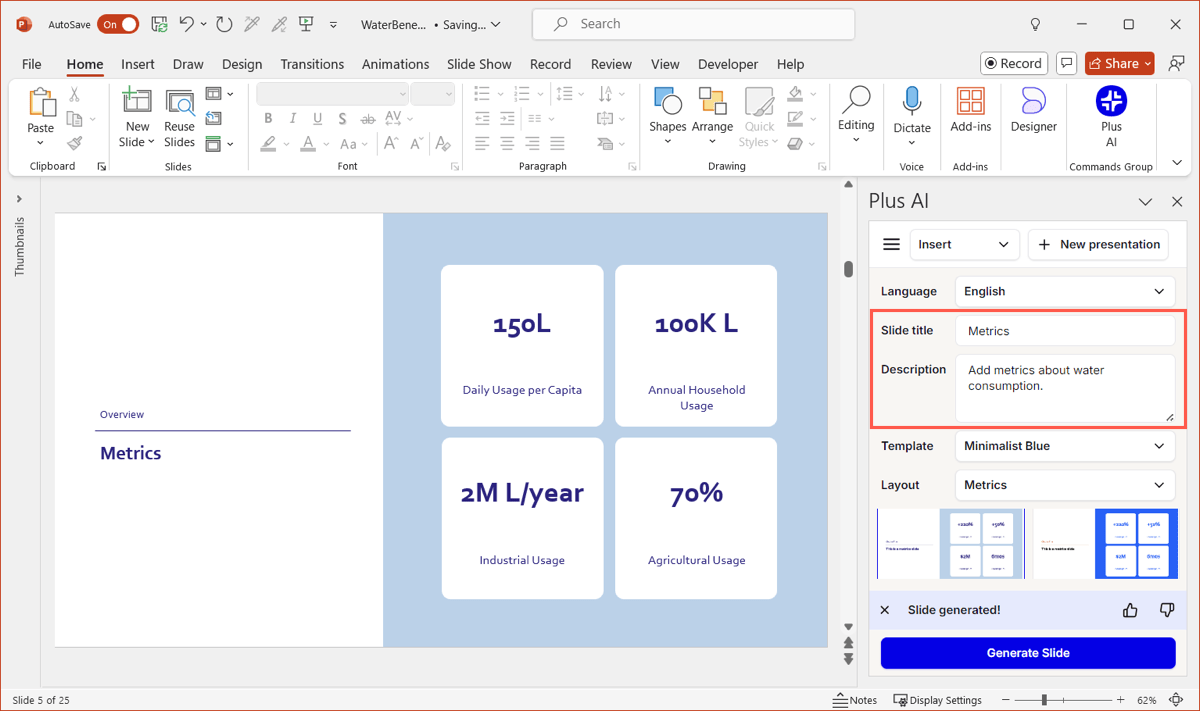
You can also tell Plus AI to insert a summary slide, add a reference or works cited slide, or include a slide with metrics.
Check out the Plus AI website for complete information, a peek at the template gallery, and to start your trial.