
Blog
Guides, reviews, and tips for making better presentations with AI.
-
Resources
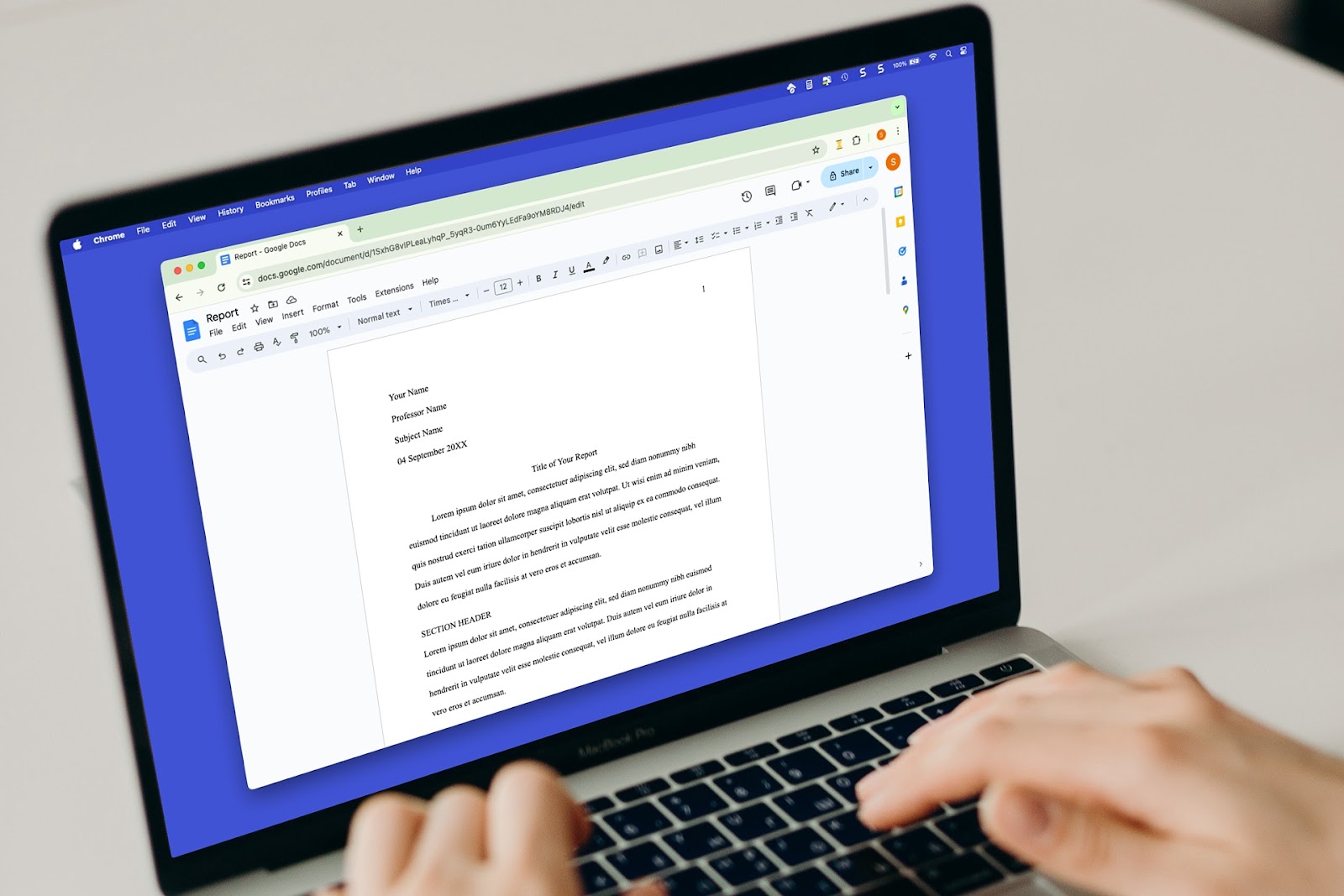
How to do MLA format in Google Docs
Need to create a document using MLA format? We’ll explain this format’s specifications and how to create your paper using MLA in Google Docs.
-

Resources
How to add a watermark to Google Slides
For a word, logo, or other image, we’ll show you how to add a watermark in Google Slides. Whether on one slide or all, our guides make the process easy.
-
Resources
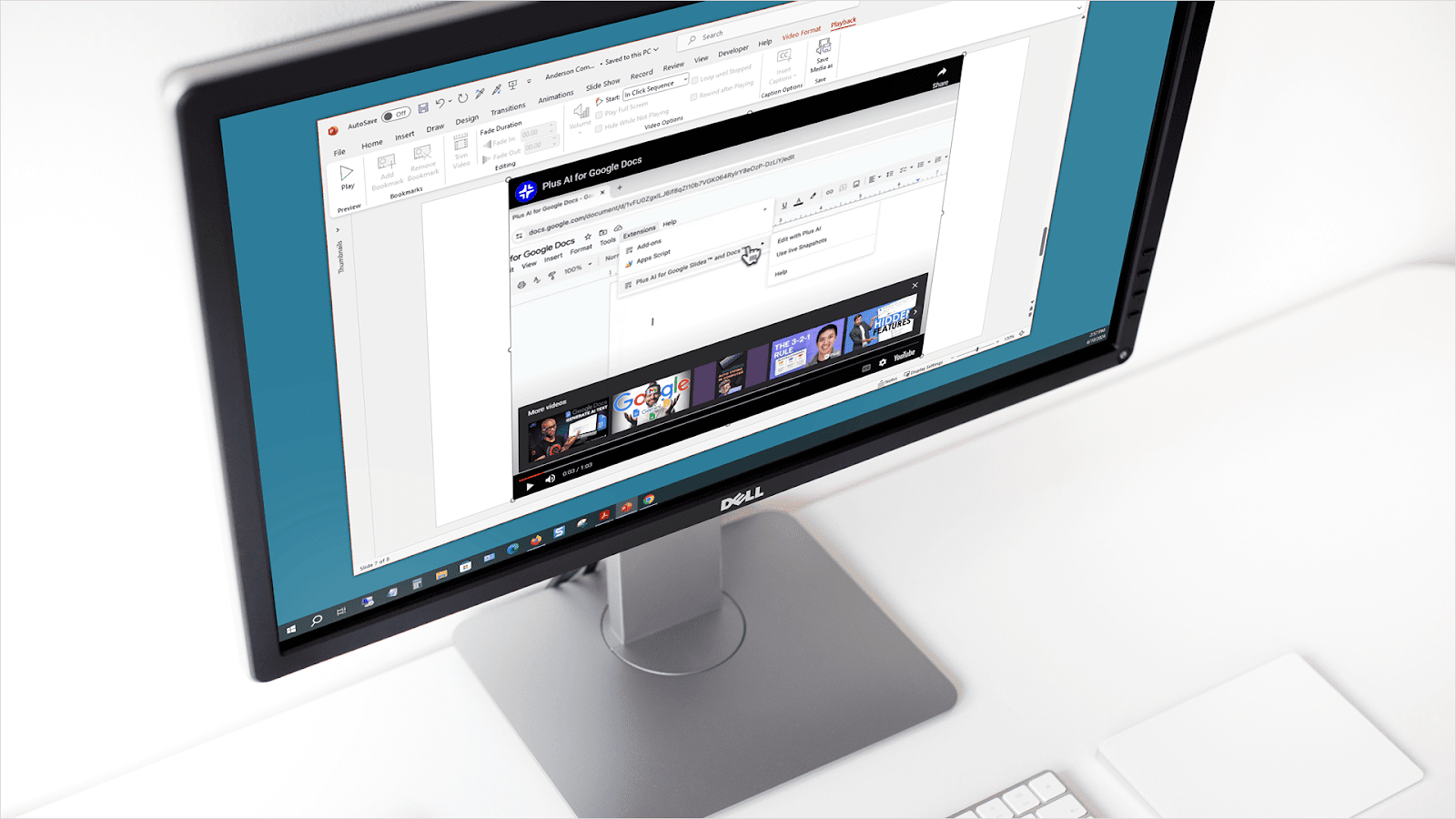
How to embed a YouTube video in PowerPoint
A video in your slideshow can invoke emotion, provide information, or demonstrate a product or task. Here’s how to embed a YouTube video in PowerPoint.
-
Resources
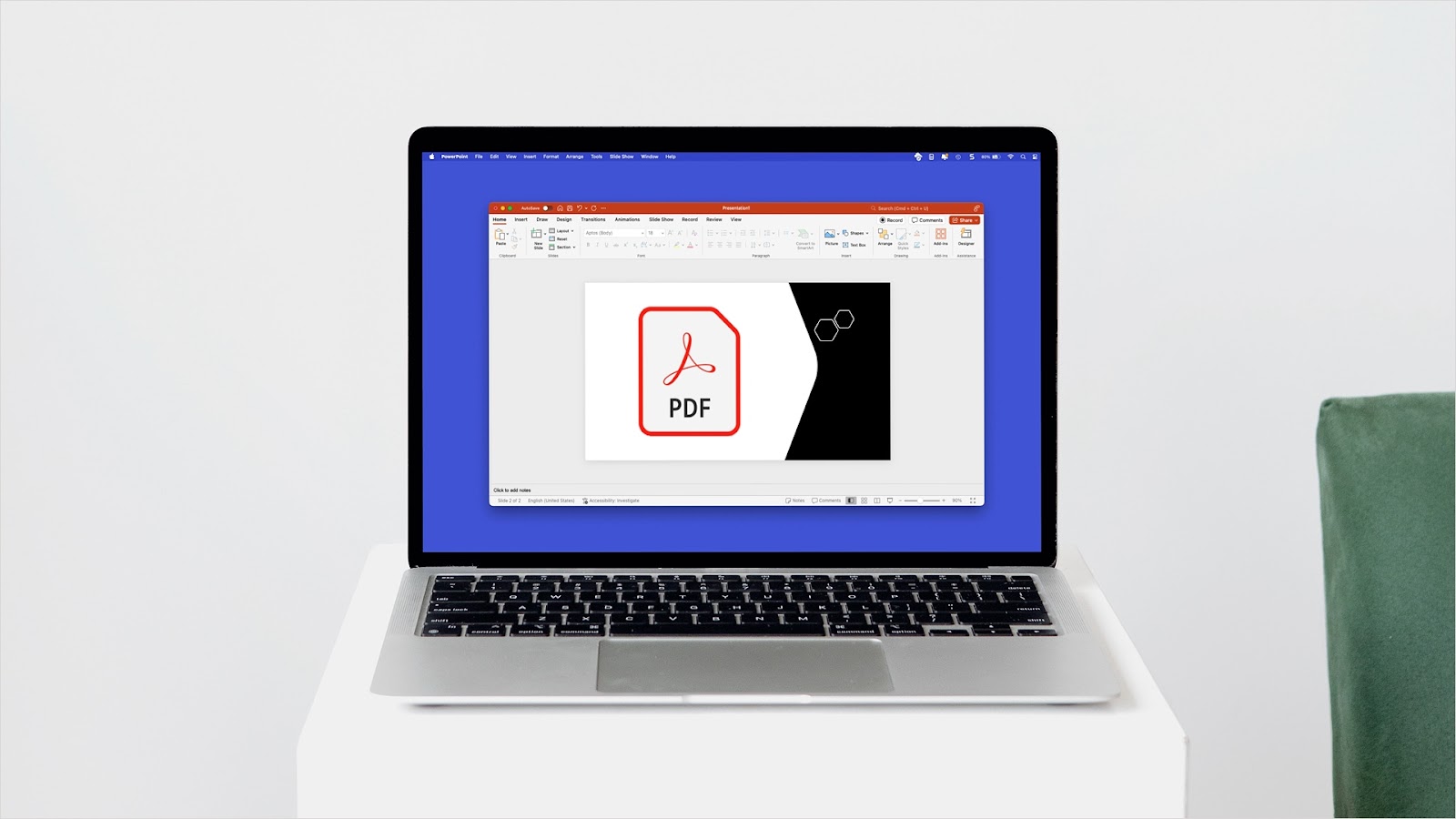
How to insert a PDF into PowerPoint
Enhancing your slideshow may mean adding a report, article, or other document. Here’s how to insert a PDF in PowerPoint to present the information you need.
-
Resources
7 Best AI Tools for Teachers: Make Lessons, Presentations, Quizzes, and More
Explore some of the best tools to use AI in your classroom
-
AI news
Why Chatbots Aren’t Working
Four reasons chatbots are not the right interface for AI
-

Resources
How to end a presentation
Not quite sure how to wrap up your slideshow? We’ll explain what you need to successfully end your presentation along with a tool for creating the slides.
-

Resources
How to start a presentation
Looking for a good way to start a presentation? We’ll walk you through several types of example openings you can use to get your audience’s attention.
-
Resources
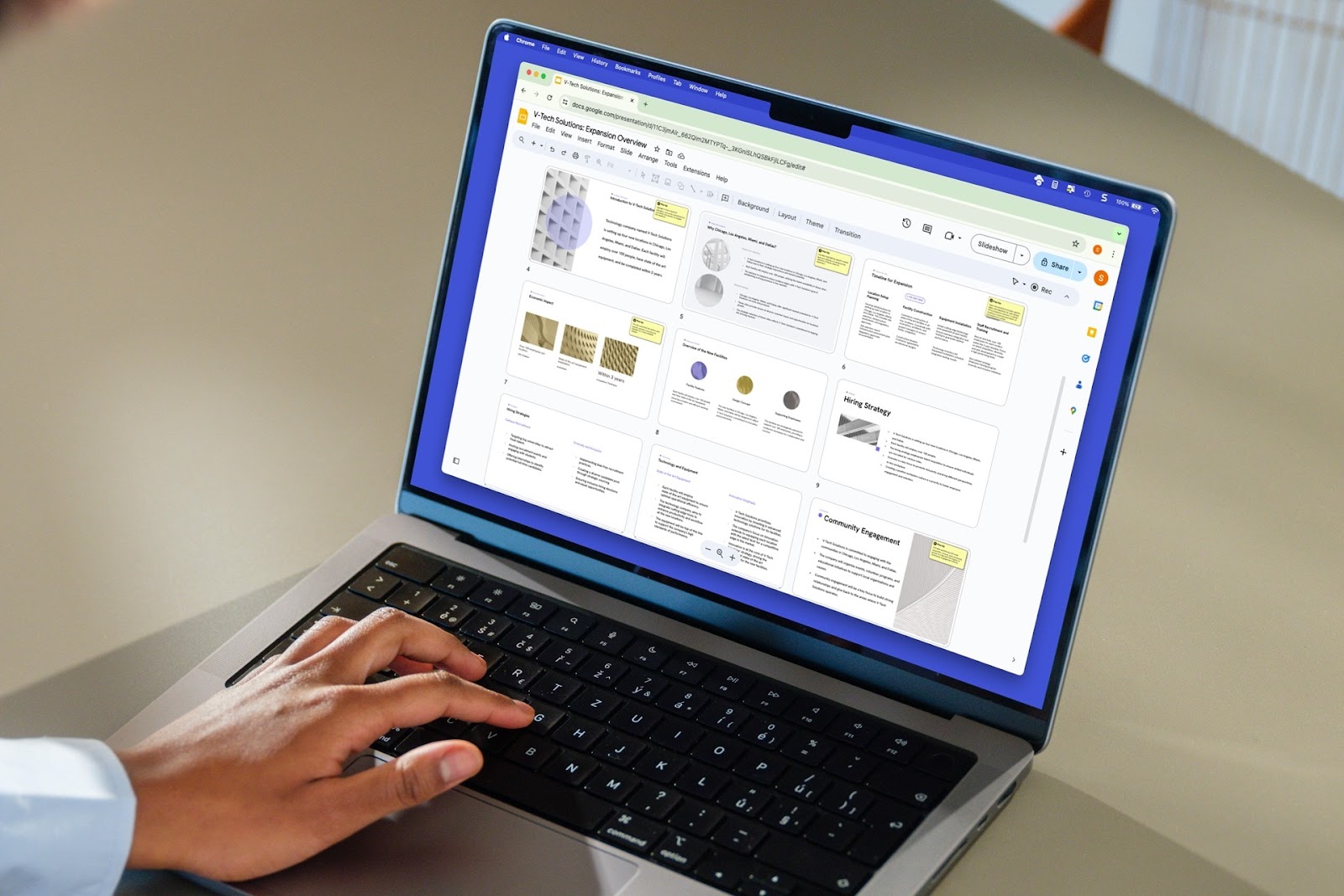
How to delete a slide in Google Slides
Learn how to delete a slide or delete multiple slides in Google Slides, as well as how to use Plus AI to remix your slide content instead of removing it.
-
Resources
Best GIFs for Presentations: Keep Your Viewers Engaged (or Awake)
Find the best GIFs for any situation to liven up your next presentation
-

Resources
How to add footnotes in Google Slides
Step-by-step guide to add a footnote to your slides in Google SLides
-
Resources
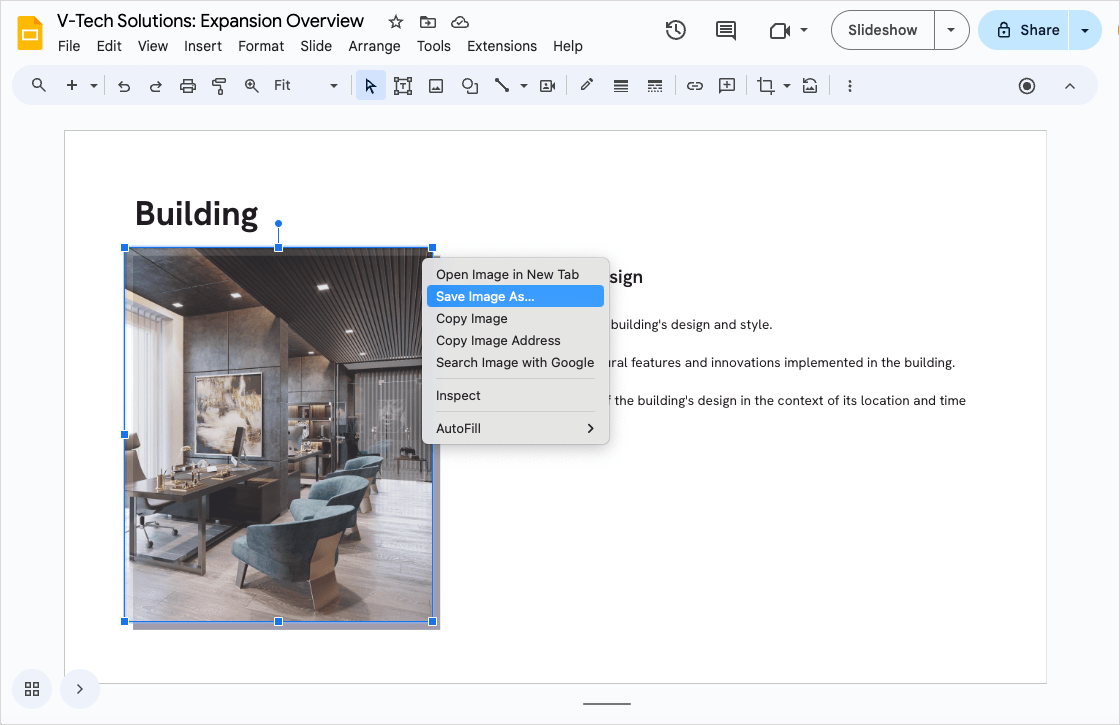
How to download an image from Google Slides
Four methods to download an image from Google Slides, from right click and save as to using Google Keep