
Free presentation tools
PowerPoint Word Counter
Upload your PowerPoint to get an instant word count. See speaker notes, word count by slide, and speaking time. Free to use, no sign up required.
Why use it
Why you should use our PowerPoint word counter
-
Get the word count PowerPoint hides
PowerPoint hides its word count under File and Properties. Get yours here in seconds.
-

Plan your presentation time
See how long your deck takes to present out loud. Trim it before you rehearse, not after you run over.
-
Works with the files you already have
Upload any .pptx file. Decks from Google Slides or Keynote work too. No copying and pasting text slide by slide.
Features
What the PowerPoint word counter shows you
-
Every word counted
Titles, body text, and speaker notes. Nothing gets missed.
-
Word count by slide
A slide-by-slide breakdown shows you where your deck runs long.
-
Speaker notes separated
Notes get their own count. Know what your audience reads versus what only you see.
-
Export to CSV
Download your per-slide counts in one click.
-
Private by design
Your file is only used to make your count. We do not keep your content.
-
Free and unlimited
No sign up, no file limits, nothing to install. Check as many decks as you want.
How it works
How to check word count in PowerPoint
- 1
Upload your PowerPoint
Drag and drop any .pptx file. Using Google Slides? Download your deck as a PowerPoint file first. Then upload it here.
- 2
We count every word
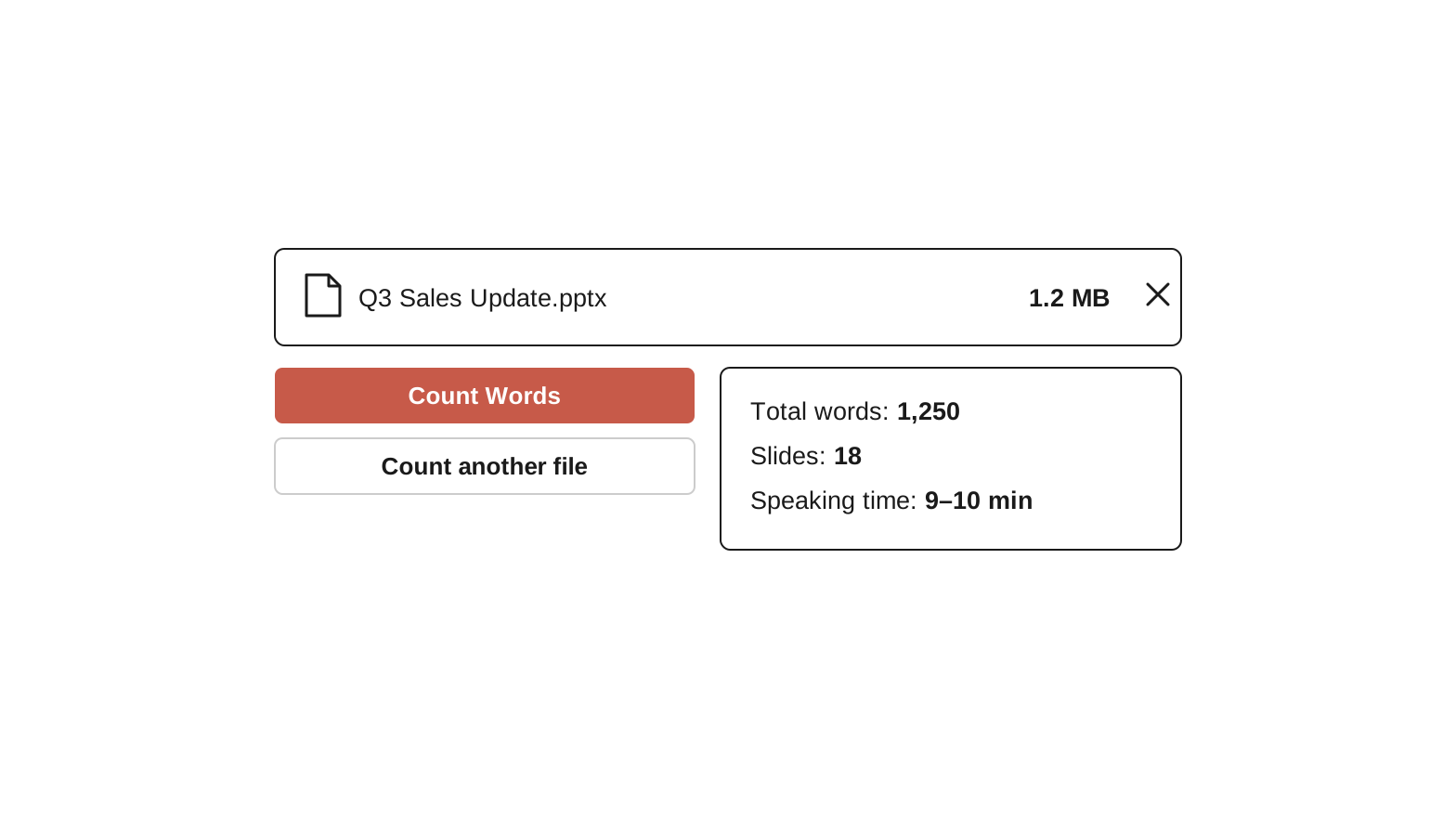
The tool reads your titles, body text, and speaker notes. Then it adds up your totals, reading time, and speaking time.
- 3
Review your report
See your word count by slide, average words per slide, and speaking time. Download the full breakdown as a CSV if you need it.
More free presentation tools



FAQs
How do I count the words in a PowerPoint presentation?
The fastest way is to upload your .pptx file to this free PowerPoint word counter. You get the total word count, word count by slide, character count, and speaking time in seconds.
PowerPoint only shows a word count when downloaded. It hides under File, then Info, then Properties. That is why a browser tool is the easiest option on any device.
How do I check word count on Google Slides?
Google Slides has no built-in word count. The easiest fix is to download your deck as a PowerPoint file. Go to File, then Download, then Microsoft PowerPoint. Then upload the .pptx here. You get a full word count, including speaker notes.
Want to use a plain text export instead? Our Google Slides word count calculator walks through that method.
Does the word count include speaker notes?
Yes. The tool counts the text on your slides and in your speaker notes. Notes get their own total. You know exactly what your audience will read on screen versus what only you will see.
Need a count without notes? Subtract the speaker notes total from the overall count. Or upload a copy of your deck with the notes deleted.
How many words should be on a slide?
Aim for under 30 words per slide for decks you present live. Past this, your audience reads the slide instead of listening to you.
The word count by slide breakdown helps you find wordy slides fast. Consultants can tighten a client deck. Sales teams can pace a pitch. Teachers can review lecture slides. It works as a quick edit checklist for all of them.
How do I cut down a wordy presentation?
Start with the slides at the top of your per-slide word count. Turn long paragraphs into short points that support what you say out loud.
Want help doing it? Plus AI can rewrite dense slides into tight talking points. It can also reformat them into cleaner layouts. It works right inside PowerPoint and Google Slides.
Tired of wasting time on slides?
Try Plus AI for free. Start with a 7-day free trial. Cancel any time. Edit and collaborate seamlessly, directly in Google Slides or PowerPoint.
Get started for free