
Free presentation tools
Image to PDF Converter
Turn any image into a PDF in seconds. Works with JPG, PNG, and every other major format. Free to use, no sign up required.
Why use it
Why use our image to PDF converter
-
Converts any image format
JPG, PNG, WebP, TIFF, GIF, BMP, and SVG all work. Screenshots, photos, and graphics convert without any extra steps.
-

Share your image anywhere
PDFs open the same way on every device. Email it, upload it, or print it without format problems.
-

Done in seconds
Upload your image and download your PDF. No sign up, no software, no waiting.
Features
Image to PDF converter features
-
Every major format
Convert JPG, JPEG, PNG, WebP, TIFF, BMP, GIF, and SVG files to PDF.
-
Works on your phone
Convert photos and screenshots right from your phone's browser. No app needed.
-
Keeps your image quality
Your PDF looks just like your original image.
-
No watermark
Your PDF is clean. No logos or stamps added.
-
Works in your browser
Nothing to install. Works on your computer, phone, or tablet.
-
Free and unlimited
No sign up, no payment, no file limits. Convert as many images as you want.
How it works
How to convert an image to PDF
- 1
Upload your image
Drag and drop your file or select it from your device. Any major image format works.
- 2
We convert it to PDF
The tool turns your image into a PDF in seconds. Your image quality stays the same.
- 3
Download your PDF
Save your new PDF to your device. It is ready to email, upload, or print.



FAQs
How do I convert an image to PDF?
The fastest way is to upload your image to this free converter. It turns your file into a PDF in seconds, with no sign up and no watermark.
You can also use built-in tools on your computer. On Windows, open the image and choose Print, then Microsoft Print to PDF. On Mac, open the image in Preview and choose File, then Export as PDF. A browser tool like this one skips those steps and works the same on every device.
How do I convert a picture to PDF on iPhone?
Open this page in Safari or Chrome on your iPhone, upload the photo, and download the PDF. If your photo is saved as a HEIC file (the default format for iPhone photos), convert it to JPG first: in the Photos app, tap Share, choose Copy Photo, and paste it into the Files app, or change your camera settings to Most Compatible to capture JPG directly.
You can also do it in the Photos app: select a photo, tap Share, choose Print, then use the share button on the preview to save it as a PDF.
How do I convert a PNG to PDF?
Upload your PNG file to the converter above and download the PDF. PNG files convert cleanly, and screenshots work great too since most screenshots are PNG files.
What image formats does the converter support?
The converter works with JPG, JPEG, PNG, WebP, TIFF, BMP, GIF, and SVG files. HEIC files (the default format for iPhone photos) are not supported, so convert those to JPG first. For other formats, try it. Most image types work.
Can I combine multiple images into one PDF?
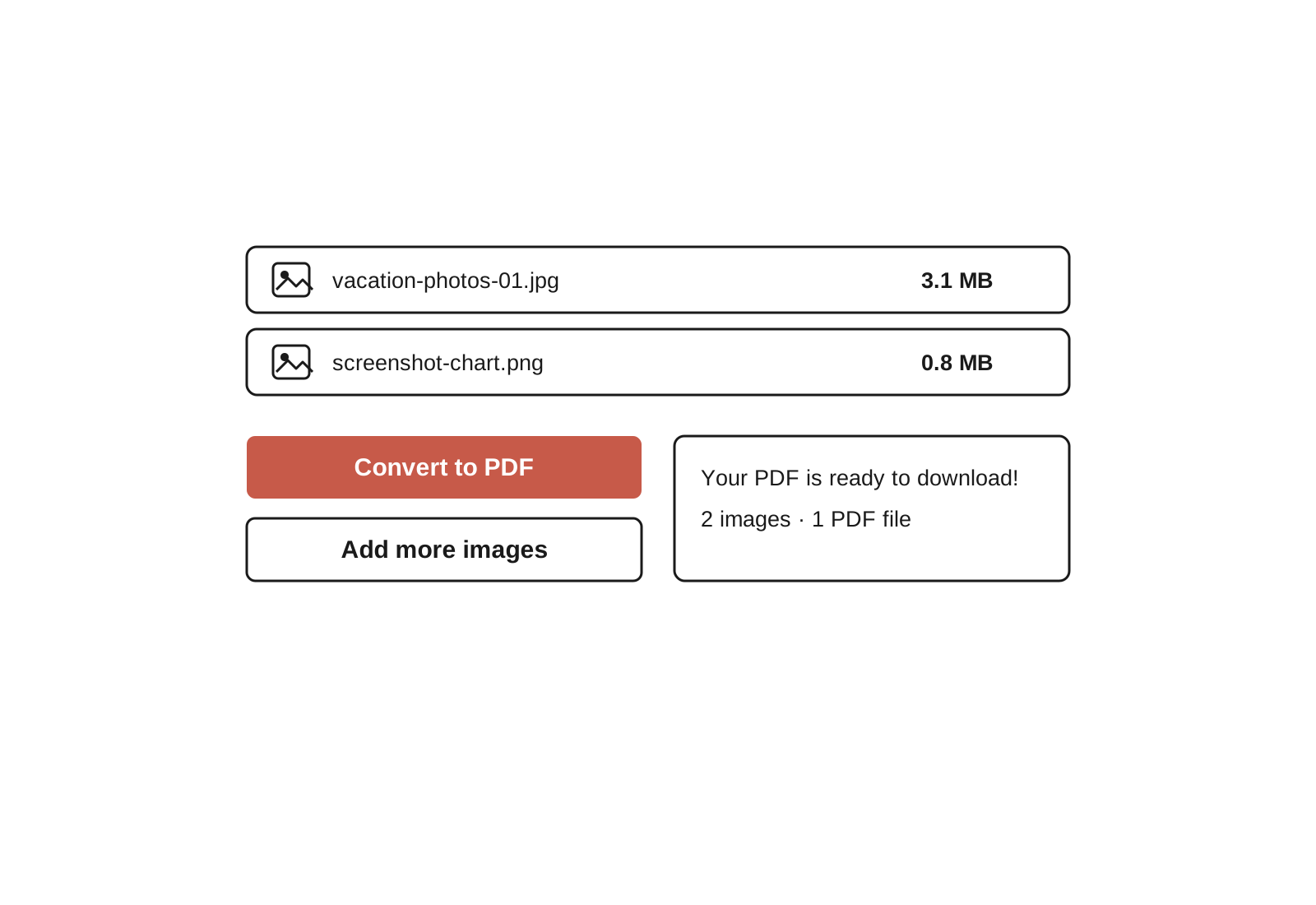
No. This tool converts each image into its own PDF file. If you need several images in one document, convert them one at a time and merge the PDFs with a PDF merging tool.
Does the converter add a watermark?
No. Your PDF comes out clean, with no watermark, logo, or stamp. What you upload is what you get.
Is the image to PDF converter free?
Yes. The tool is free with no sign up, no payment, and no limits on how many images you convert.
Tired of wasting time on slides?
Try Plus AI for free. Start with a 7-day free trial. Cancel any time. Edit and collaborate seamlessly, directly in Google Slides or PowerPoint.
Get started for free