
Product
Announcing the new Plus AI MCP
The Plus AI MCP allows you to create and edit presentations right from Claude and ChatGPT.

Today we’re excited to announce the new Plus AI MCP. You can now use Plus AI from inside Claude, ChatGPT, and other AI agents to build presentations in your own templates, edit the decks you already have, and keep refining them by chat.
With the new Plus AI MCP, you can…
- View previews of your slides and edits in your AI chats,
- Upload your slide decks and templates,
- Build and edit decks with your own PowerPoint template,
- Redesign an old deck so it looks on brand,
- Download real .pptx files that you can use in PowerPoint.
What you can do from your AI Chats
View Plus AI slides directly in your chat window
The new MCP standards allow us to display your slides and presentations directly within ChatGPT, Claude, and other AI chat platforms. This makes it easier than ever to add slide generation and editing into your workflows.
Build a new deck in your own template
Plus AI focuses on building AI tools for professional presentation makers, so we are excited for you to get true support for editing native PowerPoint slides. Just give your agent your template, ask it to use Plus AI, and Plus AI builds the slides inside it, using your layouts, fonts, and footer.
In this example, the user asks for a consulting-style deck in an Insight.pptx template. The charts and shapes are native, so you can edit them in PowerPoint.
Edit a deck you already have
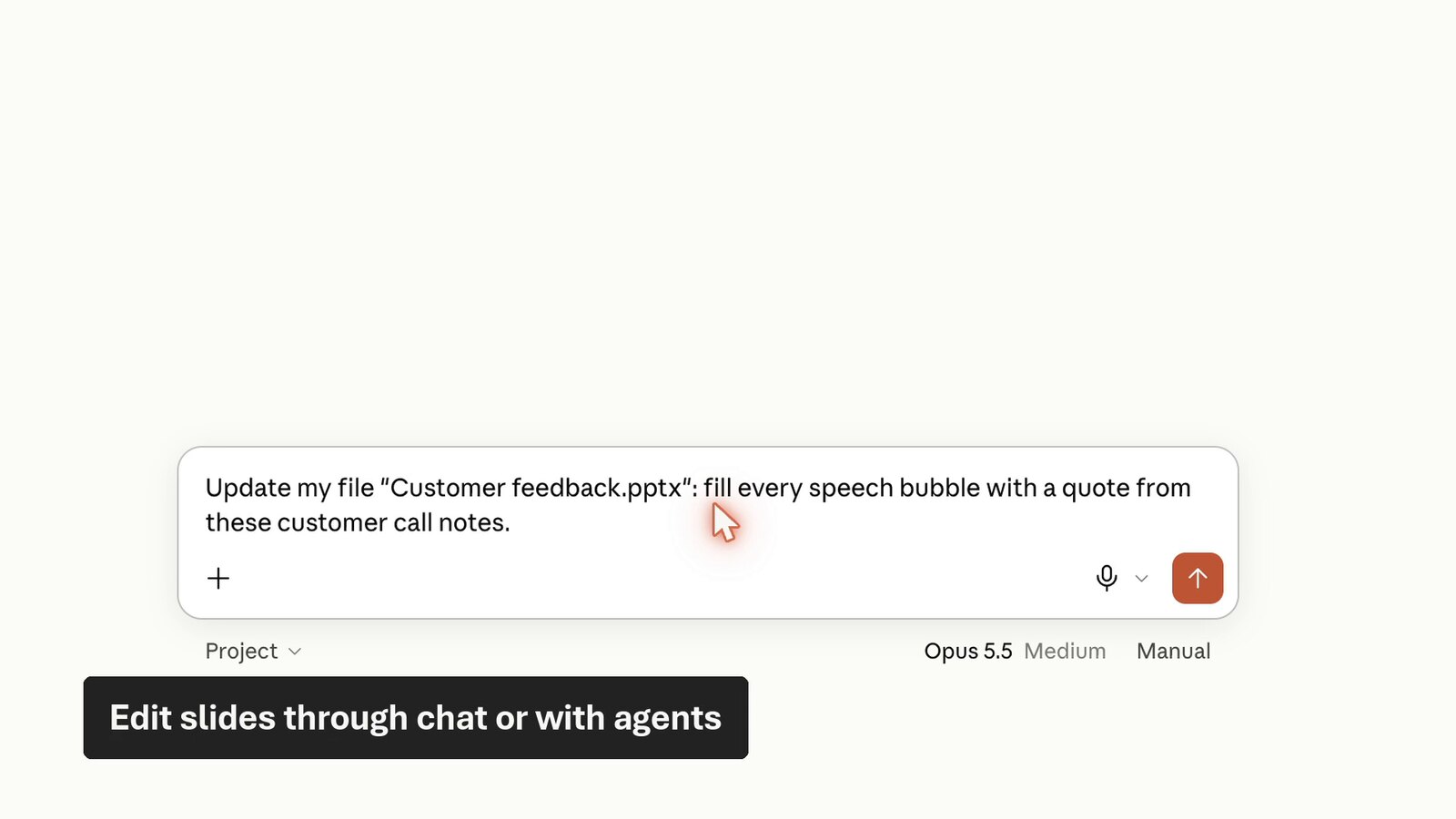
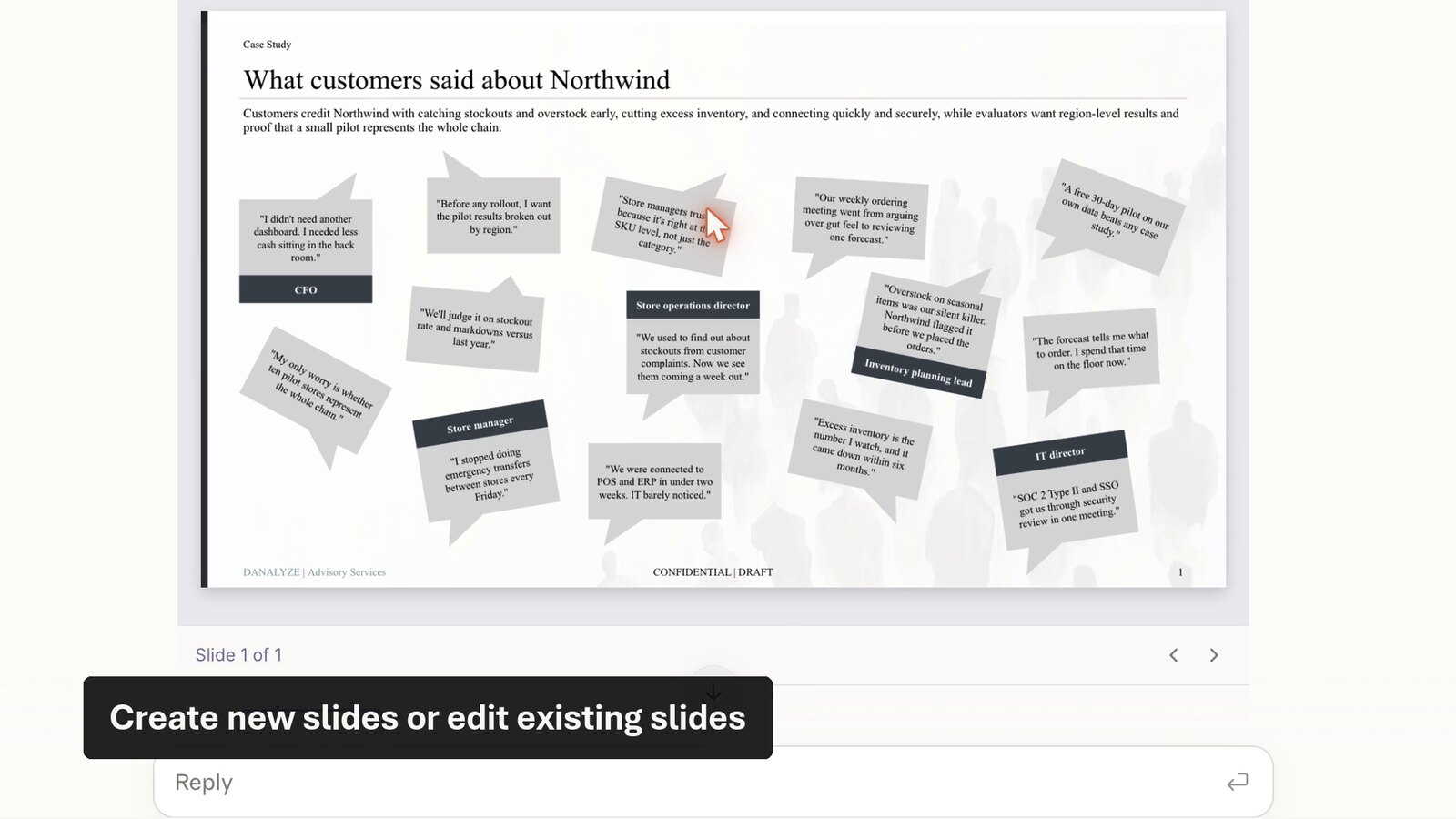
You don’t have to start from scratch, either. In this example, we asked Claude to “fill every speech bubble with a quote from these customer call notes,” and it edited the slide in place. Plus AI works on a copy, so your original file is never changed.
Redesign an old deck so it’s on brand
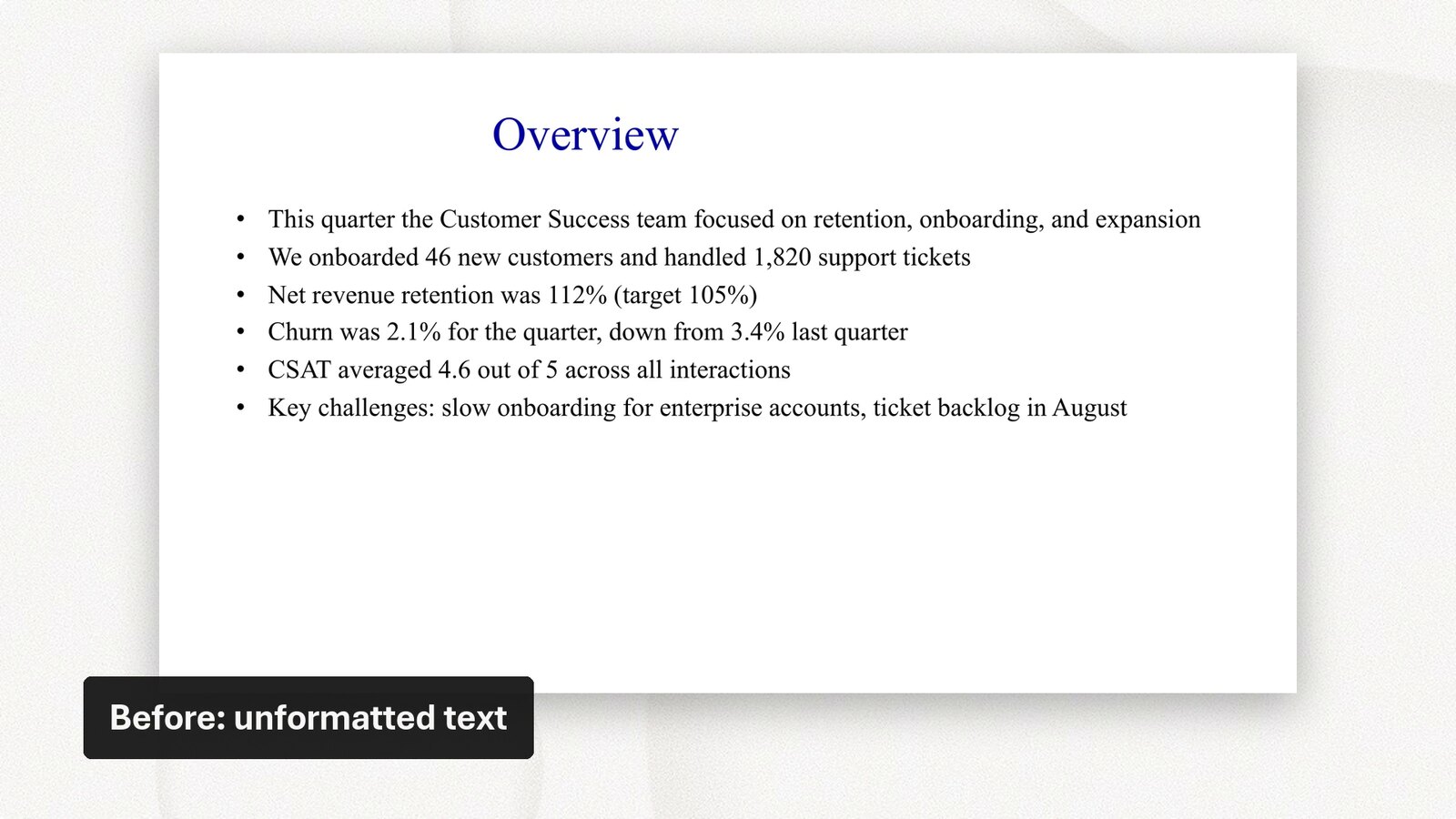
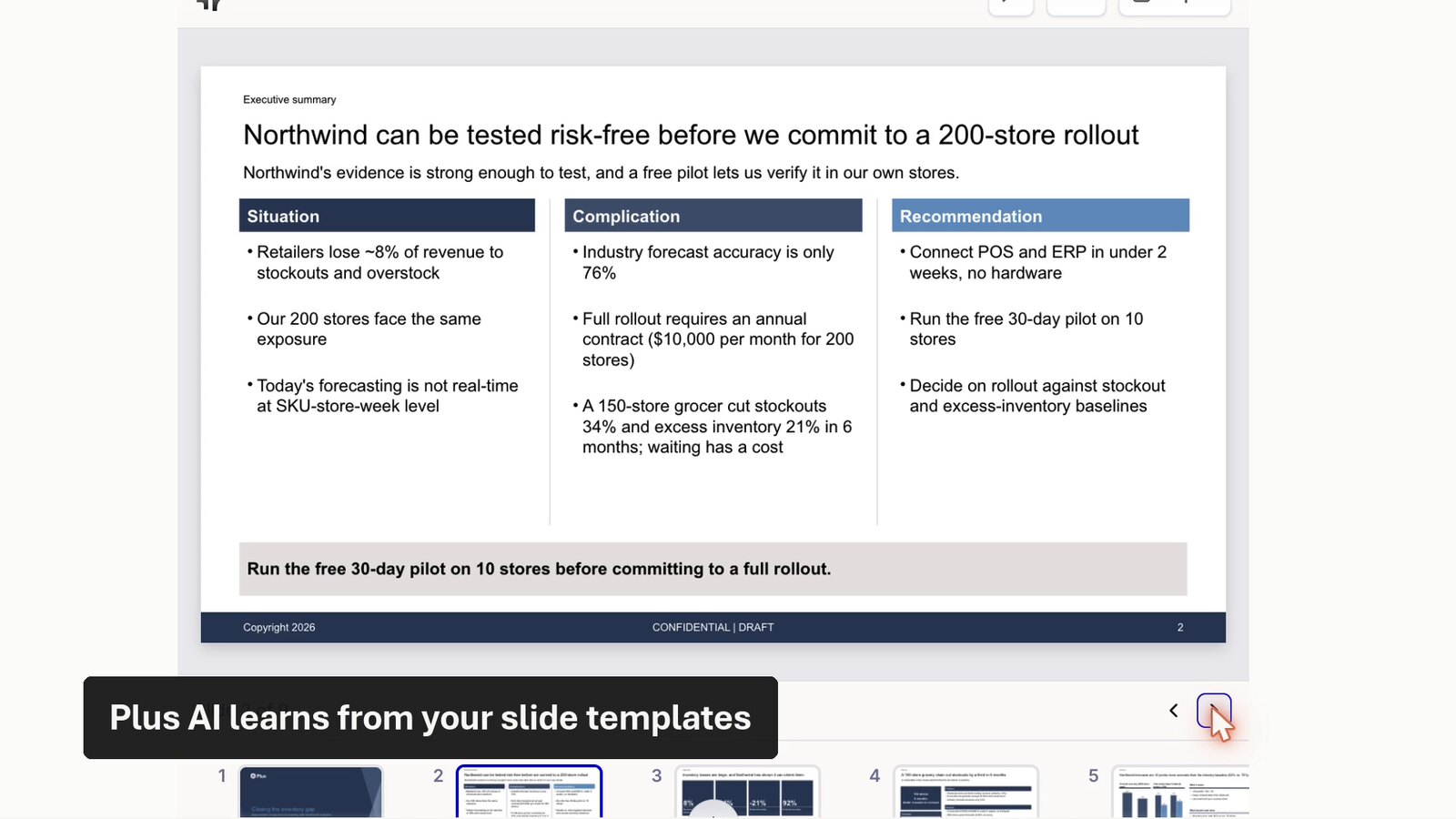
We also took an old customer success update, with the default theme and a wall of bullet points, and asked Plus AI to redo it in a custom PowerPoint template.
The numbers and claims stayed the same, but the design changed.
The Plus AI MCP makes it easy to ask for edits like “shorten slide 3 and add a next-steps slide,” and get on-brand results back.
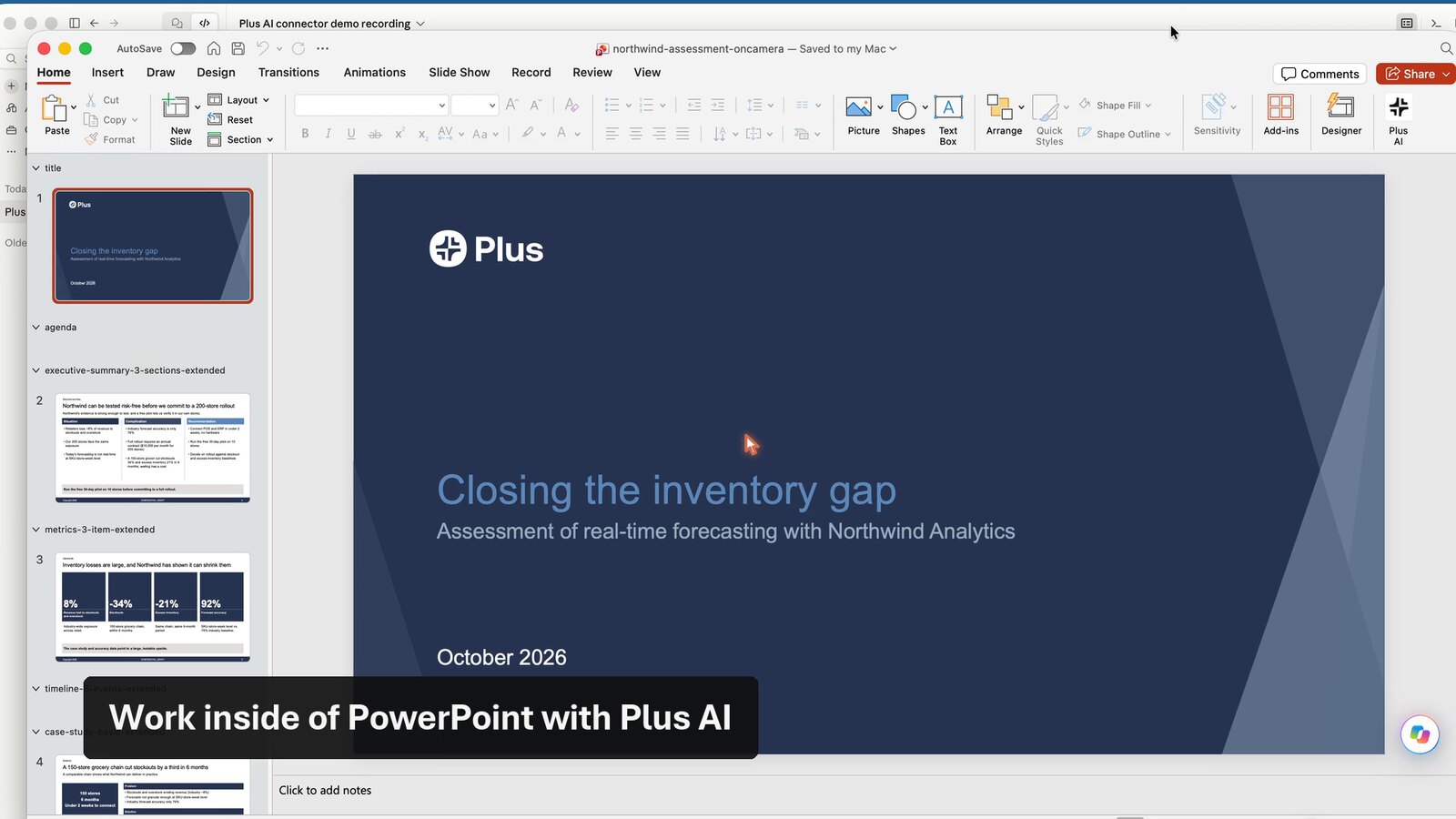
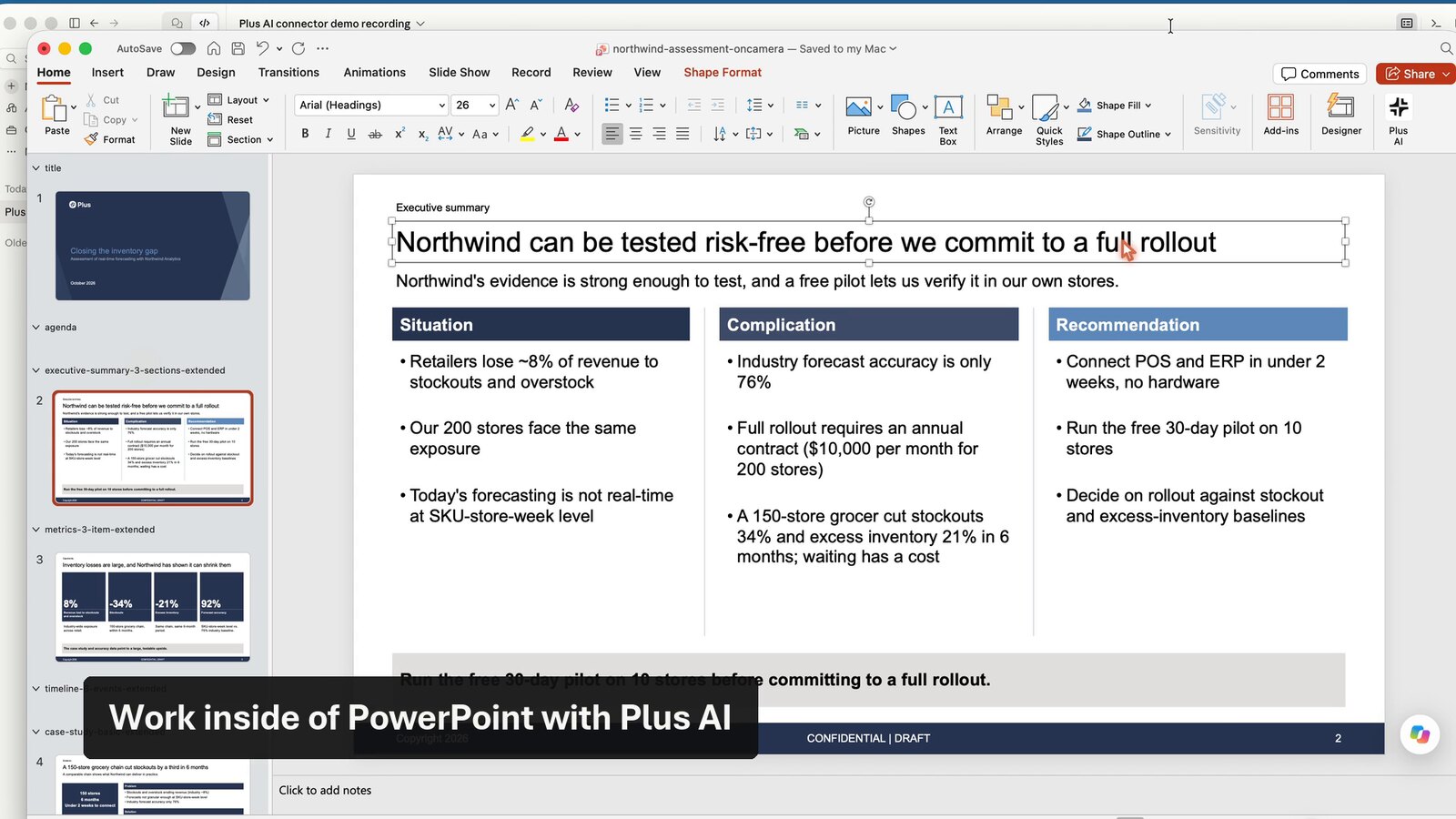
Finish in PowerPoint
Best of all, what you get back is a native PowerPoint file, so you can click into any text box or chart and keep editing. If you’d rather work inside PowerPoint, the Plus AI add-in lets you keep going there too.
How to get started
The Plus AI MCP uses your Plus AI account, so you’ll need a Pro, Team, or Max plan, and each run uses your AI credits (see pricing). Decks usually take a few minutes to build.
Claude
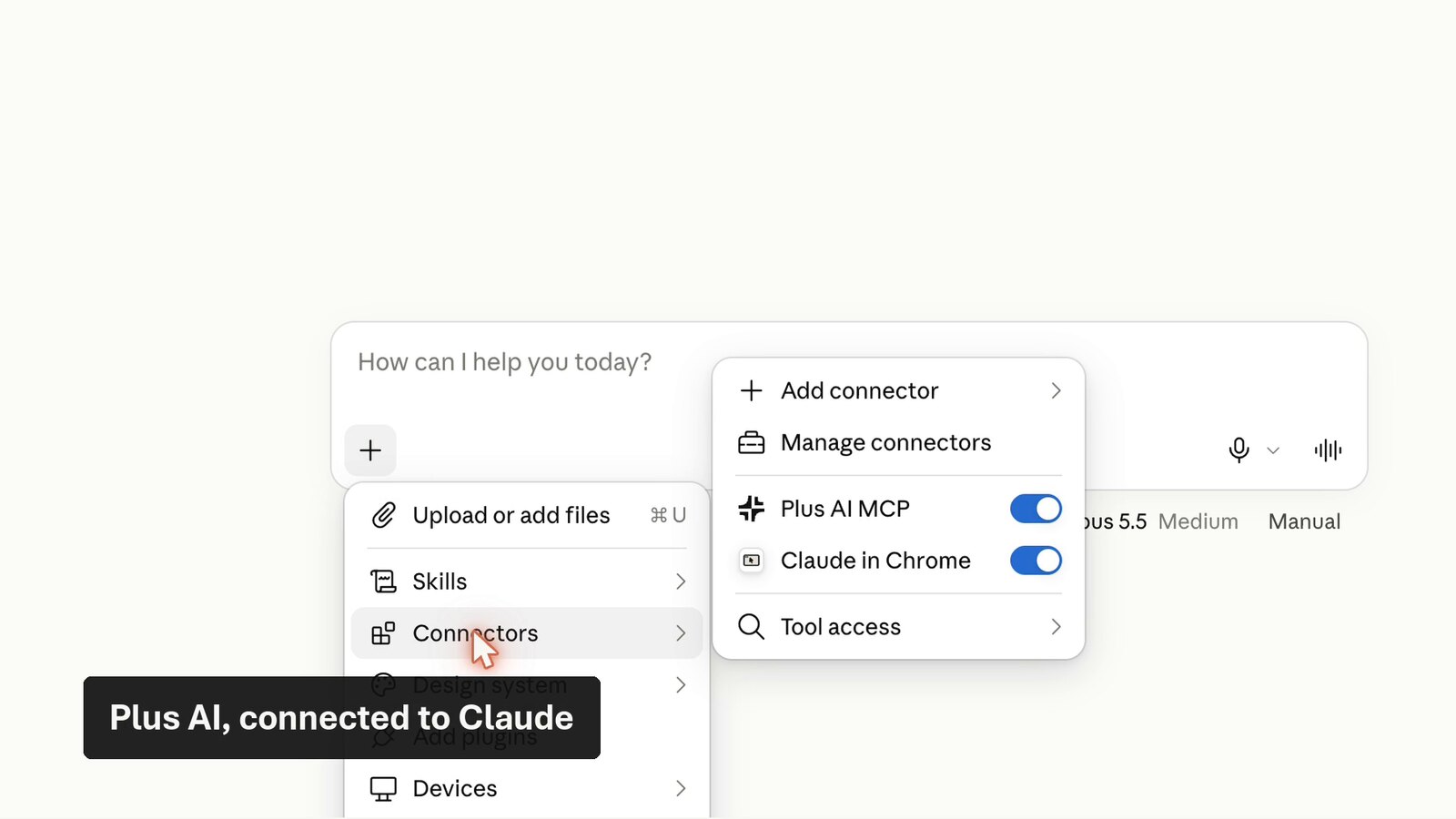
To add the Plus AI MCP to Claude, open the + menu, choose Connectors and Add connector, enter https://mcp.plusai.com/, and sign in with your Plus AI account. Our step-by-step guide has more detail.
To use your own template or deck, attach it in the chat and ask Claude to upload it to Plus AI. Claude needs permission to reach s3.us-east-2.amazonaws.com for the upload, so allow that domain in Claude’s Settings under Capabilities. You can also upload files in the Plus AI web app. Then ask for the file by name, like this:
Use my file “Insight.pptx” as the template for a new 9-slide consulting-style deck. Do not invent numbers beyond these facts: …
ChatGPT
To add the Plus AI MCP to ChatGPT, add the MCP URL (https://mcp.plusai.com/) and sign in with your Plus AI account. Our step-by-step guide has more detail.
ChatGPT passes file attachments to connectors, so you can attach your template or deck right in the chat and ask Plus AI to use it.
Tips for better results
- Put the facts in your prompt. Plus AI only sees your prompt and your files, so include the numbers and messages you want on the slides. Focus on facts and storyline vs. specific sentences for best results.
- Say how closely to follow the template. “Use this template” is fine, but if you actually want more design-forward slides than the standard 2 column slides in your template, tell Plus AI it should be more design-forward and creative.
- Be specific about edits. Try to give feedback like you are talking to a person. If you ask for specific edits, it will do those very well. If you are vague, you may get unpredictable results back.
- Look over the result. The agent often makes decisions you don’t agree with. Remember, you’re ultimately responsible for your slides! Take a look before you send them out.
Please try it out, let us know what you think, and what you’d like to see next!