
免费演示文稿工具
AI Speaker Notes Generator
Upload your presentation and let Plus AI write clear, natural speaker notes for every slide. Free to use, no sign up required.
Why use it
Why use the AI speaker notes generator
-

Skip the slide-by-slide writing
Writing notes for a long deck by hand takes time. Get a full draft for every slide in seconds, then edit from there.
-
Present with confidence
Every slide gets clear cues: the key point, the stat you tend to forget, and the transition into the next idea.
-

Built for the whole workflow
Pair it with Plus AI to write, design, and edit the full presentation directly in PowerPoint and Google Slides.
功能
AI speaker notes generator features
-
Notes for every slide
Generate a complete set for your whole deck in one pass.
-
Matched to your content
The AI reads your slides and writes notes that fit what is actually on them.
-
Follows your deck's flow
Notes track how your presentation moves from one point to the next.
-
Natural speaking voice
Readable cues you can glance at while you talk.
-
Multiple file types
Works with .pptx, .ppt, .pdf, and other formats from PowerPoint or Google Slides.
-
Free and easy
No sign-up, no payment, and no download required.
How it works
How to generate speaker notes with AI
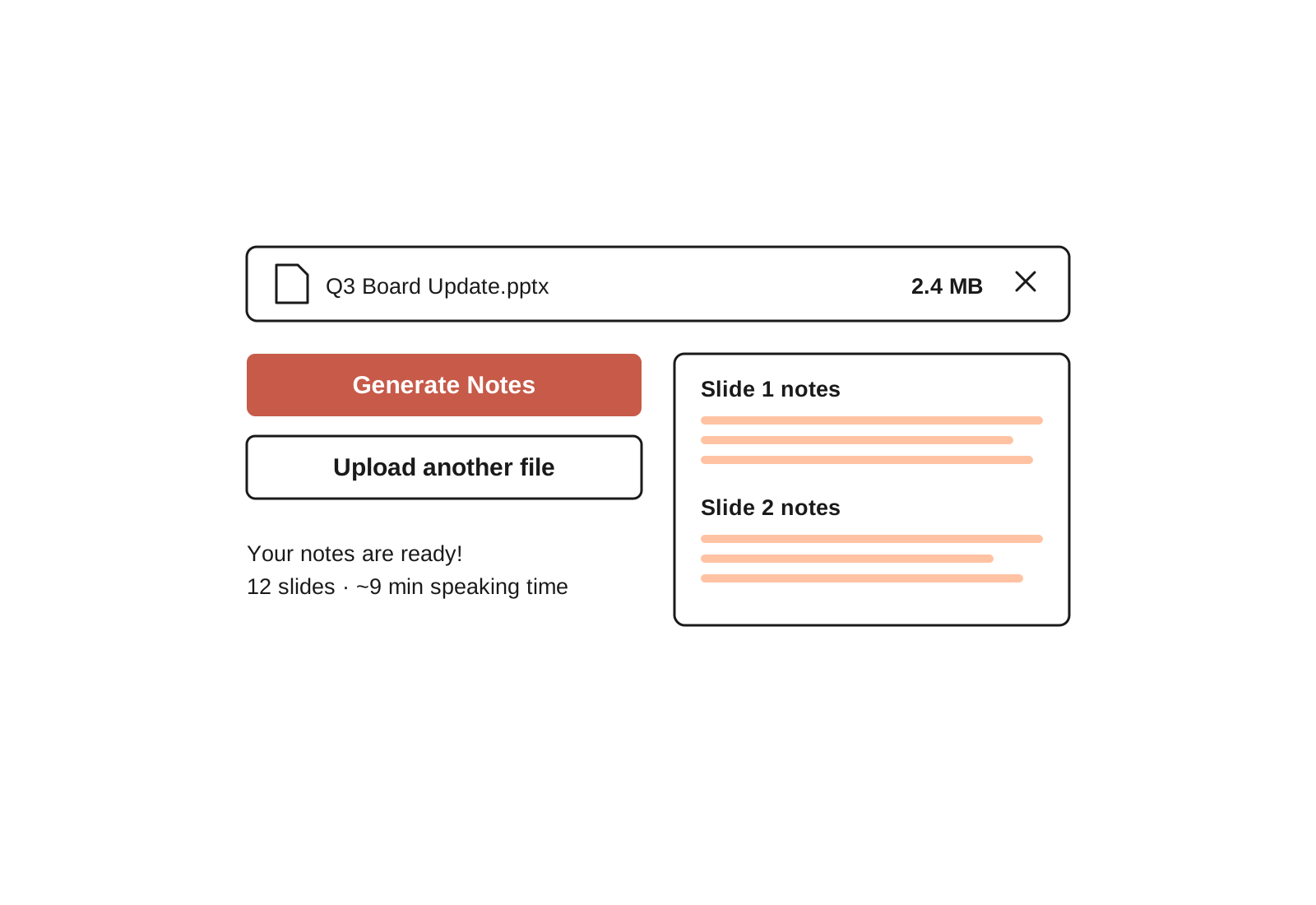
- 1
Upload your presentation
Drag in your file (.pptx, .ppt, .pdf, or other). Your slides stay private.
- 2
Generate your speaker notes
Plus AI reads each slide and writes notes that match what is on the slide and how your deck flows from one point to the next.
- 3
Download and present
Drop the notes into your deck and present with confidence. Or open the deck in Plus AI to refine the notes and slides together.
更多免费演示文稿工具
-
PowerPoint Word Counter
Upload a .pptx to count every word in your PowerPoint, including speaker notes and speaking time.
-

Pyramid Principle Generator
Turn any document into a Minto Pyramid Principle outline with a governing thought, key arguments, and evidence.
-
PowerPoint Summarizer
Upload a PPT file and get a summary of your presentation.
常见问题解答
What are speaker notes?
Speaker notes are the private notes attached to each slide that only the presenter sees. They sit in a separate pane in PowerPoint and Google Slides and appear on your screen in presenter view while your audience sees the clean slide.
Speakers use them as a memory aid: the key point of each slide, the statistic that is easy to forget, the transition into the next idea, and any delivery cues. The difference from slide text is simple. Slide text is for the audience and should be short. Speaker notes are for you and hold the context and reminders you want while you talk.
How do I add speaker notes in PowerPoint?
To add speaker notes in PowerPoint, open the Notes pane below your slide and type your notes for each slide.
- Open your presentation in PowerPoint.
- Click View, then Notes. Or click Notes on the status bar at the bottom of the window.
- Click into the notes pane under the slide and type your notes.
- Repeat for each slide in your deck.
Writing notes for a long deck by hand takes time. Upload your file above and Plus AI will draft notes for every slide at once.
How do I add speaker notes in Google Slides?
To add speaker notes in Google Slides, type into the "Click to add speaker notes" box beneath each slide.
- Open your presentation in Google Slides.
- If you do not see the notes box, click View, then Show speaker notes.
- Click the box below the slide and type your notes.
- Repeat for each slide in your deck.
Want the notes written for you first? Generate a full set with the tool above, then paste them in.
Can the audience see my speaker notes?
No. In both PowerPoint and Google Slides, speaker notes only appear on your screen in presenter view. Your audience sees the clean slide.
To read your notes while you present, turn on Presenter View in PowerPoint (Slide Show tab) or Presenter view in Google Slides (the arrow next to the Slideshow button).
How do I print my slides with the speaker notes?
In PowerPoint, go to File, then Print, open the Settings dropdown, and choose Notes Pages. Each slide prints with its notes underneath.
In Google Slides, go to File, then Print preview, and select the layout that shows notes (1 slide with notes).
How do I write good speaker notes?
The best speaker notes are short cues written the way you actually speak. Keep each slide's notes around 50 to 75 words. Lead with the point the slide needs to land. Add the things you tend to forget, like a specific number or the transition to the next slide.
A weak note repeats the slide: "Q3 revenue grew." A strong note gives you something to say: "Revenue up 18% in Q3, driven by the new enterprise plan. Third straight quarter of growth. Transition to why retention is the bigger story."
How long should speaker notes be?
Keep them short enough to scan at a glance, usually around 50 to 75 words per slide. They work best as cues and reminders rather than a full word-for-word script.
How do I hide or remove speaker notes?
To hide the notes pane while you edit, toggle it off under the View menu in either app. To remove the notes entirely, delete the text from each slide's notes box before you share or export the file.
Is the speaker notes generator free?
Yes. The tool is free to use with no sign-up or download, and it works with PowerPoint .pptx, .ppt, and .pdf files. If you want to create, design, and edit full presentations alongside your notes, you can try Plus AI free for 7 days.
厌倦了在幻灯片上浪费时间?
Try Plus AI for free. Start with a 7-day free trial. Cancel any time. Edit and collaborate seamlessly, directly in Google Slides or PowerPoint.
免费开始