
免费演示文稿工具
Free PowerPoint macros
Download our free PowerPoint macro toolbar with 200+ macros to make it easier to edit and create new PowerPoint presentations.
它是如何工作的?
- 1
Download the macros
Download the PowerPoint macro toolbar from this link.
- 2
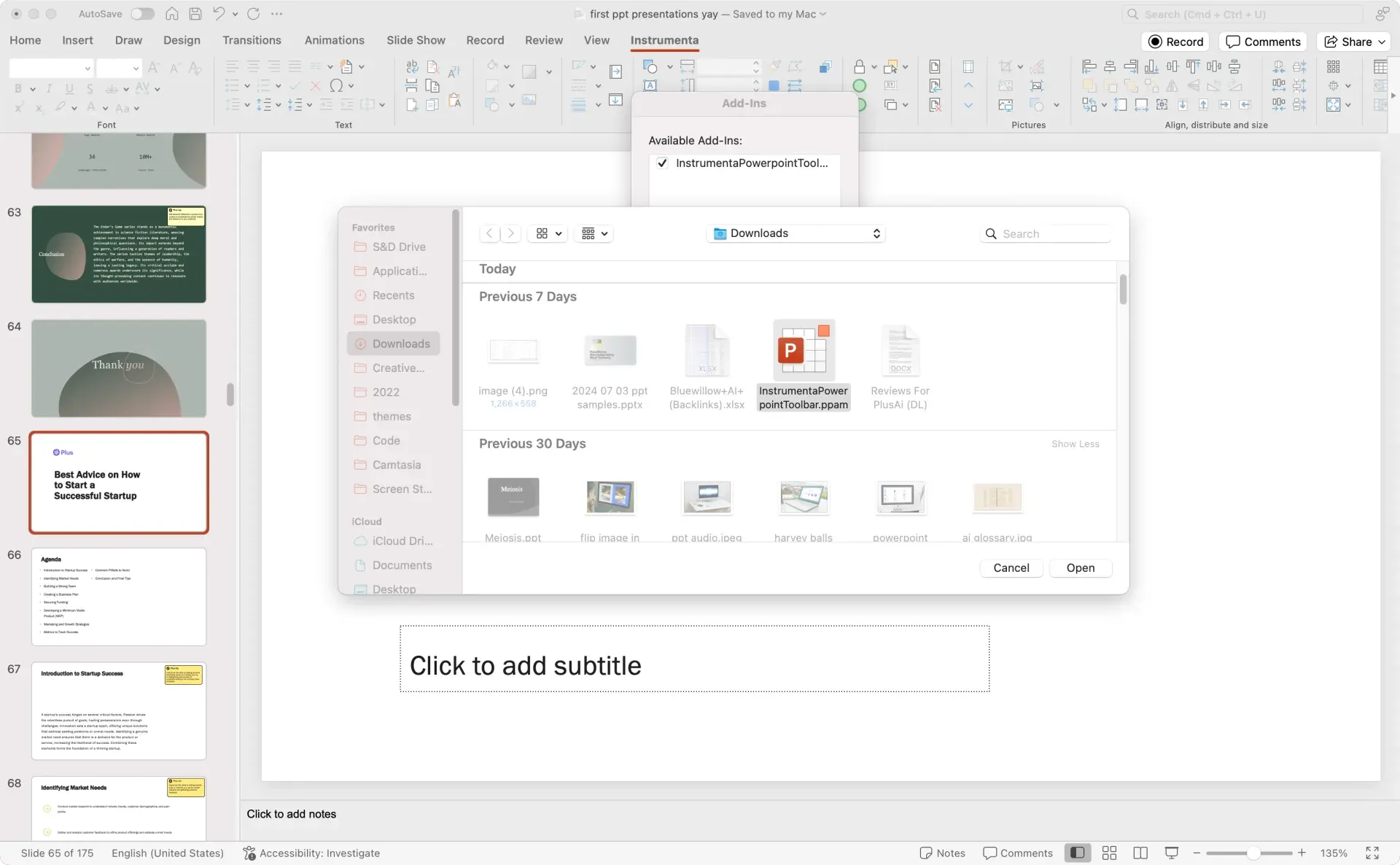
Load the add-in in PowerPoint
Open PowerPoint, click Tools or Options, click Add-ins, and select the macro file.
- 3
Try out your new macros
Mouse-over each button to learn more and set your favorites as "alt" keyboard shortcuts.
PowerPoint macro features
-
Font
Save time by accessing fonts, font size, and formatting in one easy-to-access menu.
-
Text
Select text alignment options and add symbols without navigating through multiple menu clicks.
-
Shapes
Format, manipulate, and swap shapes using a set of easy-to-access buttons.
-
Pictures
Add, compress, and crop pictures, set transparent color, and more from one menu.
-
Layout
Use advanced macros for aligning, sizing, distributing, and organizing shapes on the page.
-
Tables
Create tables with easy to click buttons to add rows, set gaps, format tables, align text, and more.
-
Export
Collaborate faster with buttons to save selected slides or email selected slides as PDF.
-
Paste and insert
Add content like emojis, Harvey balls, stars, QR codes, or saved slides from a slide library.
-
Advanced
Set custom settings, open toolbars, remove animations, and more.
常见问题解答
Where can I download the BCG macros for PowerPoint?
Several consulting firms, including BCG, have a set of custom PowerPoint macros to help speed up the process of making presentations. While these are typically proprietary to the individual firms, you can install an open source PowerPoint macro tool like Instrumenta instead. Instrumenta offers all of the same functionality as the BCG macros in an open package. Here is the link to download it. You can follow the instructions at the top of the page to install it.
Can you run macros in PowerPoint?
Yes, macros are a great way to quickly manipulate text, objects, and shapes in your PowerPoint presentations. Many advanced PowerPoint users like to have a specialized "macro" toolbar that gives them quick access to these types of commands.
How can I record a macro in PowerPoint?
Enable the Developer Tab, click Record Macro, and then record your actions. You will be able to edit the VBA code afterwards to customize your macro.